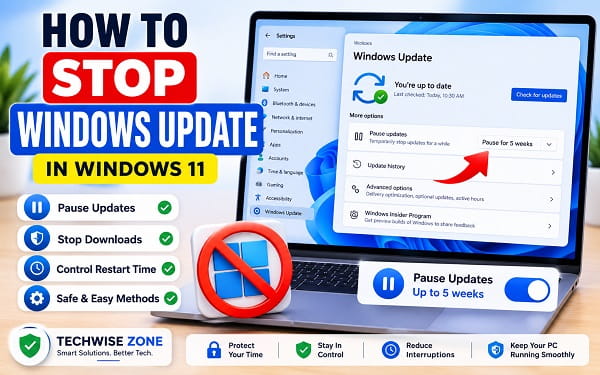
Windows Update can become frustrating when a large download starts at the wrong time, a new driver causes problems, or Windows keeps asking for a restart while you are working. The safest way to stop Windows Update is usually not to disable the update system permanently. Windows 11 already includes controls for pausing updates, delaying restarts, reducing optional update delivery, and managing update behavior more carefully.
The right method depends on what you actually want to stop. You may want to pause future updates, stop a download that is already in progress, prevent an automatic restart, avoid early optional updates, limit downloads on a capped connection, or stop Windows from immediately replacing a driver.
Those are different problems, and they should not all be solved by disabling the Windows Update service.
Microsoft currently allows Windows 11 users to pause updates to a specific date for up to 35 days. Once the pause ends, Windows resumes checking for and installing updates. That makes the built-in pause control the best starting point for most people.
1. Pause Windows Update From Settings
Open:
Settings > Windows Update
Find:
Pause updates
On current Windows 11 builds, choose Pick a date or the available pause control and select when updates should resume.
Microsoft currently allows the pause end date to be up to 35 days from the current date.
While updates are paused:
- New updates are not downloaded or installed
- Updates that require a restart are postponed
- Windows does not automatically restart to complete those updates
- You can resume updates manually before the pause expires
Microsoft also says that when updates are already in progress and you pause Windows Update, those in-progress updates are canceled.
For Microsoft’s current behavior, see Pause updates in Windows.
Resume Windows Update
Open:
Settings > Windows Update
Select:
Resume updates
Windows will check for available updates again.
2. Stop a Windows Update That Is Currently Downloading
The easiest supported method is to use the Windows Update pause control.
Open:
Settings > Windows Update
Choose a pause end date.
Microsoft’s current Windows 11 documentation states that if updates are in progress when you pause updates, those updates are canceled.
That makes pausing the better first choice than immediately opening Services or Command Prompt.
What if the Update Is Already Installing?
Do not force the computer off while Windows is actively installing an update or showing messages such as:
- Working on updates
- Installing updates
- Updates are underway
- Do not turn off your computer
Interrupting installation can leave Windows in an incomplete state.
If the update has already reached the installation or restart stage, let Windows complete the process whenever possible. If the installed update later causes problems, uninstalling or rolling it back is safer than cutting power during installation.
3. Stop Windows Update From Restarting at the Wrong Time
Sometimes the real problem is the restart rather than the update.
Open:
Settings > Windows Update > Advanced options > Active hours
Choose:
- Automatically, so Windows learns when you normally use the PC
- Manually, so you choose your working hours
Windows uses Active hours to reduce automatic update restarts while you are using the computer.
This is the better solution when Windows Update is installing normally but you do not want a restart interrupting work.
4. Schedule the Restart
When Windows says a restart is required, look for the restart scheduling option in:
Settings > Windows Update
Choose a time when the computer can restart safely.
This is useful when:
- The update has already installed
- You need to finish work first
- You do not need to pause future updates
- You want to avoid an unexpected restart
Once an update is already staged for restart, scheduling the restart is usually cleaner than trying to reverse the update process.
5. Turn Off “Get the Latest Updates as Soon as They’re Available”
Windows 11 includes:
Get the latest updates as soon as they’re available
This controls how quickly your PC receives additional non-security updates, fixes, features, and improvements.
Open:
Settings > Windows Update
Turn this setting off if you prefer a more conservative update schedule.
Turning it off does not stop regular security updates.
This is useful when you want fewer early optional changes without pausing security updates completely.
6. Use a Metered Connection to Reduce Update Downloads
A metered connection tells Windows that network usage should be limited.
For Wi-Fi:
- Open Settings.
- Select Network & internet.
- Select Wi-Fi.
- Select the connected network.
- Turn on Metered connection.
For Ethernet, open the Ethernet network properties and look for the same option.
Then check:
Settings > Windows Update > Advanced options
If you are trying to limit downloads, make sure Download updates over metered connections is not enabled.
This is useful when:
- You are using mobile hotspot data
- Your internet plan has a strict cap
- You are travelling
- You temporarily need to reduce large downloads
A metered connection is not a reliable permanent Windows Update block.
7. Stop the Windows Update Service Temporarily
Windows Update uses a service called:
Windows Update
Its internal service name is:
wuauserv
You can stop it temporarily for troubleshooting.
Press:
Windows + R
Type:
services.mscPress Enter.
Find Windows Update, right-click it, and select Stop.
To start it again, right-click Windows Update and choose Start.
Windows may restart update-related services automatically later. Treat this as temporary service control, not a permanent policy.
8. Stop Windows Update With Command Prompt
Open Command Prompt as administrator.
Run:
net stop wuauservTo start the service again:
net start wuauservIf Windows says the service cannot be stopped because an update operation is too far along, do not repeatedly force the process. Allow the update to complete or use the supported pause control before the next update cycle.
9. Stop Windows Update With PowerShell
Open Windows Terminal (Admin) or PowerShell as administrator.
Run:
Stop-Service -Name wuauserv -ForceTo start it again:
Start-Service -Name wuauservCheck the service state with:
Get-Service -Name wuauservStopping this service does not create a reliable permanent update block because Windows Update uses several components and orchestration services.
10. Why I Do Not Recommend Permanently Disabling Windows Update
Many tutorials suggest disabling the Windows Update service indefinitely.
I do not recommend that as the normal solution.
Windows Update delivers:
- Security fixes
- Reliability fixes
- Hardware compatibility improvements
- Servicing updates
- Defender-related platform updates
- Feature fixes
If your goal is control, use:
- Pause updates
- Active hours
- Group Policy where available
- Optional update controls
- Driver-specific update controls
Those methods are more predictable and easier to reverse.
11. Control Automatic Updates With Group Policy on Windows 11 Pro
Windows 11 Pro, Enterprise, and managed business systems provide more policy control than Windows 11 Home.
Press:
Windows + R
Type:
gpedit.mscPress Enter.
Navigate to:
Computer Configuration > Administrative Templates > Windows Components > Windows Update
Microsoft documents Windows Update client policies under this area.
Depending on your Windows build and policy templates, update settings may be grouped under sections such as:
- Manage end user experience
- Windows Update for Business
- Manage updates offered from Windows Update
One important policy is:
Configure Automatic Updates
This allows administrators to control how update download and installation behaves.
For Microsoft’s current policy documentation, see Configure Windows Update client policies via Group Policy.
Do not randomly enable every Windows Update policy. Policies can conflict with Intune, domain settings, Windows Autopatch, or WSUS.
12. Windows 11 Home Does Not Normally Include Local Group Policy Editor
If gpedit.msc does not open, you may be using Windows 11 Home.
Do not install random Group Policy packages from unknown websites.
Windows 11 Home users can still use:
- Pause updates
- Active hours
- Metered connection
- Restart scheduling
- Optional update controls
- Windows Update troubleshooting
For most home PCs, those built-in controls are enough.
13. Stop Windows Update From Immediately Replacing a Driver
Windows Update can install hardware drivers.
That is useful until a newer graphics, audio, Wi-Fi, or other driver causes problems.
If you have just rolled back a driver, pause Windows Update temporarily while you confirm the older driver is stable.
TechWise Zone already covers this workflow in How to Roll Back an NVIDIA Driver on Windows 11.
Microsoft also provides a policy named:
Do not include drivers with Windows Updates
This is useful mainly when you deliberately manage drivers yourself.
Do not block every driver update permanently because one driver caused a problem.
14. Pause Updates Before Testing an Older Driver
A practical workflow is:
- Roll back the bad driver.
- Restart Windows.
- Open Settings > Windows Update.
- Pause updates temporarily.
- Test the older driver.
- Confirm stability.
- Resume updates when ready.
This is useful for NVIDIA, AMD, audio, Wi-Fi, Bluetooth, and laptop display driver problems.
15. Stop Optional Updates Without Stopping Security Updates
Open:
Settings > Windows Update > Advanced options > Optional updates
Optional updates can include:
- Drivers
- Preview releases
- Non-security fixes
You do not need to install every optional update immediately.
Keep Get the latest updates as soon as they’re available turned off if you prefer to wait for non-security changes.
This is often enough for users who want fewer surprises without disabling the update system.
16. Stop a Windows 11 Feature Update Temporarily
A major feature update is different from a normal monthly quality update.
If Windows is preparing a large version upgrade and you are not ready:
- Open Settings > Windows Update.
- Pause updates.
- Choose an appropriate end date.
- Back up important files.
- Check compatibility before resuming.
Managed Windows editions can also defer or target feature-update versions through Windows Update policies.
17. Do Not Interrupt Windows During the Restart Stage
One of the riskiest times to stop Windows Update is when the computer is already applying changes during restart.
Do not deliberately:
- Hold the power button
- Unplug the computer
- Remove a laptop battery
- Force repeated restarts
Stopping an update is best done before installation reaches that stage.
18. What to Do if Windows Update Appears Stuck
An update sitting at the same percentage for a while is not always frozen.
Windows may be:
- Preparing files
- Installing drivers
- Migrating settings
- Cleaning old components
Give the system adequate time.
If Windows boots but Update repeatedly fails, run:
Settings > System > Troubleshoot > Other troubleshooters > Windows Update > Run
If you encounter a specific error such as 0x80004005, TechWise Zone’s 0x80004005 Error Windows 11: How to Fix It covers the Windows Update troubleshooting path for that code.
19. Uninstall a Bad Windows Update That Is Already Installed
Stopping future updates does not remove an update that has already installed.
Open:
Settings > Windows Update > Update history > Uninstall updates
Find the relevant update.
Select Uninstall if Windows allows it.
Not every update can be removed.
Security updates should only be removed when there is a confirmed serious compatibility or stability problem because uninstalling them can expose the PC to vulnerabilities that the update was designed to fix.
20. Uninstall an Update From Windows Recovery
If Windows no longer boots normally after an update, Windows Recovery Environment can provide an Uninstall Updates option.
Choose:
Troubleshoot > Advanced options > Uninstall Updates
If you need help entering recovery or troubleshooting startup problems, How to Boot Windows 11 in Safe Mode explains several supported routes.
21. Stop Windows Update From Using Too Much Data
If bandwidth is the problem, you do not necessarily need to stop updates completely.
Use a metered connection and review:
Settings > Windows Update > Advanced options > Delivery Optimization
Delivery Optimization controls how update content is obtained and shared.
Reducing bandwidth is often better than blocking security updates.
22. Pause Windows Update While Traveling
When using expensive or limited mobile data:
- Set the connection as metered.
- Pause Windows Update.
- Make sure Download updates over metered connections is off.
- Resume updates after returning to a normal connection.
This protects your data allowance without permanently changing Windows Update.
23. Pause Updates Before an Important Presentation or Deadline
Before a period when interruptions would be costly:
- Open Settings > Windows Update.
- Pause updates.
- Configure Active hours.
- Restart manually beforehand if a restart is already pending.
Resume updates after the event.
24. Stop Preview Updates
Optional preview updates are not the same as normal monthly security updates.
If you do not want early optional changes:
- Do not manually install Optional updates
- Keep Get the latest updates as soon as they’re available off
- Avoid preview packages unless you need a specific fix
Windows will still receive normal security updates.
25. Windows Update on Work or School PCs
A managed computer may show:
Some settings are managed by your organization
Update behavior may be controlled by:
- Group Policy
- Microsoft Intune
- Windows Autopatch
- WSUS
- Other enterprise management systems
Do not try to bypass those controls. Contact the IT administrator if an update interferes with business-critical work.
26. Windows 10 and Windows 11 Upgrades
Normal free Windows 10 support ended on October 14, 2025.
If you still use Windows 10 on compatible hardware, moving to Windows 11 is now the normal long-term path.
TechWise Zone’s How to Upgrade From Windows 10 to Windows 11 covers the supported upgrade methods and compatibility checks.
For Windows 11, use pause controls or managed target-version policies instead of outdated Windows 10 registry hacks.
27. Why Registry Hacks Should Come Last
Many registry-based Windows Update tweaks online were created for older Windows versions.
Microsoft’s own restart-policy documentation warns that registry configuration can conflict with Group Policy or MDM.
Use Settings and supported policies first.
A registry change is rarely justified simply to pause updates for a few days.
28. How to Stop Windows Update for One Week
Open:
Settings > Windows Update
Choose a pause end date about one week away.
You can resume earlier whenever you want.
29. How to Stop Windows Update for a Month
Open Windows Update and choose a pause end date within the supported period.
Microsoft currently allows a pause date up to 35 days from today.
The pause is temporary. Updates resume when it expires.
30. How to Stop Windows Update Download
For an update currently downloading:
- Open Settings > Windows Update.
- Pause updates.
- Confirm the Windows Update page shows the paused state.
Microsoft says in-progress updates are canceled when the pause is applied.
If the update is already installing, do not force the computer off.
31. How to Stop Windows Update Service
Command Prompt:
net stop wuauservPowerShell:
Stop-Service -Name wuauserv -ForceStart it again afterward:
net start wuauservor:
Start-Service -Name wuauservUse this for temporary troubleshooting, not as a permanent security-update strategy.
32. How to Stop Automatic Windows Update
For most home users, the practical approach is:
- Pause updates when necessary.
- Turn off early optional-update delivery.
- Configure Active hours.
- Use a metered connection when bandwidth matters.
- Resume updates regularly.
For Windows 11 Pro or managed devices, use Group Policy when you need administrative control.
33. How to Stop Windows Update From Restarting
Open:
Settings > Windows Update > Advanced options > Active hours
Set your working hours.
When restart scheduling is available, choose a time outside those hours.
This is preferable to permanently disabling Windows Update just because restarts are inconvenient.
34. How to Stop Windows Update Permanently
There is no method I recommend for permanently blocking all Windows security updates on an ordinary internet-connected Windows 11 PC.
You can temporarily pause updates or use supported administrative policies to control when they are offered and installed.
If one particular update or driver causes trouble, target that problem rather than disabling the entire update mechanism.
Frequently Asked Questions
Can I completely stop Windows Update?
You can pause and manage Windows Update, but Windows 11 is designed to resume updates so the PC keeps receiving security and reliability fixes. For most users, pausing is safer than trying to disable the update system permanently.
How long can I pause Windows 11 updates?
Microsoft currently allows updates to be paused to a chosen date up to 35 days from the current date on the latest Windows 11 pause experience.
Does pausing Windows Update stop a download already in progress?
Microsoft’s current documentation says that if updates are in progress when you pause updates, those updates are canceled.
Can I stop Windows Update from restarting my PC?
Yes. Use Active hours and restart scheduling. Windows tries to perform update restarts outside your normal working period.
Can I stop Windows Update using Command Prompt?
Yes. An administrator can temporarily stop the Windows Update service with:
net stop wuauservStart it again with:
net start wuauservCan I disable Windows Update with PowerShell?
You can temporarily stop the service:
Stop-Service -Name wuauserv -ForceCheck it with:
Get-Service -Name wuauservWindows may restart update components later.
Does Windows 11 Home have Group Policy Editor?
Windows 11 Home normally does not include Local Group Policy Editor. Use Windows Update Settings, Active hours, metered connections, and other built-in controls instead.
Will a metered connection stop every Windows update?
No. Metered connections reduce automatic data usage, but some important updates can still be downloaded. Use the Windows Update pause control when you explicitly need a pause.
Does turning off “Get the latest updates as soon as they’re available” stop security updates?
No. That setting affects additional non-security updates, features, fixes, and improvements. Regular security updates continue.
Is it safe to turn off a PC during a Windows update?
Do not deliberately cut power while Windows is actively installing an update. Interrupting installation can leave Windows components in an incomplete state.
What should I do if an update breaks my PC?
If Windows still boots, check Settings > Windows Update > Update history > Uninstall updates. For startup failures, Windows Recovery Environment can provide an Uninstall Updates option. Driver-specific problems may also be solved by rolling back the affected driver.
Use the Least Disruptive Update Control That Solves the Problem
Stopping Windows Update does not have to mean permanently disabling it.
For most Windows 11 users, the safest order is:
- Pause updates when you need a temporary break.
- Set Active hours when restart timing is the real problem.
- Turn off Get the latest updates as soon as they’re available when you prefer a conservative update schedule.
- Use a metered connection when bandwidth is limited.
- Stop
wuauservonly for temporary troubleshooting. - Use Group Policy on Windows 11 Pro or managed systems when you need administrative control.
- If a bad update is already installed, uninstall or roll back that specific update instead of disabling Windows Update indefinitely.
That keeps the PC under your control without unnecessarily giving up the security fixes Windows Update is designed to deliver.
