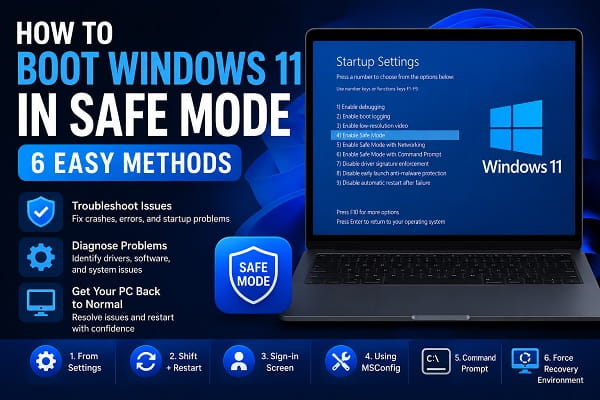
Safe Mode is one of the most useful troubleshooting features in Windows 11. When your computer refuses to boot normally, crashes repeatedly, freezes after an update, or experiences driver and software problems, Safe Mode starts Windows with only the essential drivers and services needed to run the operating system.
By loading only the core components, Safe Mode makes it much easier to identify whether the problem is caused by a third-party application, faulty driver, malware, or Windows itself.
Whether you’re trying to uninstall a problematic program, remove a stubborn virus, update a faulty driver, or diagnose startup issues, knowing how to boot Windows 11 into Safe Mode can save you from performing a complete system reset.
In this guide, you’ll learn six reliable ways to start Windows 11 in Safe Mode, how to leave Safe Mode afterward, and what to do if your PC won’t boot into Safe Mode.
What Is Safe Mode in Windows 11?
Safe Mode is a special startup mode that launches Windows 11 with only the drivers, services, and system files required for basic operation.
Unlike a normal startup, Safe Mode disables:
- Most third-party applications.
- Startup programs.
- Optional Windows services.
- Advanced graphics drivers.
- Non-essential hardware drivers.
This creates a simplified Windows environment that’s ideal for troubleshooting system problems.
When Should You Boot into Safe Mode?
Safe Mode is recommended when Windows behaves unexpectedly or refuses to work normally.
Common situations include:
- Windows keeps restarting.
- Blue Screen (BSOD) errors.
- Driver installation failures.
- Malware infections.
- Windows updates causing problems.
- Programs crashing immediately after startup.
- Black screen after login.
- Slow boot performance.
- Windows freezing.
- Startup repair failures.
If your computer is experiencing any of these problems, Safe Mode is often the first troubleshooting step.
Safe Mode Options Explained
Windows 11 provides three Safe Mode options.
Safe Mode
Loads only the essential Windows drivers and services.
Best for:
- Removing problematic software.
- Basic troubleshooting.
- Diagnosing Windows errors.
Safe Mode with Networking
Includes networking drivers so you can access the internet.
Best for:
- Downloading updated drivers.
- Running online antivirus scans.
- Accessing cloud files.
- Researching solutions online.
Safe Mode with Command Prompt
Starts Windows with Command Prompt instead of the normal desktop interface.
Best for:
- Advanced troubleshooting.
- Running repair commands.
- IT administrators.
- System recovery.
Most users should choose the standard Safe Mode unless internet access is required.
Method 1: Boot into Safe Mode from Settings
This is the easiest method if Windows 11 still starts normally.
Follow these steps:
- Press Windows + I to open Settings.
- Click System.
- Select Recovery.
- Under Advanced startup, click Restart now.
- Click Restart now again to confirm.
- Wait for Windows Recovery Environment (WinRE) to open.
- Select Troubleshoot.
- Click Advanced options.
- Choose Startup Settings.
- Click Restart.
- After the PC restarts, press:
- 4 or F4 for Safe Mode.
- 5 or F5 for Safe Mode with Networking.
- 6 or F6 for Safe Mode with Command Prompt.
Windows will restart directly into Safe Mode.
If Windows fails to load properly before you can access these settings, How to Reinstall Windows 11 (Step-by-Step Guide) explains additional recovery options that can help repair startup problems without immediately erasing your files.
Method 2: Boot into Safe Mode Using Shift + Restart
This method is much faster and works from the desktop or Start menu.
Steps:
- Click the Start button.
- Select the Power icon.
- Hold the Shift key.
- Click Restart while still holding Shift.
- Release the key after Windows enters the Recovery Environment.
- Navigate to:
- Troubleshoot
- Advanced options
- Startup Settings
- Restart
- Press F4, F5, or F6 depending on the Safe Mode option you want.
This is one of the quickest ways to access Safe Mode when Windows is still responsive.
Method 3: Boot into Safe Mode from the Sign-in Screen
If you can’t access the desktop but can reach the Windows login screen, you can still enter Safe Mode.
Here’s how:
- On the sign-in screen, click the Power icon.
- Hold the Shift key.
- Select Restart.
- Continue holding Shift until the Recovery Environment appears.
- Click:
- Troubleshoot
- Advanced options
- Startup Settings
- Click Restart.
- Press F4, F5, or F6.
This method is particularly useful when Windows loads to the login screen but won’t let you sign in.
Method 4: Boot into Safe Mode Using System Configuration (MSConfig)
If Windows starts normally and you expect to use Safe Mode multiple times while troubleshooting, you can configure your PC to boot directly into Safe Mode.
Follow these steps:
- Press Windows + R to open the Run dialog box.
- Type msconfig and press Enter.
- Open the Boot tab.
- Under Boot options, check Safe boot.
- Choose one of the following:
- Minimal – Standard Safe Mode.
- Alternate shell – Safe Mode with Command Prompt.
- Network – Safe Mode with Networking.
- Click Apply.
- Click OK.
- Restart your computer.
Windows 11 will automatically boot into Safe Mode every time until you disable the Safe boot option.
Method 5: Boot into Safe Mode Using Command Prompt
Advanced users can also access Safe Mode using the Command Prompt.
Here’s how:
- Open Command Prompt as Administrator.
- Run the following command:
shutdown /r /o /f /t 0- Press Enter.
Your computer will restart into the Windows Recovery Environment.
Next:
- Select Troubleshoot.
- Click Advanced options.
- Choose Startup Settings.
- Click Restart.
- Press F4, F5, or F6.
This method is useful when you prefer command-line tools or need to automate troubleshooting.
Method 6: Force Windows Recovery Environment
If Windows won’t boot at all, you can force it into the Windows Recovery Environment.
To do this:
- Turn on your computer.
- As soon as the Windows logo appears, press and hold the Power button until the PC shuts down.
- Repeat this process three times.
- On the fourth startup, Windows should automatically launch Automatic Repair.
- Select Advanced options.
- Click Troubleshoot.
- Select Startup Settings.
- Click Restart.
- Press F4, F5, or F6.
This is often the best method when Windows refuses to start normally.
If you’re unable to access the recovery environment even after several attempts, How to Open BIOS in Windows 11 (Step-by-Step Guide) explains how to access your computer’s firmware settings, which can help when troubleshooting boot-related problems.
How to Exit Safe Mode in Windows 11
Leaving Safe Mode is usually very simple.
If you entered Safe Mode using the Startup Settings menu:
- Save your work.
- Restart your computer.
Windows will boot normally.
If you enabled Safe Mode using MSConfig:
- Press Windows + R.
- Type msconfig.
- Press Enter.
- Open the Boot tab.
- Uncheck Safe boot.
- Click Apply.
- Click OK.
- Restart your PC.
Your computer will return to normal startup.
What If Windows Won’t Boot into Safe Mode?
Sometimes Windows may fail to enter Safe Mode due to damaged system files, corrupted boot data, or hardware problems.
Try these solutions:
Restart Your Computer
A simple restart may resolve temporary startup glitches.
Disconnect External Devices
Remove unnecessary USB devices, printers, external drives, and docking stations before trying again.
Run Startup Repair
Boot into the Windows Recovery Environment and select:
Troubleshoot → Advanced Options → Startup Repair
Windows will attempt to repair startup problems automatically.
Check for Corrupted System Files
Open Command Prompt and run:
sfc /scannowAfter the scan finishes, restart your computer.
Repair Windows Image
If the problem persists, run:
DISM /Online /Cleanup-Image /RestoreHealthThis command repairs damaged Windows system images that may prevent Safe Mode from working properly.
Reinstall Windows
If none of the troubleshooting methods work and Windows continues failing to boot correctly, reinstalling the operating system may be the best solution.
How to Reinstall Windows 11 (Step-by-Step Guide) walks you through the process while explaining how to protect your personal files whenever possible.
Common Safe Mode Problems
Safe Mode Keeps Restarting
This usually happens when Safe boot remains enabled in MSConfig.
Open System Configuration, clear the Safe boot option, and restart your PC.
Keyboard or Mouse Doesn’t Work
Some wireless devices may not load their drivers in Safe Mode.
Try:
- Using a wired keyboard or mouse.
- Connecting to another USB port.
- Restarting into Safe Mode with Networking.
No Internet in Safe Mode
If you need internet access, choose Safe Mode with Networking instead of the standard Safe Mode.
Windows Looks Different
Don’t worry.
Safe Mode uses a basic display driver with lower resolution and limited visual effects. This is completely normal.
How to Tell if You’re in Safe Mode
After Windows starts in Safe Mode, you can confirm it by looking for these signs:
- The words “Safe Mode” appear in all four corners of the screen.
- The desktop background is black.
- The screen resolution may be lower than normal.
- Only essential Windows drivers and services are running.
- Some features and applications may not be available.
If you see these indicators, your PC has successfully started in Safe Mode and is ready for troubleshooting.
Frequently Asked Questions
What does Safe Mode do in Windows 11?
Safe Mode starts Windows with only the essential drivers and services needed to run the operating system. This makes it easier to troubleshoot software, driver, and startup problems.
Is Safe Mode safe to use?
Yes. Safe Mode is a built-in Windows feature and is completely safe. It doesn’t delete your files or change your personal data.
Which Safe Mode option should I choose?
For most users, Safe Mode (Minimal) is the best choice. If you need internet access to download drivers or search for solutions, choose Safe Mode with Networking.
Can I install drivers in Safe Mode?
Yes, although some hardware installers may require a normal Windows startup. If you’re installing trusted unsigned drivers, How to Disable Driver Signature Enforcement in Windows 11 explains how to temporarily bypass Windows’ driver verification.
Why won’t Windows boot into Safe Mode?
Possible causes include corrupted system files, damaged boot records, faulty hardware, or incorrect startup settings. Using Windows Recovery Environment or Startup Repair usually resolves the problem.
Will Safe Mode remove viruses?
Not by itself. However, Safe Mode can make it easier to remove malware because many malicious programs don’t start when Windows is running in Safe Mode.
Booting Windows 11 into Safe Mode is one of the most effective ways to diagnose and fix startup problems, driver conflicts, and software issues. Whether your computer won’t start normally, keeps crashing, or behaves unexpectedly after an update, Safe Mode provides a clean environment for troubleshooting. Once you’ve resolved the issue, simply restart your computer or disable Safe boot if you enabled it through MSConfig to return to the normal Windows experience.
