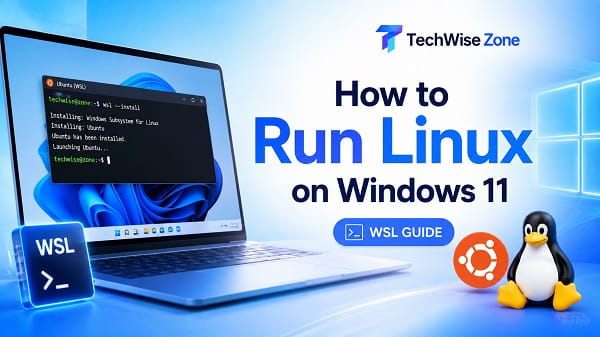
If you are wondering how can I run Linux on Windows, the easiest option for most Windows 11 users is Windows Subsystem for Linux, usually called WSL.
WSL lets you install a Linux distribution such as Ubuntu, Debian, Kali Linux, or openSUSE and use Linux commands directly from Windows without replacing Windows or setting up a traditional dual-boot system.
For most people, I recommend starting with WSL 2. It gives you a real Linux kernel inside a lightweight managed environment, supports modern Linux tools and system calls, and works well for development, scripting, command-line utilities, package managers, and many server-side tools.
You can install WSL on a current Windows 11 PC with one command:
wsl --installThat command installs WSL and Ubuntu by default. After restarting Windows, you can finish setting up your Linux username and password and begin using Linux alongside Windows.
WSL is not the only way to run Linux on a Windows PC, though. You can also use a virtual machine, dual boot Windows and Linux, or boot Linux from a USB drive. I will explain each option so you can choose the one that fits what you want to do.
What Is the Best Way to Run Linux on Windows?
For most Windows 11 users, the best options are:
- WSL 2 if you want Linux tools and a terminal without leaving Windows
- A virtual machine if you want a complete Linux desktop in its own window
- Dual boot if you want Linux to run directly on the hardware with maximum access to the PC
- A live USB if you only want to test Linux without installing it
If you are learning Linux commands, developing software, using Git, running Python, working with Linux servers, or experimenting with Linux packages, WSL is usually the easiest place to start.
If you want Linux to completely replace Windows while you are using it, dual boot or a virtual machine may be a better fit.
What Is Windows Subsystem for Linux?
Windows Subsystem for Linux is a Microsoft feature that allows Linux distributions to run inside Windows.
With WSL, you can use:
- Bash
- Linux package managers
- SSH
- Git
- Python
- Node.js
- GCC and other compilers
- Linux shell tools
- Linux services
- Development environments
- Many graphical Linux applications
You do not need to remove Windows.
You also do not need to create a normal full-size virtual machine manually.
Microsoft describes WSL as a way to run a GNU/Linux environment directly on Windows without the overhead of a traditional VM or dual-boot setup.
WSL 1 vs WSL 2
There are two WSL architectures:
- WSL 1
- WSL 2
For a new installation, I recommend WSL 2 unless you have a specific reason to use WSL 1.
WSL 2 uses a real Linux kernel inside a lightweight managed virtual machine. Microsoft says WSL 2 provides full system-call compatibility and improved Linux file-system performance compared with WSL 1.
WSL 2 is also the default for new Linux distribution installations.
When WSL 1 Can Still Be Useful
WSL 1 can sometimes be useful if you frequently access Windows files from Linux and need certain cross-file-system performance characteristics.
For most new users, however, WSL 2 is the better choice because it has broader Linux compatibility.
Requirements for Running WSL on Windows 11
A current Windows 11 PC normally supports the simplified WSL installation process.
You will need:
- Windows 11
- Administrator access for installation
- An internet connection
- Hardware virtualization support for WSL 2
- Enough free storage for your chosen Linux distribution
Most modern Windows 11 computers support virtualization.
To check:
- Press Ctrl + Shift + Esc.
- Open Task Manager.
- Select Performance.
- Click CPU.
- Look for Virtualization.
If it says:
Enabled
you are ready.
If it says:
Disabled
you may need to enable Intel Virtualization Technology, AMD SVM, AMD-V, or a similarly named option in BIOS or UEFI.
If you need help entering your firmware settings, see How to Open BIOS in Windows 11.
Method 1: Install Linux on Windows 11 With WSL
This is the method I recommend for most readers.
Step 1: Open Terminal as Administrator
Right-click the Start button.
Choose:
Terminal (Admin)
If Windows asks for permission, select Yes.
You can also use PowerShell as administrator.
Step 2: Run the WSL Install Command
Enter:
wsl --installPress Enter.
On a system where WSL has not already been installed, this command installs the components needed for WSL and installs Ubuntu as the default Linux distribution.
Let Windows finish.
You may be asked to restart your computer.
Step 3: Restart Windows
Restart the PC when prompted.
After Windows starts again, Ubuntu or the installed Linux distribution should continue its first-time setup.
Step 4: Create Your Linux Username and Password
The first time the distribution starts, Linux asks you to create a user account.
Choose a Linux username.
Then enter a password.
Do not be surprised if nothing appears on the screen while you type the password. Linux terminals commonly hide password characters completely.
Press Enter when finished.
You now have a working Linux environment inside Windows.
How to Start Linux After Installing WSL
There are several ways to launch it.
From the Start Menu
Open Start and search for:
Ubuntuor the name of the distribution you installed.
Open it like any other Windows application.
From Windows Terminal
Open Windows Terminal.
Use the dropdown menu to select Ubuntu or another installed Linux distribution.
From Command Prompt or PowerShell
Run:
wslThis starts the default WSL distribution.
To return to Windows, type:
exitHow to See Which Linux Distributions Are Available
You do not have to use Ubuntu.
Open Windows Terminal or PowerShell and run:
wsl --list --onlineor:
wsl -l -oWindows displays the Linux distributions currently available through WSL.
The exact list can change, so using the command is better than relying on an old list from a tutorial.
How to Install a Different Linux Distribution
Once you know the distribution name, use:
wsl --install -d DistroNameFor example:
wsl --install -d DebianThe valid distribution names are shown by:
wsl --list --onlineYou can install more than one distribution on the same Windows PC.
That means you can use Ubuntu for one project and Debian or another distribution for something else.
How to Check Your Installed Linux Distributions
Run:
wsl --list --verboseor:
wsl -l -vWindows shows:
- Distribution name
- Whether it is running
- WSL version
A typical result may show Ubuntu using version 2.
How to Make WSL 2 the Default
New WSL installations normally use WSL 2 by default.
If you want to set it explicitly, run:
wsl --set-default-version 2Any new supported Linux distributions you install will then use WSL 2 by default.
How to Convert an Existing WSL 1 Distribution to WSL 2
First check the distribution name:
wsl -l -vThen run:
wsl --set-version Ubuntu 2Replace:
Ubuntuwith the actual distribution name.
The conversion can take some time depending on the size of the Linux file system.
How to Update WSL
Microsoft updates WSL separately from ordinary Linux packages.
Run:
wsl --updateThen you can restart the WSL environment with:
wsl --shutdownOpen your Linux distribution again.
This can help if WSL has stopped behaving normally or if you need current WSL features.
How to Update Ubuntu or Debian Inside WSL
WSL itself and the Linux distribution are separate.
For Ubuntu or Debian, update Linux packages inside the Linux terminal with:
sudo apt updateThen:
sudo apt upgradeYou will be asked for your Linux password.
These commands update packages inside the Linux distribution. They do not update Windows itself.
How to Access Windows Files From Linux
WSL automatically makes Windows drives accessible under:
/mnt/For example, your Windows C drive normally appears at:
/mnt/cTo open it:
cd /mnt/cYour Windows user folder may be available at a path similar to:
/mnt/c/Users/YourNameReplace YourName with your actual Windows profile folder.
This makes it easy to use Linux tools on files stored in Windows.
How to Access Linux Files From Windows
You can also reach the Linux file system from Windows.
Open File Explorer and enter:
\\wsl$in the address bar.
You should see your installed Linux distributions.
Modern Windows versions can also show Linux in the File Explorer navigation area.
Be careful when changing Linux system files from Windows applications. Ordinary project and personal files are fine, but avoid manually editing Linux internal data files unless you understand the consequences.
Can You Run Linux GUI Apps With WSL?
Yes.
Current WSL versions on Windows 11 support Linux graphical applications.
That means some Linux GUI apps can open alongside normal Windows applications.
You can install a Linux GUI package inside your distribution and start it from the Linux terminal.
This is useful if you need a specific Linux application but do not want a full Linux desktop virtual machine.
WSL GUI support does not turn your Windows desktop into GNOME, KDE, or another complete Linux desktop environment. It is mainly designed to integrate Linux applications into Windows.
If you specifically want the complete Linux desktop experience, a virtual machine may be easier.
Can WSL Run systemd?
Yes.
Current WSL supports systemd, the service manager used by many Linux distributions.
This allows software that expects standard Linux service management to work more naturally.
You can check whether systemd is running with Linux commands such as:
systemctl statusSupport can vary depending on the distribution and configuration.
Can You Install Software Normally in WSL?
Yes.
For Ubuntu and Debian distributions, you can use apt.
For example:
sudo apt update
sudo apt install git
or:
sudo apt install python3The package manager depends on your Linux distribution.
Commands designed for Ubuntu may not work on Fedora, openSUSE, Arch, or other distributions.
Can You Run Windows Programs From Linux?
WSL has strong Windows and Linux interoperability.
From a WSL terminal, you can launch some Windows programs by including their .exe name.
For example:
notepad.exeThis opens Windows Notepad.
You can also use Windows paths and Linux commands together in many workflows.
This interoperability is one of the main reasons WSL is so convenient compared with running Linux on a completely separate computer.
Method 2: Run Linux in a Virtual Machine
WSL is not always the right choice.
If you want a complete Linux desktop with its own virtual hardware, install Linux in a virtual machine.
Popular virtualization platforms include:
- Hyper-V
- VirtualBox
- VMware products
You install Linux into a virtual disk instead of modifying your real Windows drive.
Advantages of a Virtual Machine
A VM gives you:
- A full Linux desktop
- Strong isolation from Windows
- Easy snapshots in supported virtualization software
- The ability to experiment without changing physical partitions
- A more traditional Linux machine experience
Disadvantages
A VM usually needs more:
- RAM
- CPU resources
- Disk space
It can also feel slower than running Linux directly on the hardware.
If your main goal is using Linux terminal tools, WSL is generally simpler.
Method 3: Dual Boot Windows and Linux
Dual boot means installing Linux alongside Windows on the physical drive.
When the PC starts, you choose which operating system to load.
This gives Linux direct hardware access and is useful for people who want the full Linux experience.
Advantages
- Linux runs directly on hardware
- Full Linux desktop
- Better fit for workloads that need direct hardware access
- No Windows overhead while Linux is running
Disadvantages
- Requires repartitioning the drive
- Installation carries more risk
- You must reboot to switch operating systems
- Bootloader problems can occur
- Disk encryption and Secure Boot need careful consideration
- Backups are essential
I do not recommend dual boot as the first method for someone who only wants to learn Linux commands.
Start with WSL or a virtual machine.
Method 4: Try Linux From a Bootable USB
A live Linux USB lets you boot Linux without permanently installing it.
You download a Linux ISO and use a USB-writing tool to create bootable media.
Then restart the computer and boot from the USB.
This is useful for:
- Testing Linux
- Checking hardware compatibility
- Trying the desktop
- Troubleshooting a PC
- Recovering files
Performance may be slower than a normal installation, and changes may disappear after shutdown unless you configure persistent storage.
WSL vs Virtual Machine vs Dual Boot
For a beginner, I would choose based on what you actually want to do.
Choose WSL If:
- You want Linux commands
- You are learning programming
- You need Git, Bash, Python, Node.js, or Linux tools
- You want Linux without leaving Windows
- You do not need a complete Linux desktop
Choose a Virtual Machine If:
- You want to learn the Linux desktop
- You want a separate Linux environment
- You need easy snapshots
- You want to test distributions safely
Choose Dual Boot If:
- You want Linux as a full operating system
- You want direct access to the hardware
- You are comfortable managing partitions and boot settings
Choose a Live USB If:
- You only want to test Linux
- You do not want to install anything yet
- You want a troubleshooting or recovery environment
What If wsl –install Does Not Work?
If:
wsl --installfails, first install current Windows updates.
Then restart Windows and try again from an administrator Terminal.
If WSL is already partly installed, Microsoft notes that running wsl --install may show the WSL help text instead of installing a distribution.
In that situation, run:
wsl --list --onlineThen install a distribution directly:
wsl --install -d UbuntuIf the download remains stuck at 0%, Microsoft also documents the --web-download option:
wsl --install --web-download -d UbuntuWhat If WSL Says Virtualization Is Disabled?
Open Task Manager and check:
Performance > CPU > Virtualization
If it says Disabled, enter BIOS or UEFI and enable the virtualization feature.
The setting might be called:
- Intel Virtualization Technology
- VT-x
- AMD-V
- SVM
- SVM Mode
The wording varies by motherboard.
If you are not sure which firmware version your PC currently uses, see How to Check BIOS Version on Windows 11 before considering any firmware update.
Do not update BIOS just because virtualization is disabled. In most cases, you only need to enable the existing setting.
What If WSL Stops Responding?
From PowerShell or Windows Terminal, run:
wsl --shutdownThen open your Linux distribution again.
You can also update WSL:
wsl --updateRestart Windows if necessary.
If one Linux distribution is the problem while another still works, focus on that specific distribution instead of reinstalling all of WSL.
How to Stop a Running WSL Distribution
List your distributions:
wsl -l -vTo stop all WSL distributions and the WSL virtual environment:
wsl --shutdownTo stop one distribution:
wsl --terminate UbuntuReplace Ubuntu with the correct distribution name.
How to Remove a Linux Distribution From WSL
Be careful with this command.
To unregister a distribution:
wsl --unregister UbuntuThis removes the distribution and deletes its Linux data.
Back up important Linux files first.
If you only want to stop Linux temporarily, use:
wsl --shutdowninstead.
Is WSL Safe to Use?
For normal development, learning, and Linux tooling, WSL is a legitimate Microsoft-supported Windows feature.
You should still follow normal security practices:
- Update Windows
- Update WSL
- Update your Linux packages
- Install Linux software from trusted repositories
- Do not run unknown shell commands as root
- Back up important project files
- Protect sensitive SSH keys and credentials
Linux malware and unsafe commands do not become harmless simply because Linux is running inside Windows.
Does WSL Replace Windows?
No.
WSL runs alongside Windows.
You can keep using normal Windows apps while your Linux terminal and Linux tools are running.
Closing the Linux terminal does not switch your computer to another operating system.
That is very different from dual boot.
Does WSL Need Windows 11 Pro?
No.
You do not need Windows 11 Pro just to use WSL.
WSL can run on supported Windows editions, including normal Windows 11 Home systems.
Do not upgrade to Pro solely because you want to install Ubuntu through WSL.
Does WSL Use a Lot of RAM?
WSL 2 uses memory while the Linux virtual environment is running.
How much depends on the programs you run.
A simple Bash terminal uses far fewer resources than:
- Databases
- Development servers
- Containers
- Compilers
- Large development environments
When you are finished, you can stop WSL completely with:
wsl --shutdownIs WSL the Same as a Virtual Machine?
Not exactly.
WSL 2 does use virtualization and a real Linux kernel in a lightweight managed VM, but Microsoft handles much of the setup automatically.
A traditional VM gives you more explicit control over virtual hardware, RAM, virtual disks, and a full guest desktop.
WSL is designed for tighter Windows and Linux integration.
Can I Learn Linux With WSL?
Yes.
WSL is a good environment for learning:
- Linux commands
- Bash
- File permissions
- Package management
- SSH
- Git
- Programming
- Basic Linux services
- Shell scripting
If your goal is learning Linux system administration at a deeper level, I would eventually add a full Linux virtual machine as well. That exposes more of the normal boot process, networking configuration, desktop environment, and system administration experience.
Frequently Asked Questions
How can I run Linux on Windows?
The easiest method on Windows 11 is Windows Subsystem for Linux. Open Terminal as administrator and run:
wsl --installRestart Windows and complete the Linux account setup.
How do I run Linux on Windows 11?
Install WSL with:
wsl --installThe default installation includes Ubuntu. You can install other distributions with wsl --install -d DistroName.
Can I run Ubuntu on Windows 11?
Yes.
Ubuntu is the default Linux distribution installed by the standard:
wsl --installcommand.
Do I need a virtual machine to run Linux on Windows?
No.
WSL lets you run a Linux environment directly alongside Windows without manually setting up a traditional virtual machine.
Can I have Windows and Linux at the same time?
Yes.
With WSL or a virtual machine, Windows and Linux can run at the same time.
With dual boot, only one operating system runs at a time.
Which Linux distribution should I use with WSL?
Ubuntu is a good choice for beginners because it has extensive documentation and is the default WSL distribution.
Debian is another strong option.
Use:
wsl --list --onlineto see the distributions currently available.
Is WSL 2 better than WSL 1?
For most users, yes.
WSL 2 provides a real Linux kernel, broader system-call compatibility, and strong Linux file-system performance.
How do I know whether I have WSL 1 or WSL 2?
Run:
wsl -l -vThe Version column shows whether each distribution is using WSL 1 or WSL 2.
Can I install more than one Linux distribution?
Yes.
You can install multiple distributions and choose which one to run.
Will installing WSL delete my Windows files?
No.
Installing WSL does not replace Windows or format your Windows drive.
As with any system change, keeping backups of important files is still sensible.
Can I uninstall Linux later?
Yes.
You can remove an individual WSL distribution, but unregistering it deletes that distribution’s Linux files.
Can I run Linux apps with a graphical interface?
Yes.
Current WSL versions on Windows 11 support many Linux GUI applications.
Can I use Linux files from Windows?
Yes.
File Explorer can access WSL distributions, including through:
\\wsl$Can Linux in WSL access my C drive?
Yes.
The Windows C drive is normally mounted at:
/mnt/cinside WSL.
WSL Is the Easiest Starting Point for Most Windows Users
If your goal is simply to learn how to run Linux on Windows, I recommend starting with WSL before repartitioning a drive or setting up a full virtual machine.
On a current Windows 11 system, installation is usually as simple as opening an administrator Terminal and running:
wsl --installYou can then use Ubuntu or another Linux distribution alongside your normal Windows applications.
A virtual machine makes more sense when you want a complete Linux desktop in an isolated environment, while dual boot is better for users who want Linux running directly on the hardware. For learning Linux commands, development, scripting, and everyday Linux tools, WSL is usually the simplest and safest place to begin.
