
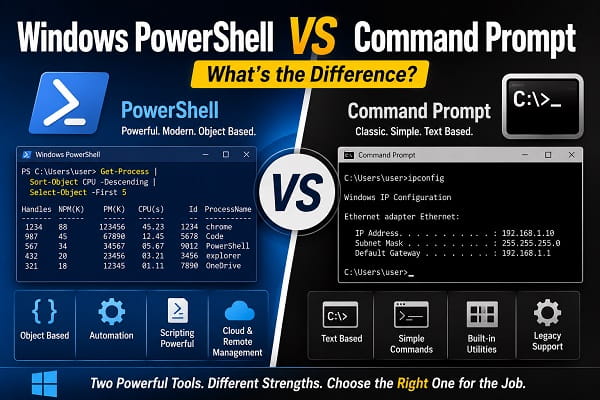
PowerShell and Command Prompt are both command-line shells available on Windows 11, but they were designed for different levels of work. Command Prompt is a lightweight shell for traditional Windows commands and batch files, while PowerShell is a modern automation environment built for structured data, scripting, system administration, and managing services across local and remote computers.
For quick tasks such as checking an IP address, running ping, launching sfc, or executing an old batch file, Command Prompt is often enough. For filtering processes, managing services, renaming hundreds of files, working with JSON or CSV data, or automating a repeated Windows task, PowerShell is usually the better choice.
The biggest difference is not their appearance. It is how they process information. Command Prompt normally works with text, while PowerShell cmdlets return structured objects with properties and methods. That object-based design makes PowerShell far more capable when a task involves filtering, sorting, exporting, changing, or passing information between commands.
This updated comparison explains how PowerShell and Command Prompt differ, which commands work in both, how Windows Terminal relates to them, and which shell you should use for different Windows tasks.
Quick Comparison
| Feature | Command Prompt | PowerShell |
|---|---|---|
| Executable | cmd.exe |
powershell.exe or pwsh.exe |
| Main purpose | Traditional Windows commands and batch files | Automation, administration, scripting, and configuration |
| Primary data model | Text | .NET objects for PowerShell cmdlets |
| Script format | .bat and .cmd |
.ps1 |
| Pipeline | Passes text between compatible commands | Passes structured objects between cmdlets |
| Variables | %NAME% and set |
$name and $env:NAME |
| Error handling | Exit codes and ERRORLEVEL |
Exceptions, error records, try, catch, and exit codes |
| Remote management | Limited and tool-specific | Built-in remoting and management modules |
| Cross-platform | Windows only | PowerShell 7 runs on Windows, Linux, and macOS |
| Learning curve | Easier for basic commands | More advanced, but more consistent for automation |
| Best for | Quick troubleshooting and legacy scripts | Repeated tasks, reporting, administration, and complex workflows |
Neither tool is automatically better for every situation. Command Prompt remains useful, while PowerShell offers much more room to automate and scale a task.
What Is Command Prompt?
Command Prompt, commonly called CMD, is the traditional Windows command shell started by cmd.exe.
It provides an interactive environment where you can enter Windows commands, navigate folders, manage files, set environment variables, and run batch scripts.
Common examples include:
ipconfig
ping google.com
sfc /scannow
chkdsk C: /scan
dir
copy report.txt D:\Backup\
Command Prompt supports both standalone Windows programs and commands built directly into the shell. It can also read instructions from .bat and .cmd files.
Microsoft continues to include CMD in Windows 11. Its current cmd.exe documentation also directs users who need stronger scripting and automation capabilities toward PowerShell.
What Is PowerShell?
PowerShell is a command shell, scripting language, and automation platform built on .NET.
PowerShell commands designed specifically for the shell are called cmdlets. Their names usually follow a Verb-Noun pattern, such as:
Get-Process
Get-Service
Get-ChildItem
Set-Service
Restart-Computer
PowerShell can also run many traditional Windows command-line programs, scripts, and executables.
Microsoft describes PowerShell as a cross-platform automation solution that includes a command-line shell, a scripting language, and a configuration-management framework. PowerShell 7 runs on Windows, Linux, and macOS.
PowerShell is commonly used to:
- Manage Windows services and processes
- Automate repetitive file operations
- Collect system information
- Configure computers
- Administer Microsoft 365 and Azure
- Work with Active Directory
- Call REST APIs
- Read and export JSON, CSV, and XML
- Manage several computers remotely
- Build deployment and maintenance scripts
- Create repeatable administrative workflows
It is useful to advanced home users as well as administrators and developers.
What Is Windows Terminal?
Windows Terminal is not another replacement for CMD or PowerShell.
It is a terminal application that can host different command-line shells in tabs or panes. You can open:
- Command Prompt
- Windows PowerShell
- PowerShell 7
- Windows Subsystem for Linux distributions
- Azure Cloud Shell
- Other installed command-line tools
Think of Windows Terminal as the window and PowerShell or Command Prompt as the shell running inside that window.
Changing the default Windows Terminal profile changes which shell opens first. It does not convert CMD into PowerShell or make their syntax identical.
Windows PowerShell and PowerShell 7 Are Not Identical
Windows 11 can have two PowerShell editions.
Windows PowerShell 5.1
Windows PowerShell 5.1 is the older Windows-only edition installed with Windows. It runs through:
powershell.exe
It is built on the Windows .NET Framework and remains important for older management modules and legacy administrative tools.
PowerShell 7
PowerShell 7 is the newer cross-platform edition. It runs through:
pwsh.exe
It must normally be installed separately. Microsoft recommends WinGet for many Windows client installations.
PowerShell 7 installs alongside Windows PowerShell 5.1 rather than replacing it. Some older modules still require Windows PowerShell, while modern scripts and cross-platform work often benefit from PowerShell 7.
To see which edition is open, run:
$PSVersionTable
Check PSEdition and PSVersion.
Do not assume every script that works in Windows PowerShell will behave identically in PowerShell 7. Module compatibility, .NET dependencies, and command behavior can differ.
The Biggest Difference: Text Versus Objects
Command Prompt normally receives and produces text. When one command sends output to another, the receiving program must interpret the characters correctly.
For example:
tasklist | findstr chrome
tasklist produces text, and findstr searches that text for the word chrome.
PowerShell cmdlets pass objects through the pipeline.
For example:
Get-Process | Where-Object ProcessName -Like '*chrome*'
Get-Process returns process objects. Each object contains properties such as:
- Process name
- Process ID
- CPU time
- Memory use
- Start time
- Handles
- Path, when accessible
PowerShell can filter a property directly:
Get-Process |
    Where-Object CPU -gt 100 |
    Sort-Object CPU -Descending |
    Select-Object ProcessName, Id, CPU
There is no need to identify a fixed column position in a text table.
PowerShell Does Not Turn Every Program’s Output Into Objects
This distinction is important.
PowerShell cmdlets usually return objects. Native programs such as ipconfig.exe, ping.exe, and many third-party tools normally return text streams even when launched from PowerShell.
For example:
ipconfig
still displays the text produced by ipconfig.exe.
PowerShell can process that text, but it does not automatically become the same kind of structured object returned by a cmdlet.
How Pipelines Differ
Both shells use the pipe character:
|
but the data passed through the pipe is different.
Command Prompt Pipeline
ipconfig | findstr IPv4
The first command sends text to the second.
PowerShell Pipeline
Get-Service |
    Where-Object Status -EQ 'Running' |
    Sort-Object DisplayName |
    Select-Object Name, DisplayName
PowerShell sends service objects from one cmdlet to another. The receiving cmdlet can use properties without parsing the displayed table.
This is one reason PowerShell scripts remain more reliable when display formatting changes.
Which Commands Work in Both?
Many Windows tools are separate executable programs and can run from either shell.
Examples include:
ipconfig.exe
ping.exe
tracert.exe
sfc.exe
chkdsk.exe
diskpart.exe
robocopy.exe
netstat.exe
shutdown.exe
winget.exe
You can usually type the command without .exe.
For example, both shells can run:
ipconfig
or:
sfc /scannow
If SFC returns a repair or protected-resource error, use Windows Resource Protection error for the appropriate DISM, disk, and system-file checks.
CMD Built-In Commands May Behave Differently in PowerShell
Some commands are built into cmd.exe rather than being separate programs.
Examples include:
dir
copy
del
set
if
for
echo
cd
PowerShell may recognize some of these names through aliases, but the command behind the name can be different.
For example:
dir
is normally an alias for:
Get-ChildItem
It is not CMD’s internal dir command.
Likewise:
del
is usually an alias for:
Remove-Item
PowerShell parameters and behavior do not necessarily match CMD switches.
A CMD command such as:
dir /a /s
will not behave as expected when PowerShell interprets dir as Get-ChildItem.
To run the exact CMD version from PowerShell, use:
cmd /c "dir /a /s"
The /c option tells CMD to run the quoted command and exit.
Can Command Prompt Run PowerShell Commands?
Command Prompt cannot interpret PowerShell cmdlets directly.
This will not work in CMD:
Get-Process
However, CMD can launch PowerShell and pass it a command:
powershell -Command "Get-Process"
For PowerShell 7:
pwsh -Command "Get-Process"
To run a PowerShell script:
powershell -File "C:\Scripts\Report.ps1"
or:
pwsh -File "C:\Scripts\Report.ps1"
The PowerShell executable interprets the command or script. CMD is only launching it.
PowerShell Aliases Can Be Helpful and Confusing
PowerShell includes aliases that resemble familiar CMD or Unix commands.
Examples include:
| Alias | PowerShell command |
|---|---|
dir |
Get-ChildItem |
ls |
Get-ChildItem |
copy |
Copy-Item |
cp |
Copy-Item |
del |
Remove-Item |
rm |
Remove-Item |
move |
Move-Item |
cat |
Get-Content |
cls |
Clear-Host |
Aliases make interactive use faster, but full cmdlet names are clearer in scripts and tutorials.
To identify what a name represents, run:
Get-Command dir
To list aliases:
Get-Alias
Do not assume an alias accepts the switches used by the CMD or Unix command with the same spelling.
Batch Files Versus PowerShell Scripts
Command Prompt scripts use:
.bat
.cmd
PowerShell scripts use:
.ps1
If you need to show extensions or rename a text file correctly, see how to change file type on Windows 11. Renaming a file does not automatically create valid batch or PowerShell code.
Batch Script Example
@echo off
for %%F in (*.log) do (
    echo Found %%F
)
pause
PowerShell Script Example
Get-ChildItem -File -Filter *.log |
    ForEach-Object {
        Write-Output "Found $($_.Name)"
    }
Batch scripting is useful for short legacy workflows. PowerShell provides stronger functions, modules, error handling, data types, help, and object processing for larger scripts.
Variables Are Different
Command Prompt Variables
Set a variable:
set NAME=Maureen
Read it:
echo %NAME%
Read an environment variable:
echo %USERPROFILE%
Inside some loops and scripts, delayed expansion may require:
!NAME!
PowerShell Variables
Set a variable:
$name = 'Maureen'
Read it:
$name
Read an environment variable:
$env:USERPROFILE
PowerShell variables can contain strings, numbers, arrays, hash tables, dates, process objects, service objects, and many other types.
File Commands Compared
List Files
Command Prompt:
dir
PowerShell:
Get-ChildItem
Change Folder
Both shells support:
cd C:\Users
In PowerShell, cd is an alias for Set-Location.
Create a Folder
Command Prompt:
mkdir Reports
PowerShell:
New-Item -ItemType Directory -Path Reports
PowerShell also accepts mkdir as an alias or function in common configurations.
Copy a File
Command Prompt:
copy report.txt D:\Backup\
PowerShell:
Copy-Item report.txt D:\Backup\
Delete a File
Command Prompt:
del report.txt
PowerShell:
Remove-Item report.txt
Rename Several Files
CMD can perform wildcard renaming:
ren *.txt *.bak
PowerShell provides more control:
Get-ChildItem -File -Filter *.txt |
    Rename-Item -NewName { $_.BaseName + '.bak' }
Add -WhatIf to preview a potentially destructive PowerShell change:
Get-ChildItem -File -Filter *.txt |
    Rename-Item -NewName { $_.BaseName + '.bak' } -WhatIf
Process and Service Management
Command Prompt can use tools such as:
tasklist
taskkill /PID 1234 /F
sc query
PowerShell provides object-based cmdlets:
Get-Process
Stop-Process -Id 1234
Get-Service
Restart-Service -Name Spooler
PowerShell can filter and act on several objects without manually parsing columns.
For example:
Get-Process |
    Where-Object WorkingSet64 -GT 1GB |
    Sort-Object WorkingSet64 -Descending
When File Explorer becomes unresponsive, restart File Explorer on Windows 11 covers Task Manager, CMD, and PowerShell methods.
Error Handling
Command Prompt primarily relies on exit codes and the ERRORLEVEL value.
Example:
robocopy C:\Data D:\Backup /E
if errorlevel 8 (
    echo The backup failed.
)
PowerShell supports exit codes for native programs, but cmdlets also produce error records and exceptions.
Example:
try {
    Copy-Item C:\Data D:\Backup -Recurse -ErrorAction Stop
}
catch {
    Write-Error "The backup failed: $($_.Exception.Message)"
}
PowerShell’s error handling is better suited to scripts that must react differently to several failure conditions.
Output and Reporting
CMD output is usually saved as text:
ipconfig /all > network-report.txt
PowerShell can save text:
Get-Service | Out-File services.txt
It can also export structured information:
Get-Service |
    Select-Object Name, DisplayName, Status |
    Export-Csv services.csv -NoTypeInformation
PowerShell includes built-in support for formats such as:
- CSV
- JSON
- XML
- CLIXML
Example:
Get-Process |
    Select-Object ProcessName, Id, CPU |
    ConvertTo-Json
This makes PowerShell useful for reports, APIs, dashboards, and data exchange between tools.
Automation and Repeated Tasks
Both shells can automate tasks, but PowerShell is designed for larger and more maintainable workflows.
PowerShell supports:
- Functions
- Modules
- Classes
- Parameters
- Objects
- Arrays and hash tables
- Error handling
- Script documentation
- Remote sessions
- Background jobs
- Parallel processing in supported versions
- Testing frameworks
- Package and module repositories
Command Prompt batch files can still be the better choice when:
- An old application expects a BAT file
- A deployment already uses stable batch scripts
- The task is only a few simple commands
- Maximum compatibility with older Windows versions is required
- You are wrapping a traditional command-line utility
Do not rewrite a reliable production batch file solely because PowerShell is newer. Replace it when the maintenance, reliability, or automation benefits justify the change.
Remote Management
Command Prompt has no equivalent to PowerShell’s complete remoting and module system.
CMD can launch remote-management tools, but the capability belongs to those tools rather than the CMD language itself.
PowerShell can create remote sessions and run commands on other configured computers:
Enter-PSSession -ComputerName PC-02
or:
Invoke-Command -ComputerName PC-02 -ScriptBlock {
    Get-Service
}
Remote management requires correct authentication, network configuration, permissions, and PowerShell remoting settings.
Do not enable remote access merely to test a command on a single home computer.
Security and Administrator Rights
Neither shell is automatically safe or dangerous.
The effect of a command depends on:
- The command itself
- The current user’s permissions
- Whether the shell is elevated
- The files and services being changed
- Security controls on the computer
- The source of a script
PowerShell’s greater automation capability means a harmful script can make many changes quickly. A batch file can also delete files, create accounts, change permissions, or download malicious software.
Only run a shell as administrator when the task requires elevation.
PowerShell also uses execution policies for script-loading conditions. When a trusted script is blocked, Running Scripts Is Disabled on This System explains CurrentUser, Process, Group Policy, RemoteSigned, and safer one-file options.
Execution policy is not antivirus protection. Review every script before running it.
Which Shell Is Faster?
Command Prompt usually starts faster and has less shell overhead. For a single simple command, that difference may be measurable but rarely important to the user.
PowerShell can take longer to start, especially when it loads profiles and modules. However, it can complete a complex task more efficiently because one object-based pipeline may replace several text-parsing steps or repeated manual commands.
The meaningful comparison is usually productivity and reliability, not the number of milliseconds required to open the shell.
Use CMD for a quick command when it already fits the task. Use PowerShell when its data handling or automation reduces the total work.
Which Shell Is Easier for Beginners?
Command Prompt has fewer concepts to learn for basic troubleshooting.
A beginner can quickly understand:
ipconfig
ping
dir
cd
sfc /scannow
PowerShell introduces cmdlets, objects, properties, pipelines, variables, scopes, modules, and script policies.
However, PowerShell’s naming convention can be easier to understand once you learn the pattern:
Get-Process
Stop-Process
Get-Service
Restart-Service
Get-ChildItem
Copy-Item
Remove-Item
PowerShell also provides discoverability:
Get-Help Get-Service
Get-Command *Service*
Get-Member
Users interested in Windows administration, cybersecurity, cloud services, development, or automation should learn PowerShell even if they begin with CMD.
When to Use Command Prompt
Command Prompt remains a sensible choice when you need to:
- Run a familiar Windows troubleshooting command
- Execute a BAT or CMD file
- Work with a legacy installation or recovery guide
- Use a program documented specifically for CMD syntax
- Run a short sequence of traditional commands
- Work in an environment where PowerShell is unavailable or restricted
- Maintain compatibility with an older workflow
Examples include:
ipconfig /flushdns
sfc /scannow
chkdsk C: /scan
robocopy C:\Source D:\Backup /E
These external tools can often run in PowerShell too, but following a CMD-specific guide in CMD avoids shell-parsing differences.
When to Use PowerShell
PowerShell is the stronger choice when you need to:
- Automate repeated work
- Filter and sort system data
- Manage services and processes
- Rename or organize many files
- Export reports
- Work with JSON, CSV, XML, or APIs
- Manage Microsoft 365, Azure, or Active Directory
- Run commands across several computers
- Build reusable functions and modules
- Use detailed error handling
- Combine several administrative steps safely
Example:
Get-Service |
    Where-Object StartType -EQ 'Automatic' |
    Where-Object Status -NE 'Running' |
    Select-Object Name, DisplayName, Status
This identifies automatic services that are not currently running without parsing a text table.
Common Myths
PowerShell Has Completely Replaced CMD
It has not.
CMD remains included in Windows 11 and is still required for batch files, shell-specific syntax, and some legacy workflows.
Microsoft recommends PowerShell for more advanced scripting and automation, but that does not make CMD unavailable.
Every CMD Command Works the Same in PowerShell
External executables often work in both. CMD built-ins and PowerShell aliases may use different syntax and behavior.
Use cmd /c when you need CMD to interpret a CMD-specific command line.
Windows Terminal Is PowerShell
Windows Terminal is a host application. A Terminal tab can run PowerShell, CMD, WSL, or another shell.
PowerShell Always Returns Objects
PowerShell cmdlets generally return objects. Native programs launched from PowerShell often return text or byte streams.
Command Prompt Cannot Automate Tasks
CMD supports batch files, variables, loops, conditions, command chaining, and exit codes. Its automation model is simply less powerful and less structured than PowerShell’s.
PowerShell Is Only for Administrators
Developers, data analysts, support technicians, testers, and everyday Windows users can use PowerShell for file management, reporting, software installation, backups, and personal automation.
How to Open CMD and PowerShell on Windows 11
Open Command Prompt
- Search for Command Prompt from Start.
- Press Windows + R, type
cmd, and press Enter. - Open Windows Terminal and select the Command Prompt profile.
- Type
cmdin File Explorer’s address bar to open it in the current folder.
Open Windows PowerShell
- Search for Windows PowerShell from Start.
- Press Windows + R, type
powershell, and press Enter. - Select Windows PowerShell in Windows Terminal.
- Type
powershellin File Explorer’s address bar.
Open PowerShell 7
- Install PowerShell 7 first.
- Search for PowerShell 7.
- Open its profile in Windows Terminal.
- Press Windows + R, type
pwsh, and press Enter.
Run as Administrator
Search for the shell, right-click it, and select Run as administrator.
Use elevation only when required. A normal shell can perform many tasks without unrestricted access to the system.
Frequently Asked Questions
Is PowerShell better than Command Prompt?
PowerShell is better for automation, structured data, administration, and complex scripts. Command Prompt is often simpler for quick traditional commands and batch files.
Is CMD still available in Windows 11?
Yes. Windows 11 still includes cmd.exe.
Does PowerShell replace Command Prompt?
PowerShell can replace CMD for many interactive and automation tasks, but CMD remains necessary for batch files and CMD-specific syntax.
Can PowerShell run CMD commands?
PowerShell can run external Windows tools such as ipconfig, ping, sfc, and robocopy. For CMD built-ins or syntax, use cmd /c "command".
Can CMD run PowerShell commands?
CMD can launch powershell.exe or pwsh.exe and pass it a command. CMD itself cannot interpret PowerShell cmdlets.
Is Windows Terminal the same as PowerShell?
No. Windows Terminal is an application that hosts shells. PowerShell is one of the shells it can run.
What is the difference between Windows PowerShell and PowerShell 7?
Windows PowerShell 5.1 is the older Windows-only edition included with Windows. PowerShell 7 is a newer cross-platform edition installed separately and run with pwsh.exe.
Why does dir /a fail in PowerShell?
In PowerShell, dir is usually an alias for Get-ChildItem, not CMD’s internal dir command. Run cmd /c "dir /a" or use the corresponding PowerShell parameters.
Are PowerShell commands case-sensitive?
PowerShell command names, parameter names, and most ordinary variable references are not case-sensitive on Windows. File systems and external tools can introduce their own behavior.
Can PowerShell damage Windows?
Yes, especially when commands run as administrator. CMD can also cause damage. Review commands and scripts before executing them.
Which should I learn first?
Learn a few essential CMD commands for troubleshooting, but prioritize PowerShell when you want to automate Windows or develop administration skills.
Are batch files obsolete?
No. Batch files remain useful for legacy compatibility and simple workflows. PowerShell is usually easier to maintain for complex automation.
Use Both Tools for What They Do Best
Command Prompt remains valuable for fast troubleshooting, traditional Windows utilities, and older batch workflows. PowerShell is the more capable environment for structured information, scripting, remote management, reporting, and repeatable administration.
You do not need to choose one and abandon the other. Learn the basic commands that work in CMD, then use PowerShell when a task requires filtering, automation, error handling, or several coordinated steps. Windows Terminal can keep both shells available in separate tabs, allowing you to use the right environment for each command.
