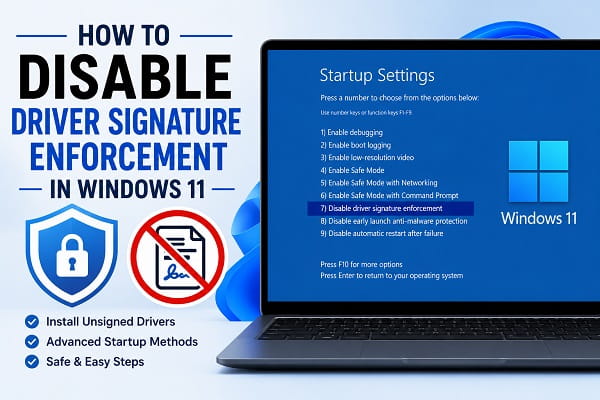
Windows 11 uses Driver Signature Enforcement, commonly shortened to DSE, to block kernel-level drivers that Windows cannot verify with an acceptable digital signature. That protection is important for security, but there are legitimate situations where you may need to install a trusted legacy, development, diagnostic, or specialist driver.
If you are searching for how to disable DSE in Windows, the safest method on Windows 11 is to use Advanced Startup > Startup Settings > Disable driver signature enforcement. This turns off Driver Signature Enforcement for one boot session only. After the next normal restart, Windows automatically restores the protection.
The quick path is:
Settings > System > Recovery > Advanced startup > Restart now > Troubleshoot > Advanced options > Startup Settings > Restart > 7 or F7
Use this temporary method before considering Test Mode or BCDEdit. Microsoft recommends Startup Settings as the lower-risk alternative to changing boot configuration directly.
Do not disable DSE simply because an unknown driver installer tells you to. First confirm that the driver comes from a trusted developer or hardware manufacturer and that it matches your Windows version and system architecture.
How to Disable DSE in Windows 11
DSE stands for Driver Signature Enforcement. To disable DSE temporarily in Windows 11:
- Save your work and close open programs.
- Press Windows + I to open Settings.
- Go to System > Recovery.
- Beside Advanced startup, select Restart now.
- After Windows enters the recovery environment, select Troubleshoot.
- Select Advanced options.
- Select Startup Settings.
- Select Restart.
- When the numbered startup options appear, press 7 or F7 for Disable driver signature enforcement.
- Sign in to Windows and install the trusted driver.
- Restart the PC normally when you are finished.
Microsoft’s current Windows Startup Settings documentation lists Disable Driver Signature Enforcement as startup option 7 and says it allows drivers with improper signatures to be installed.
The change is temporary. You do not need to run another command to turn DSE back on after using option 7. A normal restart restores Driver Signature Enforcement.
Before entering Advanced Startup
If Windows device encryption or BitLocker is enabled, make sure you can access your BitLocker recovery key before using recovery or firmware-related options. Microsoft notes that encrypted devices can require the recovery key when working in the Windows Recovery Environment.
For broader Windows recovery options, How to Boot Windows 11 in Safe Mode explains the same recovery environment and the other Startup Settings choices.
Quick steps to disable Driver Signature Enforcement
- Save your work and close open applications.
- Press Windows key + I to open Settings.
- Select System > Recovery.
- Find Advanced startup and select Restart now.
- Confirm the restart if prompted.
- Select Troubleshoot.
- Select Advanced options.
- Select Startup Settings.
- Select Restart.
- Press 7 or F7 for Disable driver signature enforcement.
- Sign in and install the trusted driver.
- Restart Windows normally when finished.
This process does not erase personal files, apps, or Windows settings. It changes driver-enforcement behavior for the current boot session only.
What is Driver Signature Enforcement?
Driver Signature Enforcement, often shortened to DSE, is a Windows security mechanism that checks kernel-mode drivers before allowing them to load. A valid digital signature helps Windows verify that a driver comes from an identifiable publisher and has not been altered after it was signed.
Driver signing is not just a warning displayed by an installer. Windows uses digital signatures to help verify both the integrity of a driver package and the identity of its publisher. Microsoft also requires kernel-mode drivers on modern 64-bit Windows systems to meet its signing policies. That is why disabling DSE should be limited to a known driver that you have a specific reason to trust.
Microsoft explains the underlying security model in its Windows driver signing documentation.
Unsigned does not automatically mean malicious. An old device manufacturer may have stopped maintaining a product, or a developer may be testing a new driver. However, Windows cannot establish the same level of trust for an unsigned or improperly signed package.
A faulty kernel driver can cause:
- Blue Screen errors
- Startup failure
- Security vulnerabilities
- Device conflicts
- Data corruption
- Random freezing or restarts
That is why disabling DSE should be a targeted troubleshooting step rather than a permanent performance tweak.
When might you need to disable DSE?
Temporary disabling may be reasonable when you are:
- Installing a legacy device whose manufacturer provides no current signed driver
- Testing a driver you developed or received from a known development team
- Using specialist laboratory, industrial, diagnostic, or accessibility hardware
- Troubleshooting a trusted driver package rejected because of its signature
- Recovering hardware long enough to migrate to a supported replacement
You normally should not disable it merely because a random download instructs you to do so. First look for a current signed driver through Windows Update and the hardware manufacturer’s official support page.
If Windows cannot identify a network device rather than rejecting its signature, follow Windows could not find a driver for your network adapter instead. That error usually requires the correct matching driver, not weaker signature enforcement.
When disabling DSE will not fix the driver
Turning off Driver Signature Enforcement does not make an incompatible driver compatible.
DSE is unlikely to solve the problem when:
- The driver was built for the wrong processor architecture
- A 32-bit driver is being used on an unsupported 64-bit configuration
- The hardware ID does not match the device
- The driver is corrupted
- The driver depends on an older Windows kernel behavior that Windows 11 no longer supports
- Memory Integrity or another Windows security feature blocks the driver for a separate compatibility reason
If Windows cannot locate the correct driver at all, install the matching manufacturer driver instead of weakening signature enforcement.
For graphics-driver problems, How to Reinstall NVIDIA Drivers on Windows 11 or 10 covers a safer reinstall workflow before DSE becomes relevant.
Before disabling Driver Signature Enforcement
Take a few precautions before restarting into Startup Settings.
Verify the driver source
Download drivers from the computer manufacturer, hardware manufacturer, Windows Update, or a known development project. Avoid generic driver-download sites, cracked driver packages, and installers shared through anonymous file hosts.
Right-click the downloaded file, select Properties, and check the Digital Signatures tab if present. Its absence does not prove malware, but it confirms that you need stronger evidence about the source.
Confirm compatibility
Check that the driver supports:
- Windows 11
- The correct 64-bit or Arm64 architecture
- The exact hardware model and revision
- The current Windows build where the manufacturer specifies one
Disabling DSE cannot make an incompatible Windows 7 or 32-bit driver work on a modern 64-bit Windows 11 system.
Create a restore point or backup
A temporary DSE change does not erase files, but the driver you install can make Windows unstable. Back up important data and create a restore point where System Protection is available.
Keep the replacement or removal instructions
Know how to uninstall the driver from Device Manager or Safe Mode before installing it. If Windows fails to boot afterward, this information can save time.
Method 1: Use Advanced Startup in Settings
This is the recommended method because it lasts only until the next restart.
- Open Settings with Windows key + I.
- Select System.
- Select Recovery.
- Under Recovery options, locate Advanced startup.
- Select Restart now.
- After the recovery screen appears, select Troubleshoot.
- Select Advanced options.
- Select Startup Settings.
- Select Restart.
- When the numbered list appears, press 7 or F7.
The wording beside option 7 should be Disable driver signature enforcement.
Windows will boot normally, but its signature enforcement is relaxed for that session. Sign in and install the driver before restarting again.
On some laptops, the function row controls brightness or media by default. Press 7 if F7 does not select the option, or use Fn + F7 only when the keyboard requires Fn for function-key input.
Method 2: Enter Advanced Startup from the power menu
Use this route when Settings is inconvenient but you can reach the Start menu or sign-in screen.
- Open Start > Power.
- Hold the Shift key.
- While holding Shift, select Restart.
- Continue with Troubleshoot > Advanced options > Startup Settings > Restart.
- Press 7 or F7.
You can also hold Shift while selecting Restart from the power menu on the Windows sign-in screen.
This reaches the same temporary setting as Method 1. It is an alternative route, not a separate type of DSE bypass.
How to Disable DSE From the Windows Sign-In Screen
You do not need to be fully signed into Windows to reach the DSE startup option.
- At the Windows sign-in screen, select the Power icon.
- Hold Shift on the keyboard.
- While holding Shift, select Restart.
- Choose Troubleshoot > Advanced options > Startup Settings.
- Select Restart.
- Press 7 or F7 for Disable driver signature enforcement.
This route is useful when a driver problem prevents you from reaching the desktop normally but Windows can still reach the sign-in screen.
If Windows cannot reach the normal sign-in screen at all, use the recovery options described in How to Boot Windows 11 in Safe Mode.
What to do after Windows starts
Install the trusted driver during the current session. The exact process depends on its format.
Run the manufacturer’s installer
If the driver comes as an EXE or MSI package, right-click it and select Run as administrator when appropriate. Follow the manufacturer’s instructions and note any warning Windows displays.
Install through Device Manager
If the package contains INF driver files:
- Extract the ZIP archive first.
- Right-click Start and select Device Manager.
- Locate the device under its normal category or Other devices.
- Right-click it and select Update driver.
- Select Browse my computer for drivers.
- Select the extracted driver folder.
- Keep Include subfolders enabled.
- Select Next.
Read every Windows warning. If the publisher or device name does not match what you expected, cancel the installation.
After confirming that the device works, restart the computer. The normal enforcement setting returns automatically.
Does restarting enable Driver Signature Enforcement again?
Yes, when you use Startup Settings. Option 7 applies only to the current boot.
You do not need a command to turn DSE back on after the temporary method. Select Restart from the power menu, allow Windows to boot normally, and the protection will be active again.
The installed unsigned driver may stop loading after that restart. This does not necessarily mean the installation failed. Windows is again enforcing its normal policy and may refuse to load the driver.
For long-term use, ask the developer or manufacturer for a properly signed Windows 11 driver. Repeating the temporary bypass at every boot is not a good permanent solution.
Test Mode is not the same as the F7 method
Many tutorials describe Test Mode as another way to “permanently disable DSE.” That description is misleading.
The BCDEdit TESTSIGNING option is intended for driver development and testing. It allows Windows to load test-signed kernel-mode code. Microsoft’s current documentation also states that when Memory Integrity, also called HVCI, is enabled, the binary must still be test-signed with a certificate. A completely unsigned binary is not supported simply because Test Mode is on.
Use Test Mode only if you are developing or testing a driver and understand test certificates, Secure Boot, and boot configuration. Ordinary users installing one legacy driver should use Startup Settings instead.
How developers enable Test Mode
Open Windows Terminal or Command Prompt as administrator and run:
bcdedit /set testsigning on
Restart the computer for the change to take effect. A Test Mode watermark normally appears on the desktop.
To turn Test Mode off, run an elevated terminal and enter:
bcdedit /set testsigning off
Restart again.
BCDEdit modifies boot configuration data. Microsoft warns that incorrectly changing some BCDEdit options can make a computer unbootable. Copy commands exactly and avoid combining unrelated commands from old tutorials.
“The value is protected by Secure Boot policy”
If bcdedit /set testsigning on returns this message, Secure Boot is preventing the boot configuration change. That behavior is expected.
Do not disable Secure Boot merely to remove one driver-installation warning. Secure Boot protects the startup process, and changing it can affect device encryption, BitLocker recovery, organizational compliance, and other security features.
For a one-time driver installation, return to the recommended Advanced Startup method. If you are a developer who genuinely requires Test Mode, consult your PC manufacturer and Microsoft’s driver-testing documentation before changing firmware security.
If firmware access is necessary, how to open BIOS in Windows 11 explains the supported routes. Save or confirm access to your BitLocker recovery key before changing Secure Boot or other boot settings.
“Access is denied” or “boot configuration data store could not be opened”
These BCDEdit errors usually mean the terminal does not have administrator rights or the boot configuration is protected or unavailable.
- Select Start and search for Terminal or Command Prompt.
- Right-click it and choose Run as administrator.
- Approve the User Account Control prompt.
- Run only the documented command again.
If the problem continues, stop rather than editing random BCD entries. The temporary Startup Settings method does not require a permanent BCDEdit change.
The unsigned driver still will not install
Disabling DSE removes only one possible obstacle. Windows may still reject the package for other reasons.
The driver does not match the hardware
Windows compares the device’s hardware ID with the IDs supported by the driver’s INF file. A driver for a similar product can still be incompatible.
In Device Manager, open the device’s Properties > Details, select Hardware Ids, and compare the value with the manufacturer’s documentation.
Memory Integrity blocks the driver
Windows Security may report that a driver cannot load because of a security setting. Open:
Windows Security > Device security > Core isolation details
Memory Integrity protects kernel code and can reject incompatible drivers. Do not turn it off automatically. Check for a newer compatible driver first.
If Windows identifies a specific incompatible driver, use that filename to find an update or uninstall the related device or software. Disabling one security feature does not guarantee that all other kernel protections will accept the driver.
The architecture is wrong
An x86 driver cannot be used as a native x64 or Arm64 kernel driver. Download the version built for the installed architecture.
Open Settings > System > About and check System type.
The package is damaged
Download it again from the official source and extract the archive fully. Do not install an INF directly from inside a ZIP file.
The driver is too old for Windows 11
Some legacy drivers rely on components or signing practices Windows 11 no longer supports. Temporary DSE disabling cannot restore removed operating-system functionality.
Common error messages related to driver signatures
“Windows cannot verify the digital signature for the drivers required for this device”
Device Manager may show this as Code 52. The driver could be unsigned, modified, damaged, or incompatible. Download a current official driver before attempting a bypass.
“The third-party INF does not contain digital signature information”
The driver package does not provide signature information Windows accepts. Confirm that it came from a trusted developer and matches the device. Use the temporary Startup Settings method only when you understand the risk.
“A driver cannot load on this device”
This message often involves Memory Integrity or another compatibility block rather than the standard one-session DSE setting. Use the driver name shown by Windows to find an update.
“Windows found drivers for your device but encountered an error”
Open Device Manager and record the error code. Signature enforcement is only one possible cause; hardware mismatch, dependency problems, or a damaged package can produce a similar installation failure.
What if Startup Settings does not appear?
On the recovery screen, Startup Settings should normally be under Troubleshoot > Advanced options. If it is absent:
- Check for a See more recovery options link.
- Return to Windows and try Shift + Restart.
- Install pending Windows updates.
- Disconnect unnecessary external devices and try again.
- On a managed computer, ask the administrator whether recovery options are restricted.
Do not reinstall Windows solely because Startup Settings is missing. Confirm the recovery environment and organization policy first.
What if BitLocker asks for a recovery key?
Advanced startup or firmware-related changes can cause an encrypted PC to request its BitLocker recovery key. This is a security response, not proof that data has been erased.
Retrieve the key from the Microsoft account, work or school organization, printed copy, USB drive, or other location where it was saved. Do not continue making boot changes without access to the key.
Fix a Blue Screen after installing an unsigned driver
If Windows crashes after the installation, remove the new driver.
- Enter the Windows Recovery Environment.
- Select Troubleshoot > Advanced options > Startup Settings > Restart.
- Select the appropriate Safe Mode option.
- Open Device Manager.
- Locate the affected device.
- Select Properties > Driver > Roll Back Driver, if available, or choose Uninstall device.
- Restart normally.
If the driver installed software or services, uninstall its official application as well. Use System Restore from Advanced options if the computer remains unstable and a restore point is available.
How to check whether the temporary setting worked
The F7 method does not normally add a desktop watermark or a permanent Settings indicator. Practical confirmation comes from the current session:
- Windows reached the desktop after you selected option 7.
- The previously blocked trusted driver can proceed further in installation.
- Device Manager no longer shows the same signature error during that boot.
A Test Mode watermark confirms the separate TESTSIGNING configuration, not the temporary F7 method.
Do not assume DSE is off permanently just because a driver installed. Restarting after the Advanced Startup method restores enforcement.
Temporary disabling versus Test Mode
| Feature | Startup Settings option 7 | BCDEdit Test Mode |
|---|---|---|
| Intended use | One-time troubleshooting or installation | Driver development and test-signing |
| Duration | Current boot only | Until turned off with BCDEdit |
| Watermark | Normally no | Normally yes |
| Secure Boot change required | Usually no | TESTSIGNING change can be blocked by Secure Boot |
| Recommended for ordinary users | Yes, when genuinely necessary | No |
| Allows any unsigned driver under Memory Integrity | No guarantee | No; Microsoft requires test signing when HVCI is enabled |
Is it safe to disable Driver Signature Enforcement?
Temporary disabling is lower risk than leaving a boot configuration weakened, but the safety of the result depends on the driver you install.
Before proceeding, ask:
- Do I trust the publisher?
- Did I download it from an official source?
- Does it match this exact device?
- Is there a newer signed alternative?
- Can I remove it if Windows becomes unstable?
Do not install a driver that arrived unexpectedly, promises to bypass anti-cheat or security tools, requests antivirus exclusion, or has no identifiable developer.
Frequently asked questions
What is the fastest way to disable Driver Signature Enforcement in Windows 11?
Go to Settings > System > Recovery > Advanced startup > Restart now. Select Troubleshoot > Advanced options > Startup Settings > Restart, then press 7 or F7.
Does disabling DSE delete files?
No. The Startup Settings option does not erase files or applications. An unsafe driver can still crash Windows or damage data, so back up important files first.
How long does the F7 setting last?
It lasts for the current boot session. Driver Signature Enforcement returns after the next normal restart.
Can I disable DSE permanently?
Microsoft provides development settings such as TESTSIGNING, but they are not a safe permanent bypass for ordinary use. Test Mode expects test-signed code and can be restricted by Secure Boot and Memory Integrity.
Why does F7 not work?
Try the number 7, or use Fn + F7 if the keyboard requires Fn for function keys. Confirm that you reached Startup Settings rather than another recovery menu.
Can I install any Windows 10 driver after disabling DSE?
No. The driver must still match the hardware, system architecture, and Windows 11 kernel requirements. Signature enforcement is not a compatibility converter.
Why did the driver stop working after a restart?
The temporary DSE exception ended. Windows resumed its normal policy and may refuse to load the unsigned driver. Look for a properly signed version instead of disabling protection at every boot.
Is Test Mode the same as disabling Driver Signature Enforcement?
No. Test Mode is a developer configuration for loading test-signed kernel code. Startup option 7 temporarily relaxes enforcement for one boot.
Should I disable Secure Boot?
Not for an ordinary one-time driver installation. Use Startup Settings first. Disabling Secure Boot reduces startup protection and may trigger BitLocker recovery or violate organizational policy.
Does Memory Integrity affect unsigned drivers?
Yes. Memory Integrity adds kernel-code protection and can block drivers that temporary DSE disabling or Test Mode does not make acceptable. Update or replace the incompatible driver whenever possible.
What does DSE mean in Windows?
DSE means Driver Signature Enforcement. It is a Windows security mechanism that checks driver signatures before allowing certain kernel-level drivers to load.
How do I disable DSE in Windows 11?
Open Settings > System > Recovery > Advanced startup > Restart now, then select Troubleshoot > Advanced options > Startup Settings > Restart and press 7 or F7 for Disable driver signature enforcement.
Is disabling DSE permanent?
Not when you use the recommended Startup Settings method. The F7 option applies to the current boot session, and a normal restart restores Driver Signature Enforcement.
How do I turn DSE back on in Windows?
If you disabled DSE through Startup Settings option 7, simply restart Windows normally. You do not need a BCDEdit command to re-enable it.
Why is Disable Driver Signature Enforcement not working?
Possible reasons include an incompatible driver, Secure Boot or Memory Integrity restrictions, an incorrectly matched driver package, damaged driver files, or a driver that Windows 11 can no longer load even with temporary signature enforcement disabled.
Is disabling DSE the same as Test Mode?
No. Startup Settings option 7 temporarily disables Driver Signature Enforcement for one boot. Test Mode is a development configuration intended for test-signed kernel code and remains active until its boot configuration is changed.
Use the Temporary DSE Option First
For most people searching for how to disable DSE in Windows, the correct Windows 11 method is the temporary Startup Settings option.
Go to:
Settings > System > Recovery > Advanced startup > Restart now > Troubleshoot > Advanced options > Startup Settings > Restart > 7 or F7
Install only the trusted driver you actually need, then restart Windows normally. Driver Signature Enforcement returns automatically.
Use Test Mode, BCDEdit, Secure Boot changes, or other development-oriented configurations only when the driver developer or authoritative Microsoft documentation specifically requires them. If the driver still fails with DSE temporarily disabled, investigate compatibility, architecture, Memory Integrity, or the driver package itself rather than repeatedly weakening Windows security.
