
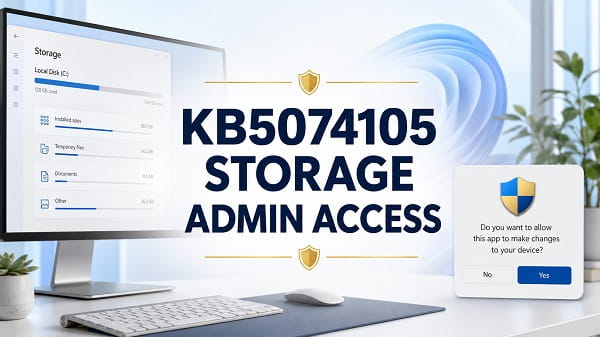
The Windows 11 KB5074105 Storage admin access prompt is an intentional security change, not normally a sign of malware or a damaged Settings app. KB5074105 initially made Windows display User Account Control when a user opened Settings > System > Storage, allowing only an administrator or someone with administrator credentials to continue.
Microsoft later refined the behaviour. On current Windows 11 builds that include the May 2026 storage change, the main Storage page opens normally and the UAC prompt appears when you select Temporary files. Computers that have not received the newer cumulative updates may still prompt immediately when Storage settings opens.
If the dialog is the normal Windows User Account Control request for Settings, an administrator can select Yes. A standard user must enter administrator credentials or ask the computer’s administrator for help. Disabling UAC or trying to bypass the prompt is not the recommended solution.
What Is Windows 11 KB5074105?
KB5074105 is a non-security preview cumulative update that Microsoft released on January 29, 2026, for:
- Windows 11 version 25H2, OS Build 26200.7705
- Windows 11 version 24H2, OS Build 26100.7705
Microsoft’s official KB5074105 release notes describe it as an optional non-security update containing new features, improvements and fixes.
A preview update lets users and administrators receive the following month’s non-security improvements early. Because Windows cumulative updates include earlier fixes and features, a PC can have the Storage admin-access behaviour even when KB5074105 is not listed as its most recent installed update.
Later security and cumulative updates can carry the same code forward, modify it or replace it.
What Changed in Storage Settings?
Before the change, users could open:
Settings > System > Storage
without an elevation prompt.
After the original KB5074105 implementation, opening the Storage page could trigger a UAC dialog asking whether Settings should be allowed to make changes to the device.
Microsoft explained that this was intended to help ensure that only authorised Windows users could access system files. Storage tools can inspect and remove categories that include:
- Temporary Windows files
- Windows Update cleanup files
- Delivery Optimisation files
- Previous Windows installation files
- Device-driver packages
- System error reports
- Recycle Bin contents
- Temporary application data
Some of these categories affect every user or the operating system itself. Requiring elevation reduces the chance that a standard user or a process running with limited rights can remove protected system data.
Current Behaviour After Newer Windows Updates
Microsoft adjusted the implementation in the May 26, 2026 preview update, KB5089573. Its official Windows 11 storage change notes state that UAC now appears only when the user chooses to view Temporary files instead of immediately when opening the Storage page.
That gives Windows users two possible experiences:
| Windows state | Expected Storage behaviour |
|---|---|
| KB5074105-era build without the later refinement | UAC may appear when opening Settings > System > Storage |
| Current build with the May 2026 change or later cumulative updates | Storage opens normally; UAC appears when selecting Temporary files |
| Standard account without administrator credentials | Protected cleanup details may remain unavailable |
| Administrator account | Select Yes to approve the normal Windows prompt |
As of July 2026, a fully updated Windows 11 24H2 or 25H2 PC should use the refined behaviour. Feature rollout and managed update schedules can cause differences between computers.
Why Does Windows Need Admin Access for Storage?
The Storage page is not only a disk-usage chart. Parts of it can enumerate or remove protected files.
Administrator approval helps Windows:
- Protect system-wide cleanup categories
- Prevent standard users from deleting protected files
- Confirm that a human approved an elevated action
- Reduce silent access to sensitive system locations
- Apply least-privilege security on shared computers
UAC does not mean that the signed-in administrator account lacks permission. Windows normally runs applications with standard privileges until an action requires elevation. Selecting Yes gives that action the required administrator token.
This is why an administrator can still receive a UAC prompt.
Is the Storage UAC Prompt a Bug?
The existence of an administrator prompt is intentional. Microsoft documented the original full-page prompt and later documented the change that moved the prompt to Temporary files.
However, the exact experience has evolved. Users may understandably interpret it as a bug because:
- Storage did not request elevation before KB5074105.
- The prompt can appear when the user only wants to view disk usage.
- Standard users may lose access to information they previously viewed.
- Some cleanup categories may take longer to appear.
- Different computers can show the prompt at different stages.
The current design reduces that friction by allowing the main Storage page to open before elevation is requested for protected cleanup information.
Is It Safe to Select Yes?
It is generally safe to select Yes when all of the following are true:
- You intentionally opened Windows Settings.
- The prompt appeared after selecting Storage or Temporary files.
- The dialog identifies the Windows Settings experience rather than an unknown executable.
- The request appeared once as part of the action you initiated.
- The computer is not displaying other signs of infection.
Select No and investigate when:
- The prompt appears repeatedly without opening Settings.
- It names an unfamiliar application.
- It points to a file in a suspicious Downloads or temporary folder.
- The desktop shows unrelated advertisements or security warnings.
- Another program launched the prompt unexpectedly.
The ordinary KB5074105-related prompt should be connected directly to a Storage action.
What Standard Users Will See
A standard Windows account does not have an administrator token to approve silently.
The user may see:
- A request for an administrator username and password
- A message that access requires elevation
- Storage details that remain unavailable after selecting No
- The Temporary files page closing or failing to enumerate protected categories
This is expected on a family, school, workplace or other managed computer where the signed-in account is intentionally limited.
Do not convert an account to Administrator simply to avoid one Storage prompt. Standard accounts reduce the effect of accidental system changes and some forms of malware.
Ask the computer owner or IT administrator to approve the cleanup when necessary.
How to Check Whether Your Account Is an Administrator
Use Windows Settings:
- Press Windows + I.
- Select Accounts.
- Open Your info.
- Look beneath the account name for Administrator or Standard user.
You can also use Control Panel:
- Press Windows + R.
- Enter
control. - Press Enter.
- Open User Accounts.
- Check the account type.
On a work or school PC, membership in a local administrator group can be controlled by the organisation. Contact IT instead of changing account or security policies yourself.
How to Check Whether KB5074105 Is Installed
Check Windows Update History
- Open Settings.
- Select Windows Update.
- Click Update history.
- Expand Quality Updates.
- Look for KB5074105 or a later cumulative update.
KB5074105 may not appear on every computer because it was an optional preview. A later cumulative update can still include its changes.
Check the Windows Build
- Press Windows + R.
- Enter
winver. - Press Enter.
- Note the version and OS build.
The original KB5074105 builds were:
26100.7705for Windows 11 24H226200.7705for Windows 11 25H2
A higher build number indicates that later cumulative updates have been installed, although it does not by itself prove that every gradual feature has reached the device.
Use PowerShell
Open PowerShell and run:
Get-HotFix -Id KB5074105
If Windows returns the update, it is recorded as installed. If it reports that the hotfix cannot be found, the PC may have skipped the optional preview and received its changes through a later cumulative update.
Do not use the absence of that one KB number as proof that the Storage change is missing.
What to Do When the Storage Admin Prompt Appears
If You Are an Administrator
- Confirm that you opened Storage or Temporary files.
- Read the UAC dialog.
- Select Yes.
- Wait for Windows to calculate storage usage.
- Review each cleanup category before deleting anything.
The calculation can take several minutes on a large drive or after a major Windows update.
If You Use a Standard Account
- Do not try random administrator passwords.
- Ask the device owner or IT administrator to approve the prompt.
- Explain which files or cleanup category you need to access.
- Let the administrator review the selected items before deletion.
If You Do Not Want to Continue
Select No. Cancelling the prompt does not damage Windows. The protected Storage or Temporary files operation may close, remain unavailable or show limited information.
Update Windows to Get the Refined Prompt
If UAC appears as soon as you open the main Storage page, the computer may be running an older build.
- Open Settings > Windows Update.
- Click Check for updates.
- Install the current cumulative security update.
- Restart Windows.
- Return to Settings > System > Storage.
- Check whether the prompt now appears only after selecting Temporary files.
You do not need to install an old preview update manually. The latest applicable cumulative update is the better choice because it contains newer fixes and security protection.
On a managed PC, updates may be delayed by company policy. Contact the administrator rather than downloading update packages from unofficial websites.
Storage Settings Will Not Open After KB5074105
If selecting Yes does not open Storage, determine whether only Storage is affected or the entire Settings application is unstable.
Restart Settings
- Close Settings.
- Press Ctrl + Shift + Esc to open Task Manager.
- Find Settings if it is still running.
- Select it and click End task.
- Reopen Settings.
Restart Windows
A restart clears a stuck Settings process and completes pending update operations.
- Save your work.
- Open Start.
- Select Power > Restart.
- Test Storage again after signing in.
Install Pending Updates
Open Windows Update and install the latest cumulative update. Do not troubleshoot an old optional preview while ignoring several months of later fixes.
Test Another Administrator Account
If available, sign in to another authorised administrator account and open Storage. If it works there, the original Windows profile may have a permission or Settings problem.
Do not create an unauthorised admin account on a managed computer.
Temporary Files Page Is Blank or Stuck
The Temporary files page needs time to enumerate several locations. It may appear blank or remain on a loading animation while Windows scans.
Try these steps:
- Leave the page open for several minutes.
- Confirm that the C drive has not disconnected.
- Restart Windows.
- Install current updates.
- Reopen Temporary files and approve UAC.
- Check whether only one cleanup category is missing.
Avoid clicking repeatedly or opening several Settings windows. Multiple scans can increase disk activity without making the results appear faster.
Windows Update Cleanup Is Missing
Some users noticed that Windows Update Cleanup or other system-level categories were absent from Temporary files after the original change.
First, remember that cleanup categories appear only when Windows detects eligible files. A missing category does not always indicate a fault.
If old update files are known to exist:
- Install the latest cumulative update.
- Restart Windows.
- Open Settings > System > Storage > Temporary files.
- Approve UAC.
- Wait for the scan to finish.
- Check Disk Cleanup if the category remains absent.
Use Disk Cleanup
- Open Start.
- Search for Disk Cleanup.
- Open it.
- Select the Windows drive.
- Click Clean up system files.
- Approve the UAC prompt.
- Let Windows scan again.
- Review Windows Update Cleanup and other categories.
- Select only the files you understand.
- Click OK.
Disk Cleanup is an older interface, but it can still expose system cleanup categories.
Do not manually delete folders inside WinSxS. Windows uses the component store to service updates, enable features and repair system files.
Use Storage Sense for Routine Cleanup
Storage Sense can remove certain temporary files automatically.
- Open Settings > System > Storage.
- Select Storage Sense.
- Review the cleanup options.
- Choose how often it should run.
- Check Recycle Bin and Downloads behaviour carefully.
Do not enable automatic deletion for Downloads unless you understand when Windows will remove those files.
If your goal is improving performance rather than solving the UAC prompt, my guide to debloating Windows 11 safely explains which cleanup methods are useful and which aggressive scripts to avoid.
Repair Windows When Settings Has Wider Problems
Use system repair commands only when Settings, Windows Update or other built-in components are also failing. They are unnecessary for a normal administrator prompt.
Run System File Checker
- Open Start.
- Search for Terminal.
- Right-click Terminal and select Run as administrator.
- Approve UAC.
- Run:
sfc /scannow
Wait for the verification to finish. Restart if Windows reports repairs.
If SFC itself fails or produces a protection error, use my Windows Resource Protection error guide.
Repair the Windows Image with DISM
Run:
DISM /Online /Cleanup-Image /RestoreHealth
After DISM completes, run sfc /scannow again.
These commands repair Windows components. They do not remove the intentional Storage elevation requirement.
Should You Uninstall KB5074105?
Do not uninstall an update merely because the documented UAC prompt appears.
Uninstalling is usually a poor solution because:
- The prompt is intentional.
- Later cumulative updates include earlier changes.
- Removing a current security update can reduce protection.
- The refined implementation is available in newer builds.
- The update may no longer appear as a separately removable package.
Update Windows first. Consider removing an update only when a serious reproducible problem started immediately after installation, current updates do not fix it and Microsoft or the computer manufacturer recommends rollback.
Create a backup and recovery plan before uninstalling cumulative updates on an important computer.
Should You Disable User Account Control?
No. Disabling UAC system-wide to avoid one Storage prompt weakens protection for every elevated application.
UAC helps prevent applications from silently obtaining administrator privileges. Turning it off can make malicious or accidental system changes easier.
The safer choices are:
- Approve the expected prompt as an administrator.
- Ask an administrator to approve it.
- Update Windows to receive the refined prompt behaviour.
- Use an authorised cleanup tool that requests elevation only when necessary.
Do not follow Registry or Group Policy instructions that permanently suppress UAC unless you are an administrator managing a controlled environment and fully understand the security impact.
Can You Remove the Prompt Only for Storage?
Windows does not provide an ordinary consumer setting to exempt Storage from elevation while keeping equivalent protection everywhere else.
Trying to launch Settings through a custom elevated shortcut may cause more of Settings to run with administrator privileges than necessary. Scheduled-task bypasses, modified system files and UAC-bypass utilities are unsafe and unnecessary.
Use the current Windows implementation, which requests elevation when protected Temporary files information is opened.
What Else Did KB5074105 Include?
The update contained more than the Storage change. Its release notes included improvements or fixes across:
- Cross-device resume experiences
- Windows MIDI services
- Narrator and Voice Access
- Voice Typing
- Start menu behaviour
- Multi-app kiosk mode
- File Explorer responsiveness
- Lock-screen reliability
- Windows activation
- User Account Control
- Display and graphics
- Windows Sandbox
- Secure Boot servicing
Feature availability can depend on the Windows edition, device, region and gradual rollout.
Do not install an old preview solely for one feature. Keep Windows on a supported, current cumulative update.
KB5074105 and Black-Screen Problems
KB5074105 included display and graphics fixes for specific scenarios, but it is not a universal solution for every black screen.
If a PC still boots to a dark display with a movable pointer, use my Windows 11 black screen with cursor guide to separate Explorer, graphics-driver, login and display problems.
Installing a months-old preview package is not the preferred way to fix a current graphics problem. Use Windows Update and the current graphics driver.
Advice for IT Administrators
The Storage elevation change can affect help-desk and shared-device workflows.
Administrators should:
- Test the current cumulative update on representative devices.
- Confirm behaviour for local, Microsoft Entra and domain accounts.
- Document how users request Temporary files cleanup.
- Avoid granting permanent local administrator rights for routine cleanup.
- Check scripts that assume standard users can enumerate system cleanup categories.
- Teach users how to recognise a legitimate UAC prompt.
- Review storage tools used by support staff.
On shared PCs, the extra elevation boundary may be desirable because one user should not remove system-wide data without approval.
Frequently Asked Questions
Why does Windows 11 Storage ask for administrator permission?
Microsoft added elevation to protect access to system files and protected cleanup categories. The original KB5074105 behaviour prompted when Storage opened. Newer Windows builds prompt when Temporary files is selected.
Is the KB5074105 Storage prompt malware?
Not when it is the normal Windows UAC dialog that appears immediately after you open Storage or Temporary files. Cancel and investigate if an unfamiliar executable requests permission unexpectedly.
Is KB5074105 a security update?
No. KB5074105 was an optional non-security preview cumulative update released on January 29, 2026. Its changes could later be included in regular cumulative updates.
Which Windows versions received KB5074105?
Microsoft released it for Windows 11 versions 24H2 and 25H2, producing builds 26100.7705 and 26200.7705 respectively.
Why does my computer prompt when opening Storage, but another prompts only for Temporary files?
The computers are probably on different Windows builds or feature rollout stages. Install the current cumulative update. Microsoft later moved elevation from the main Storage page to Temporary files.
Can a standard user open Storage settings?
On current builds, a standard user can normally open the main Storage page, but protected Temporary files information may require administrator credentials.
What happens if I select No?
Windows cancels the elevated action. It does not damage the computer. The protected Storage or Temporary files page may close, remain blank or show limited information.
Can I delete temporary files without administrator access?
A standard user may be able to remove temporary files belonging only to that account. System-wide files, update cleanup and protected categories can require administrator approval.
Why is Windows Update Cleanup missing?
Windows may have no eligible update files, the scan may still be running or the older implementation may not enumerate the category correctly. Update Windows, restart, approve UAC and check Disk Cleanup with Clean up system files.
Should I disable UAC to stop the Storage prompt?
No. Disabling UAC weakens system-wide protection. Approve the expected request, ask an administrator or update Windows to receive the refined behaviour.
Do I need to install KB5074105 manually?
No. It was an optional preview. A current cumulative update is more appropriate and can include later versions of its changes.
Why is KB5074105 missing from Update history?
The computer may have skipped the preview and received its changes through a later cumulative update. Check the Windows version and OS build with winver.
The correct response to the Windows 11 KB5074105 Storage admin access change is usually simple: verify that the prompt came from the Storage action, approve it with an administrator account and keep Windows updated. On current builds, the main Storage page should open without elevation, while protected Temporary files information requests UAC only when needed.
You might like to read:
- Windows 11 Home vs Pro for Gaming: Which Is Better?
- Bluetooth Disappeared in Windows 11? Fix It
- Windows Graphics Reset: Shortcut and Driver Fixes
- How to Check BIOS Version on Windows 11 (6 Easy Methods)
- Windows PowerShell vs Command Prompt: What’s the Difference?
- Windows 11 Kiosk Mode: How to Set Up and Use It
