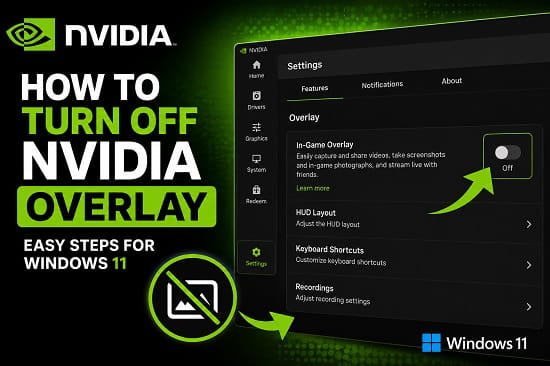
The NVIDIA Overlay is useful if you regularly record gameplay, save screenshots, use Instant Replay, apply game filters, or monitor GPU performance while playing. If you do not use those features, however, the overlay can become an unnecessary interruption, especially when Alt + Z is pressed accidentally.
The good news is that you do not need to disable your NVIDIA graphics card, uninstall the NVIDIA App, or start disabling NVIDIA services just to get rid of the overlay.
In the current NVIDIA App, the overlay is an optional in-game feature. You can turn it off while keeping the NVIDIA App and your graphics driver installed.
If you are here because you searched for the NVIDIA Overlay hotkey, the default shortcut is Alt + Z. If you still want the overlay but keep opening it accidentally, changing that shortcut may be a better solution than disabling the feature.
Quick Answer
To turn off NVIDIA Overlay in Windows 11:
- Open the NVIDIA App.
- Open Settings.
- Go to the section containing the app’s overlay features, usually under Features.
- Find NVIDIA Overlay.
- Turn the overlay off.
NVIDIA updates the app regularly, so the exact wording and location of the setting can change between versions.
If you only want to stop the overlay from opening when you press Alt + Z, you can change its keyboard shortcut instead of disabling the entire overlay.
What Is NVIDIA Overlay?
NVIDIA Overlay is the in-game interface provided by NVIDIA’s software for supported games and applications.
It lets you access NVIDIA gaming and capture tools without leaving the game. Depending on the features available on your system, the overlay can provide access to:
- Game recording
- Instant Replay
- Screenshots
- NVIDIA Highlights
- Game filters
- Performance statistics
- Microphone and capture controls
- Other supported NVIDIA gaming features
The important distinction is that the NVIDIA App and the NVIDIA Overlay are not the same thing.
The NVIDIA App is the larger application used for tasks such as driver management, graphics settings, game optimization, and other NVIDIA features. The Overlay is one of the in-game features provided through that software.
That means you can disable the overlay without removing the NVIDIA App.
This distinction is also useful if you are troubleshooting NVIDIA software. If your actual problem is that the NVIDIA App keeps launching with Windows or consuming background resources, disabling the overlay alone may not solve it. In that situation, our guide on how to stop NVIDIA App from running in the background covers the separate startup and background issue.
What Is the NVIDIA Overlay Hotkey?
The default NVIDIA Overlay hotkey is:
Alt + Z
Pressing Alt + Z opens the NVIDIA in-game overlay when the feature is enabled.
This is the shortcut behind searches such as:
- NVIDIA overlay hotkey
- NVIDIA overlay shortcut
- shortcut for NVIDIA overlay
- shortcut to open NVIDIA overlay
- keyboard shortcut for NVIDIA overlay
- GeForce overlay hotkey
- shortcut for GeForce overlay
- NVIDIA overlay keybind
So if you only wanted to know the NVIDIA Overlay shortcut, Alt + Z is the answer.
You do not have to disable the overlay simply because you do not like the default shortcut. NVIDIA also provides keyboard shortcut controls, so you can assign another combination if you want to keep the feature available.
NVIDIA’s current software documentation continues to use Alt + Z for opening the redesigned in-game overlay. Older GeForce Experience documentation also used Alt + Z, which is why older guides may use terms such as the Share overlay or GeForce Experience overlay.
How to Turn Off NVIDIA Overlay in the NVIDIA App
The safest approach is to disable the feature from the NVIDIA App itself rather than trying to stop individual NVIDIA processes.
Step 1: Open the NVIDIA App
Press the Windows key and search for:
NVIDIA AppOpen the NVIDIA App from the search results.
You can make this change while the app is open normally. You do not need to be inside a game.
Step 2: Open NVIDIA App Settings
Look for the Settings option in the NVIDIA App and open it.
The NVIDIA App has changed considerably from the older GeForce Experience interface, and NVIDIA continues to update the application. Because of that, a guide written for an older version may show a different menu.
Do not worry if your screen does not look exactly like an older screenshot.
Step 3: Find the Overlay Feature
Look through the NVIDIA App settings for the section containing its features.
In current versions, overlay-related controls are associated with the app’s Features settings.
Find:
NVIDIA Overlay
The exact placement or wording can change with an app update, so concentrate on finding the overlay feature rather than following an outdated menu path word for word.
Step 4: Turn NVIDIA Overlay Off
Turn off the NVIDIA Overlay option.
Once the feature is disabled, the NVIDIA in-game overlay should no longer open through Alt + Z.
You can close the NVIDIA App afterward.
There is no need to uninstall NVIDIA App, remove your NVIDIA driver, or disable NVIDIA Container processes just to turn off the overlay.
What Happens When You Disable NVIDIA Overlay?
Turning off the overlay does not turn off your graphics card.
Your NVIDIA GPU can continue to:
- Render games
- Drive your monitor
- Handle GPU-accelerated applications
- Use NVIDIA graphics drivers
- Run supported NVIDIA graphics features
- Work normally with Windows
What changes is access to the NVIDIA in-game overlay and the functions that depend on it.
For example, if you normally open NVIDIA’s recording interface with Alt + Z, that interface will no longer appear while the overlay is disabled.
You should therefore think of this as disabling an optional software layer, not disabling NVIDIA graphics functionality.
If you are trying to change lower-level NVIDIA graphics settings rather than the overlay, that is a different task. NVIDIA Control Panel and NVIDIA App serve different purposes. Our guide on how to install NVIDIA Control Panel on Windows 11 or 10 explains that distinction in more detail.
Should You Disable NVIDIA Overlay or Change the Hotkey?
This depends on why you want it gone.
Disable the overlay if you never use it
If you do not record gameplay, use Instant Replay, take NVIDIA screenshots, use game filters, or monitor performance through the overlay, disabling it is the simplest option.
There is little reason to keep an in-game interface enabled if you never use its features.
Change the shortcut if you keep opening it accidentally
Suppose you still use NVIDIA recording or performance tools, but Alt + Z is easy to press accidentally.
In that case, disabling the entire overlay is unnecessary.
Change the keyboard shortcut instead.
This lets you keep the NVIDIA features you actually use while moving the overlay to a key combination that does not interfere with your normal game controls.
How to Change the NVIDIA Overlay Shortcut
If you want to keep NVIDIA Overlay enabled but replace Alt + Z, you can change the assigned keyboard shortcut from the overlay settings.
Step 1: Open the overlay
Press:
Alt + ZIf the overlay is enabled, it should appear.
Step 2: Open the overlay settings
Select the Settings gear inside the NVIDIA Overlay.
Step 3: Find keyboard shortcuts
Open the Keyboard shortcuts section.
Look for the shortcut assigned to opening the NVIDIA Overlay.
Step 4: Assign a different shortcut
Choose a key combination that is less likely to conflict with your game controls.
Then test the new shortcut.
The available shortcut options and exact interface can change as NVIDIA updates the app, so use the keyboard-shortcut section presented by your current version rather than relying on an old GeForce Experience screenshot.
NVIDIA Overlay Shortcut Not Working
If you press Alt + Z and nothing happens, do not immediately assume that the keyboard shortcut itself is broken.
There are several possible explanations.
The overlay may already be disabled
If someone previously turned off NVIDIA Overlay, Alt + Z will not open it.
Open the NVIDIA App and check whether the overlay feature is enabled.
The shortcut may have been changed
If Alt + Z stopped working after you changed NVIDIA settings, open the overlay or keyboard shortcut settings and check which combination is currently assigned.
A custom shortcut means Alt + Z may no longer be the active command.
The NVIDIA App may need to be restarted
Close the NVIDIA App and reopen it.
If necessary, restart Windows and test the shortcut again.
This is particularly worthwhile after an NVIDIA App update or a graphics-driver update.
Another application may be interfering
Gaming PCs often have several applications capable of displaying an overlay.
You may have NVIDIA Overlay running alongside:
- Xbox Game Bar
- Discord Overlay
- Steam Overlay
- MSI Afterburner or another hardware-monitoring tool
- A game launcher overlay
- Recording software
These programs can use their own shortcuts and can sometimes interfere with one another.
If Alt + Z works in one application but not another, test the NVIDIA Overlay in a different supported game or application. That can help determine whether the problem is NVIDIA-wide or specific to the application where you noticed it.
Check the NVIDIA App version
If the overlay settings are missing or behaving differently from older instructions, check whether the NVIDIA App has an available update.
NVIDIA changes the interface and adds features over time, so instructions based on an older release may not match the current application.
Why Does NVIDIA Overlay Keep Appearing?
If you turned off NVIDIA Overlay but it still appears, start by checking whether the overlay is actually disabled.
Open the NVIDIA App and look at the overlay setting again.
If the setting is off but the overlay still appears, restart the NVIDIA App and Windows before making more aggressive changes.
Also check whether you are dealing with the overlay itself or another NVIDIA feature.
For example, there is a major difference between:
- The NVIDIA Overlay appearing on screen
- Instant Replay recording in the background
- The NVIDIA App starting with Windows
- A performance statistics overlay appearing
- A game using another overlay
- NVIDIA software running in the background
These problems can look similar because they all involve NVIDIA software, but they require different fixes.
NVIDIA Overlay vs. Instant Replay
NVIDIA Overlay and Instant Replay are related, but they are not the same feature.
The Overlay is the interface you open with Alt + Z.
Instant Replay is a recording feature that maintains a temporary recording buffer while you play so that you can save recent gameplay.
This difference matters when troubleshooting.
If your complaint is:
“I don’t want this NVIDIA panel appearing on my screen.”
Turn off NVIDIA Overlay or change its shortcut.
If your complaint is:
“NVIDIA is constantly recording my gameplay.”
Look at Instant Replay.
Turning off the overlay does not necessarily address every background capture activity. If you are trying to reduce NVIDIA’s background activity more broadly, our NVIDIA App background guide covers startup behavior, Instant Replay, and related processes.
How to Turn Off NVIDIA Instant Replay
If Instant Replay is the feature you actually want to stop, you do not necessarily need to disable NVIDIA Overlay.
Open the NVIDIA Overlay with:
Alt + ZThen locate Instant Replay and turn it off.
This is a more targeted change because it stops the continuous temporary recording buffer while allowing you to keep the overlay for other functions.
That can be useful if you still want screenshots, filters, performance monitoring, or manual recording but do not want NVIDIA constantly maintaining a replay buffer.
Does NVIDIA Overlay Affect Gaming Performance?
It can, but the effect depends on which NVIDIA features you are using.
The overlay itself is an interface. Some of the features accessible through it, however, perform additional work.
Recording, Instant Replay, performance monitoring, filters, and other capture functions can introduce additional GPU, encoder, memory, disk, or background activity depending on the configuration.
That does not mean every PC will experience a measurable FPS improvement after disabling the overlay.
If your game already runs normally and you are not using capture features, turning off the overlay may make little or no visible difference to frame rate.
If you are troubleshooting stuttering, high GPU usage, unexpected recording activity, or conflicts between multiple overlays, disabling NVIDIA Overlay is a useful test because it removes one variable.
If you are specifically investigating unusually high Desktop Window Manager GPU usage, our guide on how to fix Desktop Window Manager high GPU usage covers overlays and background recording as part of the broader troubleshooting process.
Does Turning Off NVIDIA Overlay Improve FPS?
There is no universal FPS increase from disabling NVIDIA Overlay.
If the overlay and its related capture features are not doing significant work on your system, the difference may be negligible.
You are more likely to notice a change when an active feature such as Instant Replay, recording, performance monitoring, or another overlay is contributing to the workload.
For that reason, do not disable the overlay solely because you expect a guaranteed FPS boost.
Instead, use it as a troubleshooting test:
- Disable NVIDIA Overlay.
- Close and reopen the affected game.
- Test the same scene or workload.
- Compare frame rate, stuttering, GPU usage, and other symptoms.
Change one variable at a time when possible. That makes it much easier to identify what actually fixed the problem.
Can NVIDIA Overlay Conflict With OBS Studio?
It can be useful to check for overlapping capture and monitoring features when you use OBS Studio.
OBS may already be handling your recording, streaming, or capture workflow while NVIDIA is simultaneously providing its own recording, replay, performance, or overlay functions.
You do not automatically need to disable NVIDIA Overlay when using OBS. Many users can run both without a problem.
However, if you are troubleshooting unexpected GPU usage, stuttering, recording conflicts, or inconsistent capture behavior, temporarily disabling NVIDIA’s capture-related features can help isolate the cause.
If OBS is your main recording and streaming application, our guide on how to optimize an NVIDIA GPU for OBS Studio goes deeper into configuring NVIDIA hardware for OBS.
NVIDIA Overlay and Performance Monitoring
NVIDIA’s overlay can also display performance information such as frame rate, GPU utilization, temperatures, and other statistics.
This is useful when you want to see what your GPU is doing while playing.
However, performance statistics are not the same thing as the main overlay.
NVIDIA provides separate controls for performance monitoring, and current versions can use additional shortcuts for statistics.
For example, Alt + R can be used to toggle NVIDIA’s performance statistics when that feature is configured.
So if the problem is not the full NVIDIA Overlay but a small performance panel that remains visible during gameplay, look at the performance-statistics settings rather than assuming the entire overlay is responsible.
This distinction can save you from disabling a feature you still want.
NVIDIA Overlay and NVIDIA Highlights
NVIDIA Highlights is another feature associated with NVIDIA’s gaming capture ecosystem.
Highlights can automatically capture supported gameplay moments in compatible games.
If you are disabling NVIDIA Overlay because you do not want automatic clips or screenshots, check the individual capture features you use as well.
The overlay is the interface through which you access many of these tools, but disabling the interface and disabling every underlying capture feature are not necessarily the same thing.
NVIDIA App vs. GeForce Experience
Older NVIDIA tutorials often tell you to open GeForce Experience.
That can make troubleshooting confusing because the current NVIDIA software experience is centered on the NVIDIA App.
NVIDIA has been moving users from GeForce Experience to NVIDIA App and has advised remaining GeForce Experience users to upgrade.
If you are following an old article that says:
GeForce Experience → Settings → General → In-Game Overlaydo not assume your current NVIDIA App will have the same menu.
The terminology has also changed over time. Older documentation may refer to the Share overlay, while newer NVIDIA documentation refers to the NVIDIA Overlay.
The important part is the function: NVIDIA’s in-game overlay is the interface that provides access to recording, screenshots, filters, performance tools, and related features.
What If You Are Still Using GeForce Experience?
If you have an older installation of GeForce Experience, you may still see the older overlay interface and settings.
In older GeForce Experience versions, the in-game overlay could be enabled or disabled through the application’s settings, and Alt + Z was also the standard shortcut.
If the old interface is still installed on your PC, use the settings available in that version rather than expecting the current NVIDIA App menus to appear.
However, if NVIDIA App is available for your system, using the current NVIDIA software is preferable to relying on outdated instructions.
Should You Disable NVIDIA Services to Remove the Overlay?
No.
If your only goal is to turn off NVIDIA Overlay, randomly disabling NVIDIA services is unnecessary.
NVIDIA installs several components for different purposes. Some are related to the display driver, graphics settings, audio, updates, GPU functionality, or other software features.
Stopping services because their names contain “NVIDIA” can create problems without actually addressing the overlay.
Use the NVIDIA App’s own settings first.
If your goal is instead to reduce NVIDIA software running when Windows starts, that is a separate task. You can manage the NVIDIA App’s startup behavior without attempting to disable the underlying graphics driver.
How to Stop NVIDIA App From Starting With Windows
This is different from turning off NVIDIA Overlay.
If you do not want the NVIDIA App to launch automatically when you sign in to Windows 11, you can manage its startup entry through Task Manager.
Press:
Ctrl + Shift + EscThen open Startup apps.
Find NVIDIA App, right-click it, and choose Disable.
Restart Windows afterward.
This prevents the application from launching automatically at sign-in, but it does not remove the NVIDIA graphics driver.
For the complete process and a deeper explanation of NVIDIA background processes, use our guide on how to stop NVIDIA App from running in the background.
Do Not Disable NVIDIA Control Panel Just to Remove the Overlay
NVIDIA Control Panel and NVIDIA Overlay serve different purposes.
The Control Panel handles graphics-driver settings such as display configuration, 3D settings, G-SYNC, PhysX, and other options depending on your hardware and driver.
The Overlay is an in-game interface for capture, recording, statistics, filters, and related features.
You therefore do not need to remove or disable NVIDIA Control Panel to turn off the overlay.
If NVIDIA Control Panel itself is giving you trouble, treat that as a separate problem rather than changing the overlay settings.
What If NVIDIA Overlay Is Missing From the NVIDIA App?
If you cannot find the NVIDIA Overlay option, first check the version of the NVIDIA App you are using.
NVIDIA has changed the layout and feature organization over time, so an older tutorial may show controls that have moved.
Also make sure that the NVIDIA App and graphics driver installation are functioning normally.
If the application is partially installed, outdated, or experiencing a software problem, other NVIDIA features may also behave unexpectedly.
Avoid downloading modified NVIDIA software or unofficial driver packages simply because a setting is missing.
Use NVIDIA’s official software and driver channels.
What If the Overlay Keeps Returning After an Update?
An NVIDIA App update can change the location, wording, or behavior of features.
If the overlay was disabled before an update and becomes active again afterward, check the setting in the current version of the NVIDIA App.
Also check the shortcut.
Changing the shortcut and disabling the overlay are two different actions:
- Changing the shortcut keeps the overlay available but moves it to another key combination.
- Disabling the overlay turns off the in-game overlay feature.
If Alt + Z stops opening the overlay after you change the shortcut, that does not necessarily mean the overlay has been disabled.
Should You Turn Off NVIDIA Overlay?
Turning it off makes sense when:
- You never use NVIDIA’s in-game capture tools.
- You keep opening the overlay accidentally.
- Alt + Z conflicts with a game control or another shortcut.
- You do not use Instant Replay.
- You use another recording application.
- The overlay is interfering with a particular game.
- You are troubleshooting stuttering or unexpected capture activity.
- You want to reduce the number of gaming overlays active on your PC.
- You do not need NVIDIA’s in-game performance statistics.
Keeping it enabled makes more sense if you regularly use NVIDIA recording, screenshots, Highlights, filters, Instant Replay, or performance monitoring.
In that situation, changing the shortcut may solve the problem without removing features you actually use.
What You Lose When NVIDIA Overlay Is Disabled
Before turning it off, it helps to understand what you are giving up.
The NVIDIA Overlay is the convenient in-game access point for several NVIDIA features.
After disabling it, you should not expect to use the overlay interface to access those functions while playing.
Depending on your configuration, this can include:
- NVIDIA’s in-game recording controls
- Instant Replay controls
- Screenshot controls
- Game filters
- Performance statistics
- Other overlay-based tools
This does not mean that your NVIDIA GPU stops working.
Your games can still use the graphics card normally, and the NVIDIA display driver remains installed.
If you later decide you need the overlay again, return to the NVIDIA App settings and enable it.
Frequently Asked Questions
What is the NVIDIA Overlay hotkey?
The default NVIDIA Overlay hotkey is Alt + Z.
What is the NVIDIA Overlay shortcut?
Alt + Z is the default shortcut for opening the NVIDIA Overlay.
How do I turn off NVIDIA Overlay?
Open the NVIDIA App, go to Settings, find the NVIDIA Overlay feature under the relevant Features settings, and turn it off. The exact location can vary between NVIDIA App versions.
How do I change the NVIDIA Overlay hotkey?
Press Alt + Z, open the Settings gear, find the keyboard shortcut settings, and change the shortcut assigned to the NVIDIA Overlay.
Why does Alt + Z open NVIDIA Overlay?
Alt + Z is the default NVIDIA Overlay shortcut. If the overlay is enabled, pressing that combination opens the in-game interface.
Can I turn off NVIDIA Overlay without disabling my GPU?
Yes. NVIDIA Overlay is an optional software feature. Turning it off does not disable your NVIDIA graphics card or remove the display driver.
Does turning off NVIDIA Overlay stop NVIDIA App from running?
No. Disabling the overlay and stopping the NVIDIA App from launching with Windows are separate tasks.
Does NVIDIA Overlay record my screen automatically?
Opening the overlay does not mean that your screen is continuously being recorded. Features such as Instant Replay are responsible for maintaining a temporary recording buffer.
What is the difference between NVIDIA Overlay and Instant Replay?
NVIDIA Overlay is the in-game interface. Instant Replay is a recording feature that maintains a temporary buffer of recent gameplay.
Does disabling NVIDIA Overlay increase FPS?
It can reduce activity from overlay-related features on some systems, but there is no guaranteed FPS increase. If Instant Replay or another capture feature is active, disabling that specific feature may have a greater effect.
Can I use NVIDIA App without NVIDIA Overlay?
Yes. You can keep the NVIDIA App installed and use its supported driver and graphics features while leaving the in-game overlay disabled.
Is NVIDIA Overlay the same as GeForce Experience Overlay?
They are the same general type of NVIDIA in-game overlay feature, but the software interface has changed. Older systems may refer to the GeForce Experience Share overlay, while current NVIDIA software uses NVIDIA App and NVIDIA Overlay terminology.
