
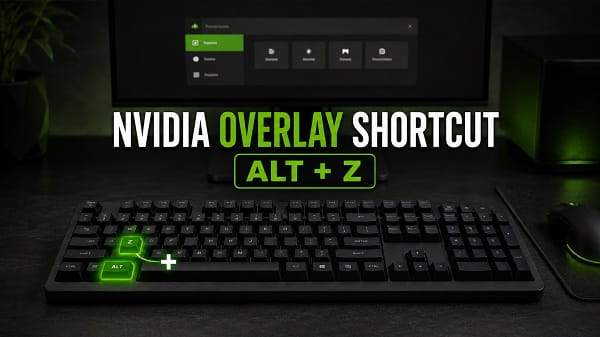
The default NVIDIA overlay shortcut is Alt + Z. Press both keys at the same time to open or close the NVIDIA App overlay while you are on the Windows desktop or playing a game.
If Alt + Z does not work, open the NVIDIA App, go to Settings > Features, and make sure NVIDIA Overlay is enabled. You can view or change the shortcut by pressing Alt + Z, selecting the Settings gear, and opening Shortcuts.
The same Alt + Z combination was also used as the GeForce overlay shortcut in GeForce Experience. However, the appearance of the overlay and the names of some settings have changed in the newer NVIDIA App.
What Is the NVIDIA Overlay Shortcut?
The NVIDIA overlay keyboard shortcut opens a panel containing recording, screenshot, Instant Replay, game filter, microphone, statistics, and gallery controls. The available features depend on your graphics card, driver, game, and NVIDIA App version.
The default hotkey is:
Alt + Z: Open or close the NVIDIA Overlay
NVIDIA confirms that Alt + Z opens its in-game overlay. The company also uses this path in its support instructions for changing other shortcuts: Alt + Z > Settings > Shortcuts.
You can press Alt + Z:
- On the Windows desktop
- While a supported game is running
- In full-screen or borderless-windowed games
- When you need to start or stop recording
- When you want to configure Instant Replay
- To change NVIDIA shortcut keys
- To open recording and performance settings
The overlay must be enabled in the NVIDIA App before the shortcut can work.
NVIDIA Shortcut Keys
These are common default NVIDIA App and GeForce Experience shortcut keys. Your installed version may display a different binding, especially if you previously changed it.
| Function | Common default shortcut |
|---|---|
| Open or close NVIDIA Overlay | Alt + Z |
| Toggle statistics overlay | Alt + R |
| Cycle through statistics views | Alt + Shift + R |
| Save a screenshot | Alt + F1 |
| Open Photo Mode in supported games | Alt + F2 |
| Open game filters in supported games | Alt + F3 |
| Start or stop manual recording | Alt + F9 |
| Save an Instant Replay clip | Alt + F10 |
Use this table as a quick reference, but check the shortcut screen inside the NVIDIA App before relying on any recording key. Customised shortcuts, feature support, laptop function-key behaviour, and software updates can change what happens.
NVIDIA officially documents Alt + R for toggling the performance statistics overlay and Alt + Shift + R for cycling through its views. It also documents Alt + F1 as the traditional screenshot shortcut in the Share Overlay. You can review NVIDIA’s performance overlay instructions and Share Overlay guide for those controls.
How to Open NVIDIA Overlay
The fastest method is:
- Hold the Alt key.
- Press Z once.
- Release both keys.
The overlay should appear above the desktop or game. Press Alt + Z again to close it.
You do not need to hold the keys for several seconds. Holding them down may cause repeated input in some games.
If you use a compact keyboard, laptop, non-English layout, or remapping software, make sure you are pressing the Windows Alt and Z keys recognised by your current keyboard layout.
How to Open NVIDIA Overlay Without the Shortcut
If you cannot use Alt + Z:
- Open the NVIDIA App from the Start menu.
- Go to Settings.
- Confirm that NVIDIA Overlay is enabled under Features.
- Select the option to open the overlay if your app version displays one.
You can also use the overlay icon exposed by some NVIDIA interfaces. The exact app layout may change between releases.
Opening the NVIDIA App itself is not the same as opening the overlay. The main app manages drivers, graphics settings, optimisation, and features, while the overlay supplies controls that can appear over a game.
NVIDIA App Overlay Shortcut
The current NVIDIA App uses Alt + Z as its default overlay shortcut. Once the panel opens, the settings menu refers to keyboard combinations as Shortcuts.
To confirm the binding:
- Open the NVIDIA App.
- Select Settings.
- Make sure NVIDIA Overlay is turned on.
- Press Alt + Z.
- Click the Settings gear.
- Open Shortcuts.
- Find Open/close NVIDIA Overlay or similarly worded entry.
This screen is the most reliable list of NVIDIA App shortcut keys for your computer. It reflects your app version and any changes you have made.
GeForce Experience Shortcut
The default GeForce Experience shortcut for its in-game overlay is also Alt + Z.
Older guides may use the names:
- GeForce Experience In-Game Overlay
- GeForce Share
- ShadowPlay overlay
- NVIDIA Share Overlay
These names generally describe earlier versions of the capture and overlay system now integrated into the NVIDIA App.
If you still use GeForce Experience:
- Open GeForce Experience.
- Click the Settings gear.
- Select General.
- Turn on In-Game Overlay.
- Press Alt + Z.
- Open the overlay settings.
- Select Keyboard shortcuts to review or change them.
NVIDIA now promotes the newer NVIDIA App, so menus shown in an older GeForce Experience tutorial may not match a current installation.
How to Change the NVIDIA Overlay Shortcut
You can replace Alt + Z if it conflicts with a game, editing program, accessibility feature, or another overlay.
Change the Shortcut in the NVIDIA App
- Press Alt + Z to open the overlay.
- Click the Settings gear.
- Select Shortcuts.
- Click the current combination beside the command that opens the overlay.
- Press your preferred key combination.
- Close the settings page.
- Test the new shortcut on the desktop before opening a game.
NVIDIA recommends changing one application’s shortcut when both the NVIDIA App and GeForce NOW overlays open at the same time. Its support example changes the NVIDIA App hotkey to Ctrl + Alt + Z.
The official NVIDIA support note confirms that reassigning the default overlay hotkey can prevent two NVIDIA overlays from activating together.
Change the Shortcut in GeForce Experience
If you still use GeForce Experience:
- Press Alt + Z.
- Select the Settings gear.
- Open Keyboard shortcuts.
- Select the Alt + Z field beside the overlay command.
- Enter a new key combination.
- Close and reopen the overlay to test it.
Some settings cannot be changed while Instant Replay or recording is active. Turn those capture functions off temporarily if the shortcut field is unavailable.
Choosing a Better NVIDIA Overlay Hotkey
Choose a combination that is:
- Easy to reach
- Not used by the game
- Not assigned to Windows
- Not used by Steam, Discord, Xbox Game Bar, OBS, or another overlay
- Unlikely to be pressed accidentally
- Available on your keyboard without a complicated Fn combination
Possible alternatives include:
- Ctrl + Alt + Z
- Ctrl + Shift + Z
- Alt + Shift + Z
Check your frequently used programs before choosing one. For example, Ctrl + Shift + Z is commonly used as a redo command in creative software, so it may be a poor choice if you edit photos or videos.
Avoid assigning a single letter or common function key. A game may depend on it.
How to Change Other NVIDIA Shortcut Keys
The same settings page controls screenshot, recording, Instant Replay, microphone, statistics, and other NVIDIA hotkeys.
- Press Alt + Z.
- Select Settings.
- Open Shortcuts.
- Select the command you want to change.
- Press the new key combination.
- Test it before launching a competitive game.
Change only one or two bindings at a time. If several functions stop working, you will know which adjustment caused the problem.
If a shortcut is already assigned, the NVIDIA App may reject it or warn you about a conflict. Use a different combination rather than forcing two NVIDIA functions to share the same keys.
How to Reset NVIDIA Shortcut Keys
If you no longer remember your customised bindings:
- Open the NVIDIA Overlay.
- Select Settings > Shortcuts.
- Look for Reset, Restore defaults, or an individual reset option.
- Confirm the change.
- Reopen the shortcut screen and verify Alt + Z.
The exact reset control can vary by app version. If no reset option appears, select each changed command and assign the default key manually.
Reinstalling the entire graphics driver should not be your first method for resetting a shortcut. Check the overlay’s own settings first.
How to Disable the NVIDIA Overlay Shortcut
There are two different goals people describe with this phrase:
- Stop Alt + Z from opening the panel while keeping the NVIDIA Overlay available.
- Disable the entire NVIDIA Overlay, including its shortcuts and capture features.
Remove or Replace Only Alt + Z
To prevent accidental Alt + Z activation:
- Open the overlay.
- Go to Settings > Shortcuts.
- Select the overlay shortcut.
- Clear the binding if your version permits it, or replace it with an uncommon combination.
- Test Alt + Z.
Changing the key is better when you still use recording, screenshots, Instant Replay, filters, or statistics.
Disable the Entire NVIDIA Overlay
To stop all NVIDIA overlay shortcuts:
- Open the NVIDIA App.
- Select Settings.
- Open Features.
- Turn off NVIDIA Overlay.
Alt + Z and overlay-dependent recording functions should stop working after the feature is disabled.
For the broader process and its effects, see how to turn off NVIDIA Overlay. That page covers disabling individual overlay elements and troubleshooting an overlay that will not turn off, while this article remains focused on keyboard shortcuts.
NVIDIA Overlay Shortcut Not Working
If Alt + Z does nothing, use the following checks in order.
1. Enable NVIDIA Overlay
- Open the NVIDIA App.
- Select Settings.
- Find NVIDIA Overlay under Features.
- Turn it on.
- Close the app window.
- Press Alt + Z again.
The shortcut cannot open a feature that has been disabled.
2. Check Whether the Shortcut Was Changed
Another user, a previous installation, or a settings sync may have replaced Alt + Z.
Open the overlay through the NVIDIA App if possible, then check Settings > Shortcuts. Use the listed combination or restore Alt + Z.
3. Restart the NVIDIA App
Exit the NVIDIA App from the notification area, reopen it, and test the hotkey. If that does not work, restart Windows.
Restarting reloads the NVIDIA background processes and overlay components.
4. Test Outside the Game
Press Alt + Z on the Windows desktop.
If it works on the desktop but not inside one game, the game’s display mode, anti-cheat system, administrative permissions, or another overlay may be interfering.
Switch the game between:
- Full screen
- Borderless windowed
- Windowed mode
Then test the shortcut again.
5. Check the Keyboard
Test the Alt and Z keys separately. Use another keyboard if possible.
On some laptops, function-key shortcuts such as Alt + F1 or Alt + F9 may require the Fn key or a change to Fn Lock. Alt + Z normally does not require Fn, but keyboard utilities can still remap it.
Also test the left and right Alt keys. A keyboard layout or AltGr configuration may treat them differently.
6. Close Conflicting Overlays
Temporarily close:
- Xbox Game Bar
- Steam Overlay
- Discord Overlay
- OBS Studio
- Overwolf
- MSI Afterburner and RivaTuner Statistics Server
- Keyboard macro software
- Other screen-recording applications
If Alt + Z starts working, reopen the programs one at a time to find the conflict.
7. Match Application Permissions
An overlay running with normal permissions may not attach properly to a game forced to run as administrator.
Run both applications normally for testing. If you intentionally enabled Run this program as an administrator for the game, remove it temporarily and try Alt + Z again.
Do not make every gaming application run as administrator merely to fix a shortcut.
8. Update the NVIDIA App and Driver
Install available updates from the NVIDIA App and restart Windows.
An outdated app may have overlay bugs, while a damaged or outdated graphics driver can prevent capture and statistics features from loading.
If the problem began after a failed driver update, see how to reinstall NVIDIA drivers on Windows.
9. Reinstall the NVIDIA App
Reinstall the app if the overlay is enabled but never opens, the shortcut page is blank, or changed hotkeys refuse to save.
- Open Settings > Apps > Installed apps.
- Find NVIDIA App.
- Select Uninstall.
- Restart the computer.
- Download the current installer from the official NVIDIA App page.
- Install it and restart Windows.
Review all shortcuts afterward because reinstalling the app may restore defaults.
Alt + Z Opens the Wrong NVIDIA Overlay
If NVIDIA App and GeForce NOW are both installed, Alt + Z may trigger more than one NVIDIA interface.
Change one application’s overlay shortcut:
- Open the NVIDIA App overlay.
- Select Settings > Shortcuts.
- Change Alt + Z to Ctrl + Alt + Z or another unused combination.
- Leave the GeForce NOW shortcut unchanged.
- Test both applications separately.
You can reverse the arrangement if you use the NVIDIA App overlay more often.
This conflict does not mean either application is damaged. Both products are responding to a shared default command.
Alt + Z Types a Character Instead of Opening the Overlay
Keyboard layouts, AltGr behaviour, remapping software, and accessibility tools can change the result of Alt-based combinations.
Try:
- Use the left Alt key.
- Check the active Windows keyboard layout.
- Disable keyboard remapping tools temporarily.
- Assign a shortcut that uses Ctrl and Shift instead.
- Test with another keyboard.
If the overlay opens with the replacement hotkey, the original Alt + Z combination was being intercepted before it reached the NVIDIA App.
Alt + R Opens NVIDIA Statistics
Alt + R does not open the main NVIDIA Overlay. It toggles the performance and latency statistics display.
The distinction is:
- Alt + Z: opens the main NVIDIA Overlay.
- Alt + R: shows or hides performance statistics.
- Alt + Shift + R: cycles through statistics views.
If performance figures suddenly appear in the corner of the screen, press Alt + R to hide them.
You can change these bindings through Alt + Z > Settings > Shortcuts. NVIDIA’s official performance-overlay instructions confirm both default combinations.
Alt + F9 and Alt + F10 Explained
These two shortcuts are often confused:
- Alt + F9 commonly starts or stops a manual recording.
- Alt + F10 commonly saves the recent footage held by Instant Replay.
Instant Replay must already be enabled before its save shortcut can create a clip. If Alt + F10 does nothing or Instant Replay keeps switching itself off, read NVIDIA Instant Replay keeps turning off.
On a laptop, you may need to include the Fn key if the top row controls brightness, volume, or media functions instead of acting as standard F keys.
Frequently Asked Questions
What is the shortcut for NVIDIA Overlay?
The default NVIDIA overlay shortcut is Alt + Z. It opens or closes the NVIDIA App overlay and was also the default shortcut in GeForce Experience.
What is the GeForce overlay shortcut?
The GeForce overlay shortcut is Alt + Z. Older software may call it the GeForce Experience In-Game Overlay, Share Overlay, or ShadowPlay overlay.
How do I open NVIDIA Overlay?
Press Alt + Z. If nothing appears, open NVIDIA App > Settings > Features and enable NVIDIA Overlay.
Can I change the NVIDIA overlay shortcut?
Yes. Press Alt + Z, open Settings, select Shortcuts, choose the current overlay binding, and enter a new key combination.
How do I disable the NVIDIA overlay shortcut?
Clear or replace Alt + Z under Overlay Settings > Shortcuts. To disable every overlay hotkey, turn off NVIDIA Overlay in the main NVIDIA App settings.
Why does Alt + Z not open NVIDIA Overlay?
The overlay may be disabled, the shortcut may have changed, an NVIDIA process may be stalled, another overlay may be interfering, or the NVIDIA App or graphics driver may need an update.
What does Alt + R do in NVIDIA?
Alt + R toggles NVIDIA’s performance and latency statistics overlay. Alt + Shift + R cycles through the available statistics views.
What does Alt + F1 do?
Alt + F1 is commonly assigned to save an NVIDIA screenshot. Confirm the current binding under Overlay Settings > Shortcuts.
What does Alt + F9 do?
Alt + F9 commonly starts or stops manual NVIDIA recording. On laptops, the command may require the Fn key.
What does Alt + F10 do?
Alt + F10 commonly saves the most recent Instant Replay footage. Instant Replay must be enabled, and the exact binding should be checked in the NVIDIA shortcut settings.
Is NVIDIA App the same as GeForce Experience?
No. The NVIDIA App is the newer unified application that replaces many functions previously handled through GeForce Experience and other NVIDIA software. Both use Alt + Z as the familiar default overlay shortcut, but their menus can look different.
For most users, the only shortcut they need to remember is Alt + Z. It opens the main panel where every other NVIDIA shortcut can be viewed, changed, or reset. If you frequently trigger the overlay accidentally, replace Alt + Z instead of disabling the entire feature, especially when you still use Instant Replay, screenshots, recording, or performance statistics.
