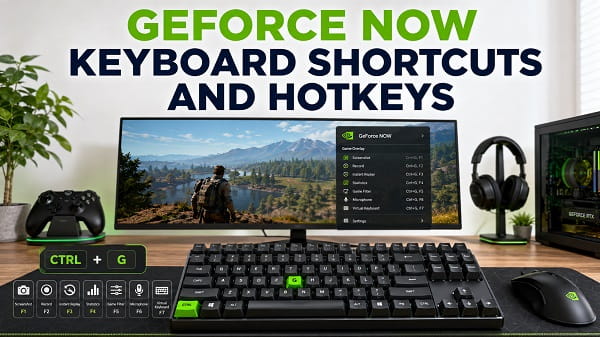
GeForce NOW keyboard shortcuts let you open the cloud gaming overlay, capture screenshots, record gameplay, control your microphone, view streaming statistics, and access other tools without leaving your game.
The most important GeForce NOW shortcut to remember is Ctrl + G on Windows. It opens and closes the GeForce NOW in-game overlay. On macOS, the equivalent shortcut is Command + G.
That shortcut is easy to confuse with the regular NVIDIA App overlay shortcut, which is Alt + Z. They are two different overlays. GeForce NOW is NVIDIA’s cloud gaming service, while the NVIDIA App overlay runs locally on a Windows PC with supported NVIDIA software and hardware.
If you use both, knowing the difference can save a lot of confusion.
This article covers the main GeForce NOW keyboard shortcuts and hotkeys, how to open the GeForce NOW menu, how to view or change shortcuts, what to do when a shortcut does not work, and how to resolve conflicts with game or NVIDIA App hotkeys.
GeForce NOW Keyboard Shortcuts at a Glance
The following shortcuts are among the most useful when playing through the GeForce NOW PC or Mac app.
| Action | Windows | macOS |
|---|---|---|
| Open or close GeForce NOW in-game overlay | Ctrl + G | Command + G |
| Save screenshot | Ctrl + 1 | Command + 1 |
| Toggle Instant Replay | Ctrl + Shift + 0 | Command + Shift + 0 |
| Save recent Instant Replay footage | Ctrl + 0 | Command + 0 |
| Start or stop recording | Ctrl + 9 | Command + 9 |
| Toggle microphone | Ctrl + M | Command + M |
| Open or toggle Streaming Statistics Overlay | Ctrl + N | Command + N |
NVIDIA lets users view the currently assigned shortcut list directly inside the GeForce NOW overlay, so the app itself should be treated as the final reference if a binding on your system differs from the defaults above.
Open the overlay and go to:
Ctrl + G > Settings > Shortcut controls
Some older GeForce NOW versions and NVIDIA support pages may call this section Keyboard Shortcuts instead.
What Is the GeForce NOW Shortcut?
The default GeForce NOW overlay shortcut on Windows is:
Ctrl + G
Pressing Ctrl and G together while a GeForce NOW gaming session is running opens the in-game overlay.
On a Mac, use:
Command + G
The overlay gives you access to controls and features that can include:
- GeForce NOW settings
- Keyboard shortcut controls
- Microphone options
- NVIDIA Highlights
- Game filters where supported
- Screenshot and recording tools
- Gallery
- Streaming information
- Session-related controls
Press the shortcut again to close the overlay and return to the game.
If you came to this page after searching for the regular NVIDIA overlay shortcut, do not confuse Ctrl + G with Alt + Z. My NVIDIA Overlay Shortcut: Hotkeys and How to Change Them article explains the separate NVIDIA App and GeForce Experience shortcut system.
GeForce NOW Overlay Shortcut
The GeForce NOW overlay shortcut is Ctrl + G on Windows and Command + G on macOS.
This is also what many users mean when they search for:
- GeForce NOW shortcut
- GeForce NOW overlay shortcut
- GeForce NOW menu shortcut
- GeForce NOW hotkey
- GeForce NOW keyboard shortcut
They are usually trying to reach the same in-session menu.
To use it on Windows:
- Launch GeForce NOW.
- Start a game.
- Wait until the cloud gaming session has loaded.
- Hold Ctrl.
- Press G once.
- Release both keys.
The GeForce NOW overlay should open over the game.
Press Ctrl + G again when you want to close it.
On macOS, follow the same process using Command + G.
GeForce NOW Menu Shortcut
If you are specifically looking for the GeForce NOW menu shortcut, use:
Ctrl + G on Windows
or:
Command + G on Mac
NVIDIA refers to this as the in-game overlay. In practice, it acts as GeForce NOW’s main session menu for features that do not belong to the game itself.
This matters because games can have their own pause menu, Steam can have its own overlay, and the local NVIDIA App can also have an overlay.
For example:
- Esc may open the game’s own menu.
- Shift + Tab may open the Steam overlay in supported situations.
- Alt + Z may open the NVIDIA App overlay on a local NVIDIA-equipped Windows PC.
- Ctrl + G opens the GeForce NOW overlay.
If you press the wrong combination, you may see a completely different interface.
GeForce NOW Screenshot Shortcut
The commonly documented screenshot shortcut for GeForce NOW is:
Ctrl + 1 on Windows
On macOS:
Command + 1
This captures a screenshot through GeForce NOW rather than relying on the Windows Snipping Tool, Print Screen, Steam screenshot system, or another capture utility.
To take a screenshot:
- Start the game through GeForce NOW.
- Navigate to the moment you want to capture.
- Press Ctrl + 1 on Windows or Command + 1 on Mac.
- Check the GeForce NOW Gallery or the location used by your current app version.
If the shortcut does nothing, open Ctrl + G > Settings > Shortcut controls and confirm which key combination is currently assigned to screenshots.
GeForce NOW Recording Shortcut
The commonly documented GeForce NOW shortcut for starting or stopping manual recording is:
Ctrl + 9 on Windows
On macOS:
Command + 9
Press the shortcut once to start recording and again to stop.
Recording support and available capture features can vary by GeForce NOW platform, app version, membership configuration, and game.
If you do not see recording controls, open the GeForce NOW overlay and check which capture options are currently available in your session.
Do not assume the local NVIDIA App recording shortcuts are the same. The local NVIDIA App commonly uses Alt-based shortcuts, while GeForce NOW has historically used Ctrl-based combinations on Windows.
GeForce NOW Instant Replay Shortcuts
GeForce NOW can support Instant Replay for compatible capture configurations.
Two shortcuts are particularly useful.
Toggle Instant Replay
Use:
Ctrl + Shift + 0 on Windows
or:
Command + Shift + 0 on macOS
This toggles Instant Replay on or off.
Save the Recent Replay
Use:
Ctrl + 0 on Windows
or:
Command + 0 on macOS
This saves the recent period of gameplay retained by Instant Replay.
The amount of footage available depends on the capture configuration.
If you press the save shortcut while Instant Replay is disabled, there may be no recent buffer to save. Enable Instant Replay first.
This is conceptually similar to NVIDIA’s local Instant Replay feature, but the shortcut combinations are not the same. If you also use the local NVIDIA capture system and it keeps disabling itself, see NVIDIA Overlay Shortcut: Hotkeys and How to Change Them for the local overlay controls and related shortcut behavior.
GeForce NOW Microphone Shortcut
The commonly documented GeForce NOW microphone shortcut is:
Ctrl + M on Windows
or:
Command + M on macOS
This lets you toggle the microphone without opening several menus while you are playing.
It can be useful when:
- Joining voice chat
- Muting yourself temporarily
- Talking to someone in the room
- Troubleshooting an open microphone
- Switching between gameplay and conversation
If Ctrl + M is already used by the game or another application, consider changing the GeForce NOW binding.
Open:
Ctrl + G > Settings > Shortcut controls
Then select the microphone shortcut and assign a combination that does not conflict with the game.
GeForce NOW Streaming Statistics Shortcut
GeForce NOW provides a Streaming Statistics Overlay that can show technical information about your cloud gaming stream.
On Windows and ChromeOS, the current shortcut is:
Ctrl + N
On macOS:
Command + N
Depending on the current GeForce NOW implementation, the statistics panel can provide information related to stream resolution, frame rate, network performance, latency, packet loss, or other session metrics.
This shortcut is especially useful when a game feels:
- Blurry
- Delayed
- Choppy
- Lower resolution than expected
- Unusually soft during movement
- Affected by latency spikes
The statistics overlay can help distinguish a game-performance issue from a streaming or network problem.
NVIDIA has retired the older Ctrl + Alt + F6 streaming statistics panel. If you find an old tutorial telling you to use Ctrl + Alt + F6, try Ctrl + N instead.
The Ctrl + N shortcut can also toggle supported statistics views or modes in current GeForce NOW releases.
How to See All GeForce NOW Keyboard Shortcuts
The safest way to check every shortcut available in your version of GeForce NOW is through the app itself.
While a game session is running:
- Press Ctrl + G on Windows or Command + G on Mac.
- Open the Settings gear.
- Select Shortcut controls or Keyboard Shortcuts.
- Review the listed actions and their assigned keys.
This method is better than relying completely on an old screenshot or shortcut list because NVIDIA can change controls as the GeForce NOW app develops.
It also shows whether you previously customized a hotkey and forgot about the change.
How to Change GeForce NOW Keyboard Shortcuts
GeForce NOW allows supported shortcuts to be reassigned.
To change a shortcut:
- Launch a game in GeForce NOW.
- Press Ctrl + G to open the in-game overlay.
- Click the Settings gear.
- Open Shortcut controls.
- Find the command you want to change.
- Select its current shortcut.
- Press the new key combination you want to use.
- Save or close the settings if required.
- Return to the game and test the new shortcut.
Choose a combination that is unlikely to be used by the game.
For example, avoid replacing the overlay shortcut with a common movement, inventory, map, push-to-talk, or ability key combination.
Why You May Need to Change the GeForce NOW Overlay Shortcut
The default Ctrl + G shortcut is convenient, but it can conflict with software or games that already use the same combination.
A conflict can cause:
- Both menus to open
- The game to ignore Ctrl + G
- GeForce NOW to intercept a game command
- Another program to respond instead
- A special character not to type correctly
- Keyboard input to behave differently during a cloud session
NVIDIA’s current support guidance specifically recommends opening the GeForce NOW overlay, entering Settings, and changing the shortcut when a GeForce NOW hotkey interferes with keyboard input.
If Ctrl + G causes trouble in one particular game, changing the GeForce NOW shortcut is usually safer than remapping several controls inside the game.
GeForce NOW Shortcut vs NVIDIA Overlay Shortcut
This is the most important distinction in this article.
GeForce NOW overlay: Ctrl + G
NVIDIA App overlay: Alt + Z
They are not alternative shortcuts for the same feature.
GeForce NOW runs the game in NVIDIA’s cloud infrastructure and streams the result to your device.
The NVIDIA App is installed locally on supported Windows PCs and manages features such as NVIDIA drivers, game settings, recording, Instant Replay, screenshots, filters, and performance monitoring.
A computer can potentially have access to both systems.
That creates situations where a user searches “GeForce shortcut” and finds Alt + Z even though they actually need Ctrl + G.
If Alt + Z is the shortcut giving you trouble, read How to Turn Off NVIDIA Overlay. That page deals with the local NVIDIA overlay, not the GeForce NOW cloud gaming menu.
Can GeForce NOW and NVIDIA App Shortcuts Conflict?
Yes.
A Windows PC with NVIDIA graphics can run the NVIDIA App locally while you also stream a game through GeForce NOW.
The local NVIDIA App overlay may listen for Alt + Z, while GeForce NOW listens for Ctrl + G.
Normally those two shortcuts are different enough to coexist.
Problems become more likely if you customize one of them so both applications use the same combination.
If pressing a shortcut opens two overlays:
- Decide which overlay should keep the shortcut.
- Open GeForce NOW with Ctrl + G.
- Change the relevant GeForce NOW binding under Settings > Shortcut controls.
Alternatively, change the local NVIDIA App shortcut.
Avoid assigning identical keyboard combinations to both overlays.
GeForce NOW Shortcut Not Working
If Ctrl + G or another GeForce NOW shortcut does not work, do not immediately assume your keyboard is faulty.
Try the following checks.
1. Make Sure a GeForce NOW Session Is Running
The in-game overlay shortcut is intended for use during a GeForce NOW gaming session.
Launch a game fully before testing Ctrl + G.
If you are still browsing the GeForce NOW library or have not entered the cloud session, some in-game commands may not respond in the same way.
2. Check Whether the Shortcut Was Changed
You may have changed the binding previously.
Open the in-game overlay through the available interface if possible and check:
Settings > Shortcut controls
Look at the current shortcut beside the command.
If Ctrl + G has been replaced, use the assigned combination or change it back.
3. Test the Other Ctrl Key
Try both the left and right Ctrl keys.
A damaged key, unusual keyboard layout, remapping utility, gaming keyboard profile, or accessibility configuration can cause one modifier key to behave differently.
You can also test Ctrl combinations in another application to confirm that the key itself works.
4. Check for Game Shortcut Conflicts
The game may use the same combination.
Temporarily change the conflicting game binding or assign a different GeForce NOW shortcut.
A shortcut conflict is especially likely when the GeForce NOW command works in one game but not another.
5. Close Other Overlay Software
Multiple overlays can compete for keyboard input.
Temporarily close or disable software such as:
- Steam Overlay
- Discord Overlay
- Xbox Game Bar
- OBS hotkeys
- Razer utilities
- Logitech gaming software
- Corsair keyboard utilities
- MSI Afterburner or RivaTuner overlays
- Local NVIDIA App overlay
Then test the GeForce NOW shortcut again.
Do not permanently remove useful software until you confirm which program is causing the conflict.
6. Check Whether the Browser Captures the Shortcut
If you use GeForce NOW through a browser rather than the native desktop app, the browser or operating system may reserve some key combinations.
This is particularly important on macOS, ChromeOS, and browsers where system shortcuts can take priority.
If a combination cannot be used reliably in your browser, try the native GeForce NOW app when one is available for your platform.
7. Restart the GeForce NOW App
Close the GeForce NOW app completely.
On Windows:
- Exit the game session.
- Close GeForce NOW.
- Open Task Manager with Ctrl + Shift + Esc.
- Check for a stuck GeForce NOW process.
- End it only if the app did not close normally.
- Reopen GeForce NOW.
- Start a new session.
- Test Ctrl + G.
A simple application restart can clear temporary input or overlay problems.
8. Update GeForce NOW
Shortcut behavior can change between releases.
Install the latest GeForce NOW app available for your platform and test again.
Using the latest version is particularly important when NVIDIA has changed overlay behavior, retired an older shortcut, or added a new statistics interface.
9. Restart the Computer
If several keyboard shortcuts stop responding, restart the computer.
A restart clears stuck overlay processes, keyboard-hook utilities, gaming software, and temporary input problems.
After Windows starts again, launch GeForce NOW before opening several other overlay applications and test the shortcut.
Ctrl + G Opens the Wrong Menu
First identify which interface appears.
If you see the GeForce NOW in-game overlay, Ctrl + G is working correctly.
If something else opens, another program probably has the same shortcut.
Check:
- The game’s key bindings
- Browser shortcuts
- Gaming keyboard software
- Macro utilities
- Screen recording software
- Communication apps
Change one of the conflicting shortcuts.
Alt + Z Opens an NVIDIA Menu Instead of GeForce NOW
That is expected on a Windows computer with the NVIDIA App overlay enabled.
Alt + Z is associated with the local NVIDIA overlay.
For GeForce NOW, use:
Ctrl + G
This distinction is particularly important because both interfaces can offer gaming-related controls and may look like they belong to the same application.
Our NVIDIA Overlay Shortcut guide covers Alt + Z and the local NVIDIA App hotkeys in detail.
Ctrl + Alt + F6 Does Not Show GeForce NOW Statistics
That shortcut is outdated.
NVIDIA retired the legacy Ctrl + Alt + F6 streaming statistics panel.
Use:
Ctrl + N on Windows or ChromeOS
or:
Command + N on macOS
If that still does not work, open the GeForce NOW overlay and confirm the current statistics controls available in your app version.
This is a good example of why old GeForce NOW shortcut lists can become misleading.
Can You Disable GeForce NOW Shortcuts?
The best approach is to open the GeForce NOW shortcut settings and change a binding that conflicts with your game or keyboard.
During a session:
- Press Ctrl + G.
- Open Settings.
- Select Shortcut controls.
- Find the unwanted or conflicting shortcut.
- Change its key combination if the current version allows that command to be reassigned.
Whether a shortcut can be completely cleared rather than reassigned can depend on the current GeForce NOW app version and the specific command.
If you only need to stop accidental activation, assigning a less commonly used combination can solve the problem.
Do GeForce NOW Shortcuts Work in the Browser?
Some keyboard shortcuts can work when using GeForce NOW in a supported browser, but the experience can differ from the native app because the browser and operating system also reserve keyboard combinations.
NVIDIA provides platform-specific support guidance for browser use, including Safari on macOS.
If a shortcut behaves differently in the browser:
- Check whether the browser uses the same combination.
- Try full-screen mode.
- Test the native GeForce NOW app if available.
- Check NVIDIA’s current support information for that platform.
Do not assume every Windows desktop-app shortcut will behave identically on ChromeOS, Safari, smart TVs, mobile devices, or handheld gaming systems.
Do GeForce NOW Keyboard Shortcuts Work on Mac?
Yes, but the main modifier changes from Ctrl to Command for several GeForce NOW shortcuts.
Examples include:
- Command + G for the overlay
- Command + 1 for a screenshot
- Command + 9 for recording
- Command + M for microphone control
- Command + N for streaming statistics
If one of these combinations is already reserved by macOS or another application, check GeForce NOW’s shortcut controls and adjust the binding where supported.
Do GeForce NOW Hotkeys Work on Chromebook?
GeForce NOW supports browser-based cloud gaming on compatible Chromebooks, but ChromeOS also has its own keyboard shortcuts.
NVIDIA currently identifies Ctrl + N on PC and ChromeOS as the shortcut for its Streaming Statistics Overlay.
For other commands, check the current GeForce NOW interface on the Chromebook because browser and ChromeOS keyboard handling may differ from the Windows application.
Why Does GeForce NOW Capture My Keyboard Shortcut?
GeForce NOW has to intercept certain combinations so it can provide overlay, capture, microphone, and session controls while the game is running remotely.
That means a combination assigned to GeForce NOW might not reach the game normally.
If you need the same combination inside a game:
- Open the GeForce NOW overlay.
- Go to Settings > Shortcut controls.
- Find the conflicting command.
- Assign a different combination.
- Return to the game.
- Test the original keys again.
This is particularly relevant for games or applications that require unusual Ctrl-based character combinations.
Frequently Asked Questions
What is the shortcut for GeForce NOW?
The main GeForce NOW shortcut is Ctrl + G on Windows or Command + G on macOS. It opens and closes the GeForce NOW in-game overlay.
What is the GeForce NOW overlay shortcut?
Press Ctrl + G on Windows. On a Mac, press Command + G.
What is the GeForce NOW menu shortcut?
The GeForce NOW menu is the in-game overlay. Use Ctrl + G on Windows or Command + G on Mac.
What is Ctrl + G in GeForce NOW?
Ctrl + G opens or closes the GeForce NOW in-game overlay on Windows.
What is the shortcut to show GeForce NOW statistics?
Use Ctrl + N on Windows or ChromeOS. On macOS, use Command + N.
Does Ctrl + Alt + F6 still work in GeForce NOW?
NVIDIA has retired the legacy Ctrl + Alt + F6 streaming statistics panel. Use the current Streaming Statistics Overlay shortcut, Ctrl + N on PC or ChromeOS and Command + N on macOS.
What is the GeForce NOW screenshot shortcut?
The commonly documented shortcut is Ctrl + 1 on Windows and Command + 1 on macOS. Check the shortcut controls in your current app to confirm the assigned binding.
What is the GeForce NOW recording shortcut?
The commonly documented shortcut is Ctrl + 9 on Windows and Command + 9 on macOS.
How do I mute my microphone in GeForce NOW?
The commonly documented microphone toggle is Ctrl + M on Windows or Command + M on macOS.
How do I change GeForce NOW shortcuts?
While a GeForce NOW game is running, press Ctrl + G, open the Settings gear, select Shortcut controls, and change the supported binding you want to customize.
Is Alt + Z a GeForce NOW shortcut?
Alt + Z is normally associated with the local NVIDIA App or older GeForce Experience in-game overlay. The main GeForce NOW cloud gaming overlay uses Ctrl + G on Windows.
Why does Ctrl + G not work in GeForce NOW?
The shortcut may have been changed, another game or application may be intercepting the keys, an overlay may be conflicting with GeForce NOW, or the app may need to be restarted or updated. Check Ctrl + G > Settings > Shortcut controls whenever you can access the overlay.
The GeForce NOW Hotkeys Worth Remembering
You do not need to memorize every GeForce NOW keyboard shortcut.
Start with Ctrl + G on Windows or Command + G on Mac. That opens the in-game overlay, where you can inspect the current shortcut controls and change conflicting bindings.
For stream troubleshooting, remember Ctrl + N on Windows and ChromeOS or Command + N on macOS for the current Streaming Statistics Overlay.
The biggest source of confusion is the difference between Ctrl + G for GeForce NOW and Alt + Z for the local NVIDIA App overlay. Once you separate those two systems, the rest of the shortcuts are much easier to understand.
