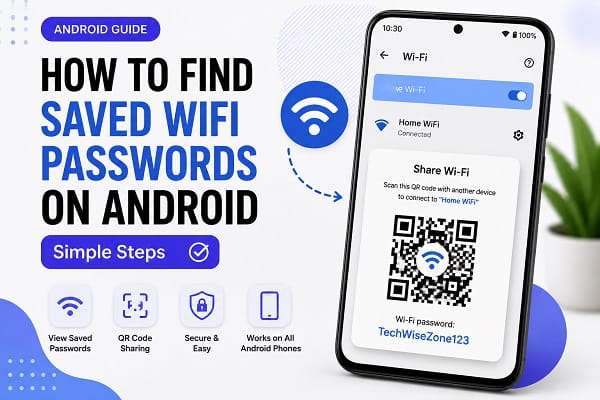
Have you ever connected your Android phone to a WiFi network, only to forget the password later? It’s a common situation. Since your phone automatically reconnects to saved networks, you rarely need to type the password again. But when it’s time to connect a new device, share your WiFi with a friend, or troubleshoot your network, remembering that password suddenly becomes important.
The good news is that most Android phones running Android 10 or later allow you to view or securely share saved WiFi passwords without installing third-party apps. Depending on your device, you can access the password directly from the WiFi settings, generate a QR code for instant sharing, or use built-in tools like Google Lens if the password isn’t displayed on screen.
In this guide, you’ll learn how to find saved WiFi passwords on Android, view passwords for previously connected networks, use QR code sharing, and troubleshoot common situations where the password isn’t visible.
Can You See Saved WiFi Passwords on Android?
Yes, but the process depends on:
- Your Android version
- Your phone manufacturer
- Whether you’re currently connected to the network
Modern Android devices running Android 10 and later make it much easier to view saved WiFi passwords than older versions.
Many phones now include built-in options that allow you to share WiFi credentials through a QR code and view the network password directly.
Why You Might Need a Saved WiFi Password
Many users need their WiFi password when setting up a new device or reconnecting after an upgrade. If you’ve recently switched phones, our guide on how to transfer data from Android to Android explains how to move your files, apps, and settings safely.
There are several reasons users search for saved WiFi passwords.
Connect a New Device
You may want to connect:
- A laptop
- A tablet
- A smart TV
- A gaming console
Share WiFi With Friends
Instead of asking the router owner, you can retrieve the saved password from your phone.
Replace a Device
A new phone often requires reconnecting to your home network.
Troubleshoot Network Issues
Sometimes confirming the correct password helps identify connection problems.
How to Find Saved WiFi Passwords Without a QR Code
Some Android phones display only a QR code when you choose to share a saved WiFi network. If you don’t see the password written below the QR code, there are still a few ways to access your network credentials.
Use Google Lens
Google Lens can scan the QR code and reveal the WiFi details, including the network name and password on many devices.
- Take a screenshot of the WiFi QR code.
- Open the screenshot in Google Photos.
- Tap the Google Lens icon.
- Allow Google Lens to scan the QR code.
- View the decoded WiFi information.
Check Manufacturer Features
Some phone manufacturers display the password directly below the QR code, while others only generate the QR code for sharing.
For example:
- Samsung Galaxy phones may display the password depending on the One UI version.
- Google Pixel devices typically show both the QR code and password after authentication.
- Xiaomi, OnePlus, OPPO, and Motorola phones may vary depending on the Android version installed.
If your device doesn’t display the password, it doesn’t necessarily mean the feature is unavailable—it may simply use a different sharing method.
Method 1: Find Saved WiFi Passwords on Android 10 and Newer
Keeping your Android system organized can make it easier to access important settings and network information. If your phone is running low on space, check out our guide on how to free up storage space on Android for practical cleanup methods.
This is the easiest method available on modern Android devices.
Step 1
Open Settings.
Step 2
Tap Network & Internet or Connections.
Step 3
Select WiFi.
Step 4
Tap the WiFi network you’re currently connected to.
Step 5
Select Share.
Step 6
Verify your identity using:
- Fingerprint
- PIN
- Pattern
- Password
Step 7
A QR code will appear.
Many Android devices display the WiFi password directly below the QR code.
You can now view or share the password.
Method 2: View Saved WiFi Passwords on Samsung Phones
Samsung devices have a slightly different interface.
Step 1
Open Settings.
Step 2
Tap Connections.
Step 3
Select WiFi.
Step 4
Tap the gear icon beside the connected network.
Step 5
Select QR Code.
Step 6
Authenticate using your fingerprint or security method.
Depending on your Samsung device and One UI version, you may see the password directly or be able to share it through the QR code.
Method 3: Find Passwords for Previously Saved Networks
What if you’re not currently connected?
Some Android devices allow access to saved networks.
Step 1
Open WiFi settings.
Step 2
Tap Saved Networks.
Step 3
Select the network you want to view.
Step 4
Tap Share.
Step 5
Authenticate.
You may be able to see the saved password or generate a QR code for sharing.
Method 4: Use Google Lens to Read WiFi QR Codes
If your device only displays a QR code, you can use Google Lens.
Step 1
Take a screenshot of the QR code.
Step 2
Open Google Photos.
Step 3
Select the screenshot.
Step 4
Tap the Google Lens icon.
Step 5
Google Lens will decode the QR code.
You may then see:
- Network name
- Password
- Connection details
This is a useful workaround for devices that do not display the password directly.
How to Share WiFi Without Typing the Password
Sharing network information is much easier when you know how to use Android’s built-in tools. For example, you can quickly capture WiFi QR codes and save them for later by learning how to take a screenshot on Android.
Modern Android phones support password sharing through QR codes.
Benefits
- Faster sharing
- Fewer typing mistakes
- Improved convenience
How It Works
The other person simply:
- Opens their camera.
- Scans the QR code.
- Connects automatically.
This is one of the easiest ways to share WiFi access with guests.
Can You Find WiFi Passwords on Older Android Versions?
Older Android versions are more restrictive.
Devices running:
- Android 8
- Android 9
- Earlier versions
typically do not provide direct access to saved WiFi passwords.
In these cases, users often need:
- Router access
- Backup files
- Advanced methods
Most users are better off checking the router label or asking the network owner.
How to Find Your WiFi Password Through the Router
If Android cannot display the password, your router may help.
Check the Router Label
Many routers include:
- Default network name
- Default WiFi password
printed on the device.
Router Admin Page
You can also log into the router.
Typical steps:
- Open a browser.
- Enter the router’s IP address.
- Log in using administrator credentials.
- Open Wireless Settings.
The current WiFi password is often displayed there.
Which Android Versions Can View Saved WiFi Passwords?
The ability to view saved WiFi passwords depends largely on your Android version.
| Android Version | Can View Password | QR Code Sharing | Root Required |
|---|---|---|---|
| Android 15 | Yes | Yes | No |
| Android 14 | Yes | Yes | No |
| Android 13 | Yes | Yes | No |
| Android 12 | Yes | Yes | No |
| Android 11 | Yes | Yes | No |
| Android 10 | Yes | Yes | No |
| Android 9 and earlier | Limited | No | Sometimes |
Android 10 introduced native WiFi password sharing, making it much easier to retrieve saved network credentials without rooting the device. If you’re using Android 9 or an older version, you may need to check your router settings or use manufacturer-specific tools instead.
Why Can’t I See My Saved WiFi Password?
Several factors may prevent password access.
Older Android Version
Earlier Android versions may not support password viewing.
Manufacturer Restrictions
Some manufacturers limit password visibility.
Security Policies
Workplace or school devices may restrict access.
Not Connected to the Network
Certain phones only display passwords for active connections.
Security Tips When Sharing WiFi Passwords
Viewing passwords is convenient, but security remains important.
Share Only With Trusted People
Avoid sharing passwords publicly.
Use QR Codes Carefully
Anyone who scans the code can join the network.
Change Passwords Periodically
Updating your password improves network security.
Use Strong Passwords
Avoid weak passwords such as:
- 12345678
- password
- admin123
Strong passwords reduce unauthorized access.
Common WiFi Password Problems
If you’re able to see the correct password but still can’t access the internet, the issue may not be the password itself. Our guide on WiFi connected but no internet on Android covers several fixes for network connectivity problems.
QR Code Not Working
Try:
- Increasing screen brightness
- Cleaning the camera lens
- Generating a new QR code
Password Not Displayed
Use Google Lens to decode the QR code.
Saved Network Missing
Reconnect to the network and save it again.
Authentication Errors
Verify your screen lock credentials.
If your Android device feels sluggish when opening settings, scanning QR codes, or connecting to networks, follow our guide on how to speed up a slow Android phone for additional performance improvements.
Where Are WiFi Passwords Stored on Android?
Many people assume Android stores WiFi passwords as plain text that can be viewed at any time. In reality, saved WiFi credentials are encrypted and protected by the Android operating system.
On modern Android devices, passwords are stored securely and can only be accessed through approved system features such as the Share option in the WiFi settings after you verify your identity with your PIN, password, pattern, or fingerprint.
Older Android versions stored WiFi credentials differently, and some users relied on root access to retrieve them. Today, rooting your phone is no longer necessary for most devices running Android 10 or later.
Keeping WiFi passwords encrypted helps prevent unauthorized apps from accessing your network credentials.
Can You Find WiFi Passwords for Networks You’re Not Connected To?
Yes, but it depends on whether the network has been saved on your phone.
If the WiFi network was connected previously and is still listed under Saved Networks, many Android devices allow you to:
- Open the saved network.
- Authenticate using your screen lock.
- View or share the password using a QR code.
If the network has been removed from your phone, you’ll usually need to reconnect to it or retrieve the password from your router.
It’s also worth noting that not every Android manufacturer provides access to passwords for previously saved networks. Some devices only allow you to view details for the network you’re currently connected to.
Is It Safe to View and Share Saved WiFi Passwords?
Yes. Android requires you to verify your identity before displaying or sharing a saved WiFi password, which helps prevent unauthorized access.
However, you should still follow a few best practices:
- Only share your WiFi password with people you trust.
- Avoid posting WiFi QR codes on social media or public websites.
- Change your WiFi password if you believe it has been shared too widely.
- Use WPA2 or WPA3 encryption on your router whenever possible.
- Create a strong password that combines letters, numbers, and symbols.
These simple precautions help keep your home or office network secure.
Tips for Managing Saved WiFi Networks
Managing your saved networks can make switching between WiFi connections easier and improve your phone’s security.
Here are a few practical tips:
- Remove networks you no longer use.
- Rename your home network if it has a generic default name.
- Update your WiFi password periodically.
- Enable automatic updates on your router when available.
- Disable automatic connection to unfamiliar public WiFi networks.
Keeping your saved networks organized reduces clutter and lowers the risk of connecting to unsecured hotspots.
Frequently Asked Questions
Can Android show saved WiFi passwords?
Yes. Android 10 and newer devices often allow users to view or share saved WiFi passwords through the WiFi settings menu.
Do I need root access?
No. Most modern Android devices provide password sharing features without requiring root access.
Can I see passwords for networks I’m not currently connected to?
Some Android devices support viewing passwords for saved networks, while others only allow access to active connections.
Why can’t I see the Share button on my Android phone?
Some Android phones hide or remove the Share option depending on the manufacturer, Android version, or security settings. Make sure your device is running a recent version of Android and that you’re viewing the details of a saved WiFi network.
Can I export all saved WiFi passwords from Android?
Android doesn’t provide a built-in option to export all saved WiFi passwords. You can usually view or share them one network at a time through the WiFi settings.
Will resetting my phone delete saved WiFi passwords?
Yes. Performing a factory reset removes saved WiFi networks and their passwords from your device. Before resetting your phone, make sure you know your network password or have another trusted device that can access it.
Can I find WiFi passwords without an internet connection?
Yes. If the WiFi network is already saved on your phone, you can usually view or share the password without being connected to the internet. The password is stored locally on your device.
Do all Android phones display the WiFi password?
No. Some phones display the password directly, while others only generate a QR code for sharing. The available options depend on your Android version and the phone manufacturer’s software.
Is it safe to share WiFi passwords using QR codes?
Yes, provided you only share them with trusted individuals.
Network settings sometimes become corrupted over time, especially after major updates. If you’re experiencing unusual Android behavior or connectivity issues, learning how to clear cache on Android without losing data may help restore normal performance.
Finding a saved WiFi password on Android is much easier than it used to be. If your phone runs Android 10 or later, you can usually view or securely share the password directly from the WiFi settings without installing
Also Read: third-party apps. Even if your device only displays a QR code, tools like Google Lens make it simple to reveal the network details.
If you still can’t access the password, checking your router settings or using another device already connected to the network are reliable alternatives. With the methods covered in this guide, you should be able to recover or share your saved WiFi password in just a few minutes.
