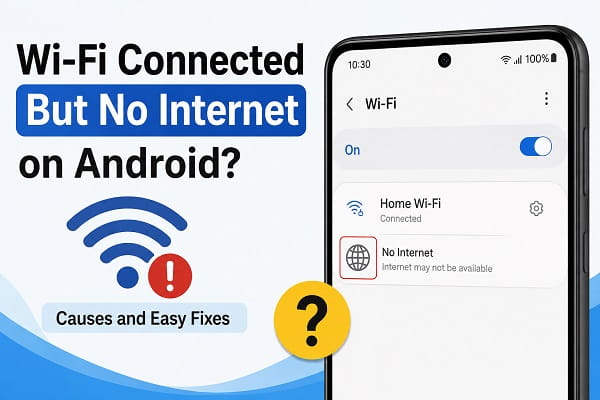
You unlock your Android phone, connect to your WiFi network, and immediately notice the familiar WiFi icon at the top of the screen. Everything appears normal. Yet when you open Chrome, YouTube, WhatsApp, Instagram, or any other app, nothing loads. Websites refuse to open, videos keep buffering, and messages fail to send.
The situation becomes even more confusing when other devices in your home continue working normally. Your laptop has internet access. Your smart TV streams without interruption. Another family member’s phone works perfectly. Only your Android phone insists it is connected to WiFi while behaving as though there is no internet at all.
This is one of the most common network problems Android users experience, and it affects virtually every major smartphone brand, including Samsung, Google Pixel, Motorola, OnePlus, Xiaomi, OPPO, vivo, Nokia, Realme, ASUS, Sony, and Honor devices.
Many people immediately assume the phone is faulty or that a factory reset is the only solution. Fortunately, that is rarely the case.
In most situations, the problem can be traced to network configuration issues, temporary software glitches, router communication problems, IP address conflicts, DNS failures, or internet service interruptions. Once the actual cause is identified, restoring your internet connection is usually much easier than most people expect.
This guide explains what the “Connected, No Internet” message really means, why it happens, how Android establishes internet connections, and the most effective troubleshooting methods to restore reliable WiFi access.
What Does “Connected but No Internet” Actually Mean?
One of the biggest misunderstandings is assuming that being connected to WiFi automatically means internet access is available.
Those are actually two different things.
When your Android phone connects to WiFi, it only confirms that communication between your phone and the wireless router has been established.
The router must then perform several additional tasks before internet access becomes available.
These include:
- Assigning an IP address to your phone.
- Providing a gateway for internet traffic.
- Supplying DNS information so websites can be located.
- Communicating successfully with your Internet Service Provider (ISP).
- Receiving internet connectivity from the ISP.
If any one of those stages fails, Android may continue displaying the WiFi icon while simultaneously reporting that internet access is unavailable.
In other words, your phone is connected to the router, but the router cannot successfully deliver internet traffic.
Understanding this distinction makes troubleshooting much easier because it prevents you from assuming the phone itself is always responsible.
How Android Determines Whether Internet Is Available
Many Android users wonder how the phone knows there is no internet even though WiFi is connected.
Modern Android devices don’t simply rely on the WiFi signal icon.
Instead, Android performs periodic connectivity checks in the background.
These checks verify that your phone can successfully reach internet services outside your local network.
If Android cannot complete those checks, it may display messages such as:
- Connected without internet
- No internet access
- Limited connection
- Connected, no internet
Depending on your phone manufacturer and Android version, the wording may vary slightly, but the underlying meaning remains the same.
The operating system is warning you that although the wireless connection exists, usable internet traffic is unavailable.
Why This Problem Happens
There isn’t a single cause behind this issue.
Several different problems can produce exactly the same symptoms.
Some are related to your Android phone.
Others originate from the router, your internet provider, or even temporary software bugs.
The most common causes include:
- Router communication failures
- Internet service outages
- Corrupted WiFi profiles
- Incorrect IP address assignments
- DNS server problems
- VPN conflicts
- Private DNS configuration errors
- Authentication failures
- MAC address conflicts
- Software bugs after Android updates
- Corrupted network settings
- Battery optimization interfering with networking
- Faulty router firmware
The goal is not to try every solution randomly.
Instead, we first identify which category the problem belongs to.
That saves time and avoids unnecessary changes.
Start by Determining Where the Problem Exists
Before changing any settings, spend a few minutes identifying whether the problem affects only your phone or the entire network.
This simple step eliminates many unnecessary troubleshooting attempts.
Ask yourself the following questions.
Do Other Devices Have Internet?
Check another phone, tablet, laptop, or smart TV connected to the same WiFi network.
If every device has lost internet access, the issue almost certainly lies with your router or internet provider rather than your Android phone.
If every other device works normally while only your phone has problems, continue focusing on your Android device.
Does Mobile Data Work?
Turn off WiFi and enable mobile data.
Now try opening several websites.
If mobile data works perfectly, your phone itself is probably functioning correctly.
The issue is more likely related to WiFi settings or router communication.
If mobile data also fails, you may be dealing with a broader software or network configuration issue.
Does the Problem Occur Everywhere?
Try connecting to another WiFi network.
For example:
- A friend’s house
- Your office
- A coffee shop
- Public WiFi
If your phone connects successfully elsewhere, your home router becomes the primary suspect.
If every WiFi network produces the same error, the issue is probably inside the phone.
This simple comparison often narrows the problem considerably before any advanced troubleshooting begins.
If mobile data also refuses to connect, the issue may extend beyond your WiFi network. Our detailed guide on fixing mobile data not working on Android covers carrier settings, APN configuration, SIM-related issues, and other common causes.
Restart Your Android Phone
Restarting your phone may seem too simple to solve such a frustrating problem, but it remains one of the most effective first steps.
While your phone is running, Android constantly manages dozens of networking services simultaneously.
These include:
- WiFi authentication
- DHCP communication
- DNS resolution
- Background synchronization
- Bluetooth services
- VPN connections
- Network caching
- Mobile data switching
Occasionally one of these services becomes temporarily unresponsive or fails to communicate properly with another component.
A restart forces Android to reload these networking services from scratch.
Many temporary connectivity issues disappear immediately afterward without requiring any additional troubleshooting.
Restart Your Router Before Changing Phone Settings
Many users immediately blame their Android phone.
In reality, the router is often responsible.
A WiFi router is essentially a small computer that operates continuously, sometimes for weeks or even months without restarting.
Over time, routers may experience:
- Memory leaks
- Overheating
- DHCP assignment failures
- DNS communication errors
- Firmware glitches
- Temporary ISP communication failures
Restarting the router clears temporary memory and forces it to establish a fresh connection with your internet provider.
To perform a proper restart:
- Turn the router off.
- Unplug the power cable if possible.
- Wait approximately 30 seconds.
- Reconnect the power.
- Allow the router to finish booting completely.
- Reconnect your Android phone.
If the issue disappears after restarting the router, no further troubleshooting may be necessary.
Forget the WiFi Network and Create a Fresh Connection
Every WiFi network your phone connects to creates a profile containing important information such as:
- Security settings
- Encryption type
- Password
- IP configuration
- Network preferences
Sometimes that profile becomes corrupted.
This commonly happens after:
- Router firmware updates
- Password changes
- Security setting modifications
- ISP equipment replacement
Instead of continuing to use the damaged profile, Android should create a completely new one.
Open your WiFi settings, select the affected network, and choose Forget.
Then reconnect by entering the password again.
Although this seems like a simple step, it resolves a surprisingly large number of “Connected, No Internet” problems because it removes outdated network information that Android continues trying to use.
If you can’t remember the password after removing the saved network, our guide on finding saved WiFi passwords on Android explains several ways to view saved wireless credentials before reconnecting.
Check Whether Your Router Actually Has Internet Access
One mistake many people make is assuming that a WiFi signal always means the router has an active internet connection.
Those are two completely different things.
Your router may continue broadcasting a strong WiFi signal even after losing its connection to your Internet Service Provider (ISP).
Imagine your router as a bridge between your Android phone and the internet.
If the bridge to your phone remains open but the bridge to your ISP collapses, your phone will still connect to WiFi but won’t be able to reach websites or online services.
Some common reasons include:
- ISP maintenance
- Service outages
- Damaged fibre or cable connections
- Loose modem cables
- Expired internet subscriptions
- Router authentication failures
Look at the router’s indicator lights.
If the Internet, WAN, or Online light is flashing red, orange, or is completely off, the problem may have nothing to do with your Android phone.
In this situation, resetting your phone won’t solve the issue because the internet connection itself is unavailable.
Could an IP Address Conflict Be the Problem?
Every device connected to your home network needs its own unique IP address.
Think of an IP address as a house number.
Without it, the router doesn’t know where to deliver internet traffic.
Occasionally two devices attempt to use the same IP address.
When that happens, Android may connect to WiFi successfully but fail to communicate properly with the router.
This is known as an IP conflict.
Although modern routers usually prevent this from happening, it can still occur after:
- Router restarts
- Firmware updates
- Static IP configuration
- Connecting many devices simultaneously
Forcing your phone to disconnect and reconnect often causes the router to assign a fresh IP address.
In more persistent cases, restarting the router may also help rebuild the network’s address assignments.
DNS Problems Can Stop Internet Access
Many users have never heard of DNS until internet problems appear.
DNS stands for Domain Name System.
Its job is to translate website names into addresses that computers understand.
For example, when you type:
www.google.com
your phone doesn’t actually communicate using those words.
Instead, DNS converts that name into a numerical address.
If DNS stops working:
- Websites fail to load.
- Apps cannot reach online services.
- Search results may never appear.
- Android may report “Connected, No Internet.”
Interestingly, the internet connection itself may still exist.
Your phone simply doesn’t know where to send requests.
Router problems, ISP issues, or manually configured DNS servers can all cause this behaviour.
Is Private DNS Causing the Problem?
Newer Android versions include a feature called Private DNS.
Its purpose is to improve privacy by encrypting DNS requests.
While useful, it can occasionally create connectivity problems.
This usually happens when:
- The configured DNS provider becomes unavailable.
- Incorrect server information has been entered.
- Corporate or school networks block encrypted DNS.
- Router settings conflict with Private DNS.
If your WiFi suddenly stops working after changing DNS settings, reviewing your Private DNS configuration is worthwhile.
Many users forget they enabled it months earlier.
VPN Applications Can Interrupt WiFi
VPNs are excellent for protecting privacy, bypassing restrictions, and securing public WiFi.
However, they also introduce another layer between your phone and the internet.
If the VPN server:
- Disconnects unexpectedly,
- Experiences heavy traffic,
- Stops responding,
- Or becomes unreachable,
your phone may remain connected to WiFi while internet access disappears.
Temporarily disabling the VPN can quickly determine whether it is responsible.
If internet access returns immediately, you’ve found the cause.
Battery Optimization Can Affect Connectivity
Android is designed to maximise battery life.
To achieve this, background services are sometimes restricted.
Although this usually works well, aggressive battery optimisation can occasionally interfere with networking services, particularly on manufacturers that heavily customise Android.
Some devices attempt to reduce power consumption by limiting:
- Background synchronisation
- Network scanning
- WiFi activity
- Background applications
This may cause internet interruptions even though WiFi appears connected.
If the issue consistently occurs after your phone has been idle for a long period, battery management could be contributing to the problem.
Corrupted WiFi Profiles
Every time you connect to a wireless network, Android stores information about that connection.
Over months or years, these saved profiles can become outdated.
This often happens after:
- Changing the WiFi password
- Upgrading router security
- Replacing the router
- Switching internet providers
- Updating router firmware
Your phone continues trying to use the old configuration while the router expects a different one.
Forgetting the network and reconnecting creates a fresh profile using the router’s current settings.
Authentication Problems
Authentication occurs before internet access is granted.
Your router verifies:
- The password
- Security protocol
- Device identity
If authentication fails, Android may repeatedly attempt to connect without ever obtaining internet access.
Some routers display messages such as:
- Authentication Error
- Unable to Join Network
- Saved, Secured
- Obtaining IP Address
These messages often indicate that the connection process has stopped before internet communication could begin.
Public WiFi Networks Can Be Misleading
Hotels, airports, universities, cafés, shopping centres, and hospitals often use captive portals.
A captive portal is a login page that appears before internet access becomes available.
Your phone may already be connected to WiFi, but until you:
- Accept the terms,
- Enter a room number,
- Provide an email address,
- Or complete another verification step,
the network intentionally blocks internet access.
Many users mistake this for a WiFi fault when the network is simply waiting for authentication.
Opening a browser usually triggers the login page automatically.
Samsung Users May Experience Additional Network Issues
Samsung phones include One UI, which adds features beyond standard Android.
Although these features improve the user experience, they occasionally influence network behaviour.
Examples include:
- Intelligent WiFi
- Adaptive connectivity
- Automatic network switching
- WiFi power saving
- Private MAC address settings
Sometimes these features conflict with particular routers, especially older models.
Keeping One UI updated and reviewing advanced WiFi settings can help eliminate manufacturer-specific issues.
Software Updates Can Introduce Temporary Bugs
Android updates frequently improve stability and security.
However, no software update is completely immune from unexpected bugs.
Occasionally users notice WiFi issues shortly after installing:
- Android updates
- Samsung One UI updates
- Google Play System updates
This does not necessarily mean the update is defective.
Instead, cached network information or older router configurations may no longer work correctly with the updated software.
A network reset or fresh WiFi connection often resolves these compatibility problems.
When the Problem Is Actually the Internet Provider
Sometimes everything inside your home works exactly as it should.
The router functions normally.
Your phone connects correctly.
Your settings are unchanged.
Yet internet access is still unavailable.
In these situations, the fault may lie with your ISP.
Common examples include:
- Regional outages
- Scheduled maintenance
- Network congestion
- Fibre cable damage
- DNS failures at the provider level
Checking your ISP’s service status or contacting customer support can quickly confirm whether the issue is outside your control.
Work Through the Fixes in the Right Order
When faced with a WiFi problem, many people try every solution they can find online without understanding why they are doing it.
They might restart the phone, reset the router, change DNS servers, install a VPN, and even factory reset the device all within thirty minutes.
This approach wastes time and sometimes creates new problems.
Instead, start with the simplest fixes and only move to more advanced solutions if the previous step doesn’t work.
Following a logical order makes it much easier to identify what actually caused the problem.
Turn WiFi Off and Back On
This may sound basic, but it forces Android to disconnect from the current wireless session and establish a completely new one.
When WiFi reconnects, Android requests:
- A new network session
- A fresh IP address
- Updated routing information
- New DNS communication
If the problem resulted from a temporary communication error, this simple action may restore internet access immediately.
Enable Airplane Mode for About 30 Seconds
Airplane Mode disables every wireless radio on the device.
This includes:
- WiFi
- Mobile data
- Bluetooth
Turning Airplane Mode on for about 30 seconds and then disabling it forces Android to rebuild its wireless connections.
Many temporary networking glitches disappear after this process.
Disable Any Active VPN
If you recently installed a VPN application, disconnect from it temporarily.
Try browsing the internet again.
If websites suddenly begin loading, the VPN is probably causing the interruption.
In that case:
- Change VPN servers.
- Update the VPN app.
- Disable automatic VPN startup.
- Contact the VPN provider if the issue continues.
Switch Between 2.4 GHz and 5 GHz WiFi
Modern routers often broadcast two wireless bands:
2.4 GHz
Provides:
- Longer range
- Better wall penetration
- Lower maximum speed
5 GHz
Provides:
- Faster speeds
- Less interference
- Shorter coverage distance
Sometimes one band experiences problems while the other works perfectly.
If your router offers both options, connect to the alternative network and see whether internet access improves.
Disable Private DNS Temporarily
If you’ve enabled Private DNS, temporarily switching it back to Automatic can help determine whether encrypted DNS requests are causing the problem.
If internet access immediately returns, you’ve identified the source of the issue.
You can later experiment with different DNS providers if you still want the privacy benefits.
Reset Network Settings
If none of the previous solutions work, resetting network settings becomes one of the most effective troubleshooting steps.
If you’re using a Samsung Galaxy phone, you can also follow our complete guide on resetting network settings on Samsung, which explains what the reset removes, what stays safe, and when it’s the right troubleshooting step.
This removes:
- Saved WiFi networks
- Bluetooth pairings
- Mobile network settings
- VPN configurations
while leaving your:
- Photos
- Videos
- Apps
- Contacts
- Documents
completely untouched.
A network reset is particularly useful after:
- Major Android updates
- Router replacements
- Persistent authentication failures
- Multiple unsuccessful troubleshooting attempts
It provides Android with a completely fresh networking environment.
Boot Your Phone Into Safe Mode
Third-party applications occasionally interfere with Android’s networking services.
Examples include:
- VPN applications
- Firewall apps
- Network monitoring tools
- Battery optimisation software
- Security applications
Starting the phone in Safe Mode temporarily disables downloaded apps while leaving the operating system intact.
If WiFi works correctly in Safe Mode, one of your installed applications is almost certainly responsible.
You can then remove recently installed apps one by one until the problem disappears.
Install Available Software Updates
Connectivity improvements are included in many Android security and system updates.
Manufacturers frequently release fixes for:
- WiFi stability
- Bluetooth compatibility
- Mobile network performance
- Security vulnerabilities
- Router compatibility
Running outdated software may leave your phone affected by issues that have already been corrected.
Always install updates from trusted sources before assuming the problem is permanent.
Check the Date and Time
This is one of the least obvious causes of internet problems.
If your phone displays the wrong date or time, secure internet connections may fail.
Many websites rely on accurate system time to verify security certificates.
An incorrect clock can prevent encrypted connections from working properly.
Enabling automatic date and time usually resolves this issue.
Remove Recently Installed Networking Apps
Ask yourself:
Did the problem begin after installing:
- A VPN?
- A firewall?
- A WiFi booster?
- A security application?
- A battery saver?
If the answer is yes, temporarily uninstall that application and test the connection again.
Some networking utilities modify Android settings in unexpected ways.
Factory Reset Should Be Your Last Option
A factory reset should never be your first troubleshooting step.
Although it can resolve deep software problems, it also removes:
- Apps
- Accounts
- Settings
- Downloaded files
- Personal preferences
Before considering a factory reset:
- Back up important information.
- Confirm that the router works properly.
- Verify that other devices have internet access.
- Complete every previous troubleshooting step.
Most “Connected, No Internet” problems are solved long before a factory reset becomes necessary.
When the Problem Might Be Hardware
Hardware faults can also affect other phone functions. If you’re noticing additional symptoms, such as an unresponsive display, our guide on fixing Android touchscreen problems may help you determine whether the issue is software- or hardware-related.
Although uncommon, hardware faults do occur.
Possible signs include:
- WiFi disconnects constantly on every network.
- Bluetooth also behaves abnormally.
- The phone cannot detect nearby WiFi networks.
- Signal strength remains unusually weak.
- The issue continues even after a factory reset.
These symptoms may indicate:
- WiFi antenna damage
- Internal hardware failure
- Motherboard problems
- Water damage
- Physical impact damage
At this stage, professional diagnosis is usually required.
How to Prevent This Problem in the Future
While not every connectivity problem can be avoided, a few good habits reduce the chances of experiencing them again.
Keep Android Updated
System updates often improve wireless stability and compatibility.
Restart Your Router Occasionally
Many routers run continuously for months.
An occasional restart helps clear temporary issues before they become noticeable.
Avoid Installing Multiple VPNs
Running several networking applications simultaneously increases the likelihood of conflicts.
Keep Router Firmware Updated
Router manufacturers regularly release updates that improve stability and security.
Review Saved WiFi Networks
Deleting networks you no longer use helps Android maintain a cleaner network profile database.
How to Tell Whether the Problem Is Your Phone, Your Router, or Your Internet Provider
One reason “Connected, No Internet” is so frustrating is that the same message can have several completely different causes. Before changing settings at random, it’s worth narrowing down where the problem actually originates.
The table below can help you identify the most likely source.
| If you notice this… | The most likely cause |
|---|---|
| Only your Android phone has no internet while other devices work normally. | Phone settings, corrupted WiFi profile, VPN, Private DNS, or software issue. |
| Every device connected to your WiFi has no internet access. | Router problem or ISP outage. |
| Mobile data works, but WiFi doesn’t. | Home WiFi network or router issue. |
| Home WiFi fails, but public WiFi works. | Router configuration problem. |
| Public WiFi also fails. | Android network settings or phone software issue. |
| WiFi disconnects after a few minutes every day. | Router overheating, firmware issue, or power-saving settings. |
Spending a minute on this simple diagnosis often saves a great deal of unnecessary troubleshooting.
Router Settings That Can Cause “Connected, No Internet”
Many people focus entirely on their Android phone without realizing that the router may be responsible.
Modern routers contain dozens of settings that influence how devices connect to the internet. If one of these settings becomes misconfigured, your phone may connect successfully but still be unable to access online services.
Some of the most common router-related causes include:
DHCP Server Problems
Your router normally assigns an IP address to every connected device automatically.
If the DHCP service stops working correctly, your phone may connect to WiFi without receiving the information it needs to communicate with the internet.
Restarting the router often restores normal DHCP operation.
Too Many Connected Devices
Every router has practical limits.
Homes with multiple phones, tablets, laptops, gaming consoles, smart TVs, cameras, and smart home devices may eventually reach those limits, especially with older routers.
Disconnecting unused devices can sometimes improve stability.
Outdated Router Firmware
Just like Android phones receive software updates, routers also receive firmware updates.
These updates often fix:
- Stability issues
- Security vulnerabilities
- Device compatibility problems
- WiFi performance bugs
If your router hasn’t been updated for a long time, checking for newer firmware may resolve recurring connectivity problems.
Guest Network Restrictions
Many routers offer guest WiFi networks.
Some guest networks intentionally prevent internet access until additional settings are enabled.
If you’re connected to a guest network, verify that internet access is permitted for guest users.
MAC Address Filtering
Certain routers allow only approved devices to access the network.
If MAC filtering is enabled and your phone’s address isn’t on the approved list, internet access may be blocked even though WiFi appears connected.
Common Mistakes That Make the Problem Worse
Some users immediately begin transferring their files to another phone because they believe the device is failing. Before replacing your phone, it’s worth trying the troubleshooting steps in this guide. If you do decide to switch devices later, our guide on transferring data from Android to Android explains how to move your important information safely. Unfortunately, many users take actions that complicate troubleshooting instead of solving the issue.
Factory Resetting Too Early
A factory reset should almost never be your first solution.
Most “Connected, No Internet” problems are caused by network configuration issues rather than damaged Android installations.
Resetting the entire phone often creates unnecessary work without addressing the real cause.
Changing Multiple Settings at Once
Some users:
- Change DNS settings
- Install a VPN
- Reset network settings
- Restart the router
- Modify WiFi options
all within a few minutes.
If the problem eventually disappears, it’s impossible to know which change actually fixed it.
Instead, make one change at a time and test the connection before moving to the next step.
Forgetting the WiFi Password
Before removing a saved network, make sure you know the password.
Otherwise, you may successfully delete the old connection but be unable to reconnect afterward.
Assuming the Phone Is Always Responsible
Many internet problems originate outside the phone.
Your ISP, modem, router, or even temporary maintenance work may be responsible.
Checking another device before changing Android settings can save considerable time.
Related Android Network Problems You May Also Experience
Connectivity issues often overlap. For example, the same network configuration problem that causes “Connected, No Internet” may also prevent WiFi Calling on Android from working correctly or stop your phone from creating a reliable hotspot connection. Understanding these related issues can make troubleshooting much easier.
For example:
- Mobile data may stop working after network settings become corrupted.
- WiFi calling may fail because the phone cannot maintain a stable internet connection.
- Mobile hotspot sharing may stop functioning after a software update.
- Saved WiFi passwords may disappear after resetting network settings.
Because these problems are closely related, resolving one often helps diagnose another.
A Methodical Approach Almost Always Produces Better Results
The biggest takeaway from this guide is that “Connected, No Internet” is a symptom rather than a diagnosis.
The message tells you that communication has broken down somewhere between your Android phone and the wider internet, but it doesn’t identify exactly where.
By first determining whether the issue lies with the phone, the router, or your internet provider, then working through the troubleshooting steps one at a time, you greatly improve your chances of finding the real cause without deleting data or performing unnecessary resets.
Patience is often the most effective troubleshooting tool. A structured approach not only solves the current problem but also helps you recognise similar issues more quickly if they occur again.
Frequently Asked Questions
Why does my Android phone say connected to WiFi but apps don’t work?
This usually indicates that your phone can communicate with the router but cannot reach the internet. Router issues, DNS failures, VPN conflicts, or ISP outages are common causes.
Why does mobile data work but WiFi doesn’t?
This often suggests the problem is limited to your WiFi network rather than the phone itself.
Should I reset network settings?
Yes, if simpler troubleshooting steps haven’t worked. A network reset can resolve many configuration-related issues without deleting personal files.
Will resetting network settings delete my photos?
No. Only networking information such as WiFi passwords, Bluetooth pairings, and VPN settings is removed.
If you’re worried about losing important files while troubleshooting, our guide on recovering deleted photos on Android explains the recovery options available if photos are accidentally removed.
Why does this only happen on my Samsung phone?
Samsung devices include additional networking features through One UI. Occasionally these settings interact differently with certain routers than other Android devices.
Can a VPN cause this problem?
Yes. A VPN that loses connection or is incorrectly configured can interrupt internet access while WiFi remains connected.
Can my router cause this problem even if WiFi works?
Absolutely. A router can continue broadcasting WiFi while losing its connection to your internet provider.
Is a factory reset usually necessary?
No. Most Android users solve the problem through network troubleshooting long before a factory reset becomes necessary.
Also Read:
- How to Transfer WhatsApp From Android to Android (Easy Fix)
- Gmail Notifications Not Working on Android? Causes and Solutions
- How to Find Saved WiFi Passwords on iPhone
- Phone Keeps Disconnecting From WiFi? Here’s How to Fix It
Fix the Cause Instead of Guessing the Solution
A “Connected, No Internet” message doesn’t automatically mean your Android phone is faulty. In many cases, the phone is doing exactly what it should by warning you that it can reach the router but not the wider internet.
The most effective way to solve the problem is to identify where the connection is breaking down. It could be your router, your internet provider, your phone’s network settings, a VPN, DNS configuration, or even a temporary software glitch. By working through the troubleshooting steps in a logical order instead of trying random fixes, you can usually restore your connection without losing personal data or performing a factory reset.
The next time this message appears, you’ll have a much better understanding of what it means, why it happens, and which solution is most likely to get your Android phone back online quickly.
