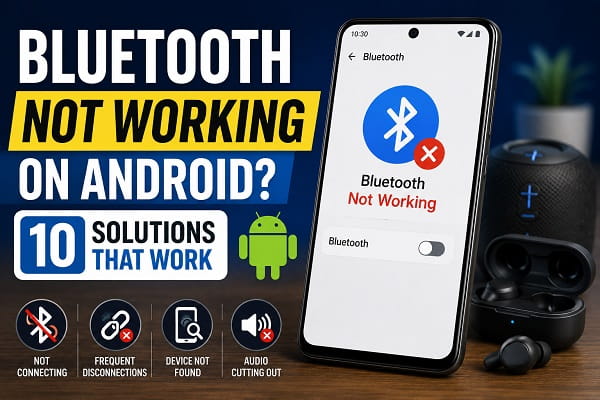
Bluetooth is one of the most useful features on modern Android devices. It allows you to connect wireless earbuds, headphones, speakers, smartwatches, keyboards, car audio systems, and many other accessories without cables.
However, Bluetooth doesn’t always work as expected.
You may encounter issues such as:
- Bluetooth refusing to turn on
- Devices not pairing
- Frequent disconnections
- Audio cutting out
- Android not detecting nearby devices
These problems can be frustrating, especially when you rely on wireless accessories daily.
Fortunately, most Bluetooth issues can be resolved using a few simple troubleshooting steps.
In this guide, you’ll learn the most common causes of Bluetooth problems on Android and 10 effective solutions that can help restore connectivity.
Why Is Bluetooth Not Working on Android?
Bluetooth problems are typically caused by:
- Temporary software glitches
- Outdated Android software
- Device compatibility issues
- Corrupted Bluetooth cache
- Interference from nearby devices
- Incorrect Bluetooth settings
- Low battery levels
- Hardware issues
Let’s look at the fixes that work most often.
1. Restart Your Android Device
Connectivity problems on Android are not limited to Bluetooth. If your phone struggles to maintain internet access even when connected to a wireless network, our guide on WiFi connected but no internet on Android covers several proven solutions that can help restore a stable connection.
A simple restart can resolve temporary Bluetooth glitches.
Steps
- Press and hold the power button.
- Tap Restart.
- Wait for the device to reboot.
After restarting, try connecting your Bluetooth device again.
Many minor connectivity problems disappear after a reboot.
2. Turn Bluetooth Off and Back On
Refreshing Bluetooth services can sometimes restore functionality.
Steps
- Open Quick Settings.
- Disable Bluetooth.
- Wait 10 seconds.
- Enable Bluetooth again.
Try pairing the device once more.
3. Check Device Compatibility
Not all Bluetooth devices support the same Bluetooth versions or profiles.
Before troubleshooting further:
- Confirm the accessory supports Android.
- Verify compatibility requirements.
- Check the manufacturer’s documentation.
Compatibility issues can prevent successful pairing.
4. Remove and Re-Pair the Device
Pairing information can occasionally become corrupted.
To Forget a Device
- Open Settings.
- Tap Bluetooth.
- Select the connected device.
- Tap Forget Device.
After removing it, pair the device again from scratch.
This often resolves connection problems.
5. Make Sure the Device Is in Pairing Mode
Many Bluetooth accessories require pairing mode before Android can detect them.
Examples include:
- Wireless earbuds
- Bluetooth speakers
- Smartwatches
- Fitness trackers
Consult the device manual if you’re unsure how to activate pairing mode.
6. Move Closer to the Device
Bluetooth has limited range.
Walls, furniture, and electronic interference can affect signal quality.
Best Practice
Keep the accessory within a few feet of your phone during pairing.
Reducing distance improves connection reliability.
7. Clear Bluetooth Cache
Corrupted Bluetooth data may cause pairing failures.
Steps
- Open Settings.
- Tap Apps.
- Enable Show System Apps.
- Find Bluetooth.
- Open Storage.
- Tap Clear Cache.
Restart the device afterward.
8. Update Android Software
Software-related Bluetooth issues can sometimes appear after a major Android update. If you’ve noticed apps freezing, crashing, or behaving unexpectedly since updating your device, read our article on apps keep crashing after Android update for additional troubleshooting methods.
Software updates often include Bluetooth fixes.
Check for Updates
- Open Settings.
- Tap System.
- Select Software Update.
- Install available updates.
Keeping Android current helps improve connectivity and device stability.
9. Reset Network Settings
Network settings affect more than just Bluetooth. They can also influence mobile connectivity and SIM card recognition. If your device suddenly stops recognizing your SIM card, check out our guide on SIM card not detected on Android and how to fix it for step-by-step solutions.
Resetting network settings can resolve deeper Bluetooth issues.
Steps
- Open Settings.
- Tap System.
- Select Reset Options.
- Choose Reset Network Settings.
This will reset:
- Bluetooth settings
- Wi-Fi settings
- Mobile network settings
You may need to reconnect devices afterward.
10. Check for Hardware Problems
If Bluetooth still doesn’t work after trying every fix, hardware issues may be responsible.
Possible causes include:
- Damaged Bluetooth antenna
- Water damage
- Internal hardware failure
Professional diagnosis may be required in these situations.
Common Bluetooth Problems and Solutions
Bluetooth Keeps Disconnecting
Possible causes:
- Low battery
- Signal interference
- Outdated firmware
Try charging both devices and reconnecting.
Bluetooth Audio Keeps Cutting Out
This may occur because of:
- Distance issues
- Interference from Wi-Fi devices
- Low battery levels
Move closer and eliminate nearby interference sources.
Android Cannot Find Bluetooth Devices
Ensure:
- Bluetooth is enabled
- Pairing mode is active
- The device is compatible
- Nearby devices are not causing interference
Overall device performance can sometimes contribute to connectivity problems, especially on older smartphones. If your Android phone feels sluggish or takes a long time to respond, our guide on how to speed up a slow Android phone provides practical tips to improve performance and responsiveness.
Frequently Asked Questions
Why won’t my Android connect to Bluetooth?
This is usually caused by pairing issues, software glitches, outdated software, or device compatibility problems.
Why does Bluetooth keep disconnecting?
Low battery levels, interference, or corrupted Bluetooth settings are common causes.
Will resetting network settings delete my files?
No. It only resets network-related settings and does not affect personal files.
Why can’t Android find my Bluetooth device?
The accessory may not be in pairing mode, could be out of range, or may have compatibility issues. Bluetooth issues on Android can be annoying, but most problems are relatively easy to fix.
Start with the simplest solutions such as restarting your device, toggling Bluetooth, and re-pairing the accessory. If that doesn’t work, clearing Bluetooth cache, updating Android, and resetting network settings often solve more persistent issues.
Note: Battery-related issues can occasionally interfere with wireless connectivity and background processes. If your phone loses power unusually fast throughout the day, read our guide on why your Android battery drains fast and how to fix it to identify common causes and improve battery life.
By following these 10 solutions, you can restore Bluetooth connectivity and continue using your wireless accessories without interruptions.
If none of the fixes work, hardware problems may be responsible, and professional assistance may be necessary.
