
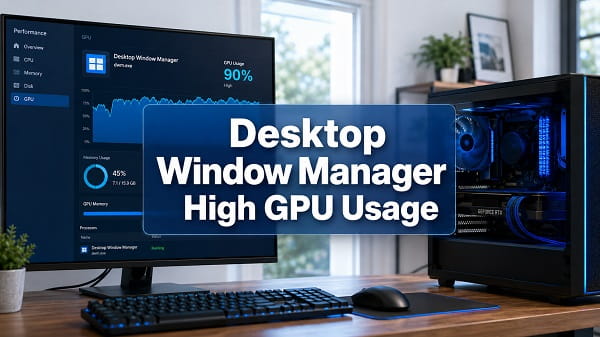
Desktop Window Manager high GPU usage can make Windows feel slow, increase laptop heat, reduce battery life and compete with games or creative applications for graphics resources. In Task Manager, the process normally appears as Desktop Window Manager or dwm.exe.
Some GPU activity from Desktop Window Manager is expected. It combines application windows into the final image shown on the screen and handles desktop effects, window animations, thumbnails, transparency, scaling and other visual elements. Usage may briefly rise when you move a window, play a video, open Task View or connect another display.
The problem is sustained high utilization, particularly when the computer is idle or when dwm.exe causes stuttering, excessive fan noise, black-screen flashes or poor gaming performance. The most common causes are a faulty graphics driver, an application repeatedly redrawing its window, an animated wallpaper, a recording overlay, mismatched monitor settings, HDR problems or corrupted Windows components.
The safest approach is to identify what triggers the spike, update or repair the display driver and test visual features one at a time. Do not delete dwm.exe or try to permanently disable Desktop Window Manager. It is a core part of the modern Windows desktop.
Quick Fixes for Desktop Window Manager High GPU Usage
Try these solutions in order:
- Restart Windows completely.
- Check whether usage is high only when moving windows or playing video.
- Close animated wallpapers, overlays and screen-recording applications.
- Update Windows and the graphics driver.
- Reset the graphics driver with Windows + Ctrl + Shift + B.
- Reinstall or roll back the display driver if the problem began after an update.
- Turn off transparency and animation effects temporarily.
- Test browser and application hardware acceleration.
- Disconnect extra monitors and test a common refresh rate.
- Turn HDR off temporarily.
- Test Hardware-Accelerated GPU Scheduling in its opposite state.
- Run SFC and DISM.
Change one setting at a time and watch Task Manager for several minutes. Applying ten changes together may hide the real cause and make it difficult to know which setting helped.
What Is Desktop Window Manager?
Desktop Window Manager is the Windows desktop compositor. Applications draw their windows into separate surfaces, and DWM combines those surfaces with the desktop, taskbar, visual effects and display configuration before sending the finished image to the monitor.
Microsoft’s Desktop Window Manager overview explains that desktop composition enables Windows visual effects and high-resolution display support. Because the composition work is graphical, dwm.exe normally uses the GPU rather than forcing the CPU to build every desktop frame.
DWM is responsible for or involved in features such as:
- Window previews and thumbnails
- Transparency effects
- Window opening and closing animations
- Task View and virtual desktops
- Desktop scaling
- Multiple-monitor composition
- High-resolution and high-refresh-rate output
- HDR desktop presentation
- Combining content from browsers, games, video players and overlays
The process is not a separate program that can be uninstalled. On current Windows 11 and Windows 10 systems, it is an essential desktop component.
How Much DWM GPU Usage Is Normal?
There is no universal percentage that is normal for every computer. GPU model, screen resolution, refresh rate, monitor count and active applications all influence utilization.
These behaviours are usually normal:
- A short spike while dragging or resizing a window
- Increased usage while Task View is open
- Activity while playing video or using an animated interface
- More usage with several high-resolution monitors
- Brief spikes after signing in or waking the computer
- A larger percentage on a low-power integrated GPU than on a powerful dedicated card
Investigate further when:
- DWM remains unusually high while no windows are moving
- The desktop stutters or freezes
- GPU usage stays near its maximum for several minutes
- Fans run loudly on an idle desktop
- Games lose substantial performance when DWM rises
- The screen flickers, turns black or recovers repeatedly
- Dedicated GPU memory continues increasing
- Usage began immediately after a driver or Windows update
A percentage alone is not enough to diagnose the problem. A low-end integrated GPU can show a high percentage for a small workload, while a high-end card may show a low percentage for the same desktop.
Check Whether DWM Is Really the Cause
Task Manager may attribute desktop composition work to DWM even when another application is creating the workload. For example, a browser, animated wallpaper or overlay continuously updates its window, and DWM must compose those updates for the display.
To investigate:
- Press Ctrl + Shift + Esc to open Task Manager.
- Open the Processes page.
- Click the GPU column to sort by usage.
- Note which applications appear beside Desktop Window Manager.
- Select Performance and open the active GPU.
- Watch the 3D, Copy, Video Decode and Video Encode graphs.
- Close suspected applications one at a time.
Also observe the exact trigger:
- Does usage rise when moving a browser window?
- Does it start after launching a game?
- Does it happen only when OBS or another recorder opens?
- Does disconnecting a second monitor stop it?
- Does it continue after animated wallpaper software closes?
- Does the problem begin when HDR turns on?
This isolation test is more useful than immediately reinstalling Windows.
1. Restart Windows Completely
A full restart reloads Desktop Window Manager, the graphics driver and applications that integrate with the desktop.
- Save open work.
- Open Start > Power.
- Select Restart.
- Sign in and wait two minutes.
- Open Task Manager and check GPU usage before launching other applications.
Use Restart rather than Shut down. Fast Startup can preserve part of the previous session after a normal shutdown.
If usage is normal immediately after restarting but rises after opening a particular application, that application or one of its overlays is probably triggering the workload.
2. Restart Windows Explorer
Windows Explorer controls the desktop shell, taskbar, Start menu and File Explorer windows. Restarting it can clear a shell problem without forcibly terminating DWM.
- Open Task Manager.
- Find Windows Explorer.
- Right-click it.
- Select Restart.
The taskbar and desktop may disappear briefly before returning. Recheck Desktop Window Manager after the shell reloads.
Do not repeatedly end dwm.exe in Task Manager. Windows may restart it automatically, and the screen can flash or go black during the reset. Restarting Explorer or Windows is the safer first action.
3. Reset the Graphics Driver
A temporary display-driver fault can cause DWM to use excessive resources or produce a flickering desktop.
Press:
Windows + Ctrl + Shift + B
The screen may blink, and Windows may play a short sound. Open applications remain in place because this shortcut refreshes the graphics stack rather than restarting the computer.
Use it once and observe the result. It is a recovery shortcut, not a permanent optimization. The Windows graphics reset explanation covers what the shortcut changes and when a full driver repair is more appropriate.
4. Update Windows
Windows updates can contain display, DWM, reliability and compatibility corrections.
- Open Settings.
- Select Windows Update.
- Click Check for updates.
- Install available cumulative updates.
- Check Advanced options > Optional updates for an appropriate display driver only when the manufacturer’s driver is not already working correctly.
- Restart the computer.
Do not install every optional driver merely because it is listed. A laptop manufacturer’s approved graphics package may contain power-management and switching features that a generic update lacks.
5. Update or Reinstall the Graphics Driver
Desktop Window Manager relies directly on the display driver. A damaged, incomplete or unsuitable driver is one of the most common causes of persistent high GPU usage.
First identify the graphics hardware:
- Right-click Start.
- Select Device Manager.
- Expand Display adapters.
- Note every listed Intel, AMD or NVIDIA adapter.
Download a compatible driver from the GPU manufacturer or the computer manufacturer. Restart after installation.
If the issue remains after a normal update, reinstall the driver. NVIDIA users can follow the complete NVIDIA driver reinstallation steps. For AMD or Intel, use the corresponding manufacturer installer and choose a repair or clean-install option only when it is available and necessary.
Avoid third-party driver-download websites. Incorrect graphics packages can create more DWM, brightness, sleep and multi-monitor problems.
6. Roll Back a Recent Driver Update
If Desktop Window Manager high GPU usage began immediately after a graphics update, the new driver may be responsible even if it installed successfully.
- Open Device Manager.
- Expand Display adapters.
- Double-click the affected GPU.
- Open the Driver tab.
- Select Roll Back Driver if available.
- Choose the relevant reason.
- Restart Windows.
If the button is unavailable, install the previously stable driver manually. The NVIDIA driver rollback methods explain Device Manager rollback and manual installation.
Do not continue moving randomly between driver versions. Record the version that works and pause automatic replacement long enough to confirm stability.
7. Turn Off Transparency and Animation Effects
Transparency and animations are normal DWM workloads. They should not overwhelm a healthy modern GPU, but disabling them is a useful diagnostic step on older hardware or after a display problem.
Turn off transparency
- Open Settings.
- Select Personalization > Colors.
- Turn Transparency effects off.
Turn off animations
- Open Settings.
- Select Accessibility > Visual effects.
- Turn Animation effects off.
Watch Task Manager again. If the improvement is small and the desktop was otherwise stable, restore the visual effects. Disabling them is not a substitute for repairing a driver that leaves DWM near maximum usage while idle.
8. Disable Animated Wallpapers and Desktop Customization Tools
Live wallpapers, desktop widgets, rain effects, audio visualizers, taskbar modifiers and skinning applications can continuously redraw parts of the desktop.
Temporarily close or disable:
- Animated wallpaper software
- Desktop widget suites
- Third-party taskbar customization
- Window-transparency utilities
- RGB programs with desktop-screen capture
- Desktop rain or particle effects
- Applications that place live information over the wallpaper
Switch to a static local image for testing:
- Open Settings > Personalization > Background.
- Select Picture.
- Choose a static image.
- Sign out and back in if the customization tool modified the shell.
If usage returns to normal, re-enable customizations one at a time. The issue may be a specific effect, refresh frequency or software update rather than DWM itself.
9. Test Browser and Application Hardware Acceleration
Browsers, chat applications and media players often use GPU acceleration. Their rendered surfaces are then composed by DWM, so a browser bug can appear as high Desktop Window Manager usage.
Test one affected application:
- Open its settings.
- Find Hardware acceleration, Graphics acceleration or a similarly named option.
- Change it to the opposite state.
- Fully restart the application.
- Reproduce the same scrolling, video or window movement.
If disabling acceleration fixes DWM usage but makes video playback or scrolling worse, update the browser and graphics driver before leaving acceleration disabled permanently.
Do not disable hardware acceleration in every application at once. That can move workloads to the CPU and hide which program caused the problem.
10. Turn Off Overlays and Background Recording
Gaming overlays and screen recorders capture, draw or monitor content on the desktop. DWM usage may increase when they hook into a game, browser or display.
Temporarily disable:
- NVIDIA overlay and Instant Replay
- Xbox background recording
- Discord overlay
- Steam overlay
- AMD recording and performance overlays
- FPS and hardware-monitoring overlays
- Screen annotation tools
- Third-party clipping applications
If NVIDIA recording is not needed, use the steps to turn off NVIDIA Overlay without removing the display driver.
For OBS, test an empty scene and check whether Display Capture is the trigger. Capturing the entire desktop naturally involves DWM more than some application-specific capture methods. The goal is not necessarily to reduce DWM to zero, but to prevent abnormal utilization and stuttering.
11. Check Multiple Monitors and Refresh Rates
DWM must compose the desktop for every connected display. Two or three monitors with different resolutions, scaling levels, refresh rates, HDR states or GPU connections can create additional work and expose driver bugs.
Test the displays systematically:
- Disconnect all secondary monitors.
- Restart Windows with one display connected.
- Check DWM usage.
- Reconnect displays one at a time.
- Open Settings > System > Display > Advanced display.
- Confirm that each monitor uses a supported resolution and refresh rate.
If the problem appears only with two monitors:
- Test matching refresh rates temporarily.
- Use native resolution on both displays.
- Check that scaling is not set to an unusual custom value.
- Connect both displays to the dedicated GPU when appropriate.
- Update monitor, dock and graphics drivers.
- Test another certified cable or port.
A 60 Hz secondary monitor and a 144 Hz or 240 Hz primary display should normally work together. Matching them is a troubleshooting test, not a requirement to permanently give up the higher refresh rate.
12. Test HDR
HDR changes how Windows and the GPU process and present desktop content. A driver, display or cable problem can produce high DWM usage when HDR is active.
- Open Settings > System > Display.
- Select the affected monitor.
- Open HDR.
- Turn HDR off temporarily.
- Restart the affected application and compare DWM usage.
If turning HDR off helps, update the graphics driver and check the monitor’s firmware, input mode and cable. Microsoft’s Windows performance guidance also recommends keeping Windows and device drivers current when troubleshooting system slowdowns. Microsoft’s PC performance recommendations
Do not permanently disable HDR if it works correctly after the driver or display problem is fixed.
13. Test Hardware-Accelerated GPU Scheduling
Hardware-Accelerated GPU Scheduling, usually shortened to HAGS, changes part of how Windows schedules graphics work. It can help some configurations and cause problems on others depending on the driver, GPU and applications.
- Open Settings > System > Display > Graphics.
- Select Default graphics settings.
- Find Hardware-accelerated GPU scheduling.
- Change it to the opposite state.
- Restart Windows.
- Repeat the same workload.
If HAGS was on, test it off. If it was off, test it on. Keep the state that gives stable results rather than assuming either setting is universally better.
The option may not appear on every computer. Its absence can be normal on unsupported hardware or drivers.
14. Check Power Mode, Temperature and GPU Selection
Laptop power management can make a small desktop workload appear as a large percentage on integrated graphics. It can also move applications between GPUs in a way that increases composition overhead.
Try these checks:
- Connect the charger.
- Open Settings > System > Power & battery.
- Select Balanced or Best performance for testing.
- Exit Battery Saver.
- Confirm which GPU DWM and the triggering application use in Task Manager.
- Check GPU temperature and clock speed.
- Clean obstructed vents without opening hardware you are not qualified to service.
Do not force DWM to a specific GPU with unofficial Registry changes. Windows controls the compositor’s adapter selection according to the display path and system design.
On a hybrid laptop, the integrated GPU may drive the internal screen while the NVIDIA or AMD GPU renders demanding applications. Activity on both adapters is not automatically a fault.
15. Repair Windows System Files
Damaged Windows components can affect the shell, DWM and display services. Run DISM and System File Checker from an elevated terminal.
- Right-click Start.
- Select Terminal (Admin).
- Enter:
DISM /Online /Cleanup-Image /RestoreHealth
- Wait for it to complete.
- Enter:
sfc /scannow
- Restart Windows after the scan finishes.
DISM repairs the Windows component store used by SFC. SFC then checks protected system files and replaces damaged copies when possible.
Do not download individual copies of dwm.exe or dwmcore.dll from file-hosting websites. Windows repair tools and official installation media are safer sources for protected components.
Perform a Clean Boot If Usage Remains High
A clean boot starts Windows with Microsoft services and a minimal set of startup programs. It helps identify background software that repeatedly triggers desktop composition.
- Press Windows + R.
- Enter
msconfig. - Open the Services tab.
- Select Hide all Microsoft services.
- Click Disable all.
- Open Task Manager’s Startup apps page.
- Disable nonessential startup items.
- Restart Windows.
If DWM usage becomes normal, re-enable items in small groups until the problem returns. The most recently enabled group contains the likely trigger.
Do not leave security, backup or hardware-control software disabled without understanding its purpose. Clean boot is a diagnostic state.
Check Whether dwm.exe Is Genuine
The legitimate Desktop Window Manager executable is normally located at:
C:\Windows\System32\dwm.exe
To verify it:
- Open Task Manager.
- Right-click Desktop Window Manager.
- Select Open file location.
- Confirm that the file opens from
C:\Windows\System32. - Open the file’s Properties and check its digital signatures when necessary.
A file with the same name in Downloads, AppData or another unusual folder may be suspicious. Run a Microsoft Defender scan instead of deleting it immediately.
- Open Windows Security.
- Select Virus & threat protection.
- Open Scan options.
- Run a Full scan or Microsoft Defender Offline scan if the behaviour is unexplained.
High usage from the genuine System32 process is usually a driver, display or application problem rather than malware.
Desktop Window Manager High GPU When Moving Windows
A temporary rise while dragging or resizing a window is expected because DWM must rebuild the desktop at the monitor’s refresh rate. The rise may be more visible on integrated graphics, a 4K display or a high-refresh-rate monitor.
It becomes suspicious when movement causes severe lag, the usage remains high after the window stops, or a basic window drives the GPU close to maximum capacity.
Try these fixes:
- Update or reinstall the display driver.
- Turn off transparency and animations for comparison.
- Close customization utilities.
- Test one monitor at its native resolution.
- Change browser hardware acceleration if only browser windows trigger it.
- Reset the graphics driver once.
Desktop Window Manager High GPU While Gaming
DWM remains active while a game runs because Windows still composes the desktop, overlays and some display modes. Borderless-windowed games generally interact with desktop composition more directly than traditional exclusive full screen.
If gaming performance drops:
- Disable recording overlays and Instant Replay.
- Compare borderless and exclusive full-screen modes when the game offers both.
- Turn off unnecessary secondary-display video playback.
- Cap the game’s frame rate to leave GPU headroom.
- Close browsers with animated content.
- Update or roll back the GPU driver.
- Check whether an FPS overlay is misreporting DWM usage.
Do not set DWM priority to Low or alter its processor affinity. Those changes can make the interface less responsive without reducing the underlying composition work.
Desktop Window Manager High GPU With OBS
Display Capture can increase DWM activity because OBS records the composed desktop. A complex scene, high output frame rate, multiple displays and other overlays add more work.
Test the following:
- Create an empty OBS scene.
- Add only the required source.
- Compare Display Capture with Window Capture or Game Capture where appropriate.
- Disable NVIDIA, AMD and Xbox background recording.
- Run a short recording while watching OBS Stats and Task Manager.
- Cap a game’s frame rate if the GPU is already fully utilized.
The article on optimizing an NVIDIA GPU for OBS Studio explains how to leave rendering headroom and distinguish OBS encoding lag from network problems.
Desktop Window Manager High GPU at Idle
Sustained high usage at idle deserves more attention than a short movement spike.
Start with a controlled test:
- Restart Windows.
- Do not open a browser, game or recorder.
- Wait two minutes after signing in.
- Open Task Manager.
- Close animated wallpaper and hardware-monitoring utilities.
- Disconnect secondary monitors.
- Check whether usage falls.
If it remains high, repair the display driver, update Windows, run SFC and DISM and perform a clean boot. If screen flashing or a black display accompanies the issue, the Windows 11 black screen with cursor fixes cover recovery steps for a damaged display session.
Should You Disable Desktop Window Manager?
No. Current Windows versions depend on Desktop Window Manager for the graphical desktop. Ending the process can make the screen flicker or go black, and Windows normally starts it again.
Avoid advice that recommends:
- Deleting or renaming
dwm.exe - Downloading a replacement executable
- Disabling protected DWM services
- Changing DWM ownership or permissions
- Setting its priority to Realtime or Low
- Applying undocumented Registry values
- Permanently disabling antivirus protection
These actions do not remove the workload that an application, display or driver is generating.
Which Fix Should You Use?
| Situation | Best starting fix |
|---|---|
| Usage rises only while moving windows | Check driver, transparency and monitor refresh rate |
| DWM stays high at idle | Restart, close customization tools and perform a clean boot |
| Problem began after a GPU update | Roll back or reinstall the driver |
| Usage rises when a browser opens | Test that browser’s hardware acceleration |
| Usage rises with OBS or game capture | Disable duplicate overlays and compare capture methods |
| Problem appears with two monitors | Test one monitor and compare refresh rates, scaling and HDR |
| High usage begins with HDR | Turn HDR off for testing and repair the driver/display path |
| Screen flashes or turns black | Reset the graphics driver, then reinstall or roll it back |
dwm.exe is outside System32 |
Run a security scan |
| DWM is high after a normal restart | Update Windows, repair system files and clean boot |
Frequently Asked Questions
Why is Desktop Window Manager using my GPU?
Desktop Window Manager uses the GPU to combine application windows, desktop effects, taskbar elements and display output into the final image shown on the monitor. Some usage is normal.
Is 100% Desktop Window Manager GPU usage normal?
A very brief spike can occur during a display change, but sustained 100% usage is not normal on an idle desktop. Check the graphics driver, active applications, overlays, monitors, HDR and animated wallpapers.
Why does DWM GPU usage rise when I move a window?
Moving a window forces DWM to update the composed desktop repeatedly. A short rise is expected. Severe lag or usage that remains high afterward can indicate a driver, scaling, refresh-rate or application-rendering problem.
Is dwm.exe a virus?
The genuine dwm.exe is a Microsoft Windows component stored in C:\Windows\System32. A similarly named file in another folder may be suspicious and should be scanned.
Can I end Desktop Window Manager in Task Manager?
Windows may allow the process to end temporarily, but the desktop can flash or turn black and the process normally restarts. Restart Windows Explorer, reset the driver or restart the computer instead.
Does disabling transparency reduce DWM GPU usage?
It can reduce a small amount of composition work and is useful as a test. It should not be necessary to prevent extreme idle usage on healthy modern hardware.
Can multiple monitors cause high DWM usage?
They can increase composition work, particularly with different resolutions, refresh rates, scaling levels or HDR configurations. Driver and docking-station problems can make the increase abnormal.
Why does Desktop Window Manager use the integrated GPU?
Many laptops route the internal display through integrated graphics even when a dedicated GPU renders games. Activity on the integrated adapter can therefore be normal.
Will reinstalling Windows fix DWM high GPU usage?
It might remove a software conflict, but it is an excessive first step. Driver repair, application isolation, display testing, SFC, DISM and a clean boot should come first.
Should I disable Hardware-Accelerated GPU Scheduling?
Test the opposite of its current setting and restart. HAGS can help one system and cause trouble on another, so there is no single state that fixes every DWM problem.
Desktop Window Manager should use the GPU, but it should not monopolize it on an idle, properly configured computer. Start by identifying the action or application that triggers the increase, then repair the display driver and test overlays, monitor settings and visual effects individually. This approach fixes the source of the composition workload without damaging a Windows component that the desktop needs.
