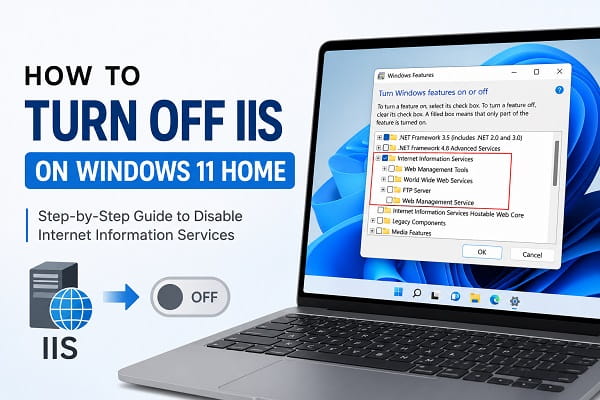
To turn off IIS on Windows 11 Home, open Turn Windows features on or off, clear the checkbox beside Internet Information Services, click OK, and restart the computer if Windows requests it. This disables the IIS web server and its selected components without affecting ordinary browsing, Windows Update, Microsoft Office or gaming.
You can also disable IIS with Command Prompt or PowerShell. However, temporarily stopping an IIS service is not the same as turning off the Windows feature. The correct method depends on whether you want IIS disabled permanently, stopped only until the next restart, or partially available for a development project.
Quick Methods for Turning Off IIS
| Goal | Recommended method | Result |
|---|---|---|
| Disable IIS completely | Windows Features | Turns off the IIS optional feature and selected components |
| Disable IIS from a script | DISM or PowerShell | Produces the same feature-level change from an administrator terminal |
| Stop IIS temporarily | iisreset /stop or stop W3SVC |
Stops web serving without removing the feature |
| Free port 80 or 443 | Identify the listening process first | Confirms whether IIS or another program owns the port |
| Keep some IIS functions | Disable individual subfeatures | Retains only the components a project needs |
| Disable IIS Express | Change or remove IIS Express separately | Full IIS and IIS Express are different installations |
For most Windows 11 Home users, the Windows Features method is the safest and easiest choice.
What Is IIS?
Internet Information Services, commonly called IIS, is Microsoft’s web server platform. It can host websites, local web applications, APIs and services on a Windows computer.
IIS is useful for:
- Testing websites locally
- Running ASP.NET applications
- Hosting a development environment
- Providing an internal web interface for certain programs
- Learning web-server administration
- Running a local FTP service when that component is installed
IIS is an optional Windows feature. It is not required for normal internet browsing because browsers such as Edge, Chrome and Firefox connect to web servers rather than depending on IIS to display websites.
Windows 11 Home may not include every management and deployment feature available on Windows Server, but the IIS components shown in Windows Features can still be enabled or disabled normally.
Should You Disable IIS on Windows 11 Home?
You can safely disable IIS if you do not host a website, test an application or use software that depends on the Windows web server.
Common reasons for turning it off include:
- IIS was enabled accidentally
- A local website is no longer required
- Apache, Nginx, XAMPP or another web server needs port 80 or 443
- An old development environment has been removed
- You want to reduce the number of unused Windows components
- A security review identified an unnecessary local web server
- A program enabled IIS but no longer needs it
The performance improvement is usually small. IIS services that are not actively serving applications may consume few resources. The main benefits are removing an unused feature, avoiding port conflicts and reducing the attack surface of the computer.
If the main goal is general performance improvement, debloating Windows 11 safely will have a broader effect than disabling one optional web-server feature.
When You Should Keep IIS Enabled
Do not disable IIS until you confirm that no important application requires it.
Keep IIS enabled if you use:
- A website hosted through IIS Manager
- An ASP.NET project configured for full IIS
- A local API or intranet application
- Web Deploy or an IIS-based publishing workflow
- Enterprise software with an IIS management portal
- A development course or laboratory that requires the full IIS server
- An FTP site hosted through IIS
Check the application’s documentation if you are unsure. Disabling IIS is reversible, but any dependent website or management interface will remain unavailable until IIS is restored.
Check Whether IIS Is Enabled
It is worth confirming that IIS is actually active before attempting to disable it. A page at localhost may belong to IIS, IIS Express, Apache, Nginx, Docker or another development server.
Check Through Windows Features
- Press Windows + R.
- Type
optionalfeatures. - Press Enter.
- Find Internet Information Services.
The checkbox can show three states:
- Empty: IIS is disabled.
- Checked: The selected IIS feature group is enabled.
- Partially filled: Some IIS subfeatures are enabled while others are not.
A partially filled box is common because Windows allows individual IIS components to be installed separately.
Check the Feature State With DISM
Open Terminal (Admin) and run:
dism /online /get-featureinfo /featurename:IIS-WebServerRole
Look for the state in the result:
Enabledmeans the web server role is active as a Windows feature.Disabledmeans it is turned off but its files remain available for re-enabling.Disabled with Payload Removedmeans the feature files were removed and Windows may need an installation source or Windows Update to restore them.
Check the Feature State With PowerShell
Run PowerShell or Terminal as an administrator and enter:
Get-WindowsOptionalFeature -Online -FeatureName IIS-WebServerRole
The State field reports whether the feature is enabled or disabled.
Check IIS Services
Full IIS normally uses the World Wide Web Publishing Service, known as W3SVC, and Windows Process Activation Service, known as WAS.
Run:
Get-Service W3SVC,WAS -ErrorAction SilentlyContinue
A Running service confirms that the service is active, but a Stopped service does not mean the IIS feature has been removed. It may simply be installed and temporarily stopped.
Test Localhost Carefully
Open a browser and visit:
http://localhost
The default IIS page suggests that IIS is serving port 80. However, an error page does not prove the feature is disabled, and a working page does not prove that IIS owns the port. Use the feature-state commands for confirmation.
Method 1: Turn Off IIS Using Windows Features
This is the recommended method for most Windows 11 Home computers.
- Save active work and close local web-development programs.
- Press Windows + R.
- Type
optionalfeaturesand press Enter. - Wait for the Windows Features window to load.
- Find Internet Information Services.
- Clear the checkbox beside the main Internet Information Services entry.
- Click OK.
- Wait while Windows applies the change.
- Restart the computer if prompted.
Clearing the top-level checkbox disables the selected IIS subfeatures beneath it. Windows retains enough servicing information to enable the feature again later.
Do not uncheck Windows Process Activation Service separately unless you have verified that no other Windows component or application uses it. Disabling the IIS parent feature is normally sufficient for turning off the web server.
After restarting, check the feature state with DISM or PowerShell to verify the result.
Method 2: Disable IIS With Command Prompt
DISM is useful when Windows Features will not open, when you are assisting another user remotely, or when you want a command that can be included in a repeatable maintenance process.
Microsoft documents DISM as a supported way to enable or disable Windows features.
- Open the Start menu.
- Search for Command Prompt.
- Select Run as administrator.
- Approve the User Account Control prompt.
- Run:
dism /online /disable-feature /featurename:IIS-WebServerRole /norestart
- Wait for the operation to complete.
- Restart Windows.
The /online option targets the Windows installation currently running. /disable-feature changes the optional feature state, while /norestart prevents DISM from restarting the computer automatically.
This command disables the IIS Web Server Role. If individual IIS components remain enabled because they were installed separately, list them with:
dism /online /get-features /format:table | findstr /i IIS
Review the list before disabling additional components. Do not copy a large command that removes every IIS-related feature unless you understand which applications use them.
Method 3: Disable IIS With PowerShell
PowerShell provides another supported way to change Windows optional features.
- Right-click Start.
- Select Terminal (Admin).
- Approve the User Account Control prompt.
- Run:
Disable-WindowsOptionalFeature -Online -FeatureName IIS-WebServerRole -NoRestart
- Restart Windows after the command completes.
Confirm the result with:
Get-WindowsOptionalFeature -Online -FeatureName IIS-WebServerRole
PowerShell may return RestartNeeded : True. Restarting completes pending feature changes and ensures IIS services are no longer loaded.
Do not add the -Remove option merely to turn IIS off. Removing the feature payload can make re-enabling IIS more complicated because Windows may need to download or locate the source files again.
Method 4: Disable Only Certain IIS Components
Full removal is unnecessary when a developer still needs part of IIS.
- Open Turn Windows features on or off.
- Expand Internet Information Services.
- Expand the appropriate feature group.
- Clear only the components you no longer need.
- Click OK.
- Restart if prompted.
IIS subfeatures may include:
- Web Management Tools
- World Wide Web Services
- FTP Server
- Application Development Features
- Common HTTP Features
- Health and Diagnostics
- Performance Features
- Security Features
For example, removing FTP Server does not require disabling an ASP.NET website. Likewise, a user who no longer needs CGI support can disable that component while retaining ordinary static web hosting.
Change one group at a time when maintaining a development computer. It becomes easier to identify the missing dependency if a project stops working.
Temporarily Stop IIS Without Disabling It
Sometimes the goal is to release a port briefly or stop local websites during testing. In that situation, stopping IIS is faster than changing Windows features.
Open Terminal as an administrator and run:
iisreset /stop
Start it again with:
iisreset /start
You can also stop the World Wide Web Publishing Service:
net stop W3SVC
Start it again with:
net start W3SVC
Stopping W3SVC interrupts all sites using the full IIS server. It does not uninstall IIS, change the optional-feature state or guarantee that the service will remain stopped after a restart.
I recommend using a temporary stop only for testing. Use Windows Features, DISM or PowerShell when the intention is to turn IIS off permanently.
Check Whether IIS Is Using Port 80 or 443
Port conflicts are a major reason users disable IIS. Apache, Nginx, XAMPP, Docker and development tools may fail when another process already listens on the required port.
Open PowerShell as an administrator and run:
Get-NetTCPConnection -LocalPort 80,443 -State Listen -ErrorAction SilentlyContinue |
Select-Object LocalAddress,LocalPort,OwningProcess
Note the OwningProcess number, then run:
Get-Process -Id PROCESS_ID
Replace PROCESS_ID with the number shown by the first command.
If the process belongs to IIS, stopping W3SVC should release the web port temporarily. If another application owns it, disabling IIS will not solve the conflict. Change that application’s configuration or stop its service instead.
The Windows HTTP service may sometimes appear through the System process because HTTP.sys handles kernel-level HTTP requests for several Windows components. Do not disable HTTP services blindly. Identify the registered application before making a system-wide change.
IIS and IIS Express Are Not the Same
Disabling Internet Information Services in Windows Features does not necessarily disable IIS Express.
Microsoft describes IIS Express as a lightweight, self-contained IIS version designed for development. Visual Studio can install and launch it independently of the full Windows IIS feature.
| Feature | Full IIS | IIS Express |
|---|---|---|
| Installed through Windows Features | Yes | Usually no |
| Commonly used by Visual Studio | Sometimes | Yes |
| Uses WAS for application activation | Yes | No |
| Intended for full web-server configuration | Yes | No |
| Runs automatically as a Windows web service | Can do so | Usually starts with a project |
| Disabled by clearing the IIS Windows feature | Yes | No |
If localhost still opens after disabling full IIS, check Task Manager for iisexpress.exe. Close the Visual Studio project that started it, change the project launch profile, or uninstall IIS Express through Settings > Apps > Installed apps if no project requires it.
Do not remove IIS Express only because its name contains IIS. A Visual Studio project may depend on it even when full IIS is unnecessary.
How to Confirm IIS Is Completely Disabled
After restarting Windows, perform these checks:
Check the Feature State
Run:
dism /online /get-featureinfo /featurename:IIS-WebServerRole
The state should show Disabled.
Check W3SVC
Run:
sc.exe query W3SVC
If the IIS feature was disabled successfully, the service may be stopped or absent, depending on which components remain installed.
Check the Listening Ports
Use the PowerShell port command provided earlier. Port 80 or 443 may still be used by another server, so identify the process rather than assuming IIS returned.
Refresh the Browser Test
Open a private browsing window and visit http://localhost. A cached IIS welcome page can make it appear that the server is still active. If a page loads, identify the process listening on port 80.
What Happens After You Turn Off IIS?
For an ordinary home computer, most daily activities continue normally.
Disabling IIS does not normally affect:
- Browsing the internet
- Windows Update
- Microsoft Store downloads
- Office applications
- File Explorer
- Gaming
- Media streaming
- Wi-Fi or Ethernet
- Printer access
Features that depend directly on IIS will stop working, including:
- Websites hosted through IIS Manager
- Full-IIS Visual Studio profiles
- ASP.NET applications deployed to IIS
- IIS-hosted APIs
- FTP sites using the IIS FTP component
- Third-party management portals that use IIS
If an application fails immediately after the change, restore IIS and review the program’s requirements.
How to Turn IIS Back On
The easiest restoration method is Windows Features:
- Press Windows + R.
- Type
optionalfeatures. - Press Enter.
- Select Internet Information Services.
- Expand the group and select any required subfeatures.
- Click OK.
- Restart Windows if prompted.
You can also use DISM:
dism /online /enable-feature /featurename:IIS-WebServerRole /all /norestart
Or PowerShell:
Enable-WindowsOptionalFeature -Online -FeatureName IIS-WebServerRole -All -NoRestart
Restart after either command. The /all or -All option enables the required parent features, but it does not automatically select every optional IIS subcomponent. Return to Windows Features if a project requires ASP.NET, CGI, FTP or a specific authentication component.
Fix IIS That Will Not Turn Off
If Windows Features, DISM or PowerShell cannot disable IIS, note the full error message and try the following solutions.
Restart Windows and Try Again
A pending Windows Update or feature operation can block another servicing change. Restart, sign in with an administrator account and run the command again.
Confirm the Terminal Is Elevated
DISM may return an elevation-related message when Command Prompt or Terminal lacks administrator permission.
Right-click Start, select Terminal (Admin) and approve the User Account Control prompt before retrying.
Confirm the Feature Name
If DISM reports that the feature name is unknown, run:
dism /online /get-features /format:table | findstr /i IIS
Copy the exact feature name shown for your installation. Do not use Windows Server commands such as Uninstall-WindowsFeature Web-Server on Windows 11 Home because the ServerManager module is designed for Windows Server roles.
Repair the Windows Component Store
Open Terminal as an administrator and run:
DISM.exe /Online /Cleanup-Image /RestoreHealth
After DISM completes, run:
sfc /scannow
Restart Windows and try disabling IIS again.
If SFC reports a protection error, use these steps for fixing Windows Resource Protection errors before repeating the IIS command.
Check the DISM Log
DISM records details in:
C:\Windows\Logs\DISM\dism.log
The Component-Based Servicing log is located at:
C:\Windows\Logs\CBS\CBS.log
Look at entries recorded at the time of the failure. A specific error such as missing source files or a pending operation is more useful than the final generic message.
If the operation returns error 0x80004005, the troubleshooting steps in 0x80004005 Error Windows 11: How to Fix It explain how to repair Windows components and distinguish feature errors from other unspecified failures.
IIS Still Runs After Being Disabled
If a website continues loading after the feature state shows Disabled, IIS may not be the process serving it.
Check for:
- IIS Express launched by Visual Studio
- Apache from XAMPP or another local stack
- Nginx
- Docker containers publishing port 80 or 443
- A Node.js development server
- A Python development server
- A cached browser page
- Another computer or proxy being reached by the hostname
Use the port and process commands rather than repeatedly disabling Windows features. Full IIS is off when its feature state is Disabled, even if another local web server continues responding.
Common Problems After Disabling IIS
A Local Website Stops Working
This is expected if the site was hosted by full IIS. Re-enable IIS and the required subfeatures, then check the site binding and application pool.
Visual Studio Cannot Start a Project
Open the project properties or launchSettings.json and confirm whether the selected profile uses IIS, IIS Express or the project’s built-in server. Switching from full IIS to IIS Express may work for development, but the two environments can have different authentication, bindings and configuration.
An Application Reports Missing Web Components
Some business applications depend on IIS for a local management page. Re-enable the feature and consult the product documentation to identify the minimum required subfeatures.
Port 80 Remains Busy
Another process owns the port. Use Get-NetTCPConnection and Get-Process to identify it. Disabling more IIS components will not stop Apache, Nginx, Docker or a development server.
Windows Requests Source Files When Re-Enabling IIS
The IIS payload may have been removed with a servicing command rather than merely disabled. Connect to Windows Update or provide a matching Windows installation source. The source must correspond to the installed Windows edition, language and build.
Frequently Asked Questions
Is IIS installed by default on Windows 11 Home?
IIS is an optional Windows feature and is normally not active on a new home computer unless a user, administrator, development tool or application enables it.
Is it safe to turn off IIS on Windows 11 Home?
Yes, provided that you do not host websites or use an application that depends on IIS. Browsing, Windows Update, Office, gaming and ordinary file management do not require the IIS web server.
How do I turn off IIS permanently?
Clear Internet Information Services in Windows Features or disable IIS-WebServerRole with DISM or PowerShell. Stopping W3SVC or running iisreset /stop is temporary and does not disable the feature.
Can I stop IIS without uninstalling it?
Yes. Run iisreset /stop or stop W3SVC from an administrator terminal. Start it again with iisreset /start or net start W3SVC.
Why can’t I find Internet Information Services?
Open the classic Windows Features dialog by running optionalfeatures. If IIS is not listed, check the available feature names with DISM. Some components vary by edition, and an unrecognized feature may already be absent from the installation.
Will disabling IIS make Windows 11 faster?
The difference is usually small. The main reasons to disable IIS are to remove an unused server, reduce potential exposure and prevent conflicts with other web-server software.
Will disabling IIS affect Chrome or Microsoft Edge?
No. Web browsers do not depend on IIS for ordinary internet access. They may only be affected if you were using them to open a local website hosted by IIS.
Will turning off IIS affect Windows Update?
No. IIS is not required for the Windows Update client, Microsoft Store or ordinary Windows servicing.
Does disabling IIS disable IIS Express?
No. IIS Express is a separate lightweight development server commonly installed with Visual Studio. Close or reconfigure the project that starts IIS Express, or uninstall IIS Express separately if it is no longer needed.
Why is localhost still working after I disabled IIS?
Another program may be serving the page, or the browser may show a cached copy. Check which process listens on port 80 or 443 and look for IIS Express, Apache, Nginx, Docker or another development server.
Can I disable only the IIS FTP server?
Yes. Expand Internet Information Services in Windows Features and clear FTP Server while leaving the required web components enabled.
Can I turn IIS back on later?
Yes. Re-enable Internet Information Services through Windows Features or use the DISM or PowerShell enable command. Select any subfeatures required by your website or application.
Should I remove the IIS feature files?
Not unless disk space or system-image maintenance requires it. Disabling IIS is enough for most users and makes later restoration easier. Removing the payload may require Windows Update or matching installation media before IIS can be enabled again.
Turning off IIS through Windows Features is the best option for most Windows 11 Home users. DISM and PowerShell provide reliable alternatives, while stopping W3SVC is useful only for a temporary pause. Confirm the IIS feature state after restarting, and identify the process using ports 80 or 443 before assuming that a remaining local website belongs to IIS.
