
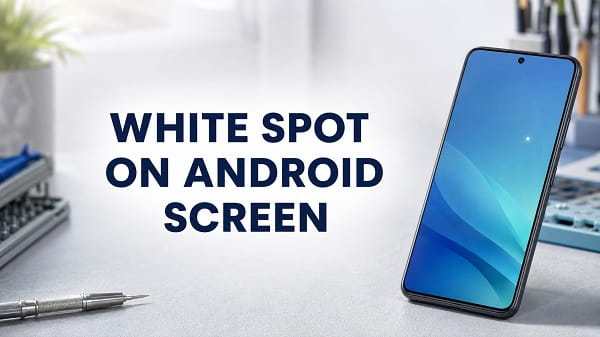
A white spot on an Android screen can come from a software feature, a stuck pixel or physical damage inside the display. The correct fix depends on whether the spot moves, appears in screenshots, changes with brightness or remains visible while the phone starts.
Start by taking a screenshot. Open that screenshot on another phone or computer. If the white spot appears in the screenshot, software or an on-screen feature is probably responsible. If the screenshot looks normal but you can still see the spot on the Android phone, the display itself is likely affected.
Do not press, rub or bend the screen in an attempt to remove a bright spot. Pressure can spread LCD damage, disturb the backlight layers or turn a small display defect into a larger patch.
What Does a White Spot on an Android Screen Look Like?
People use “white spot” to describe several different screen problems:
- A small bright dot that remains in one position
- A cloudy white patch that is more visible on a light background
- A movable white circle floating over apps
- A tiny dot that appears whenever the screen is touched
- Several white specks visible on black or coloured backgrounds
- A bright area near an edge, corner or fingerprint sensor
- A pale mark that appeared after the phone was dropped or exposed to water
These symptoms do not all have the same cause. A movable circle is usually a software control. A bright patch that does not appear in screenshots is more likely to be a panel, backlight or pressure problem.
Quick Ways to Identify the Cause
Use these checks before changing settings or paying for a repair.
| Test | What the result means |
|---|---|
| Take a screenshot and view it on another device | A visible spot suggests software; a clean screenshot suggests hardware |
| Drag the spot with your finger | A movable spot is probably an accessibility button, app bubble or floating shortcut |
| Restart the phone | A temporary software dot may disappear; a physical bright spot normally remains |
| Watch the startup logo | A spot visible before Android loads is almost certainly a display issue |
| Change screen brightness | A patch that becomes stronger with brightness can indicate LCD backlight or pressure damage |
| Test solid red, green, blue, white and black images | A dot that behaves differently by colour may be a stuck or defective pixel |
| Start Android in Safe Mode | If the spot disappears, a downloaded app is probably creating it |
The screenshot test is the best place to begin because it separates what Android is drawing from what the physical display is showing.
Why Is There a White Spot on My Android Screen?
1. An Accessibility Button Is Floating on the Screen
Android can place a floating accessibility shortcut over other apps. Depending on the phone, theme and enabled service, it may look like a white, grey, blue or green circle.
The button can open features such as:
- Accessibility Menu
- Magnification
- Select to Speak
- Colour correction
- Colour inversion
- TalkBack
- Voice Access
Unlike a damaged pixel, this button can usually be moved around the edge of the display. It will also appear in a screenshot because Android is deliberately drawing it.
Google allows users to change or remove the floating button through Settings > Accessibility > Accessibility button. The precise wording varies by Android version and manufacturer. Google’s official instructions for the Android accessibility button also explain its location, size and transparency controls.
2. Show Taps or Pointer Location Is Enabled
Android Developer options include visual tools for recording and testing touch input. Show taps places a small circle on the screen whenever you touch it. Pointer location displays lines and technical coordinates as you move your finger.
This is not screen damage. Someone may have enabled the setting while recording a tutorial, testing the touchscreen or exploring Developer options.
3. An App Is Displaying a Floating Bubble
Chat heads, game tools, screen recorders, assistive apps, performance monitors and device-cleaning apps can display icons over other applications. A poorly designed bubble may appear as a plain white dot, particularly if its icon fails to load.
If the dot started after installing or updating an app, check which apps have permission to appear over other apps.
4. A Pixel Is Stuck or Defective
Each screen pixel contains colour-producing subpixels. A stuck subpixel may remain unusually bright or display the wrong colour. A fully defective pixel is often black, but pixel faults can look white depending on which subpixels remain active and the background being displayed.
A pixel defect is normally:
- Extremely small
- Fixed in one position
- Absent from screenshots
- Visible on several colours
- Unaffected by moving between apps
Software cannot reliably repair a physically defective pixel. Rapid colour-cycling videos occasionally help a temporarily stuck pixel, but they cannot fix a dead pixel, cracked connection or damaged display layer.
5. Pressure Has Damaged the LCD Layers
Many reports of a bright white spot on a phone screen are caused by pressure. The display may have been compressed by:
- Sitting on the phone
- Carrying it in a tight pocket
- Placing a heavy object on it
- Using an overly tight case
- Installing the screen or battery incorrectly
- Pressing hard while cleaning the display
- A swollen battery pushing from behind
An LCD uses several layers to spread its backlight evenly. Pressure can deform these layers and create a bright patch. The mark may look like a small torch shining from behind the screen.
If the screen is lifting away from the frame, the back cover is separating or the phone rocks on a flat surface, turn it off and stop charging it. Those symptoms can indicate a swollen battery, which needs professional attention.
6. The Phone Was Dropped
A fall does not have to crack the outer glass to damage the display underneath. Internal LCD layers, OLED pixels, flex cables or connectors can be affected while the glass remains smooth.
A drop-related white spot may appear with:
- Coloured vertical or horizontal lines
- Flickering
- Black ink-like patches
- Touchscreen dead zones
- Ghost touches
- A spreading bright area
If your display is also becoming unresponsive, use my Android touchscreen not working guide to protect your data and distinguish a touch problem from a picture problem.
7. Moisture Entered the Display
Water can leave pale clouds, bright areas, stains or irregular patches between the display layers. The spot may change shape as moisture moves or dries.
Do not charge a wet phone, heat it with a hair dryer or place it in rice. Power it off, remove the case and disconnect accessories. If moisture entered beneath the screen, professional inspection is safer than continuing to use the device.
8. The Screen Protector Has an Air Bubble or Dust
Sometimes the display is healthy and the mark is trapped above it. Dust, an air pocket, adhesive separation or moisture under a screen protector can create a light-coloured spot.
View the screen from an angle and turn it off. If the mark remains visible as a surface imperfection while the display is off, inspect the protector. Remove it only if you are comfortable fitting a replacement.
9. Image Retention or OLED Burn-In
OLED burn-in normally appears as a faint shadow of navigation buttons, a keyboard, status icons or another repeated image. It is less likely to produce a single bright white dot, but uneven pixel wear can make one part of the screen look lighter or darker than the rest.
Temporary image retention may fade after the content changes. Permanent burn-in does not disappear after restarting, updating Android or resetting the phone.
10. The Display or Battery Was Replaced Incorrectly
A bright patch that appeared after a repair can be caused by:
- Uneven adhesive
- A missing cushion or diffuser
- A screw pressing against the panel
- A poorly seated display
- A low-quality replacement screen
- Pressure from the battery or another component
Return to the repairer rather than pressing the spot yourself. Opening the phone can damage seals, cables and the battery, and may affect any repair warranty.
How to Remove a White Spot from an Android Screen
Work through these solutions in order. Stop once you identify a physical display problem.
1. Take a Screenshot
Press the phone’s usual screenshot combination, often the Power and Volume Down buttons.
Send the screenshot to another device or upload it to cloud storage and open it on a computer.
- The spot appears in the screenshot: continue with the software fixes.
- The screenshot is clean: skip to the hardware checks.
Do not judge the screenshot only on the same phone because the physical spot will still sit over the image.
2. Restart the Phone
A restart clears temporary overlays and reloads the Android interface.
- Hold the Power button.
- Tap Restart.
- Wait for Android to load completely.
- Check the same background or app again.
If the power menu does not appear, the required button combination varies by brand. Many phones can be forced to restart by holding Power and Volume Down for several seconds.
If the white spot remains visible on the manufacturer’s startup logo, Android apps and accessibility settings are not causing it.
3. Turn Off the Floating Accessibility Button
On many Android phones:
- Open Settings.
- Tap Accessibility.
- Select Accessibility button, Advanced settings or Accessibility Menu.
- Check which service uses the shortcut.
- Turn off the floating shortcut or change its location.
Samsung Galaxy phones may place shortcut controls under Settings > Accessibility > Advanced settings. Xiaomi, Redmi, OnePlus, OPPO, Motorola and other brands can use different names, so search Settings for accessibility button, floating button or shortcut.
Do not disable an accessibility feature that you rely on. You can often keep the feature enabled while changing its shortcut from a floating button to a button combination or gesture.
4. Disable Show Taps and Pointer Location
If a white circle appears only when you touch the screen:
- Open Settings.
- Tap System, Additional settings or Developer options.
- Open Developer options.
- Find the Input section.
- Turn off Show taps.
- Turn off Pointer location if it is enabled.
You can also switch Developer options off entirely, but this will disable other development settings you may use.
5. Check Apps Allowed to Appear on Top
To find apps that can draw over the screen:
- Open Settings.
- Tap Apps.
- Select Special app access.
- Tap Display over other apps or Appear on top.
- Review the allowed applications.
- Disable the permission for an unfamiliar or recently installed app.
- Restart the phone.
On Samsung, the path is commonly Settings > Apps > Special access > Appear on top.
Pay particular attention to screen recorders, gaming tools, chat apps, automation utilities, assistive apps and floating shortcut applications.
6. Boot the Phone into Safe Mode
Safe Mode temporarily disables downloaded applications. It is useful when the spot appears in screenshots but you cannot identify the responsible app.
On many Android phones:
- Hold the Power button to open the power menu.
- Touch and hold Power off.
- Tap Safe Mode when prompted.
- Let the phone restart.
- Check whether the white spot remains.
The button method differs by manufacturer. If this method does not work, follow the instructions for your exact model.
If the spot disappears in Safe Mode, uninstall recently added or updated apps one at a time. Restart normally after each removal and test again. If the spot remains in Safe Mode and does not appear in screenshots, the problem is probably physical.
7. Remove the Case and Inspect the Screen Protector
Take off any tight case and check whether it presses against the display or frame. Examine the protector under good lighting.
Look for:
- Air trapped beneath the protector
- A lifted adhesive edge
- Dust over the white area
- Cracks in the protector rather than the screen
- A case bending the phone or squeezing the display
If you remove the protector and the mark disappears, clean the screen gently with a dry microfibre cloth before installing a new protector.
Never push hard on the bright area. Rubbing is especially risky on an LCD because it can create more pressure marks.
8. Test the Display with Solid Colours
Open full-screen images in black, white, red, green and blue. Use trusted locally saved images or your phone’s built-in diagnostic tool rather than installing an unknown “pixel repair” application.
Observe the spot:
- Visible on every colour: possible pixel or panel defect
- Brightest on white and pale backgrounds: possible pressure or backlight issue
- Visible only on one colour: possible subpixel fault
- Invisible in screenshots: physical display problem
- Changes position: software overlay
Samsung Galaxy owners can open the Samsung Members app, select Diagnostics or Support, and run the available phone or touchscreen tests. Diagnostic menus differ by model and region.
9. Adjust Brightness as a Diagnostic Test
Lower the brightness, then gradually increase it.
If the white patch becomes much brighter as the backlight increases, an LCD diffuser, pressure point or backlight layer may be damaged. This test identifies the symptom but does not repair it.
Adaptive brightness can make comparison difficult, so temporarily switch it off while testing. Turn it back on afterwards if you normally use it.
If the screen also flashes or changes brightness unpredictably, read my phone screen flickering guide for additional display checks.
10. Install Android and App Updates
Updates are worth checking when the white mark appears in screenshots or started after a system interface problem.
- Open Settings.
- Tap System, Software update or About phone.
- Check for an Android update.
- Open the Google Play Store.
- Update recently used apps.
- Restart the phone.
An update cannot repair pressure damage, a dead pixel, water inside the panel or a broken display connector.
11. Reset App Preferences
Resetting app preferences can restore disabled system components, default apps and permission behaviour without deleting personal files.
The usual path is:
- Open Settings > Apps.
- Tap the three-dot menu.
- Select Reset app preferences.
- Review the warning.
- Confirm the reset.
This affects defaults, disabled apps, notification restrictions and some permission settings. My reset app preferences on Android guide explains what changes and what remains untouched.
Use this only for a software-generated dot. It will not fix a spot that is absent from screenshots.
12. Back Up the Phone Before the Display Gets Worse
Display damage can spread after a drop, pressure event or moisture exposure. Back up important data while the screen and touchscreen still work.
Save:
- Photos and videos
- Contacts
- Messages
- Authenticator recovery codes
- Documents and downloads
- WhatsApp or other chat backups
- Notes and recordings
If touch input is already unreliable, connect a supported USB mouse through an OTG adapter or use the manufacturer’s backup software where available.
13. Have the Screen Professionally Inspected
Arrange a repair when:
- The spot is visible during startup.
- It does not appear in screenshots.
- It started after a drop or water exposure.
- The bright area is growing.
- Lines, flickering or black patches appear.
- Touch stops working near the spot.
- The screen or back cover is lifting.
- A previous screen or battery repair caused the mark.
- The phone becomes unusually hot or smells strange.
Google’s official Android screen troubleshooting instructions recommend removing cases and protectors, restarting, testing affected areas and contacting the manufacturer when the screen problem continues.
Ask the technician to inspect both the display and the battery. Replacing only the screen without correcting pressure from a swollen or incorrectly installed battery can allow the problem to return.
Can a White Spot Be Fixed Without Replacing the Screen?
Yes, but only when the cause is outside the physical display.
A screen replacement is not necessary when the spot is:
- An accessibility shortcut
- The Show taps indicator
- A floating app bubble
- A screen protector bubble
- A temporary system interface glitch
Replacement may be necessary when the spot comes from:
- LCD pressure damage
- A defective pixel cluster
- Backlight diffuser damage
- OLED panel damage
- Moisture trapped inside the screen
- Internal damage after a drop
A single tiny pixel defect may not justify the cost of replacing an otherwise usable display. If the phone is under warranty, ask the manufacturer whether its pixel-defect policy covers the problem before using a third-party repair service.
Should You Use a Pixel-Fixing Video or App?
Pixel-fixing tools rapidly cycle colours in an attempt to release a stuck subpixel. They sometimes appear to help temporary image retention or a genuinely stuck pixel, but the result is not guaranteed.
They cannot repair:
- A cracked screen
- A dead pixel
- Pressure damage
- A broken display cable
- Water between display layers
- A swollen battery
Avoid flashing colour videos if you have photosensitive epilepsy or sensitivity to rapid flashing. Do not leave the phone unattended, allow it to overheat or run the display at maximum brightness for hours.
Why You Should Not Press the White Spot
Online suggestions sometimes recommend massaging a stuck pixel. Modern phone displays are thin, bonded assemblies, so pressure can damage neighbouring pixels, the OLED layer, LCD diffuser or touchscreen digitiser.
Pressing is particularly dangerous when:
- The phone has been dropped.
- The display is already lifting.
- The battery may be swollen.
- Coloured lines surround the spot.
- The mark becomes larger when touched.
Use non-contact tests first. Let a qualified technician open the phone if internal pressure needs to be corrected.
White Spot on Samsung, Pixel, Xiaomi or Other Android Phones
The basic diagnosis is the same across brands:
- Determine whether the spot moves.
- Check whether it appears in screenshots.
- Look for it during startup.
- Test Safe Mode.
- Inspect the protector, case and phone frame.
- Back up the phone if hardware damage is likely.
Only the menu names change.
- Samsung Galaxy: Check Accessibility > Advanced settings, Apps > Special access > Appear on top, and Samsung Members diagnostics.
- Google Pixel: Check Accessibility > Accessibility button and Apps > Special app access > Display over other apps.
- Xiaomi, Redmi and POCO: Check Additional settings > Accessibility, Floating windows, Quick ball and Developer options.
- OnePlus, OPPO and Realme: Search Settings for Accessibility button, Assistive Ball, Display over other apps or Developer options.
- Motorola: Check Accessibility shortcuts, Special app access and Developer options.
Features and paths vary with the Android version, regional software and manufacturer interface. Settings search is often faster than following a path written for another phone.
Frequently Asked Questions
Why is there a small white dot on my Android screen?
A small white dot may be an accessibility button, the Developer options Show taps indicator, a floating app icon or a faulty pixel. Try moving it and take a screenshot. A movable dot or one captured in the screenshot is usually software.
Why does the white spot not appear in screenshots?
Screenshots capture the image produced by Android, not physical defects in the display. A clean screenshot strongly suggests a pixel, backlight, pressure, moisture or screen-layer problem.
Can a screen protector cause a white spot?
Yes. Dust, air, moisture or separated adhesive beneath a protector can look like a white spot. Inspect the screen while it is off and view it from an angle.
Will a factory reset remove a white spot?
A factory reset may remove a software overlay, but it cannot repair physical display damage. Use screenshots, Safe Mode and startup testing before considering a reset. A factory reset is unnecessary when the spot is visible before Android loads.
Can a swollen battery cause a bright spot?
Yes. A swollen or incorrectly installed battery can press against the display from behind. If the screen or back cover is lifting, stop charging the phone, power it off and arrange professional inspection.
Is a white spot the same as screen burn-in?
Not usually. Burn-in commonly leaves a faint outline of repeated interface elements, while a white spot is often a small bright area caused by pressure, backlight layers or a pixel defect.
Will the white spot spread?
An accessibility button or app bubble will not spread. Physical damage can worsen, especially after a drop, ongoing pressure, moisture exposure or battery swelling. Back up the phone if the spot grows or new lines and dark patches appear.
How much does it cost to fix a white spot?
The cost depends on the phone model and whether the screen assembly must be replaced. OLED and foldable displays generally cost more than basic LCD panels. Request a diagnosis before approving a replacement, particularly when a protector or internal pressure is the real cause.
The safest sequence is simple: take a screenshot, restart the phone, check accessibility and overlay settings, test Safe Mode, then inspect the display without pressing it. If the spot remains during startup and never appears in screenshots, protect your data and have the screen and battery checked professionally.
