
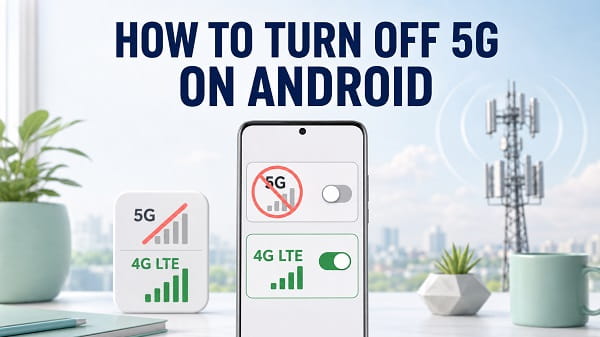
5G can provide faster downloads and lower latency, but it is not always the best network choice. In an area with weak or unstable 5G coverage, an Android phone may repeatedly switch between 5G and 4G, causing inconsistent speeds, extra battery usage or more heat.
To turn off 5G on Android, open Settings > Network & internet or Connections > SIMs or Mobile networks, select your SIM card, tap Preferred network type or Network mode, and choose LTE, 4G or 4G/3G/2G. The exact menu depends on the phone manufacturer and mobile carrier.
Do not select 3G or 2G unless you have a specific reason. Many carriers have retired those networks, while 4G LTE can continue supporting calls, texts and mobile data through VoLTE.
Quick Steps for Popular Android Phones
| Phone brand | Typical settings path | Option to select |
|---|---|---|
| Google Pixel | Settings > Network & internet > SIMs > SIM name > Preferred network type | LTE |
| Samsung Galaxy | Settings > Connections > Mobile networks > Network mode | LTE/3G/2G or 4G/3G/2G |
| Motorola | Settings > Network & internet > SIMs or Mobile network > Preferred network type | LTE or 4G |
| OnePlus | Settings > Mobile network > SIM > Preferred network type | 4G/3G/2G or LTE |
| Xiaomi, Redmi or Poco | Settings > Mobile networks > SIM > Preferred network type | Prefer LTE |
| Oppo or Realme | Settings > Mobile network > SIM > Preferred network type | 4G/3G/2G |
| Tecno, Infinix or itel | Settings > SIM & network settings > SIM > Preferred network type | 4G preferred or LTE |
If the phone uses two SIM cards, change the setting for the SIM used for mobile data. Some devices let you choose a different network type for each line.
How to Turn Off 5G on Standard Android
Many Android phones use a settings layout similar to Google Pixel and Motorola devices.
- Open Settings.
- Tap Network & internet.
- Select SIMs, Mobile network or Cellular network.
- Tap the active SIM card.
- Select Preferred network type.
- Choose LTE or 4G.
- Wait several seconds for the phone to reconnect.
The signal indicator should change from 5G to LTE, 4G or 4G+. A restart is not normally required, but it can help if the status icon does not update.
Choosing LTE does not turn off mobile data. It tells the phone to use 4G as its highest cellular network generation.
How to Turn Off 5G on a Google Pixel
Google Pixel phones normally place the network selector inside the settings for the active SIM.
- Open Settings.
- Tap Network & internet.
- Select SIMs.
- Tap the SIM or eSIM used for mobile data.
- Scroll to Preferred network type.
- Select LTE.
Google’s Pixel mobile-network settings describe Preferred network type as the place to choose between available options such as 5G and LTE.
If Preferred network type is missing on Pixel
Some mobile carriers hide or control the option through their network configuration. It can also disappear when:
- The carrier firmware does not permit manual network selection.
- The active SIM profile controls 5G automatically.
- The phone is using a carrier plan that restricts network modes.
- A second SIM changes the available radio configuration.
- The phone has not completed carrier setup.
Update Android and the Carrier Services app, restart the phone and check again. If the setting remains absent, contact the carrier and ask whether LTE-only selection is supported for that phone and plan.
Avoid changing radio bands through Pixel’s hidden testing menu. A wrong selection can disable calls, texts, data or emergency-service registration until the original modem profile is restored.
Adaptive Connectivity is not the same as turning off 5G
Pixel’s Adaptive Connectivity feature can switch between network types according to usage and conditions. It may choose LTE when 5G offers little benefit, but it does not guarantee that the phone will never connect to 5G.
Select LTE under Preferred network type when you need 5G disabled consistently. Use Adaptive Connectivity when you want the phone to make the decision automatically.
How to Turn Off 5G on Samsung Galaxy
Samsung Galaxy phones commonly use this path:
- Open Settings.
- Tap Connections.
- Select Mobile networks.
- Tap Network mode.
- Choose LTE/3G/2G (auto connect) or 4G/3G/2G.
The option that includes 5G keeps 5G enabled. Select the highest option that begins with LTE or 4G.
Samsung’s current Galaxy network-mode instructions confirm that the menu may offer choices such as 5G/4G/3G/2G and 4G/3G/2G. Available modes can vary by region, firmware and carrier.
Samsung dual-SIM phones
Some Galaxy phones display separate network modes for SIM 1 and SIM 2. On others, the setting follows the SIM selected under Settings > Connections > SIM manager > Mobile data.
Confirm the data SIM before changing Network mode. If the 5G icon remains, the other SIM may still be permitted to register on 5G.
Network mode is missing on Samsung
Carrier-branded Galaxy phones can hide Network mode. Try these safe checks:
- Install pending One UI and carrier updates.
- Restart the phone.
- Remove and reinsert the physical SIM if it is safe to do so.
- Check SIM manager for a preferred-network setting.
- Ask the carrier whether LTE-only mode is available.
Do not factory-reset the phone solely to reveal Network mode. If Samsung mobile settings are malfunctioning, follow the Samsung network reset instructions after recording Wi-Fi passwords and any custom APN information.
How to Turn Off 5G on Motorola
The usual Motorola path is:
- Open Settings.
- Tap Network & internet.
- Select SIMs & mobile network, Mobile network or your SIM name.
- Tap Preferred network type.
- Choose LTE, 4G or 4G/3G/2G.
Motorola menu names differ between My UX and Android versions. Use the Settings search box and enter preferred network type if the option is difficult to locate.
If LTE disappears after a carrier update, restart the phone and contact the mobile provider. A carrier can restrict network-mode choices even when the hardware supports them.
How to Turn Off 5G on OnePlus
On recent OnePlus phones running OxygenOS:
- Open Settings.
- Tap Mobile network.
- Select the active SIM card.
- Tap Preferred network type.
- Choose 4G/3G/2G (Auto), LTE or the equivalent option without 5G.
Older OxygenOS versions may use Settings > Wi-Fi & network > SIM & network > Preferred network type.
Turn on Smart 5G instead
Some OnePlus models provide Smart 5G under Mobile network or Advanced settings. Smart 5G allows the phone to use 4G when 5G is unnecessary and reconnect to 5G for demanding tasks.
This can be a useful compromise if your main concern is battery life. It does not fully disable 5G. Select a 4G-only preferred network type when you want to prevent every 5G connection.
How to Turn Off 5G on Xiaomi, Redmi and Poco
On Xiaomi HyperOS and many MIUI versions:
- Open Settings.
- Tap Mobile networks or SIM cards & mobile networks.
- Select the SIM used for data.
- Tap Preferred network type.
- Choose Prefer LTE or Prefer 4G.
Some models also display a Use 5G switch. Turn it off if it is available.
If both Prefer LTE and a Use 5G switch appear, setting Prefer LTE is normally sufficient. The phone should then treat LTE as the highest permitted network generation.
How to Turn Off 5G on Oppo and Realme
ColorOS and Realme UI share similar mobile-network menus.
- Open Settings.
- Tap Mobile network.
- Select the active SIM.
- Tap Preferred network type.
- Choose 4G/3G/2G (Auto), Prefer 4G or LTE.
Depending on the model, you may see a separate Enable 5G switch under the SIM settings. Turn that switch off.
Features named Smart 5G or Auto-select 5G can still permit 5G connections. Disable 5G directly or choose the LTE network mode if you require a consistent 4G connection.
How to Turn Off 5G on Tecno, Infinix and itel
HiOS and XOS menu names vary widely, but the common path is:
- Open Settings.
- Tap SIM & network settings, Mobile network or Network & internet.
- Select the data SIM.
- Tap Preferred network type.
- Choose 4G preferred, LTE or 4G/3G/2G.
Use the Settings search function and search for network type, 5G or LTE if the menu is not visible.
Some carrier versions remove manual network selection. In that situation, use an official system update or contact the carrier rather than installing an app that promises to force LTE.
How to Confirm That 5G Is Off
After selecting LTE or 4G, check the status bar. It should show one of these indicators:
- LTE
- LTE+
- 4G
- 4G+
The icon can take several seconds to change while the modem disconnects from 5G and registers on LTE.
You can also test the connection:
- Turn Wi-Fi off temporarily.
- Confirm that mobile data remains enabled.
- Open a webpage or run a speed test.
- Check that the status bar continues to show LTE or 4G.
Turn Wi-Fi back on after testing. Do not judge the network only by speed because a strong LTE connection can outperform congested 5G.
Why Would You Turn Off 5G?
Disabling 5G can be helpful, but it is not necessary on every phone or network.
Weak 5G signal
A phone near the edge of 5G coverage may switch repeatedly between 5G and LTE. Locking it to LTE can produce a more consistent connection.
Battery drain
Searching for weak 5G, maintaining multiple radio links or handing over repeatedly can consume additional power. LTE may improve battery life where 5G coverage is poor.
The difference may be small in an area with strong 5G or on a phone with an efficient modem. Turning off 5G is worth testing rather than assuming it will always add several hours of battery life.
If battery drain continues on LTE, use the broader fixes for Android battery draining fast. Display brightness, background apps, location services and a weak signal of any type can consume more power than 5G itself.
Phone becomes warm
Large downloads, hotspot use and a weak mobile signal can make the modem work harder. LTE can reduce heat in some conditions, although overheating can also come from charging, gaming, camera use or background processes.
Unstable mobile data
If pages stall whenever the status icon changes between 5G and LTE, using LTE only can reduce handover problems. If data remains unavailable, follow the mobile data not working on Android troubleshooting steps.
Limited data plan
5G does not inherently use more data for the same file. A 500 MB download remains about 500 MB. Faster speeds can, however, encourage higher-quality video streaming, larger updates and more frequent downloads.
Use Data Saver or lower the streaming quality if reducing data consumption is the real goal.
What Happens When You Disable 5G?
The phone uses the highest allowed network below 5G, usually LTE. Most everyday functions should continue working.
Calls and texts
Calls and SMS should continue through LTE when the phone, SIM and carrier support VoLTE. The LTE or VoLTE icon may appear in the status bar.
Do not force 3G or 2G in a country where those networks have been shut down. You could lose calls or texts.
Mobile data
Mobile data stays active, but maximum speeds may be lower. A strong LTE connection is still sufficient for web browsing, video calls, music streaming and most HD video.
Hotspot and tethering
Mobile hotspot continues to work through LTE. Connected devices may receive lower speeds than they did over 5G.
Wi-Fi and Bluetooth
Neither is affected. Cellular 5G and 5 GHz Wi-Fi are different technologies.
Wi-Fi calling
Wi-Fi calling should remain available because it uses Wi-Fi and carrier provisioning, not a 5G data connection. The phone still needs an active supported SIM. See how Wi-Fi calling works on Android for carrier and emergency-address requirements.
RCS messaging
RCS can work over LTE, mobile data or Wi-Fi. Disabling 5G does not disable RCS by itself.
5G Cellular Is Not 5 GHz Wi-Fi
The similar names cause confusion.
- 5G is the fifth generation of cellular mobile service provided through a SIM or eSIM.
- 5 GHz Wi-Fi is a Wi-Fi frequency used by a router.
Changing Preferred network type to LTE affects cellular 5G only. The phone can still connect to a 5 GHz Wi-Fi network.
Likewise, changing a router from 5 GHz to 2.4 GHz does not disable the phone’s cellular 5G connection.
What If the LTE or 4G Option Is Missing?
The carrier, not Android, often controls which network options appear.
Restart and update the phone
Install Android, manufacturer and carrier configuration updates. Restart after installation and check the menu again.
Confirm the active data SIM
On a dual-SIM phone, the preferred network menu may appear only for the line selected for mobile data. Change the data SIM temporarily and inspect both profiles.
Check the SIM or eSIM profile
An older SIM can have provisioning problems, while an eSIM profile can receive carrier-controlled settings. Ask the carrier to confirm that the line supports VoLTE and manual LTE selection.
Disable automatic carrier selection only if instructed
Manual carrier selection is different from network type. Changing it can cause loss of service when the chosen network is unavailable. Leave it automatic unless the carrier requests a test.
Contact the carrier
Ask these specific questions:
- Does my plan permit LTE-only mode?
- Is Preferred network type hidden on this phone model?
- Can the carrier change the network preference on my line?
- Is VoLTE active if I switch to LTE?
If the phone shows Mobile network not available after the change, switch the mode back to automatic and use the mobile network not available fixes.
Should You Use a Force-LTE App or Dialer Code?
I do not recommend either option for ordinary users.
Some apps merely open a hidden Android testing screen. Others request accessibility, phone or device-management permissions that are unnecessary for changing a normal preference. The hidden testing menu can expose modem modes with abbreviations such as NR, LTE, WCDMA and GSM.
Choosing the wrong combination can cause:
- No mobile data
- Failed calls or texts
- Loss of VoLTE
- Failed emergency registration
- Roaming problems
- A network configuration that is difficult to restore
Use the visible Preferred network type menu. If the carrier hides it, contact the provider. A hidden control is not guaranteed to be compatible with the phone’s firmware or local network.
5G Keeps Turning Back On
If 5G returns after selecting LTE, consider these causes.
The phone was set to Automatic
Options such as 5G/LTE/3G/2G Auto, 5G preferred and Smart 5G still allow 5G. Select LTE, Prefer LTE or the option whose highest listed generation is 4G.
The wrong SIM was changed
Open SIM manager and confirm which line supplies mobile data. Apply the LTE setting to that line.
Carrier configuration reset the preference
A carrier update, SIM reprovisioning or system update may restore the default. Select LTE again and contact the carrier if it changes after every restart.
Battery or network automation changed it
Manufacturer optimization tools can manage network modes automatically. Look for Smart 5G, Intelligent 5G, Adaptive Connectivity or an automated routine.
A reset restored defaults
Resetting mobile network settings returns carrier preferences to their defaults, which can include 5G. Reapply LTE afterward.
How to Turn 5G Back On
Return to the same network menu and choose the option that includes 5G.
Typical paths include:
- Pixel: Settings > Network & internet > SIMs > Preferred network type > 5G
- Samsung: Settings > Connections > Mobile networks > Network mode > 5G/LTE/3G/2G
- Other Android phones: Settings > Mobile network > SIM > Preferred network type > 5G preferred or Auto
Wait for the phone to register. The 5G icon appears only when the network, plan, SIM, coverage and current conditions support it.
Frequently Asked Questions
Can I turn off 5G on any Android phone?
Many Android phones allow it through Preferred network type or Network mode. Some carriers hide the option or control it through their configuration.
What should I select to disable 5G?
Select LTE, Prefer LTE, 4G or an automatic option whose highest listed generation is 4G. Do not select an option that includes 5G.
Will turning off 5G save battery?
It can help when 5G coverage is weak or the phone switches networks frequently. The improvement may be small in an area with strong 5G and an efficient modem.
Will I still receive calls after turning off 5G?
Normally, yes. Calls continue through LTE when the phone and carrier support VoLTE. Confirm that VoLTE is active, especially where 3G has been retired.
Does turning off 5G disable mobile data?
No. Mobile data continues over LTE or 4G. Only the maximum permitted cellular generation changes.
Will disabling 5G affect Wi-Fi?
No. It does not disable ordinary Wi-Fi or 5 GHz Wi-Fi.
Can I disable 5G for one SIM only?
Many dual-SIM phones allow separate settings. Select the relevant SIM before changing Preferred network type. Carrier and hardware limitations can apply.
Why does my phone have 5G On and 5G Auto?
5G On permits more frequent 5G use. 5G Auto, Smart 5G or Adaptive Connectivity lets the phone switch between LTE and 5G according to current demand. The exact behavior depends on the manufacturer.
Is LTE the same as 4G?
LTE is the technology most phones and carriers display as 4G. LTE Advanced may appear as LTE+ or 4G+.
Is it safe to keep my phone on LTE permanently?
Yes, provided LTE and VoLTE are supported by your carrier. You can restore 5G later whenever you need higher speeds.
Why is my internet still slow after switching to LTE?
The cause may be weak signal, congestion, an exhausted data allowance, APN problems or a carrier outage. Switching network generations cannot fix every mobile-data problem.
For most phones, selecting LTE through the visible Android network settings is all that is required. It is reversible, preserves normal 4G service and avoids the risks of unsupported modem codes or third-party force-network applications.
Also Read:
- WiFi Calling Not Working on Android? 12 Fixes That Actually Work
- How to Reset Network Settings on Samsung (Easy Fix)
- Mobile Network Not Available on Android? 11 Fixes That Work
- How to Share WiFi Password on Android: 5 Easy Methods
- Android Auto Keeps Disconnecting? See How to Fix It
- How to Copy Contacts From Android to iPhone (Step-by-Step)
