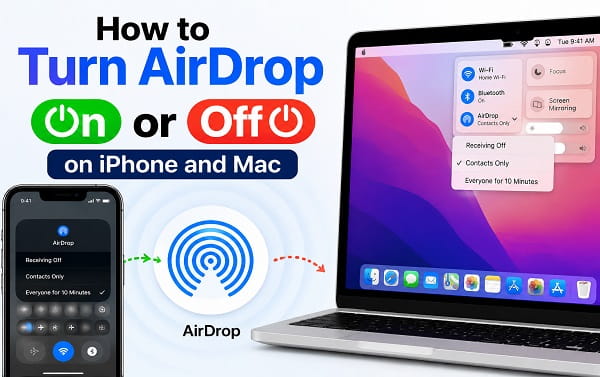
AirDrop is one of the easiest ways to send photos, videos, documents, links, and other files between nearby Apple devices. But you do not need to leave it open to everyone all the time.
If you are wondering how do you turn AirDrop off, you can disable receiving in a few taps from your iPhone settings. If you want to use AirDrop again later, you can turn it back on from Control Center or Settings. On a Mac, you can manage AirDrop from Control Center, Finder, or System Settings.
The important thing to understand is that AirDrop has different receiving options rather than just one simple on/off switch. On iPhone, the main options are Receiving Off, Contacts Only, and Everyone for 10 Minutes. On Mac, you can similarly control who is allowed to discover and send items to you.
For most people, Contacts Only is the best everyday setting. If you are in a crowded public place, do not use AirDrop, or want maximum privacy, choose Receiving Off. If you need to receive a file from someone who is not in your contacts, temporarily use Everyone for 10 Minutes.
Quick Answer: How to Turn AirDrop Off on iPhone
The fastest way is through Settings:
- Open Settings.
- Tap General.
- Tap AirDrop.
- Select Receiving Off.
Your iPhone will no longer accept incoming AirDrop transfers.
You can also manage AirDrop through Control Center:
- Open Control Center.
- Touch and hold the group containing Wi-Fi and Bluetooth.
- Tap AirDrop.
- Choose Receiving Off.
To turn AirDrop back on, choose Contacts Only or Everyone for 10 Minutes.
What Are the AirDrop Receiving Options?
Apple currently provides several AirDrop receiving settings.
Receiving Off
Your device is not discoverable for incoming AirDrop transfers.
Use this when:
- You do not use AirDrop
- You are in a crowded public place
- You want to stop incoming AirDrop requests
- You want more privacy
- You are troubleshooting unwanted AirDrop pop-ups
Contacts Only
Only people in your contacts can normally discover your device for AirDrop.
This is the setting I recommend for most users.
For Contacts Only to work correctly, Apple requires the sender to be in the recipient’s Contacts with the correct Apple Account email address or phone number included in the contact card.
Everyone for 10 Minutes
This temporarily makes your device discoverable to nearby AirDrop users.
Apple changed the old permanent “Everyone” behavior on iPhone so the open receiving mode lasts for 10 minutes.
After 10 minutes, Apple says the setting normally returns to Contacts Only when you are signed in to your Apple Account. If you are not signed in, it returns to Receiving Off.
That automatic reversion reduces the chance that an iPhone stays discoverable to strangers indefinitely.
How to Turn AirDrop Off on iPhone Through Settings
Settings is the clearest method if you want AirDrop disabled until you choose to enable it again.
Open:
Settings > General > AirDrop
Tap:
Receiving Off
That stops incoming AirDrop requests.
You do not need to turn off Wi-Fi or Bluetooth just to disable AirDrop receiving.
This matters because Wi-Fi and Bluetooth are also used by many other iPhone features, accessories, AirPods, Apple Watch, wireless CarPlay, and location-related services.
If you are troubleshooting another wireless feature, avoid disabling Wi-Fi or Bluetooth unnecessarily. For example, my Bluetooth Connected But CarPlay Not Working? Fix It guide explains why wireless CarPlay needs both radios even when Bluetooth appears connected.
How to Turn AirDrop Off From Control Center
You can change AirDrop without opening the Settings app.
On iPhones With Face ID
Swipe down from the upper-right corner of the screen.
On Older iPhones With a Home Button
Swipe up from the bottom edge of the screen.
Then:
- Touch and hold the connectivity group containing Airplane Mode, Wi-Fi, and Bluetooth.
- Tap AirDrop.
- Tap Receiving Off.
AirDrop receiving is now disabled.
If you cannot see the AirDrop button immediately, make sure you are pressing and holding the full connectivity panel rather than simply tapping Wi-Fi or Bluetooth.
How to Turn AirDrop On on iPhone
When you want to receive files again:
- Open Settings.
- Tap General.
- Tap AirDrop.
- Choose Contacts Only or Everyone for 10 Minutes.
You can also do it from Control Center:
- Open Control Center.
- Touch and hold the connectivity controls.
- Tap AirDrop.
- Select the receiving option you want.
Which Option Should You Use?
Choose Contacts Only when exchanging files with people already saved in Contacts.
Choose Everyone for 10 Minutes when:
- The sender is not in your contacts
- Contacts Only is not finding the other device
- You are making a one-time transfer
- Someone nearby needs to send you a file quickly
After the transfer, you can manually change the setting back to Contacts Only or Receiving Off without waiting for the 10-minute period to end.
How Do You Turn AirDrop On From Control Center?
This is one of the fastest ways to enable AirDrop.
Open Control Center and press and hold the connectivity panel.
Tap:
AirDrop
Then choose:
Contacts Only
or:
Everyone for 10 Minutes
The second option is useful if someone nearby cannot see your device.
Apple currently recommends Everyone for 10 Minutes when sharing with someone who is not in your contacts.
Where Do I Find AirDrop on iPhone?
AirDrop appears in several places.
The main settings location is:
Settings > General > AirDrop
You can also find it in:
Control Center > Connectivity controls > AirDrop
When sharing something, you can find AirDrop in the iPhone Share Sheet.
For example, in Photos:
- Open Photos.
- Select a photo.
- Tap Share.
- Tap AirDrop.
- Choose the nearby device.
The AirDrop button in the Share Sheet is for sending. The AirDrop setting under General or Control Center controls who can discover your iPhone for receiving.
If you want a complete walkthrough for sending media, see How to AirDrop Photos and Videos on iPhone.
How to Turn AirDrop Off on a Mac
There are several ways to disable AirDrop receiving on a Mac.
Method 1: Use Control Center
Click Control Center in the menu bar.
Click AirDrop.
When AirDrop is active, Apple shows the AirDrop control in blue.
Click the AirDrop control to turn it off, or open its options and change who can discover the Mac.
Method 2: Use Finder
Open Finder.
Click:
AirDrop
in the sidebar.
Look for:
Allow me to be discovered by
Choose the option that prevents discovery.
Depending on your macOS version, the wording can vary, but the goal is to stop other AirDrop users from discovering the Mac.
Method 3: Use System Settings
Open:
Apple menu > System Settings
Go to:
General > AirDrop & Handoff
Use the AirDrop option to control who can send items to your Mac.
This is useful if you prefer managing AirDrop through system settings rather than Finder or Control Center.
How to Turn AirDrop On on a Mac
The quickest method is Control Center.
- Click Control Center in the menu bar.
- Click AirDrop.
- Turn it on.
- Choose the appropriate discoverability option.
Apple indicates that AirDrop is on when the Control Center AirDrop icon is blue.
You can also open Finder and select AirDrop in the sidebar.
How to Turn On AirDrop From Mac for iPhone Transfers
If you want to send something from Mac to iPhone, both devices need to be ready for AirDrop.
On the Mac:
- Turn on Wi-Fi.
- Turn on Bluetooth.
- Open Control Center.
- Turn on AirDrop.
On the iPhone:
- Turn on Wi-Fi.
- Turn on Bluetooth.
- Open Control Center.
- Set AirDrop to Contacts Only or Everyone for 10 Minutes.
Then on the Mac:
- Open the file you want to send.
- Click Share.
- Choose AirDrop.
- Select the iPhone.
You can also open Finder > AirDrop and drag a file onto the recipient.
What Happens When You Turn AirDrop Off?
Turning AirDrop receiving off mainly changes whether nearby devices can discover your iPhone, iPad, or Mac as an AirDrop recipient.
It does not:
- Delete transferred files
- Delete photos
- Disable Wi-Fi
- Disable Bluetooth
- Turn off cellular data
- Sign you out of your Apple Account
- Disable iCloud
- Disable NFC
- Remove your contacts
If you want to manage NFC separately, see How to Turn Off NFC on iPhone. AirDrop and NFC are different technologies and turning off one does not automatically disable the other.
Does Turning Off AirDrop Turn Off NameDrop?
AirDrop and NameDrop are related Apple sharing features, but they are not identical settings.
NameDrop is used to exchange contact information by bringing supported Apple devices close together.
If your goal is specifically to prevent nearby AirDrop file transfers, use Receiving Off.
If your concern is NameDrop, review the device’s AirDrop and proximity-sharing settings separately.
Do not assume that every nearby-sharing feature is controlled by one AirDrop receiving switch.
Why Would You Want to Turn AirDrop Off?
There are several good reasons.
Privacy in Public Places
Leaving a device broadly discoverable can make it visible to nearby AirDrop users.
Receiving Off removes that discoverability.
Unwanted AirDrop Requests
If you are receiving unexpected requests, switch to:
Contacts Only
or:
Receiving Off
Battery Concerns
You do not generally need to disable AirDrop solely to save battery, but if you never use the feature, disabling receiving is reasonable.
I would not turn off Wi-Fi and Bluetooth just to stop AirDrop because those radios support many other Apple features.
Security and Control
Apple provides Contacts Only and Receiving Off specifically so users can limit who is able to send them items.
For everyday use, Contacts Only provides a good balance between convenience and privacy.
Is Everyone for 10 Minutes Safe?
It is designed for temporary use.
The setting makes your device discoverable to nearby AirDrop users for a limited period rather than indefinitely.
Apple automatically changes it after 10 minutes.
Still, I recommend using it only when needed.
If you finish the transfer early, switch back to Contacts Only or Receiving Off immediately.
What Are AirDrop Codes?
Apple introduced AirDrop codes for newer software versions to add another verification step when sharing with people who are not in your contacts.
On iOS 26.2, iPadOS 26.2, macOS 26.2, or later, Apple says a person who is not in your contacts may need an AirDrop code before the transfer can proceed.
The receiving device displays the code.
The recipient shares the code with the sender, and the sender enters it to complete the transfer.
Apple says that after the code is used, the two people can continue using AirDrop with each other for up to 30 days without needing another code.
The recipient can remove that temporary known-person relationship sooner through Contacts.
This newer verification step makes the old advice of simply leaving AirDrop open to everyone less appropriate.
Does AirDrop Need Wi-Fi?
AirDrop requires Wi-Fi and Bluetooth to be turned on for nearby discovery and transfer.
Apple currently tells users to make sure both Wi-Fi and Bluetooth are enabled on both devices.
That does not necessarily mean both devices need to be connected to the same traditional Wi-Fi network.
AirDrop creates a direct wireless connection between nearby Apple devices.
On current systems, Apple also notes that after an AirDrop transfer has already started, it can continue over the internet if the devices move out of normal Bluetooth or Wi-Fi range.
For ordinary troubleshooting, however, keep both devices nearby with Wi-Fi and Bluetooth enabled.
How Close Do Devices Need to Be for AirDrop?
Apple currently recommends keeping the devices within about:
30 feet or 10 meters
of each other.
Closer is usually better.
If a recipient does not appear:
- Move the devices closer.
- Check Wi-Fi.
- Check Bluetooth.
- Confirm the recipient’s AirDrop receiving setting.
- Try Everyone for 10 Minutes.
- Restart both devices if necessary.
Can You Leave AirDrop on All the Time?
Yes, but I would use Contacts Only for normal everyday use rather than keeping the device open to everyone.
Everyone for 10 Minutes is intentionally temporary.
Contacts Only allows trusted people already in your contacts to find you while reducing unwanted requests.
If you almost never use AirDrop, Receiving Off is also perfectly reasonable.
If you are trying to stop one specific transfer rather than disable AirDrop receiving entirely, see How to Cancel AirDrop on iPhone or Mac.
Why Does AirDrop Turn Itself Off?
If you choose Everyone for 10 Minutes, the setting is supposed to change automatically.
Apple says that after 10 minutes:
- It changes to Contacts Only if you are signed in to your Apple Account
- It changes to Receiving Off if you are not signed in
That is normal behavior.
It does not mean AirDrop is broken.
Why Can’t Someone Find My iPhone on AirDrop?
Check the following:
- AirDrop is not set to Receiving Off
- Wi-Fi is on
- Bluetooth is on
- The devices are nearby
- The sender and recipient are using supported Apple devices
- Contacts Only has the correct contact information
- Everyone for 10 Minutes is enabled when needed
If you are using Contacts Only, the sender’s Apple Account email address or phone number needs to be correctly stored in the recipient’s contact information.
If the devices still cannot see each other, switch temporarily to Everyone for 10 Minutes and try again. If the recipient still does not appear or the transfer keeps failing, work through AirDrop Not Working or Keeps Failing? How to Fix It.
Why Is Contacts Only Not Working?
Contacts Only depends on contact matching.
If AirDrop cannot confirm the sender through the stored contact information, the person may not appear.
Check that the recipient has the sender saved with the email address or phone number associated with the sender’s Apple Account.
For a quick one-time transfer, use:
Everyone for 10 Minutes
Then return to Contacts Only afterward.
Can You Turn AirDrop Off for One Person?
AirDrop does not provide a simple per-person block list inside the AirDrop settings.
Your main receiving choices are based on overall discoverability.
If you do not want AirDrop requests from people outside your contacts:
Contacts Only
is the better setting.
For maximum restriction:
Receiving Off
If a specific person is causing broader contact or communication problems, manage that person through the relevant Contacts, Messages, Phone, or privacy settings rather than expecting AirDrop to provide a dedicated block list.
Does Turning Off Bluetooth Disable AirDrop?
AirDrop needs Bluetooth, so disabling Bluetooth prevents normal nearby AirDrop operation.
However, I do not recommend using Bluetooth Off as your normal way to disable AirDrop.
Use:
Settings > General > AirDrop > Receiving Off
That leaves Bluetooth available for AirPods, Apple Watch, keyboards, CarPlay, and other accessories.
Does Turning Off Wi-Fi Disable AirDrop?
AirDrop requires Wi-Fi for normal nearby transfers.
Turning off Wi-Fi can therefore prevent AirDrop from working.
But again, this is not the best way to disable AirDrop.
Use the AirDrop receiving setting itself so you do not disrupt other Wi-Fi-based features.
Does AirDrop Work Between iPhone and Android?
No.
AirDrop is an Apple ecosystem feature for supported iPhone, iPad, and Mac devices.
Android phones do not natively appear as AirDrop recipients.
If you need to move information between Android and iPhone, use another transfer method.
For example, How to Copy Contacts From Android to iPhone covers Move to iOS, Google synchronization, VCF files, and other practical cross-platform options.
Does AirDrop Work Between Windows and iPhone?
Windows PCs do not natively receive AirDrop files.
Use another method such as:
- iCloud
- Cloud storage
- USB transfer
- A compatible cross-platform sharing app
Do not install random software claiming to add “official AirDrop” to Windows unless you trust the developer and understand what the application is doing.
Can You Send Files While Receiving Is Off?
Receiving Off prevents your device from accepting normal incoming AirDrop transfers.
If you want someone to send something to you, change the receiving setting first.
For sending, the other device also needs to be configured so it can receive your transfer.
AirDrop is easiest when both devices have Wi-Fi and Bluetooth on and the recipient is discoverable.
What Happens to AirDropped Photos?
AirDropped items are normally saved in the app associated with the type of content.
For example:
- Photos sent from Photos normally appear in Photos
- Some documents appear in Files
- Mac files often go to Downloads
Apple also says transfers between your own Apple devices signed into the same Apple Account can be accepted automatically.
Turning AirDrop off afterward does not delete those files.
Is AirDrop Encrypted?
Apple states that AirDrop transfers are encrypted.
That protects the transfer itself.
However, you should still pay attention to who is sending something and what you accept.
Do not accept unexpected files from unknown people simply because AirDrop supports encryption.
Encryption does not make a malicious or unwanted file automatically safe.
Frequently Asked Questions
How do you turn AirDrop off?
On iPhone, open:
Settings > General > AirDrop > Receiving Off
You can also open Control Center, press and hold the connectivity panel, tap AirDrop, and choose Receiving Off.
How do you turn off AirDrop on iPhone?
Go to:
Settings > General > AirDrop
and select:
Receiving Off
How do you turn AirDrop on?
Open Settings > General > AirDrop and choose Contacts Only or Everyone for 10 Minutes.
You can also turn it on from Control Center.
How do I turn on AirDrop on iPhone?
Open Control Center, touch and hold the connectivity controls, tap AirDrop, and select Contacts Only or Everyone for 10 Minutes.
Where do I find AirDrop on iPhone?
You can find AirDrop under:
Settings > General > AirDrop
and inside the expanded connectivity controls in Control Center.
How do you turn on AirDrop on a Mac?
Open Control Center from the menu bar and click AirDrop.
When the AirDrop icon is blue, Apple indicates that it is on.
How do I turn AirDrop off on a Mac?
Open Control Center and turn AirDrop off, or open Finder > AirDrop and change the “Allow me to be discovered by” setting.
Why does Everyone for 10 Minutes switch off?
That is intentional.
Apple automatically changes the setting after 10 minutes, normally returning it to Contacts Only when you are signed in.
Should I leave AirDrop on Contacts Only?
For most people, yes.
Contacts Only is the best everyday setting because it keeps AirDrop convenient without making your device broadly discoverable.
Should I turn AirDrop off in public?
If you do not need AirDrop, Receiving Off is a sensible privacy choice in airports, public transport, events, and other crowded places.
Does turning AirDrop off disable Bluetooth?
No.
Using Receiving Off only disables incoming AirDrop discovery. Bluetooth remains available.
Does turning AirDrop off disable Wi-Fi?
No.
Wi-Fi stays on.
Can a stranger AirDrop me something?
If your device is discoverable beyond Contacts Only, nearby people may be able to initiate AirDrop sharing. Newer Apple software adds additional verification through AirDrop codes for some non-contact transfers.
Can I reject an AirDrop?
Yes.
For normal incoming AirDrop transfers, you can choose whether to accept or decline them.
Transfers between your own devices signed in to the same Apple Account may be accepted automatically.
Use Contacts Only for Everyday AirDrop
If you are asking how do you turn AirDrop off, the simplest answer is:
Settings > General > AirDrop > Receiving Off
That stops your iPhone from being discoverable for incoming AirDrop requests while leaving Wi-Fi and Bluetooth available for other features.
When you need AirDrop again, switch to Contacts Only or Everyone for 10 Minutes. I recommend Contacts Only for normal use and Everyone for 10 Minutes only when you need to receive something from a person who is not already recognized through your contacts.
On a Mac, the same basic idea applies. Use Control Center, Finder, or System Settings to control AirDrop discoverability.
Apple’s newer AirDrop code system also adds extra verification for some transfers involving people who are not in your contacts, making AirDrop more controlled than older versions of the feature.
