
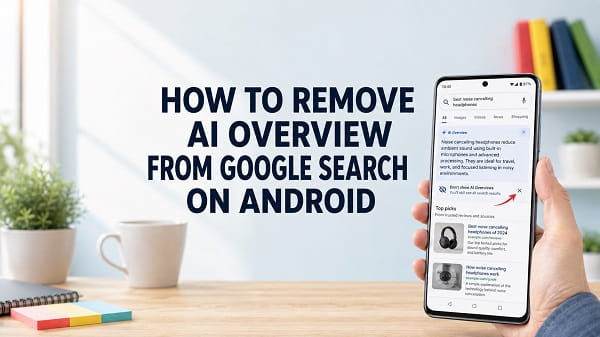
Google Search can place an AI-generated answer above the normal results when you search from an Android phone. The box is called an AI Overview, and it may summarize information from several websites before you reach the familiar list of links.
If you want to know how to remove AI Overview from Google Search on Android, the important answer is that Google does not currently provide a permanent switch for disabling it. Google describes AI Overviews as a core Search feature, similar to knowledge panels. However, you can remove the AI-generated section from an individual search by selecting the Web filter after searching.
Open Google Search, enter your query, then tap Web in the row of filters. If Web is not immediately visible, swipe across the filters or tap More, then select Web. Google will reload the page with text-based web links and without the AI Overview.
You can also turn off AI in Search in Google Search Labs if you previously enabled experimental AI features. That may reduce additional experimental experiences, but it does not disable every AI Overview because the standard feature can appear outside Search Labs.
This article explains the available Android methods, why common suggestions do not work, and how to get traditional web results more consistently.
Quick Answer: Use the Web Filter
Follow these steps whenever an AI Overview appears:
- Open the Google app or a mobile browser.
- Search for the information you need.
- Look at the filter row beneath the search box.
- Swipe left if Web is not visible.
- Tap Web.
- If it is still hidden, tap More, then select Web.
The results page should now display text-based web links without features such as AI Overviews.
This is Google’s official method for viewing web-only results. It does not permanently change every future search, so you may need to select Web again when you perform another query.
Can You Permanently Turn Off Google AI Overview?
No permanent account or Android setting currently disables all AI Overviews in Google Search.
Google states that AI Overviews are a core Search feature and cannot be turned off. The feature appears when Google’s systems decide that a generative answer may be useful for a query.
This means there is no reliable setting under:
- Google Account
- Chrome settings
- Android system settings
- Gemini settings
- Google Assistant settings
- Web & App Activity
- Personal results
- SafeSearch
- Search history
- The Google app’s general settings
that guarantees AI Overviews will disappear from every standard Google search.
Some older tutorials show a Search Labs switch called AI Overviews and more or refer to the earlier Search Generative Experience experiment. Turning off a Labs experiment does not remove AI Overviews that are part of normal Google Search.
The Web filter remains the official way to view a result page without the generated overview.
How to Use the Web Filter in the Google App
The Google app is one of the most common places Android users encounter AI Overviews.
- Open the Google app.
- Tap the search box.
- Enter your search.
- Wait for the results page to load.
- Find the row containing filters such as All, Images, Videos, News, Shopping, or Maps.
- Swipe the filter row from right to left.
- Tap Web.
- If Web does not appear, tap More and select it.
The page will switch from the full results experience to a list focused on web links.
You may still see ordinary search elements such as:
- Page titles
- Website descriptions
- Sitelinks
- Dates
- Images included in normal results
- Sponsored results
- Related searches
The Web filter removes Search features such as the AI Overview from that result view. It does not turn off AI processing elsewhere on the phone.
How to Remove AI Overview in Chrome on Android
The same Web filter works when you search through Chrome.
- Open Chrome.
- Go to Google or search from the address bar.
- Enter the query.
- Wait for the Google results page.
- Swipe through the filters beneath the search box.
- Tap Web.
- Tap More > Web if the filter is hidden.
Chrome is the browser, while Google is the search engine producing the result page. Disabling a Chrome feature does not necessarily remove a Google Search feature.
This distinction explains why turning off Gemini shortcuts, deleting Chrome browsing data, or changing Chrome permissions does not reliably remove AI Overviews.
Why Is the Web Filter Missing?
The Web filter may not be immediately visible because the filter row changes according to the query, device width, language, region, and Google’s current layout.
Try these steps:
Swipe Across the Filter Row
The first filters may be All, Images, Shopping, Videos, News, or Short videos. Swipe horizontally to reveal additional options.
Open the More Menu
Tap More at the end of the filter row and look for Web.
Search From Google.com
If a browser’s custom start page or another search provider is being used, open Google directly and perform the search again.
Update the Google App or Chrome
Open the Google Play Store and install available updates for:
- Google Chrome
- Android System WebView
Restart the app after updating.
Change the Search Wording
Some searches produce a different filter layout. Try a clear informational query, then check the filter row again.
Test Another Browser
Open Google in another installed browser and check whether Web appears. This can help identify a temporary display problem in the current app.
The Web option may change position, but Google continues to document it as the method for displaying text-based links without AI Overviews.
How to Turn Off AI in Search in Google Labs
If you joined Google’s experimental AI Search features, you can opt out through Search Labs.
On Android:
- Open a browser or the Google app.
- Make sure you are signed in to the correct Google Account.
- Make sure Incognito mode is off.
- Tap the Labs icon when it is available.
- Tap Manage.
- Turn off AI in Search.
This removes your participation in the Labs experiment.
However, it is not a complete AI Overview switch. Standard AI Overviews can still appear because Google treats them as part of the core Search experience.
Turning off Labs is still worthwhile when you want to reduce experimental features, early AI interfaces, or additional AI Search tests connected to your account.
Why Turning Off Search Labs Does Not Remove Every AI Overview
Search Labs is a testing environment for experimental Google features. AI Overviews originally appeared through experiments such as Search Generative Experience and AI Overviews and more, but the feature later expanded into standard Search.
As a result, two things can be true at the same time:
- You can turn off an experimental AI feature in Labs.
- Google can still show a normal AI Overview outside the experiment.
This is why some users follow an older tutorial, turn off Search Labs, and continue seeing AI-generated answers.
The remaining box is not proof that the setting failed. It may be the core AI Overview rather than the optional Labs experiment.
AI Overview, AI Mode, and Gemini Are Not the Same
Google now uses several AI-related names, which makes troubleshooting confusing.
AI Overview
An AI Overview is the generated summary that may appear above ordinary Google Search results.
It can appear automatically when Google decides it may help with the query.
AI Mode
AI Mode is a more conversational Search experience. It supports follow-up questions and generates a larger AI-focused response.
You usually enter it by selecting an AI Mode tab, shortcut, or button.
Avoiding AI Mode does not automatically disable AI Overviews on the normal results page.
Gemini
Gemini is Google’s AI assistant and a family of AI models and services.
Removing the Gemini app, changing the phone’s digital assistant, or hiding a Gemini shortcut does not remove AI Overviews from Google Search.
Circle to Search
Circle to Search lets you search for something visible on the screen. Its results may include an AI Overview in supported regions and languages.
Disabling Circle to Search prevents that gesture or feature from being used, but it does not remove AI Overviews from searches performed in Chrome or the Google app.
Understanding the difference prevents you from changing unrelated Android settings.
Does Uninstalling Gemini Remove AI Overview?
No. The Gemini app and AI Overviews in Google Search are separate experiences.
You can uninstall or disable the Gemini application and still see AI Overviews when using Google Search. Likewise, you can use another digital assistant and continue seeing the generated Search box.
Only uninstall Gemini when you no longer want the assistant app itself. Do not expect it to change Google’s standard results page.
Does Turning Off Gemini in Chrome Work?
Chrome may include Gemini-related shortcuts, integrations, or search options, depending on the version and account. Turning those off does not provide a guaranteed AI Overview opt-out.
AI Overviews are generated by Google Search after the query reaches the search engine. Chrome only displays the resulting page.
The reliable official method remains selecting Web after the search.
Does Incognito Mode Remove AI Overviews?
Not reliably.
Incognito mode limits the browser’s local history and changes how some account personalization works, but it does not create a classic Google Search mode without AI Overviews.
Google can show an AI Overview even when:
- You are signed out
- Incognito mode is active
- Search history is paused
- Personal results are disabled
- Cookies were cleared
Use Incognito for its intended privacy behavior, not as a dependable AI Overview blocker.
Does Clearing Google Search History Remove AI Overviews?
No. Search history and AI Overviews serve different purposes.
Deleting Web & App Activity may reduce or remove stored activity associated with the account. It does not disable a core feature on future result pages.
Do not erase useful account history solely because you want to remove an AI answer from the top of Search.
Does Turning Off Web & App Activity Work?
Turning off Web & App Activity changes what Google stores and uses for certain personalized experiences. It is not an official control for disabling AI Overviews.
You may continue seeing the same generated boxes because the result is connected to the search query and the standard Search experience, not only to your personal history.
Review Web & App Activity for privacy reasons when appropriate, but do not treat it as an AI Overview switch.
Can You Remove AI Overview by Changing the Default Search Engine?
You can stop seeing Google AI Overviews by using a different search engine, but you will no longer be using Google Search for those queries.
Chrome on Android allows you to select another available default search engine:
- Open Chrome.
- Tap the three-dot menu.
- Tap Settings.
- Under Basics, tap Search engine.
- Select another listed search provider.
Future searches from Chrome’s address bar will use the selected provider.
This is the closest option to a persistent change when you do not want to select Web repeatedly. However, results, privacy practices, maps, shopping information, local results, image search, and other features vary between providers.
You can return to Google at any time through the same menu.
Changing the Browser Alone May Not Help
Installing another browser does not necessarily remove AI Overviews if Google remains the default search engine.
A browser and a search engine are separate:
- The browser opens and displays websites.
- The search engine receives the query and generates the results.
Google Search can show AI Overviews in Chrome, Firefox, Edge, Samsung Internet, and other mobile browsers.
Change the default search engine, not only the browser, when you want a persistent non-Google search experience.
Can You Make the Web Filter Permanent on Android?
Google does not currently provide an official Android setting that permanently selects the Web filter for every future query.
The selection generally applies to the current result page. A new search may return to the standard All view and show an AI Overview again.
Some websites, browser extensions, custom search URLs, and scripts claim to force web-only results. These methods can stop working when Google changes its URL parameters or page design. Android browsers also provide less extension support than desktop browsers.
Because unofficial tools may inspect searches, page contents, or browsing activity, review their permissions and privacy policies carefully. Avoid installing an unknown application merely to hide one page element.
For a method supported directly by Google, select Web for each search or change the browser’s default search engine.
Why Does Google Keep Showing AI Overview?
Google displays an AI Overview when its systems determine that generative AI may be useful for the query.
The box is more likely to appear for searches that ask for:
- Explanations
- Comparisons
- Instructions
- Causes of a problem
- Product or service information
- Travel planning
- Health information
- Technical troubleshooting
- Multi-part questions
- Information from several sources
Not every search receives an overview. The feature depends on the query, language, country, account, device, and current Search rollout.
Changing a few words may produce a normal result page, but this is not a dependable way to disable the feature.
Can You Collapse the AI Overview?
Some AI Overviews include controls such as Show more, Show less, or a way to reduce the expanded answer.
Collapsing the box can make it smaller, but it does not turn the feature off. A future search may show another overview.
Use the Web filter when you want the generated section removed from the current result page rather than merely reduced.
How to Report an Inaccurate AI Overview
Google acknowledges that generative AI can make mistakes. Important information should be checked against reliable sources.
To rate a specific overview:
- Scroll to the bottom of the AI Overview.
- Tap the thumbs-up icon when it is useful.
- Tap the thumbs-down icon when it is unhelpful or incorrect.
- Select the reason if Google asks for more detail.
- Add an explanation when appropriate.
- Submit the feedback.
To send general feedback from the Google app:
- Open the Google app.
- Tap your profile picture or initial.
- Tap Help & feedback.
- Tap Send feedback.
- Describe the problem.
- Add a screenshot if useful.
- Tap Send.
Feedback does not immediately remove the feature from your account, and Google may not reply individually. It helps communicate problems with accuracy, relevance, design, or the lack of an off switch.
The limitations discussed in Can AI Be Trusted? Understanding AI Hallucinations and Errors are relevant here. An AI-generated answer can sound confident while misunderstanding a source, missing context, or combining incompatible information.
How to Verify Information in an AI Overview
Do not rely only on the generated summary for an important decision.
Use these checks:
- Open the cited sources beneath or inside the overview.
- Confirm that the source actually supports the statement.
- Check the publication or update date.
- Compare information from more than one trustworthy source.
- Prefer official documentation for product instructions.
- Use primary sources for laws, medical guidance, financial rules, and government information.
- Check whether the answer applies to your country, model, software version, or account.
- Select the Web filter to review traditional search results.
AI Overviews can be useful as a starting point, but they are not a substitute for reading the source.
How to Avoid Accidentally Opening AI Mode
AI Mode and AI Overview are different, but the interface can make it easy to enter the more AI-focused experience.
To stay with ordinary results:
- Select All or Web, not AI Mode.
- Avoid tapping Ask anything beneath an overview.
- Use the Back button if a follow-up opens AI Mode.
- Enter a fresh query in the normal Google search box.
- Use the Web filter after the results load.
Leaving AI Mode does not disable future AI Overviews, but it returns you to the standard result page.
AI Overview Appears When Using Circle to Search
Google says AI Overviews can appear when searching with an image or using Circle to Search in supported regions and languages.
To avoid the generated result:
- Complete the Circle to Search query.
- Look for the result filters.
- Select Web when available.
- Open a cited website directly.
- Use Chrome and perform a text search if you need more control over the filters.
Turning off Circle to Search only removes that particular search method. It does not change Google Search in Chrome or the Google app.
AI Overview Does Not Disappear After Selecting Web
If the page still appears unchanged, try the following steps.
Confirm That Web Is Selected
The word Web should be highlighted in the filter row. Tapping More without selecting Web does not change the result type.
Refresh the Page
Reload the page after selecting Web.
Start a New Search
Return to Google, run the query again, and select Web once more.
Update the App
Install updates for the Google app, Chrome, and Android System WebView.
Clear Only the App Cache
A damaged cached page may display incorrectly.
For Chrome:
- Open Android Settings.
- Tap Apps.
- Tap Chrome.
- Tap Storage & cache.
- Tap Clear cache.
For the Google app:
- Open Settings > Apps.
- Tap Google.
- Tap Storage & cache.
- Tap Clear cache.
Do not choose Clear storage unless necessary. That broader option can reset app preferences and local data.
Restart the Phone
Restart Android normally and test another search.
Check the Connection
An incomplete page load can leave the original results visible. Switch between Wi-Fi and mobile data.
When the phone is connected through another device and Search will not refresh, use Android hotspot not working to troubleshoot the shared connection.
Google Search Results Are Not Loading Properly
If the problem affects the whole results page rather than only the AI Overview, check:
- Internet access
- Date and time settings
- Chrome updates
- Google app updates
- Android System WebView
- VPN or private DNS settings
- Ad blockers or content filters
- Available storage
- Google service interruptions
Temporarily disable a VPN, private DNS service, or content-filtering application and test again. These services can interfere with scripts or result-page elements.
Do not factory-reset the Android phone merely because the Web filter is missing. App updates, cache clearing, and connection checks should come first.
Is There a Chrome Flag for Disabling AI Overviews?
Chrome flags are experimental browser controls. They do not provide an official, stable switch for a core Google Search result feature.
A flag mentioned in an old tutorial may be removed, renamed, or unrelated to the generated overview.
Changing several experimental flags can also make Chrome unstable. Return modified flags to their defaults when you cannot identify exactly what they control.
Do Ad Blockers Remove Google AI Overview?
Some content blockers may hide page elements, but this is not an official Google method and results vary on Android.
A blocker can:
- Stop working after a Google layout change
- Hide useful parts of Search
- Break result-page controls
- Read or modify page content
- Require broad browser permissions
- Work only in one browser
Review the developer, update history, privacy policy, permissions, and user reports before installing any extension or app.
The Web filter is safer when you want an option supported directly by Google.
Is AI Overview the Same as Featured Snippets?
No.
A featured snippet usually extracts a short passage from one webpage and displays a prominent link to that source.
An AI Overview uses generative AI to create a new response based on information from multiple sources and Google’s systems.
Selecting the Web filter can remove Search features such as AI Overviews, but normal web results may still include rich formatting and other result enhancements.
Will Turning Off Personalized Search Remove It?
No. Personalization and AI Overviews are separate.
Changing personal-result settings may affect recommendations or account-specific information. It does not guarantee that Google will stop generating an overview for a general query.
The same AI Overview can appear for several users who search the same topic.
Does SafeSearch Control AI Overviews?
No. SafeSearch is intended to filter explicit content in Google Search results.
Changing SafeSearch does not disable generative summaries. Keep the SafeSearch level appropriate for your needs and use the Web filter separately.
Can Family Link Disable AI Overviews?
Family Link can manage some account, application, browser, and content settings for supervised users. It does not currently provide a general parent switch that removes every standard AI Overview from Google Search.
Availability and behavior can differ for supervised accounts. Review the child’s Search, Chrome, and Gemini eligibility settings, but do not assume those controls will convert every result page to Web-only mode.
Does Removing the Google Search Widget Help?
Removing the Google Search widget only removes that shortcut from the Android Home screen.
Google Search opened through Chrome, the Google app, another widget, or a browser can still display AI Overviews.
Remove the widget when you do not want it on the Home screen, not as a method for disabling the Search feature.
Can You Use Google Without AI Mode?
Yes. You do not have to select AI Mode or ask follow-up questions.
Use the normal Search page and select Web whenever you want a results list without the AI Overview. Google may still show the overview in the default All view because that is separate from deliberately entering AI Mode.
Should You Switch to Another AI Search Tool?
Replacing Google with an AI-focused search tool will not solve the desire to avoid generated answers. It may create an even more AI-centered experience.
When you are comparing assistants for other tasks, AI tools other than ChatGPT explains the strengths and uses of several alternatives. For traditional search, focus on whether the provider offers the type of results, privacy controls, location information, and web-link visibility you prefer.
How This Differs From Gmail AI Summaries
AI Overviews in Google Search and Gemini summaries in Gmail use related AI technology but have different settings.
Gmail provides Workspace smart-feature controls that can remove AI-generated email summaries. Google Search does not currently provide an equivalent permanent AI Overview switch.
Use how to turn off AI summaries in Gmail when the unwanted summary appears above an email thread rather than on a Search result page.
Frequently Asked Questions
How do I turn off AI Overview on Google Android?
Google does not currently provide a permanent off switch. After searching, tap Web in the filter row to display text-based links without the AI Overview.
Why can’t I find an AI Overview setting?
AI Overviews are now a core Search feature rather than only an optional Labs experiment. Google says core AI Overviews cannot be turned off.
Does turning off AI in Search Labs work?
It opts you out of experimental AI in Search features. Standard AI Overviews can still appear outside Labs.
Can I remove AI Overview from Chrome settings?
No Chrome setting guarantees removal because the overview is generated by Google Search. Use the Web filter or choose another default search engine.
Does uninstalling Gemini remove Google AI Overview?
No. Gemini and AI Overviews in Search are separate products or experiences.
Can I use the Web filter in the Google app?
Yes. Search normally, swipe through the filters, and tap Web. It may be under More.
Will the Web filter stay enabled permanently?
Not usually. You may need to select it again for a new search.
Can I remove AI Overview by clearing cookies?
No. Clearing cookies or browsing data does not disable a core Search feature.
Does Incognito mode block AI Overviews?
No. An overview may still appear in Incognito mode.
Can I report a wrong AI Overview?
Yes. Use the thumbs-down or feedback control near the overview, or open the Google app and go to Profile > Help & feedback > Send feedback.
Can I disable AI Mode but keep normal Search?
You can avoid selecting AI Mode and turn off eligible Labs experiments. Standard Search may still display AI Overviews in the All results view.
Why does AI Overview appear in Circle to Search?
Google can show AI Overviews for image searches and Circle to Search in supported regions and languages.
Can I change the Android default search engine?
Yes. In Chrome, open Menu > Settings > Search engine and select another available provider. Searches will no longer use Google unless you visit Google directly.
Are AI Overviews always correct?
No. Google acknowledges that generative AI can make mistakes. Check important information against original and authoritative sources.
The Most Practical Way to Get Traditional Google Results
Google does not currently let Android users permanently disable AI Overviews. The most reliable official method is to perform the search and select Web from the filter row. This reloads the page with text-based links and removes features such as the AI Overview from that result view.
Turning off AI in Search Labs can reduce experimental features, but it does not remove every standard overview. Uninstalling Gemini, clearing search history, using Incognito mode, changing assistant settings, or removing the Google widget will not provide a dependable solution.
When selecting Web for every search becomes inconvenient, changing Chrome’s default search engine is the available persistent alternative, although you will no longer receive Google results. Whichever method you use, verify important claims by opening the original sources rather than relying only on an AI-generated summary.
For Google’s current explanation and official workaround, see AI Overviews in Google Search. Instructions for changing the Android search provider are available in Chrome’s default search engine help.
