
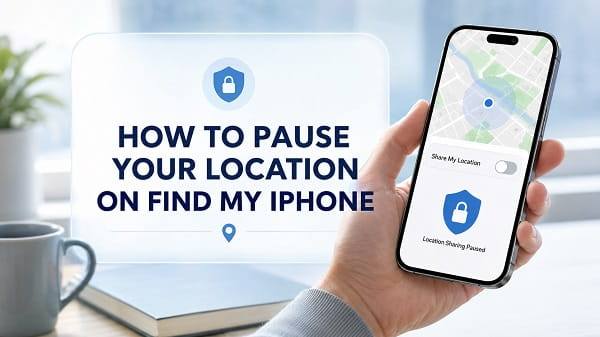
There is no button labelled Pause Location in Apple’s Find My app. However, you can temporarily stop sharing your location with one person, stop sharing it with everyone, or change which Apple device supplies your location.
The best option depends on what you want to pause. If you only want a particular person to stop seeing you, remove that person from location sharing. If nobody should see your location, turn off Share My Location. You normally do not need to disable Find My iPhone, Location Services, or your internet connection.
Quick Ways to Pause Find My Location
| What you want to do | Best method | Main effect |
|---|---|---|
| Hide your location from one person | Stop sharing with that person in Find My | Other approved people can still see you |
| Hide your location from everyone | Turn off Share My Location | Person-to-person sharing stops for everyone |
| Share the location of another Apple device | Select another device as your location | Find My displays that device’s real location |
| Review all people and apps with access | Use Safety Check | Helps you remove unwanted access quickly |
| Stop apps from accessing location | Turn off Location Services | Maps, weather, ride-hailing and other apps may stop working properly |
| Prevent your missing iPhone from being found | Turn off Find My iPhone or Find My network | Reduces theft and loss protection and is not recommended for a simple pause |
For most people, the first or second option is the right one.
Can You Pause Your Location on Find My iPhone?
You can stop location sharing temporarily, but Apple does not call the feature “pause.” The available controls are Stop Sharing My Location and Share My Location.
This distinction matters because Find My performs two related but different jobs:
- People location sharing lets friends and family see the location you have chosen to share.
- Find My iPhone device tracking helps you locate, mark as lost, lock or erase your own missing device.
Turning off person-to-person sharing does not normally disable Find My iPhone. Your iPhone can remain protected by Activation Lock and still be visible in your own Find My device list even when friends can no longer see your location.
How to Stop Sharing Your Location With One Person
This is the most precise way to pause Find My location. It removes access for one person without affecting everyone else.
- Open the Find My app on your iPhone.
- Tap People at the bottom of the screen.
- Select the person who should no longer see your location.
- Scroll down and tap Stop Sharing My Location.
- Tap Stop Sharing Location to confirm.
Your location will stop appearing for that person in Find My and in other Apple services that use the same sharing relationship, including Maps, Contacts and Messages.
When you are ready to share again, open Find My, tap the Add button, choose Share My Location, select the person and choose how long to share.
Apple explains these controls in its official Find My location-sharing instructions.
How to Pause Find My Location for Everyone
Turn off Share My Location if you want all person-to-person location sharing to stop at once.
- Open Find My.
- Tap Me at the bottom of the screen.
- Turn off Share My Location.
You can also reach the setting through:
- Open Settings.
- Tap your name at the top.
- Tap Find My.
- Turn off Share My Location.
This setting is reversible. Return to the same screen and turn Share My Location on when you want to resume sharing.
Turning the switch back on does not always restore every previous sharing arrangement automatically. Open the People tab afterward and confirm that the people you trust appear there.
Stop Sharing Your Location From Messages
If you are already in an iMessage conversation with the person, you may be able to stop sharing without opening Find My.
- Open Messages.
- Select the conversation with the person.
- Tap the person’s name or profile picture at the top.
- Tap Stop Sharing My Location.
Messages and Find My use the same Apple location-sharing system. Stopping it in one place should also remove that person’s access in the other.
Do not confuse Stop Sharing My Location with Hide Alerts. Hide Alerts only silences conversation notifications. It does not prevent the person from seeing your shared location.
Will Someone Know That You Stopped Sharing?
Apple does not provide a guaranteed invisible way to pause Find My location. The other person may not receive a prominent alert on a current iPhone, but they can still notice that your location has disappeared. Older Apple software may also show a message in the conversation indicating that location sharing stopped.
Depending on the situation, the person may see:
- No current location for you
- Location Not Available
- Your contact without a map
- A last known location that no longer updates
You should therefore assume that stopping or interrupting location sharing can be noticed. Any website or app promising to freeze your Find My location secretly and permanently should be treated with caution.
Use Safety Check to Review Location Access
If you are concerned that a former partner, family member or another person has access they should not have, use Apple’s Safety Check instead of changing random settings.
- Open Settings.
- Tap Privacy & Security.
- Scroll down and tap Safety Check.
- Choose Manage Sharing & Access to review people, apps and devices individually.
- Choose Emergency Reset if you need to stop sharing broadly and immediately.
Safety Check can also help you review devices signed in to your Apple Account, reset app privacy permissions and change important account security details. Apple’s Safety Check guide includes a Quick Exit option for situations where leaving the screen quickly matters.
If your personal safety is at risk, make changes from a safe location and consider whether another person may react when access disappears.
Change Which Apple Device Shares Your Location
If you own more than one Apple device, you can choose which one represents your location. For example, you may use an iPad or a second iPhone as the source instead of the iPhone currently selected.
On the device you want to use:
- Sign in with the same Apple Account used on your other devices.
- Open Find My.
- Tap Me.
- Tap Use This iPhone as My Location or Use This [device] as My Location.
This is not a fake-location feature. Find My will share the actual location of the selected device, and that device needs to support the setting. Leaving it somewhere to create a misleading impression can also cause confusion during an emergency.
To confirm the current source, open Find My and look below My Location in the Me tab.
Can You Freeze Your Find My Location in One Place?
There is no official setting that freezes your live location at an earlier point while allowing Find My to appear normal. When the app cannot retrieve a new position, it may display a last known location for a while, but that location is not a dependable or controllable freeze.
A stale location can result from:
- A lost internet connection
- Weak GPS reception
- A powered-off or depleted iPhone
- Disabled location access
- A temporary Apple service or network problem
Find My often displays when the location was last updated. A person checking the map can therefore tell that the information is old.
Avoid third-party location spoofers, altered system software and websites that ask for your Apple Account password. They can expose private data, weaken device security or cause Find My and other services to behave unpredictably.
Why Airplane Mode Is Not a Reliable Find My Pause
Airplane Mode is often suggested as a way to hide an iPhone’s location, but it is unreliable for several reasons.
First, Airplane Mode does not change your Find My sharing permissions. It only interrupts certain wireless connections. Wi-Fi or Bluetooth may remain active or be turned back on separately.
Second, Apple’s Find My network can use Bluetooth and nearby Apple devices to report the location of supported hardware even when the missing device is not connected to Wi-Fi or cellular data.
Third, the other person may simply see an old position with a timestamp or a Location Not Available message. That does not look like normal live sharing.
Removing the SIM card or turning off cellular data has similar limitations. An iPhone can still communicate over Wi-Fi, and supported offline finding features may remain available.
If your goal is privacy from a person, change the sharing permission directly.
Does Turning Off the iPhone Hide Its Location?
Not necessarily. Supported iPhones can remain findable through the Find My network for a period after being powered off. The power-off screen may display iPhone Findable After Power Off when this feature is active.
This behaviour is useful if your phone is lost or stolen, so it should not be disabled merely to stop a friend from viewing your shared location. Stop sharing with the person instead.
Also remember that a powered-off phone cannot receive calls, messages or emergency communications, making shutdown a poor substitute for a privacy control.
Should You Turn Off Location Services?
You can disable Location Services through Settings > Privacy & Security > Location Services, but it affects far more than Find My.
Apps and features that may be affected include:
- Maps and navigation
- Weather forecasts for your current location
- Ride-hailing and delivery apps
- Camera photo locations
- Location-based reminders
- Emergency and safety features
This method is useful when you want to restrict location access across the whole phone, but it is excessive if you only want to stop sharing with one person. Some system location functions may also behave differently depending on your device and security settings.
When re-enabling Location Services, review the permission beside each app. While Using the App is usually more private than Always for apps that do not need continuous access.
Do Not Turn Off Find My iPhone Just to Pause Sharing
Find My iPhone is located under Settings > [your name] > Find My > Find My iPhone. It is an anti-loss and anti-theft feature, not the normal control for sharing with friends.
Turning it off can remove Activation Lock and prevent you from locating, locking or remotely erasing the iPhone if it goes missing. Disabling the Find My network also weakens offline finding.
Keep Find My iPhone enabled unless you have a specific reason to disable it, such as preparing the device for sale, trade-in or service. Use Share My Location for person-to-person privacy.
How to Resume Location Sharing
If you switched off sharing for everyone:
- Open Find My.
- Tap Me.
- Turn on Share My Location.
- Open People and verify who can see you.
If you stopped sharing with one person:
- Open Find My.
- Tap People.
- Tap the Add button.
- Choose Share My Location.
- Select the contact.
- Choose Share for One Hour, Share Until End of Day or Share Indefinitely.
The contact may need an Apple device and the correct phone number or email address linked to their Apple Account.
What to Do If Find My Paused by Itself
If you did not intentionally stop sharing but Find My is no longer updating, check the basics before changing privacy settings.
Confirm Share My Location Is On
Open Settings > [your name] > Find My and confirm that Share My Location is enabled. Then open Find My, select Me, and make sure the correct device appears beside My Location.
Check the Internet Connection
Open Safari and load a webpage using Wi-Fi or cellular data. If Wi-Fi cannot be enabled at all, follow these fixes for an iPhone WiFi button that is greyed out.
Check Location Services
Go to Settings > Privacy & Security > Location Services and make sure Location Services is on. Review the Find My permission if it appears in the list.
Restart the iPhone
A normal restart can clear a temporary Find My or networking problem. If the screen or buttons are unresponsive, use the correct steps to force restart your iPhone without deleting your data.
Set the Date and Time Automatically
Open Settings > General > Date & Time and enable Set Automatically. Incorrect time settings can interfere with account authentication and location updates.
Update iOS
Go to Settings > General > Software Update and install any available stable update. Keep the iPhone connected to power and back up important information first.
Reset Network Settings Only as a Last Resort
If Find My fails because Wi-Fi and cellular connections are also malfunctioning, a network reset may help. It removes saved Wi-Fi networks, passwords and certain network settings, so try the less disruptive steps first. Follow the full process for resetting network settings on an iPhone if the problem affects more than Find My.
Frequently Asked Questions
Can I pause Find My location without turning off my phone?
Yes. Open Find My, tap Me, and turn off Share My Location. To stop sharing with only one person, select the person under People and tap Stop Sharing My Location.
How do I make my location unavailable on Find My?
The correct method is to stop sharing with the relevant person or turn off Share My Location for everyone. The other person may see that your location is unavailable or no longer shared.
Can I pause my location for one person only?
Yes. Go to Find My > People, select the person, and tap Stop Sharing My Location. This should not remove access for other people on your list.
Does blocking someone stop Find My location sharing?
Blocking communication and controlling location access are related in some Apple features, but you should not rely on blocking alone. Open Find My and confirm that the person no longer appears as someone who can view your location.
Does deleting the Find My app stop location sharing?
No. Deleting the app from the Home Screen is not a dependable way to end an existing sharing arrangement or disable Find My iPhone. Change the sharing setting before removing the app.
Does Low Power Mode pause Find My location?
No. Low Power Mode reduces some background activity to conserve battery, but it is not a location privacy control and does not reliably stop Find My sharing.
Does Focus or Do Not Disturb hide my location?
No. Focus modes control notifications and interruptions. They do not automatically stop people from seeing a location you have shared.
Can Family Sharing members always see my location?
Family Sharing does not mean every family member must always see your live location. Review Settings > Family > Location Sharing or the People tab in Find My to see and change the current arrangement. Some child accounts may have restrictions managed by a parent or guardian.
Will turning off Share My Location disable Activation Lock?
No. Share My Location controls person-to-person sharing. Find My iPhone and Activation Lock are separate protections and can remain enabled.
What is the safest way to pause Find My temporarily?
Turn off Share My Location or stop sharing with the individual person. These options are reversible and preserve the protection Find My iPhone provides if the device is lost or stolen.
The key is to change the permission that matches your goal. For privacy from a person, stop location sharing. For troubleshooting, fix the connection or location setting. Keep Find My iPhone and the Find My network enabled whenever possible so your device remains protected.
