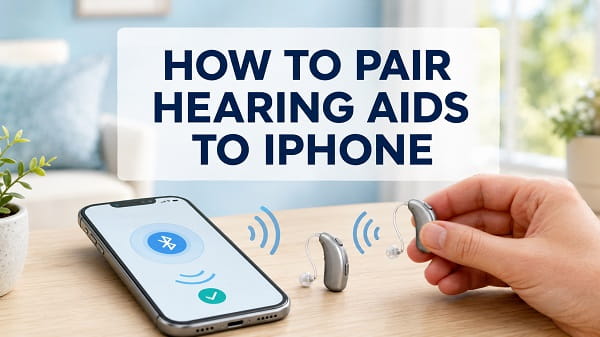
To pair hearing aids to an iPhone, turn on Bluetooth, place the hearing aids in pairing mode, and open Settings > Accessibility > Hearing Devices. Select the hearing aids when they appear under MFi Hearing Devices, then accept each pairing request. If your model is not a Made for iPhone device, you may need to connect it through Settings > Bluetooth or the hearing aid manufacturer’s app instead.
The exact method depends on the hearing aid model. Made for iPhone hearing aids use Apple’s dedicated accessibility controls, while other Bluetooth hearing aids may follow a more conventional pairing process. Knowing which type you own will prevent you from searching in the wrong iPhone menu.
The Quickest Way to Connect Hearing Aids to an iPhone
Use these steps if your hearing aids carry the Made for iPhone or MFi label:
- Place both hearing aids close to the iPhone.
- Open Settings > Bluetooth and turn Bluetooth on.
- Open Settings > Accessibility > Hearing Devices.
- Put the hearing aids into pairing mode by restarting them.
- Wait for their name to appear under MFi Hearing Devices.
- Tap the hearing aid name.
- Tap Pair on every request that appears.
- Wait until the connection finishes before playing audio.
Pairing can take up to a minute. If you wear two hearing aids, the iPhone may display separate requests for the left and right devices. Accept both requests.
Choose the Correct Pairing Method
Not every hearing aid connects through the same iPhone menu.
| Hearing aid type | Where to pair it | What it normally supports |
|---|---|---|
| Made for iPhone hearing aid | Settings > Accessibility > Hearing Devices | Direct audio streaming, battery status, presets, Live Listen and other Apple controls |
| Standard Bluetooth hearing aid | Settings > Bluetooth | Features depend on the Bluetooth profile and hearing aid model |
| App-controlled hearing aid | Manufacturer’s iPhone app, sometimes followed by Bluetooth or Accessibility settings | Model-specific controls, remote adjustments and firmware updates |
| Hearing aid without direct iPhone streaming | Manufacturer-supplied streamer or accessory | Routes sound between the iPhone and hearing aids |
Look for “Made for iPhone,” “MFi,” “Works with iPhone,” or direct iOS streaming in the product manual. Apple also maintains a searchable list of Made for iPhone hearing devices.
A model can be hearing-aid compatible for phone use without supporting every MFi streaming feature. Compatibility with calls does not automatically mean the hearing aids will appear under MFi Hearing Devices.
Before You Start Pairing
A few preparations can prevent most connection failures.
Charge the Hearing Aids
Rechargeable hearing aids should have enough power to remain on throughout setup. If they use disposable batteries, confirm that the batteries are working and inserted correctly.
A hearing aid with a critically low battery may enter pairing mode briefly and then disappear before the iPhone completes the connection.
Keep the Hearing Aids Close
Place the hearing aids beside the iPhone during setup. A distance of a few inches is ideal. Move away from crowded collections of Bluetooth accessories if the hearing aids repeatedly disappear from the list.
Disconnect Them From Other Devices
Turn off Bluetooth temporarily on a nearby old phone, iPad, Mac or tablet that previously used the hearing aids. Some models reconnect to the familiar device before the new iPhone can detect them.
You can turn Bluetooth back on after pairing is complete.
Check the Manufacturer’s Instructions
The method used to activate pairing mode varies. Common methods include opening and closing the battery doors, restarting the aids, removing rechargeable aids from their charger or holding a physical button for several seconds.
Do not perform a full factory reset unless the manufacturer or hearing-care professional specifically recommends it. Restarting and resetting are not always the same operation.
How to Pair Made for iPhone Hearing Aids
Made for iPhone hearing aids are designed to work with Apple’s hearing accessibility system. They can provide controls that ordinary Bluetooth accessories may not offer.
Step 1: Turn On Bluetooth
Open Settings > Bluetooth and make sure the switch is on. Leave the Bluetooth settings screen after enabling it. MFi hearing aids are normally paired from Accessibility rather than from the ordinary Other Devices list.
Step 2: Open Hearing Devices
Go to:
Settings > Accessibility > Hearing Devices
The iPhone will begin searching for compatible hearing devices.
Step 3: Activate Pairing Mode
Use the appropriate method for your hearing aids:
- Replaceable batteries: Open the battery doors, wait several seconds, and close them.
- Rechargeable model with buttons: Turn both aids off and back on.
- Rechargeable model without an obvious power button: Place both aids in the charger briefly, then remove them.
- Model with a dedicated pairing action: Follow the instructions provided by the manufacturer.
Restart both hearing aids at approximately the same time if you use a pair.
Step 4: Select the Hearing Aids
Wait for the name to appear under MFi Hearing Devices. Detection may not be instant, so allow up to 60 seconds before leaving the page.
Tap the hearing aid name when it appears.
Step 5: Accept Every Pairing Request
Tap Pair when the iPhone displays the Bluetooth pairing request. Two requests may appear when connecting left and right hearing aids. Accept both.
Do not close Settings, play music or make a call until pairing finishes. A checkmark, confirmation tone or connected status should appear when the process is successful.
Apple’s current Made for iPhone hearing-device instructions confirm this Accessibility pairing route and explain how to control and unpair compatible models.
How to Pair Standard Bluetooth Hearing Aids
Some hearing aids support Bluetooth but are not listed as MFi devices. Follow the product manual first because certain models require an app or separate streaming accessory.
For a model that pairs like an ordinary Bluetooth audio device:
- Open Settings > Bluetooth on the iPhone.
- Turn Bluetooth on.
- Put the hearing aids into pairing mode.
- Wait for the model name to appear under Other Devices.
- Tap the name.
- Accept the pairing request or enter a PIN if the manual provides one.
- Wait until the status changes to Connected.
Do not guess a PIN repeatedly. Hearing aids that require a code commonly include it in the manual, packaging or manufacturer support information.
If the hearing aids never appear in Bluetooth but the manufacturer says they support iPhone, check Accessibility > Hearing Devices and the manufacturer’s app before assuming they are faulty.
Pairing Through the Hearing Aid Manufacturer’s App
Many hearing aid brands offer an iPhone app for setup, volume adjustments, listening programs, remote support and firmware updates.
The general process is:
- Download the official app from the App Store.
- Confirm that the developer name matches the hearing aid manufacturer.
- Open the app and allow the Bluetooth permission it requests.
- Select the correct hearing aid model.
- Restart the hearing aids to activate pairing mode.
- Keep them beside the iPhone while the app searches.
- Accept any iOS pairing requests.
- Complete the setup inside the app.
Some apps control the aids but do not create the main audio-streaming connection themselves. You may still need to complete pairing under Accessibility or Bluetooth.
Avoid unofficial apps claiming to support every hearing aid brand. They may collect unnecessary information and usually cannot add compatibility that the hardware does not have.
How to Confirm the Hearing Aids Are Connected
For MFi hearing aids, open:
Settings > Accessibility > Hearing Devices
The connected model should appear under MFi Hearing Devices. Tap it to view the controls supported by that model, which may include:
- Left and right battery levels
- Microphone volume
- Audio presets
- Streaming to the left, right or both hearing aids
- Call and media audio routing
- Ringtone playback
- Live Listen
- Control on Lock Screen
- Audio Handoff between compatible Apple devices
Available settings vary by model. A missing option does not necessarily indicate a fault.
For a regular Bluetooth model, open Settings > Bluetooth and look for Connected beside its name. You can also open Control Center, tap the current audio output control and choose the hearing aids.
Send Calls and Media Audio to the Hearing Aids
Successful pairing does not always mean the iPhone has selected the hearing aids as its current sound output.
To choose them for media:
- Play music, a video or another audio source.
- Open Control Center.
- Tap the audio output or AirPlay button in the playback panel.
- Select the hearing aids.
For call audio routing, go to:
Settings > Accessibility > Touch > Call Audio Routing
Depending on the available options, choose the setting that routes calls to the Bluetooth headset or hearing device. Automatic is convenient when the iPhone correctly detects the device, while a dedicated Bluetooth option may be useful if call audio keeps returning to the iPhone speaker.
Do not increase the iPhone volume to maximum immediately. Start at a comfortable level and adjust gradually. Hearing aid output may also be controlled independently through the manufacturer’s app or programmed listening settings.
Add Hearing Controls to Control Center
The Hearing control provides quicker access to supported features.
- Open Control Center.
- Touch and hold an empty area or use the option to add controls.
- Add the Hearing control, represented by an ear icon.
- Tap the Hearing control when the hearing aids are connected.
Depending on the model and iOS version, the panel may show battery levels, audio levels, Live Listen or other controls.
You can also configure an Accessibility Shortcut:
- Open Settings > Accessibility.
- Scroll down to Accessibility Shortcut.
- Select Hearing Devices.
- Triple-click the side button, or the Home button on an older iPhone, to open the shortcut.
How to Use Live Listen With Hearing Aids
Live Listen turns the iPhone into a remote microphone for compatible Made for iPhone hearing devices. It can send sound near the iPhone to the connected hearing aids.
To start it through Settings:
- Connect the hearing aids.
- Open Settings > Accessibility > Hearing Devices.
- Tap the connected hearing aid.
- Tap Start Live Listen.
- Place the iPhone near the sound source.
To stop it, return to the same screen and tap End Live Listen.
You may also be able to start Live Listen from the Hearing control in Control Center. Keep the iPhone within Bluetooth range and avoid covering its microphone.
Live Listen is an accessibility feature, not a substitute for a professional hearing assessment or correctly fitted hearing aids.
How to Unpair Hearing Aids From an iPhone
Unpair the hearing aids if you are moving them to a different phone, returning the devices, troubleshooting a corrupted connection or no longer using them.
For MFi hearing aids:
- Open Settings > Accessibility > Hearing Devices.
- Tap the connected hearing aid’s name.
- Scroll down.
- Tap Forget This Device.
- Confirm the action.
For regular Bluetooth hearing aids:
- Open Settings > Bluetooth.
- Tap the information button beside the hearing aid.
- Tap Forget This Device.
- Confirm.
Restart the hearing aids before attempting to pair them again.
How to Connect Hearing Aids to a New iPhone
Begin by disabling Bluetooth on the old phone or forgetting the hearing aids from it. Then place the aids in pairing mode and follow the MFi, Bluetooth or manufacturer-app method on the new iPhone.
If the old iPhone is unavailable:
- Make sure it is powered off or out of Bluetooth range.
- Restart the hearing aids.
- Try pairing on the new iPhone.
- Use the manufacturer’s pairing-reset instructions if the aids keep searching for the old phone.
Do not erase the hearing aids’ programmed listening profile unless instructed. Bluetooth pairing information and the professional sound fitting are normally separate, but the available reset options vary by brand.
Fix Hearing Aids Not Connecting to iPhone
Work through these solutions in order. Test the connection after each step so you do not make unnecessary changes.
1. Confirm the Hearing Aids Support Direct iPhone Pairing
Check the exact model number rather than relying only on the brand. One product family may contain MFi, standard Bluetooth and non-streaming versions.
If the model requires a neck loop, streamer or clip-on accessory, it may not connect directly to the iPhone without that component.
2. Restart Pairing Mode
Pairing mode usually remains active for a limited time. If the hearing aid does not appear, restart both aids and search again immediately.
For a battery-door model, open both doors, wait a few seconds, close them and return to Accessibility > Hearing Devices. For a rechargeable model, use its power buttons or charger method.
3. Charge Both Hearing Aids
Check the battery level of each side. One aid may connect while the other remains missing because its battery is depleted or not seated correctly.
Clean charger contacts only as recommended by the manufacturer. Do not apply liquids to the hearing aids or charging case unless the product instructions specifically allow it.
4. Turn Off Bluetooth on Previously Paired Devices
A hearing aid may reconnect to a nearby iPad, Mac, Android phone or old iPhone before the new device discovers it. Temporarily turn Bluetooth off on those devices.
Once pairing succeeds, compatible MFi aids can work with more than one Apple device. Audio Handoff may switch the connection when another signed-in Apple device starts playing sound or receives a call.
5. Toggle Bluetooth Properly
Open Settings > Bluetooth, turn Bluetooth off, wait about 15 seconds, and turn it back on. Use Settings rather than only tapping the Bluetooth control in Control Center, because Control Center may disconnect accessories without fully disabling the Bluetooth service.
Restart pairing mode on the aids afterward.
6. Forget the Hearing Aids and Pair Again
If the model appears dimmed, repeatedly disconnects or says Not Connected, remove the saved pairing and create it again.
Use Accessibility > Hearing Devices for MFi hearing aids or Settings > Bluetooth for ordinary Bluetooth models. Restart the aids before pairing again.
7. Accept Both Pairing Requests
Users with two hearing aids may receive two Bluetooth requests. Dismissing the second request can leave one side connected and the other unavailable.
Forget the incomplete connection, restart both aids together and accept every request.
8. Restart the iPhone
A restart refreshes Bluetooth and accessibility services without deleting data. Turn the iPhone off normally, wait briefly and turn it back on.
If the screen or buttons have stopped responding, use the correct procedure to force restart your iPhone. A force restart should be reserved for an unresponsive device rather than used as the first response to every Bluetooth problem.
9. Update iOS and the Hearing Aid Firmware
Open Settings > General > Software Update and install an available stable iOS update after backing up important information.
Open the official hearing aid app and check for a firmware update. Keep both aids charged and nearby during installation. Interrupting a firmware update can make the devices unavailable until the manufacturer or hearing-care provider restores them.
10. Check App Permissions
If pairing depends on a manufacturer app, open Settings > Privacy & Security > Bluetooth and confirm that the app is allowed to use Bluetooth.
Also check the app’s individual Settings page for permissions it genuinely needs. Location or Local Network access may be required for certain features, but permission requirements vary. Do not grant access to unrelated information without a clear reason.
11. Close Other Hearing Aid Apps
Two manufacturer apps trying to communicate with the same hearing aids can interfere with discovery or control. Close unused hearing-device apps and reopen only the official app for your model.
If you recently changed brands, removing the old app is optional, but make sure it is not actively attempting to reconnect.
12. Reset Network Settings
Use a network reset only after restarting, forgetting and re-pairing the hearing aids. The reset removes saved Wi-Fi networks and passwords, Bluetooth pairings, and certain cellular or VPN settings.
The path is:
Settings > General > Transfer or Reset iPhone > Reset > Reset Network Settings
Read the full consequences and preparation steps before resetting network settings on your iPhone. You will need to reconnect the hearing aids and other Bluetooth accessories afterward.
13. Test for Wireless Interference
Move away from crowded wireless environments, USB 3 hubs, poorly shielded cables, routers and multiple active Bluetooth accessories. Keep the iPhone on the same side of your body as the primary hearing aid during testing.
If the connection works in another location, interference may be a stronger possibility than a hardware fault.
14. Contact the Audiologist or Manufacturer
Seek model-specific help if:
- The hearing aids never enter pairing mode
- One side remains undetectable after charging
- The devices connect to other phones but not the iPhone
- Firmware installation fails
- The pairing problem began after a repair or replacement
- The hearing aids need professional programming
Provide the exact hearing aid model, iPhone model, iOS version and app version. These details make support more useful than saying only that Bluetooth does not work.
Fix Hearing Aids Connected but No Sound
If the iPhone reports that the hearing aids are connected but audio still plays through the phone:
- Start playing a song or video.
- Open Control Center.
- Tap the playback destination button.
- Select the hearing aids.
- Increase the media volume gradually.
- Open Accessibility > Hearing Devices and check the microphone or streaming controls.
- Confirm that both the left and right sides are selected for streaming.
For calls, review Call Audio Routing. Some hearing aids support media streaming but use a different method for the wearer’s voice during phone calls. Bidirectional MFi models can support hands-free communication on compatible iPhones, while unidirectional models may require speaking into the iPhone microphone.
Fix Only One Hearing Aid Connecting
One-sided pairing commonly happens when the second Bluetooth request was missed, one battery is low or the aids were restarted at different times.
Try this sequence:
- Forget the existing hearing aid connection.
- Charge both aids or install fresh batteries.
- Restart both aids together.
- Keep both beside the iPhone.
- Open Accessibility > Hearing Devices.
- Tap the device name.
- Accept every pairing request.
- Wait for pairing to finish before putting the aids on.
If the app shows two separate serial numbers, confirm that both belong to your fitted pair. A replacement aid may need to be linked with the other side by the hearing-care provider before binaural streaming works correctly.
Fix Hearing Aids That Keep Disconnecting
Repeated disconnections can come from low batteries, distance, wireless interference, another Apple device taking over the audio or outdated firmware.
Keep the iPhone nearby, charge both aids, update their firmware and test with Bluetooth disabled on other paired devices. For MFi hearing aids, inspect the Audio Handoff option under Accessibility > Hearing Devices if the connection moves unexpectedly between an iPhone, iPad or Mac.
If the devices disconnect only during calls, verify the selected call output. If they disconnect during all audio, forget and pair them again before considering a network reset.
Pairing Problems by Symptom
| Symptom | Likely cause | Best first step |
|---|---|---|
| No device appears under MFi Hearing Devices | Not in pairing mode or not MFi-compatible | Restart the aids and verify the exact model |
| Device appears under Bluetooth but not Accessibility | Standard Bluetooth or app-based model | Follow the manufacturer’s pairing instructions |
| Only one side connects | Second request missed or one battery is low | Forget the connection and pair both sides again |
| Connected but sound comes from iPhone | Wrong playback destination | Select the hearing aids from Control Center |
| Calls work but music does not | Media routing or streaming limitation | Select the output and check model capabilities |
| Music works but caller cannot hear you | Model may not support bidirectional streaming | Speak into the iPhone or confirm hands-free support |
| Hearing aids reconnect to old phone | Old device takes the connection first | Disable Bluetooth on the old device during setup |
| Connection switches between Apple devices | Audio Handoff is active | Review Audio Handoff in Hearing Devices settings |
| Pairing fails after an iOS update | Saved connection or firmware conflict | Restart, update firmware, forget and re-pair |
Frequently Asked Questions
Can any Bluetooth hearing aid connect to an iPhone?
No. The hearing aid must support direct iPhone streaming, standard Bluetooth audio or a compatible manufacturer accessory. Check the exact model’s specifications. Bluetooth used for app control alone does not always support calls or music streaming.
Where are hearing aids located in iPhone settings?
Made for iPhone hearing aids are found under Settings > Accessibility > Hearing Devices. Standard Bluetooth models may appear under Settings > Bluetooth, while other models are managed through the manufacturer’s app.
Why are my hearing aids not showing under MFi Hearing Devices?
They may not be in pairing mode, may already be connected to another device, or may not support MFi. Restart both aids near the iPhone, disable Bluetooth on old paired devices and confirm the exact model’s compatibility.
Do I need the manufacturer’s app to connect hearing aids?
Not always. MFi devices can normally be paired through Accessibility. However, the official app may be required for firmware updates, listening programs, remote support or model-specific controls.
Why did my iPhone ask me to pair twice?
The iPhone may need separate confirmation for the left and right hearing aids. Accept both requests and allow up to a minute for setup to finish.
Will hearing aids reconnect automatically?
They normally reconnect after the initial pairing when Bluetooth is on and the devices are powered up nearby. A connection to another phone or tablet may delay automatic reconnection.
Can I pair hearing aids with more than one Apple device?
Compatible MFi hearing aids can work with more than one Apple device. When the devices use the same Apple Account and Wi-Fi network, supported settings can sync and audio may hand off between them. Model support varies, and another active device can sometimes appear to cause an unexpected disconnection.
Can I stream calls and music through hearing aids?
Many MFi and Bluetooth streaming hearing aids support calls and media, but the exact features vary. Some models provide one-way streaming and still use the iPhone microphone during calls. Others support bidirectional, hands-free communication on compatible iPhones.
What does Hearing Aid Compatibility do on iPhone?
The Hearing Aid Compatibility setting may reduce interference and improve audio quality with some hearing aid models. It does not turn an unsupported device into an MFi hearing aid and is not required for every direct-streaming model.
Can I use Live Listen with any hearing aid?
Live Listen is available with supported Made for iPhone hearing devices and certain Apple or Beats audio products. A standard Bluetooth hearing aid may not provide the same integration.
Will resetting network settings delete my hearing aid program?
It removes Bluetooth pairings from the iPhone, but it should not erase the professional sound program stored inside the hearing aids. You will need to pair them again. Check with the manufacturer before using any reset option inside the hearing aid app itself.
The correct pairing menu is the most important part of the process. Start with Accessibility > Hearing Devices for an MFi model, use Bluetooth or the official app for other supported hearing aids, and accept every request when connecting a left-and-right pair. If the aids still do not appear, confirm compatibility and pairing mode before resetting any iPhone settings.
