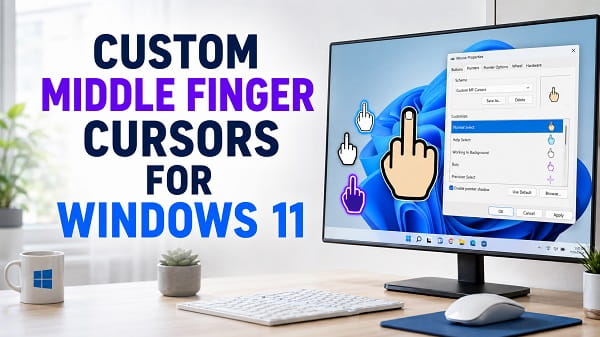
A custom middle finger cursor is one of the more unusual ways to personalize Windows 11. Instead of using the standard white arrow, you can replace the normal pointer, link-select hand, or another cursor role with a middle finger design, including static .cur files and animated .ani cursors.
Windows 11 does not include a middle finger cursor by default, but it still supports custom cursor files through the classic Mouse Properties window. That means you do not need to install a full desktop theme or modify Windows system files just to change the pointer.
The important part is downloading a real cursor file from a source you trust and assigning it to the correct pointer role. You should also avoid random executable installers that promise cursor packs when a simple .cur or .ani file is all you need.
This guide explains where to find custom middle finger cursors for Windows 11, how to install them, how to create a GTA-style setup, how to use the middle finger only when hovering over links, and how to restore the default Windows cursor if you change your mind.
Quick Answer
To use a custom middle finger cursor in Windows 11:
- Download a middle finger cursor in
.curor.aniformat. - Save it somewhere permanent, such as a dedicated Cursors folder.
- Open Settings > Bluetooth & devices > Mouse.
- Select Additional mouse settings.
- Open the Pointers tab.
- Select the cursor role you want to change.
- Click Browse.
- Choose the downloaded cursor file.
- Click Open.
- Select Apply and then OK.
If you want the middle finger to appear all the time, replace Normal Select.
If you want it to appear mainly when you hover over links, replace Link Select instead.
Best Middle Finger Cursor Styles for Windows 11
There is no single official middle finger cursor pack for Windows 11. Most available designs are community-made cursors.
The best style depends on how visible or subtle you want the cursor to be.
Windows 11-Style Middle Finger Cursor
A Windows 11-style cursor usually uses smoother edges, rounded shapes, and a cleaner design that looks closer to the modern Windows pointer set.
Cursor.cc currently has a community-created cursor described as an updated middle finger design in a Windows 11 rounded style.
You can view it here:
Windows 11 middle finger cursor on Cursor.cc
It is useful if you want something that looks less like an old Windows XP cursor and more like it belongs on a current Windows 11 desktop.
Classic White Middle Finger Cursor
This is usually the easiest style to see against dark backgrounds.
The hand is typically white with a dark outline, similar to older Windows pointer designs.
It works well as:
- Normal Select
- Link Select
- Alternate Select
A white design can disappear against bright backgrounds if the outline is too thin, so preview the cursor before keeping it permanently.
Black Middle Finger Cursor
A black cursor can look cleaner on a bright desktop or white browser page.
The disadvantage is that it can become difficult to see on:
- Dark Mode
- Dark wallpapers
- Black application windows
- Games with dark scenes
If you use Windows dark mode regularly, a black-only cursor may not be the best everyday choice.
Red Middle Finger Cursor
Red is more visible and makes the novelty effect obvious.
It can work well if you want the cursor to stand out, but it may feel distracting for normal productivity.
A red cursor is better suited to a secondary pointer role such as Link Select instead of replacing every Windows pointer.
Animated Middle Finger Cursor
Animated Windows cursor files normally use the .ani extension.
An animated design may move, flash, rotate, or repeatedly perform a short animation.
These can be fun, but I would avoid using a constantly animated cursor as the Normal Select pointer if you work on the computer for long periods. Motion near text and interface controls can become distracting quickly.
GTA-Style Middle Finger Cursor
Grand Theft Auto-inspired middle finger cursors are popular because the hand gesture fits the visual style associated with GTA.
You can use a GTA-style cursor as:
- Normal Select
- Link Select
- Alternate Select
The easiest approach is to download a .cur version and assign it through Windows Mouse Properties just like any other custom cursor.
You do not need a GTA mod, game installation, or third-party cursor program for a standard Windows cursor file.
Where to Download Middle Finger Cursors
The safest approach is to download a direct Windows cursor file rather than an installer.
Windows cursor files normally use:
.cur
for static cursors and:
.ani
for animated cursors.
Microsoft’s Windows cursor documentation confirms that Windows supports cursor data in .cur and .ani formats.
Cursor.cc
Cursor.cc has many individual community-created cursors, including:
- Windows 11-style middle finger cursors
- GTA-inspired cursors
- Black middle finger cursors
- White designs
- Colored versions
The advantage is that you can download an individual cursor rather than installing a complete theme.
RealWorld Cursor Library
The RealWorld Graphics cursor library also contains many middle finger cursor results, including static and animated designs.
Search its cursor library for:
middle finger
You may see designs intended for:
- Normal Select
- Link Select
- Animated pointer roles
- Older Windows themes
- GTA-style cursor sets
Because these are community uploads, inspect what you are downloading and avoid unrelated files.
Avoid Random Cursor Installer Programs
You usually do not need an .exe, .msi, registry cleaner, driver updater, or browser extension to install a Windows cursor.
For a basic cursor change, a direct .cur or .ani file is enough.
Be cautious if a website tells you to download something named like:
CursorInstaller.exe
DownloadManager.exe
Setup.exe
CursorPackInstaller.msi
especially when the page could simply provide the cursor file directly.
A third-party executable can make changes beyond the mouse pointer itself.
If a cursor site offers both a direct .cur download and a separate installer, I would normally choose the direct cursor file.
Where Should You Save Custom Cursor Files?
Do not leave a cursor in Downloads and then delete it later.
Windows needs access to the file after you assign it.
Create a permanent folder such as:
C:\Users\YourName\Documents\Cursors
or:
C:\Custom Cursors
Then move your downloaded .cur and .ani files there before assigning them.
You can also copy them into:
C:\Windows\Cursors
but Windows may request administrator permission.
For most users, a folder inside Documents is easier and avoids unnecessary changes to the Windows directory.
How to Install a Middle Finger Cursor in Windows 11
Once you have downloaded the cursor, Windows can apply it through Mouse Properties.
Step 1: Open Mouse Settings
Press:
Windows + I
to open Settings.
Go to:
Bluetooth & devices > Mouse
Scroll down and select:
Additional mouse settings
Microsoft currently documents this route as the way to access additional Windows mouse options.
Step 2: Open the Pointers Tab
The classic Mouse Properties window will appear.
Select:
Pointers
You will see the current Windows cursor scheme and a list of pointer roles.
Common roles include:
- Normal Select
- Help Select
- Working in Background
- Busy
- Precision Select
- Text Select
- Handwriting
- Unavailable
- Vertical Resize
- Horizontal Resize
- Diagonal Resize
- Move
- Alternate Select
- Link Select
You do not need to replace all of them.
Step 3: Select the Cursor Role
If you want the middle finger cursor to appear almost everywhere, select:
Normal Select
If you want a more subtle setup, select:
Link Select
This makes the custom hand appear mainly when Windows or an application uses the standard link pointer.
Step 4: Click Browse
After selecting the pointer role, click:
Browse
Navigate to the folder containing your downloaded cursor.
Select the .cur or .ani file.
Click:
Open
The preview should change.
Step 5: Apply the Cursor
Click:
Apply
Move the mouse around and test the new cursor.
If you are satisfied, click:
OK
Your middle finger cursor should now remain active after closing Mouse Properties.
How to Use a Middle Finger Cursor Only for Links
This is probably the best setup if you want the effect without having the gesture visible constantly.
Open:
Settings > Bluetooth & devices > Mouse > Additional mouse settings
Then:
- Open Pointers.
- Select Link Select.
- Click Browse.
- Select your middle finger
.curfile. - Click Open.
- Click Apply.
- Click OK.
The regular arrow remains your normal Windows pointer, but the middle finger can appear when the system requests the Link Select cursor.
This is especially noticeable in browsers and applications that use Windows cursor roles normally.
Some websites and apps define their own pointer behavior, so the custom Link Select cursor may not appear everywhere.
How to Make the Middle Finger Your Default Cursor
If you want it visible most of the time, replace Normal Select.
Go to:
Mouse Properties > Pointers
Select:
Normal Select
Click Browse, choose the middle finger cursor, and apply the change.
The custom pointer should appear across much of Windows.
Keep in mind that applications can request different cursor roles depending on what you are doing.
For example:
- Text fields usually use Text Select.
- Loading applications may use Busy.
- Window borders use Resize cursors.
- Links can use Link Select.
Changing only Normal Select does not automatically replace every pointer icon.
How to Create a Full Middle Finger Cursor Scheme
If you want more than one custom pointer, create your own scheme.
For example:
| Windows Pointer Role | Custom Choice |
|---|---|
| Normal Select | Middle finger cursor |
| Link Select | Animated middle finger |
| Alternate Select | Red middle finger |
| Working in Background | Standard Windows cursor |
| Busy | Standard Windows cursor |
| Text Select | Standard Windows I-beam |
| Resize cursors | Standard Windows cursors |
I recommend leaving functional cursors such as Text Select and resizing pointers unchanged.
A middle finger icon is amusing as a normal or link pointer, but replacing every cursor role makes Windows harder to use because you lose the visual clues that tell you when you can resize, select text, or wait for an application.
Save the Scheme
After assigning the cursor roles:
- Stay on the Pointers tab.
- Click Save As.
- Enter a name such as:
Middle Finger Windows 11
- Click OK.
- Click Apply.
You can now switch back to the custom setup from the Scheme drop-down menu.
How to Install an Animated .ANI Middle Finger Cursor
Animated cursors work almost the same way.
Download the .ani file and save it permanently.
Then go to:
Settings > Bluetooth & devices > Mouse > Additional mouse settings > Pointers
Choose the pointer role.
Click:
Browse
Select the .ani file.
Apply the change.
If the animation does not play, test another .ani file first. The original file may be damaged or designed incorrectly.
You do not need special animation software just to use a valid Windows .ani cursor.
How to Get a GTA Middle Finger Cursor on Windows 11
A GTA-inspired middle finger pointer can be installed the same way as any other Windows cursor.
The key is to find a direct .cur version.
Once downloaded:
- Save it to your Cursors folder.
- Open Mouse Properties.
- Go to Pointers.
- Select Normal Select or Link Select.
- Click Browse.
- Choose the GTA-style
.curfile. - Click Apply.
If the download comes as a ZIP archive, extract it first.
Do not browse into the ZIP file from Mouse Properties and expect Windows to keep using the cursor reliably.
Extract the files into a permanent folder.
How to Extract a Cursor Pack From a ZIP File
Many cursor packs are distributed as .zip archives.
To extract one:
- Open File Explorer.
- Find the downloaded ZIP file.
- Right-click it.
- Select Extract All.
- Choose a permanent folder.
- Click Extract.
Look inside the extracted folder for files ending in:
.cur
or:
.ani
If file extensions are hidden, Windows can make it harder to identify which file is the actual cursor.
My How to Change File Type on Windows 11 guide also explains how to make file extensions visible in File Explorer.
Do not rename a .png or .jpg file to .cur and expect it to become a working cursor. Changing the extension does not convert the image into the Windows cursor format.
Can You Use a PNG as a Windows Cursor?
Not directly through the standard Mouse Properties interface.
A PNG is an image file, not a native Windows cursor file.
You need to convert the image into a proper .cur file with a cursor editor or cursor-conversion tool.
A real cursor file also contains hotspot information.
The hotspot is the exact pixel that Windows treats as the point you are clicking.
For a normal arrow, the hotspot is usually near the tip.
For a hand cursor, the hotspot needs to align with the appropriate finger or pointer location.
A poorly configured hotspot can make the cursor look like it is clicking several pixels away from the location you intended.
What Size Should a Custom Windows 11 Cursor Be?
There is no single size that is ideal for every display.
Higher-resolution monitors and display scaling can make tiny legacy cursor designs look too small.
A good cursor file can contain suitable images for different display sizes.
If you download a cursor that was created many years ago, it may look:
- Too small on a 4K display
- Blurry under scaling
- Jagged
- Poorly aligned
- Too large at low resolution
That is one reason a newer Windows 11-style middle finger cursor may look better than a very old XP-era cursor.
How to Change Cursor Size Without Replacing the Custom Cursor
Windows also provides pointer accessibility controls.
Open:
Settings > Accessibility > Mouse pointer and touch
Use the size slider to adjust pointer visibility.
However, custom cursor behavior can vary depending on the cursor file and the Windows scaling configuration.
If a particular middle finger cursor looks distorted at a larger pointer size, try another cursor designed at a higher resolution.
Middle Finger Cursor Not Working in Windows 11
If Windows keeps using the normal arrow, work through these checks.
Make Sure You Clicked Apply
After selecting the cursor file, click:
Apply
before closing Mouse Properties.
Check the Correct Pointer Role
If you changed Link Select but are looking at the normal desktop, you may not see your custom cursor.
Try hovering over a clickable link.
If you want the custom pointer visible on the desktop, assign it to Normal Select.
Move the Cursor File Out of Downloads
If you selected a cursor from Downloads and later deleted or moved it, Windows may no longer be able to load the file.
Put it in a permanent folder and assign it again.
Confirm It Is a Real .CUR or .ANI File
A file named:
middle-finger.png
is not a Windows cursor.
A renamed file such as:
middle-finger.png.cur
may still be an invalid cursor if it was not actually converted.
Use a genuine .cur or .ani file.
Restart Windows Explorer
If Windows does not immediately refresh the pointer correctly, restart Windows Explorer.
Press:
Ctrl + Shift + Esc
Open Task Manager.
Find Windows Explorer, right-click it, and select Restart.
Then test the cursor again.
Sign Out and Back In
Some pointer changes may behave more consistently after you sign out of Windows and sign in again.
You can also restart the PC.
Test Another Cursor File
If one custom cursor refuses to load while other .cur files work, the file itself is probably the problem.
Download another version rather than changing system settings unnecessarily.
Cursor Keeps Reverting to Default
If your custom cursor disappears after restarting Windows, the most common cause is that the original file was moved, deleted, or stored in a temporary location.
Keep custom cursors in a permanent folder.
Also save your custom pointer setup as a scheme using Save As in Mouse Properties.
If the problem began after installing desktop customization software, temporarily close that software and apply the cursor again.
Some theme managers can replace pointer schemes when they load.
Custom Cursor Disappears in Some Apps
This does not always mean something is wrong.
Applications and websites can request their own cursor styles.
Games may also use a software-rendered cursor instead of the Windows system pointer.
As a result, your custom middle finger cursor may appear on:
- Desktop
- File Explorer
- Settings
- Some browsers
- Standard Windows applications
but not inside:
- Full-screen games
- Some web apps
- Remote desktop software
- Virtual machines
- Applications with custom user interfaces
There is no universal Windows setting that forces every application to use one cursor if the application deliberately draws its own pointer.
Custom Cursor Looks Blurry
A blurry cursor usually means the design does not scale well at your current display settings.
Check:
Settings > System > Display > Scale
If you use 125%, 150%, 175%, or higher scaling, older cursor files may not look sharp.
Try a newer or higher-resolution cursor.
Do not change your entire display scale solely to make one novelty cursor look better.
Cursor Click Point Is Wrong
If you click a button but Windows registers the click slightly beside the visible finger, the cursor hotspot is probably incorrect.
The hotspot is built into the cursor file.
Windows Mouse Properties cannot repair a badly placed hotspot.
You need either:
- A better version of the cursor
- A cursor editor that lets you reposition the hotspot
This problem is common with image-to-cursor conversions made quickly without checking where the active click point should be.
Animated Cursor Is Too Distracting
You can keep the animated middle finger without using it as Normal Select.
Assign it to a less frequent role such as:
Link Select
or:
Alternate Select
Then restore the normal Windows arrow for everyday movement.
This gives you the novelty effect without having constant animation following the mouse.
How to Restore the Default Windows 11 Cursor
If you no longer want the custom middle finger pointer:
- Open Settings.
- Go to Bluetooth & devices > Mouse.
- Select Additional mouse settings.
- Open Pointers.
- Open the Scheme menu.
- Select a standard Windows pointer scheme.
- Click Apply.
- Click OK.
You can also reset individual roles.
Select the modified pointer role and click:
Use Default
Then apply the change.
Do not delete your custom cursor files until you have switched Windows back to a normal scheme.
Is It Safe to Use a Custom Middle Finger Cursor?
A genuine .cur or .ani cursor file is much simpler than installing a third-party customization program.
Still, use basic download precautions.
I recommend:
- Downloading only the cursor file you need
- Avoiding unnecessary executable installers
- Scanning downloaded archives before extracting them
- Checking file extensions
- Avoiding sites that force browser extensions
- Avoiding password-protected archives from unknown uploaders
- Not disabling Windows Security just to install a cursor
A cursor should not require you to turn off antivirus protection.
If a website tells you to disable security software before downloading a mouse pointer, use another source.
Can a Middle Finger Cursor Damage Windows?
Changing the pointer through Mouse Properties does not modify core Windows system files in the same way that patching system themes can.
The normal cursor-selection process is reversible.
Problems are more likely to come from third-party installers, aggressive theme programs, or files downloaded from untrustworthy sources than from assigning a standard .cur file.
If desktop-customization software causes Windows to behave abnormally, remove that software and return to a default cursor scheme.
For more serious third-party startup problems, booting Windows 11 in Safe Mode can help you troubleshoot without loading most optional startup software.
Can You Make Your Own Middle Finger Cursor?
Yes.
You need an image editor or cursor editor that can create .cur files.
The basic process is:
- Create a transparent image.
- Draw or import the hand design.
- Resize it appropriately.
- Export or convert it to
.cur. - Set the hotspot correctly.
- Test it in Windows.
- Adjust the hotspot or size if necessary.
Do not use copyrighted artwork from a commercial game or artist for redistribution unless you have permission to do so.
For personal use, creating your own simple hand design avoids downloading a cursor from an unknown source.
Middle Finger Cursor vs Custom Pointer Color
Windows 11 already lets you change the normal pointer color and size through:
Settings > Accessibility > Mouse pointer and touch
That is the better option if your goal is simply:
- Better visibility
- A larger cursor
- A colored pointer
- Improved accessibility
A custom middle finger cursor is mainly for personalization and novelty.
It does not improve mouse performance, click accuracy, gaming latency, or Windows speed.
Frequently Asked Questions
Can I use a middle finger cursor on Windows 11?
Yes. Download a valid .cur or .ani cursor, open Mouse Properties, go to the Pointers tab, choose the cursor role, and browse to the custom file.
What file format does a Windows cursor use?
Windows commonly uses .cur for static cursor files and .ani for animated cursors.
Where can I download a middle finger cursor?
Community cursor sites such as Cursor.cc and the RealWorld cursor library contain middle finger designs. Prefer direct .cur or .ani downloads instead of unnecessary installers.
Is there a Windows 11-style middle finger cursor?
Yes. Community designers have created middle finger cursors styled around the rounded Windows 11 pointer appearance.
How do I make the middle finger cursor appear only over links?
Open Mouse Properties > Pointers, choose Link Select, click Browse, and assign your middle finger cursor to that role.
How do I make it my normal cursor?
Assign the custom cursor to Normal Select in the Pointers tab.
Can I use a GTA middle finger cursor on Windows 11?
Yes. A GTA-inspired .cur file can be assigned through Mouse Properties like any other custom Windows cursor.
Do I need cursor software?
No. Windows 11 can load custom .cur and .ani files through its built-in pointer settings.
Why is my custom cursor not showing?
You may have changed the wrong pointer role, moved the cursor file, forgotten to click Apply, or downloaded an invalid file.
Can I use a PNG as a cursor?
Not directly. Convert the image into a proper .cur file and configure its hotspot before using it as a Windows pointer.
Why does my custom cursor not appear in games?
Some games draw their own cursor instead of using the Windows system pointer. Your Windows cursor settings cannot always override an application’s custom pointer.
How do I remove the middle finger cursor?
Return to Mouse Properties > Pointers and choose a standard Windows scheme, or select the modified role and click Use Default.
Will a custom cursor slow down Windows 11?
A normal static .cur file should have no meaningful effect on Windows performance. Extremely elaborate third-party customization software is a different matter and is unnecessary for a simple cursor change.
A Simple Setup That Works Well
For most people, I would not replace every Windows cursor with the same middle finger icon.
A cleaner setup is:
- Keep the normal Windows arrow for Normal Select
- Use the middle finger for Link Select
- Keep Text Select unchanged
- Keep resizing pointers unchanged
- Keep Busy and Working in Background unchanged
That preserves the useful visual cues built into Windows while still giving you the custom effect when you hover over clickable links.
If you prefer the novelty to be visible constantly, use the middle finger for Normal Select and save the configuration as a separate cursor scheme. That makes it easy to return to the standard Windows 11 pointer whenever you need a more conventional desktop.
