
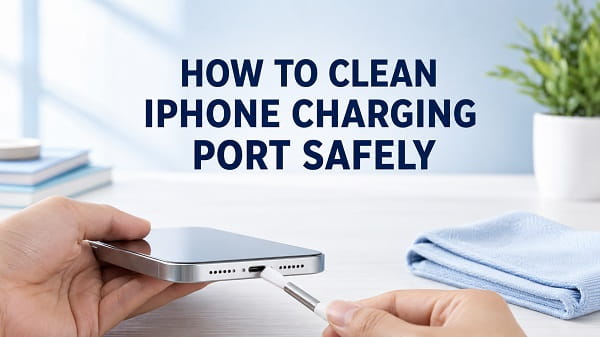
To clean an iPhone charging port safely, disconnect every cable, turn off the iPhone and inspect the port under a bright light. Hold the port facing downward, wipe only around its opening with a clean, dry, lint-free cloth and use a clean, dry, soft-bristled brush gently across the entrance if loose dust is visible. Do not insert metal, a toothpick, cotton swab or other tool into the connector.
If lint is compacted deep inside the port, the safest option is professional cleaning. Scraping the contacts can turn a small charging problem into a damaged port that needs replacement.
Apple advises turning the iPhone off before cleaning, keeping moisture away from openings and avoiding compressed air. It also recommends removing debris when an iPhone will not charge, but it does not instruct owners to dig inside the connector with household objects.
What You Need to Clean the Port
Gather only a few simple items:
- A bright flashlight or desk light
- A clean, dry, soft, lint-free cloth
- A clean, dry, very soft-bristled brush for the outside edge and port entrance
- A known-good charging cable and adapter for testing afterward
The brush should be soft enough that it cannot scratch the phone. Use it across the opening rather than pushing it deep into the connector.
You do not need:
- A needle
- A safety pin
- A paper clip
- A SIM-eject tool
- A metal dental pick
- A wooden toothpick
- A cotton swab
- Compressed air
- Contact cleaner
- Rubbing alcohol inside the port
- Water
If safe surface cleaning does not remove the obstruction, stop and arrange service.
Signs That the Charging Port May Be Dirty
Pocket lint and dust can be pushed farther into the port each time the cable is connected. Eventually, the plug may no longer reach the contacts correctly.
Common signs include:
- The charging connector does not sit fully inside the port
- The plug feels looser than it used to
- Charging starts and stops when the cable moves
- The iPhone charges only when the cable is held at an angle
- Wired CarPlay disconnects over bumps
- A computer does not recognize the iPhone
- The iPhone displays an accessory-not-supported warning
- Several known-good cables fail in the same way
- Dust or compacted lint is visible under a light
These symptoms can also come from a damaged cable, failed adapter, worn connector or liquid damage. Inspect the charging accessories before assuming that dirt is the cause.
When You Should Not Clean the Port Yourself
Do not insert anything or continue testing with a cable if you see:
- Moisture inside the port
- Green, white or blue-green corrosion
- Black marks or signs of burning
- A bent USB-C center tongue
- Bent or missing contacts
- A cracked port surround
- A burning smell
- Unusual heat around the connector
- Damage after a drop or impact
These are repair issues rather than ordinary dust. Disconnect the cable, turn off the iPhone if it is safe to do so and arrange an inspection.
Step 1: Test the Cable and Charger First
Cleaning is unnecessary if the cable or power adapter is the real problem.
Before touching the port:
- Inspect the cable for cuts, bent connectors, discoloration or loose ends.
- Try a different compatible cable known to work with another device.
- Try another power adapter.
- Connect directly without a hub, extension or adapter.
- Test another wall outlet.
- Remove a case that prevents the connector from seating fully.
If one cable fails but another works normally and fits firmly, clean or replace the failed cable rather than the iPhone port.
Apple’s iPhone charging troubleshooting recommends checking the cable and USB adapter for damage, testing the power connection and removing debris from the charging port.
Step 2: Disconnect Everything and Turn Off the iPhone
Unplug the charging cable from the iPhone and disconnect accessories from the port. Remove the case if it covers the connector area.
Turn off the iPhone:
iPhone With Face ID
- Hold the Side button and either Volume button.
- Drag the power-off slider.
- Wait for the screen to go completely dark.
iPhone With a Home Button
- Hold the Side or Top button.
- Drag the power-off slider.
- Wait until the iPhone shuts down.
Powering off reduces the chance of an electrical problem if debris moves across contacts. It also prevents accidental screen input while you handle the phone.
Apple’s current iPhone cleaning guidance says to unplug all cables and turn off the device before cleaning. It also says not to use compressed air and to avoid getting moisture into openings.
Step 3: Inspect the Port Under a Bright Light
Hold the iPhone so light reaches the inside of the connector. A second flashlight may be more useful than the iPhone’s own flashlight because the phone needs to remain off.
Look for:
- Loose dust near the entrance
- A flat layer of compacted lint at the back
- Fibers along the inside walls
- Sand or crumbs
- Corrosion or discoloration
- Bent contacts or a damaged center tongue
Do not mistake normal internal parts for dirt. USB-C ports contain a thin center tongue with electrical contacts on both sides. Lightning ports also contain delicate contact components. Never scrape either design.
If you cannot tell whether an object is debris or part of the port, leave it alone.
Step 4: Hold the Charging Port Facing Down
Position the iPhone with the charging port pointing toward the floor. Place a soft cloth underneath in case the phone slips.
The downward position allows loose particles to fall out rather than move farther into the device.
Do not shake the iPhone violently. A few gentle movements are enough. Hard shaking can cause a drop and will not remove lint packed behind the plug.
Step 5: Wipe Around the Port Opening
Use a clean, dry, soft, lint-free cloth to wipe the exterior surface around the charging port.
Fold the cloth so you have a clean edge, but do not force the fabric into the connector. The goal is to remove dust and oils around the opening without leaving fibers inside.
Do not dampen the cloth when working around the open connector. Apple allows a slightly damp cloth for some exterior surfaces, but moisture should not enter an opening.
Also wipe the phone case around its charging cutout. A case can hold dust and transfer it back to the port.
Step 6: Brush Loose Debris Across the Entrance
If loose dust is visible at the opening, use a clean, dry, very soft-bristled brush.
- Keep the port facing downward.
- Brush gently across the opening.
- Use light strokes moving outward.
- Check the port under the light again.
- Stop if the bristles catch or the debris does not move easily.
Do not push the brush deep enough to touch or bend internal contacts. Do not use a powered brush, stiff shop brush or old toothbrush with hardened paste residue.
A brush is useful for loose surface dust. It is not the correct tool for excavating a tightly packed plug of lint from the back of the port.
Step 7: Stop if Lint Is Compacted Deep Inside
Compacted lint often looks like a thin gray or dark layer at the back of the connector. It may appear to be part of the port, and a charging cable may have pressed it tightly around delicate contacts.
This is where online instructions often become risky. A toothpick or pin can:
- Bend contacts
- Break the USB-C center tongue
- Leave splinters behind
- Scratch protective plating
- Create a short circuit
- Damage moisture-resistant seals
- Pack debris even more tightly
If gentle exterior brushing does not clear the obstruction, let Apple, an Apple Authorized Service Provider or a reputable phone repair technician clean it with the correct tools and magnification.
Port cleaning is normally much less expensive than replacing a connector damaged during an attempted home repair.
Step 8: Clean the Charging Cable Connector
The cable can carry dust, oils and corrosion back into a clean port.
Disconnect it from power, then wipe the Lightning or USB-C plug with a clean, soft, dry, lint-free cloth. Let the connector remain dry.
Do not use:
- Liquid cleaner
- Abrasive pads
- Metal polishing products
- Pins between contacts
- A wet wipe on the connector
Replace the cable if its plug is bent, cracked, loose, burned or badly discolored. Do not repeatedly test a damaged connector in the iPhone.
Step 9: Inspect the Port Again
Use the flashlight to check whether loose debris has been removed.
The port should look dry and undamaged. You do not need to make it look new. Slight discoloration from normal use is not automatically a problem.
Do not keep brushing a clean port. Repeated contact creates more risk without improving charging.
Step 10: Turn the iPhone On and Test Charging
Reconnect a known-good cable only when the port and connector are completely dry.
- Turn on the iPhone.
- Insert the cable straight without forcing it.
- Confirm that the plug seats normally.
- Connect the other end to a working power adapter and wall outlet.
- Leave the iPhone charging for at least 30 minutes if its battery was empty.
- Check whether charging remains stable when the phone rests normally.
Do not bend or pull the plug during the test. A connector that works only when forced sideways still needs inspection.
How to Clean a USB-C Port on iPhone
iPhone 15 and later mainstream models use USB-C. The port contains a narrow central tongue with contacts on both sides.
Follow the same safe process:
- Turn off the iPhone and unplug every cable.
- Inspect under bright light.
- Hold the port downward.
- Wipe around the exterior with a dry lint-free cloth.
- Brush only loose debris at the entrance with a very soft dry brush.
- Do not touch, bend or scrape the center tongue.
- Seek professional cleaning for packed debris.
The center tongue makes inserting improvised tools especially risky. If the tongue looks off-center, cracked or bent, stop using the port.
USB-C is used for charging, accessories and data. A dirty or damaged port can therefore affect charging, computer transfers, microphones, storage devices and wired CarPlay.
How to Clean a Lightning Port on iPhone
Older iPhone models use a Lightning connector. It can collect a dense layer of pocket lint because the cable repeatedly compresses debris toward the back.
Use the same conservative cleaning method:
- Power off and unplug the iPhone.
- Shine a light into the port.
- Hold it facing down.
- Wipe the surrounding surface.
- Gently brush loose dust across the entrance.
- Do not scrape contacts or the rear of the connector.
- Use professional service for compacted lint.
A Lightning plug that does not click or sit as deeply as it once did can indicate packed debris, but it can also be a worn cable or damaged port.
How to Clean the Port After a Liquid Alert
Do not clean a wet charging port with a brush, cloth, swab or inserted object.
If the iPhone displays Liquid Detected in USB-C Connector, Charging Not Available or a similar warning:
- Disconnect the cable from the iPhone.
- Disconnect the other end from the charger or accessory.
- Hold the connector facing down.
- Tap the iPhone gently against your hand to help excess liquid leave.
- Place it in a dry area with airflow.
- Wait at least 30 minutes before testing once.
- If the warning remains, allow more drying time. Complete drying can take up to 24 hours.
Do not insert a cloth or brush into the wet port. Do not use heat, rice, compressed air or a vacuum.
Use Moisture Detected in Charging Port for the wider liquid-warning checks. Treat a liquid alert as a drying problem first, not a dirt-cleaning problem.
Can You Use Wireless Charging While the Port Dries?
If the back of the iPhone is dry and the model supports Qi or MagSafe, wireless charging can provide temporary power without using the connector.
Remove moisture from the exterior first and follow the charging manufacturer’s instructions. Stop if the iPhone becomes unusually hot.
If wireless charging also fails, follow iPhone Wireless Charging Not Working rather than repeatedly connecting a wet cable.
Why You Should Not Use Compressed Air
Apple explicitly advises against using compressed air to clean an iPhone.
A compressed-air can may:
- Push lint deeper into the port
- Force liquid farther inside
- Damage delicate contacts
- Spray cold propellant or residue
- Create condensation
- Apply more pressure than expected at close range
Blowing with your mouth is also a poor substitute because breath contains moisture.
Why a Toothpick Is Risky
Wood is non-metallic, but that does not make a toothpick safe for an iPhone charging port.
A toothpick can be too thick for a USB-C port, snap inside the connector, splinter around contacts or damage the Lightning port through leverage. Its point can also scrape contact surfaces.
The possibility that a toothpick worked for someone else does not remove the risk to a different port design or a phone with hidden damage.
Use a professional cleaning service for debris that cannot be removed without inserting a rigid object.
Why You Should Not Use a Cotton Swab
A standard cotton swab is too large for most iPhone charging ports and can leave fibers behind. Those fibers may wrap around contacts or combine with existing lint.
Do not trim a cotton swab into a sharp point. That produces loose fibers and creates another improvised tool inside the connector.
Use a lint-free cloth only on the exterior and a soft brush only across the entrance.
Can You Use Rubbing Alcohol or Contact Cleaner?
Do not pour or spray rubbing alcohol, contact cleaner, water or any other liquid into the iPhone charging port.
Apple says not to use liquids or cleaning products on Lightning or USB-C cable connectors and warns against getting moisture into iPhone openings.
Professional technicians may use specialized products in controlled repairs after disconnecting components. That does not make the same process safe on an assembled, powered consumer device.
Can You Vacuum an iPhone Charging Port?
A household vacuum is not recommended. A nozzle can create static, contact the phone, pull unevenly on internal material or provide far more suction than necessary.
Miniature electronics vacuums and online port-cleaning gadgets also vary widely in quality. If loose dust does not fall out with gentle brushing, professional inspection is safer than experimenting with suction.
What if the iPhone Still Does Not Charge After Cleaning?
A clean port does not guarantee that the port, cable or charging system works.
Try these checks:
Use Another Cable and Adapter
Test certified or standards-compliant accessories known to work. A damaged cable can fail intermittently while appearing normal.
Try a Wall Outlet
Connect directly to a wall adapter. Some computer ports, hubs and vehicle USB sockets provide insufficient or unstable power.
Restart the iPhone
Restart after disconnecting accessories. A temporary charging or accessory process may be stuck.
Leave a Fully Drained Battery Charging
An empty battery may need several minutes before the screen responds. Connect a known-good charger and leave it undisturbed for at least 30 minutes.
Check Battery Settings
Open Settings > Battery and review charging messages. A Slow Charger notice indicates that the connected power source cannot provide optimal power. Optimized charging or a charge limit can also delay charging above a particular level without indicating a dirty port.
Check for an Accessory Alert
An accessory-not-supported message can result from a damaged or uncertified cable, dirty connector, incompatible accessory or damaged port.
Use Wireless Charging as a Diagnostic Test
If MagSafe or Qi charging works while several wired accessories fail, focus on the cable, port or wired charging circuit. Wireless charging working does not prove that the connector needs only cleaning.
Arrange Service
The port may be worn, corroded or detached internally. Battery and charging-board faults can also prevent power from reaching the battery.
Port Is Clean but the Cable Feels Loose
Compare the cable with another known-good one. Connector plugs can wear down.
If several cables remain loose in the same clean port, possible causes include:
- A worn charging port
- Bent contacts
- A damaged USB-C center tongue
- A cracked internal mount
- A case interfering with insertion
- Debris that is still compacted too deep to see clearly
Do not wrap the cable, bend it sideways or wedge paper around the plug. Those workarounds place stress on the connector and can cause overheating.
iPhone Charges Only at an Angle
Charging only when the cable is angled often points to compacted debris, worn cable contacts or physical damage.
Test another cable first. If the behavior remains after safe surface cleaning, stop holding the cable in a forced position. Continued side pressure can worsen the port and cable.
Professional inspection can determine whether the port needs cleaning, resoldering or replacement.
iPhone Charges but CarPlay or Data Does Not Work
Charging and data use different electrical connections. A cable can carry power while its data wires or some port contacts fail.
Try:
- A short data-capable cable
- The correct vehicle USB port
- Direct connection without an adapter
- Safe port inspection and exterior cleaning
- Another iPhone or computer
If the phone charges but the car does not detect it, follow Phone Charging but CarPlay Not Working for the full cable, USB and infotainment checks.
How Often Should You Clean the Charging Port?
Do not insert cleaning tools on a schedule. Inspect the port only when you see debris or experience connection problems.
Wiping the exterior and keeping the case clean is usually enough for routine care. Repeated internal cleaning increases the chance of contact damage.
People who work around dust, fabric fibers, sand or construction debris may need to inspect the port more often, but inspection does not mean scraping.
How to Keep the Port Clean
Reduce buildup with simple habits:
- Keep the iPhone in a clean pocket without loose tissue or fabric debris
- Clean dust from the phone case regularly
- Avoid placing the phone directly in sand or soil
- Store charging cables with their connectors protected from dirt
- Do not charge with a dirty connector
- Insert the cable straight rather than at an angle
- Replace frayed or damaged cables
- Let the port dry after exposure to rain, sweat or humidity
A port cover can reduce dust in certain environments, but it must fit correctly, remain clean and be removed without damaging the connector. A cover can also trap moisture, so it is not ideal for every user.
When to Get Professional Help
Arrange service if:
- Debris is tightly packed beyond the entrance
- A cable still does not fit after safe cleaning
- Multiple known-good chargers fail
- Charging starts and stops with movement
- The port or cable becomes hot
- You see corrosion, burn marks or bent contacts
- The liquid alert remains after a full drying period
- The phone has impact or liquid damage
- Wired data and charging both fail
- The USB-C tongue looks damaged
Back up the iPhone if it still has power. Tell the technician what happened, which accessories were tested and whether the device was exposed to liquid.
Frequently Asked Questions
What is the safest way to clean an iPhone charging port?
Turn off and unplug the iPhone, hold the port facing down, wipe around the opening with a dry lint-free cloth and brush only loose debris at the entrance with a clean, dry, very soft brush. Use professional cleaning for compacted debris.
Can I use a toothpick to clean my iPhone charging port?
It is not recommended. A toothpick can splinter, bend contacts, scratch the connector or damage the center tongue in a USB-C port.
Can I use compressed air?
No. Apple advises against compressed air when cleaning an iPhone. It can force debris or moisture deeper and may discharge cold propellant.
Can I clean the port with rubbing alcohol?
Do not put rubbing alcohol or another liquid into the connector. Use dry exterior cleaning or professional service.
Can I use a soft toothbrush?
An old toothbrush may contain hardened paste, oils or stiff damaged bristles. If you use a brush, choose a new, clean, dry and very soft brush, and move it only across the entrance rather than inserting it deeply.
How do I know if lint is inside the charging port?
The plug may stop seating fully, feel loose or charge intermittently. Inspect under a bright light. Do not scrape anything you cannot clearly identify as debris.
Why is my iPhone charging port loose after cleaning?
The cable may be worn, debris may remain deep inside or the port may be physically damaged. Test another cable and arrange inspection if several plugs remain loose.
Will Apple clean an iPhone charging port?
Apple or an authorized provider can inspect the connector and explain the available service. Whether cleaning is offered separately and whether there is a charge can vary by location and device condition.
Can a dirty charging port stop CarPlay?
Yes. Dirt can interrupt the USB data connection even if some charging continues. Test a data-capable cable and inspect both the iPhone and vehicle ports.
How long should I wait after the port gets wet?
Apple advises waiting at least 30 minutes before trying again after gently removing excess liquid. If the alert remains, complete drying can take up to 24 hours.
Can I charge wirelessly while the port is dirty?
Yes, if the back of the phone is dry and the model supports wireless charging. This provides temporary power but does not repair a damaged or obstructed wired port.
Does cleaning the port improve fast charging?
It can help if debris prevents a stable electrical connection. Slow charging can also result from a low-power adapter, worn cable, heat, battery settings or battery condition.
Can I damage my iPhone by cleaning the port?
Yes. Rigid or metal tools can bend contacts, and liquids or compressed air can create additional damage. Limit home cleaning to dry exterior care and loose debris at the entrance.
Clean Conservatively and Stop Early
The safest way to clean an iPhone charging port is to do less, not more. Turn off the phone, keep the port dry, remove only loose material at the entrance and never scrape its contacts. If the cable still will not seat or lint is packed at the back, professional cleaning is safer than forcing a household tool into a delicate Lightning or USB-C connector.
