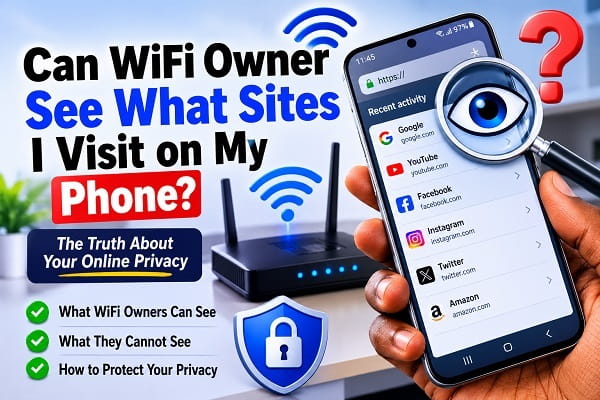
Many people connect their phones to WiFi every day without thinking about who owns the network. Whether you’re using your home WiFi, a friend’s internet connection, your school’s network, a hotel, or public WiFi at a coffee shop, you’ve probably wondered at some point:
Can the WiFi owner see what sites I visit on my phone?
The short answer is yes but not everything.
A WiFi owner can often see that your phone connected to their network and may be able to identify the websites you visit. However, thanks to modern internet encryption, they usually cannot see the exact pages you view, your passwords, or the content of your private messages.
Exactly what they can see depends on several factors, including whether the website uses HTTPS encryption, the equipment they’re using, and whether you’re connected through a VPN.
In this guide, I’ll explain exactly what a WiFi owner can and cannot see, clear up common myths, and show you how to protect your privacy when using someone else’s WiFi network.
The Short Answer
Yes, a WiFi owner may be able to see:
- The websites (domains) you connect to
- The date and time you visited them
- The amount of data your phone uses
- Your phone’s IP address on the network
- Your device name (such as “Samsung Galaxy S24” or “iPhone 15”)
However, in most cases they cannot see:
- Your passwords
- Your private messages
- Your emails
- Your banking information
- The exact pages you read on secure websites
- Your photos and videos
- The content of your WhatsApp or Messenger chats
This is because nearly every modern website uses HTTPS encryption, which protects the data exchanged between your phone and the website.
How Does a WiFi Owner See Network Activity?
When you connect your phone to a WiFi network, all of your internet traffic passes through the router before reaching the internet.
Think of the router as a traffic controller.
Every request made by your phone first reaches the router, which then forwards it to the appropriate website or online service.
Because of this, the router can collect certain information about connected devices, including:
- Which devices are connected
- When they connected
- How much bandwidth each device is using
- Which internet domains are being accessed
Many modern routers even include traffic-monitoring features that allow the owner to review network activity through a web dashboard or companion mobile app.
However, just because the router handles your internet traffic doesn’t mean it can read everything you’re doing online.
What Information Can the WiFi Owner See?
Let’s look at the information that is commonly visible.
1. The Websites You Visit
In many situations, the WiFi owner can determine the domain names your phone connects to.
For example, they may see that you visited:
- google.com
- youtube.com
- facebook.com
- amazon.com
- techwisezoneblog.com
This information is often available because your phone must request the website’s address before establishing a secure connection.
However, seeing the website itself is different from seeing everything you do on that website.
2. When You Visited a Website
Network logs often record:
- Date
- Time
- Duration
- Connection attempts
This allows administrators to know approximately when devices accessed particular online services.
3. Your Device Information
Most routers display information about connected devices, including:
- Device name
- Local IP address
- MAC address
- Manufacturer
For example, the router may identify your phone as:
- Samsung Galaxy S24
- Google Pixel 9
- iPhone 16 Pro
or simply display the device manufacturer if a custom name hasn’t been assigned.
4. Data Usage
The router can also measure how much internet data each connected device consumes.
For example, it might report:
- 4.2 GB downloaded today
- 350 MB uploaded
- Current download speed
- Current upload speed
This information helps network owners identify devices using excessive bandwidth.
What Can’t the WiFi Owner See?
This is where many people become unnecessarily worried.
Thanks to HTTPS encryption, a WiFi owner generally cannot see the actual content you’re viewing.
Your Passwords
When you log into websites using HTTPS, your username and password are encrypted before being transmitted across the network.
Even though the WiFi owner provides the internet connection, they can’t simply open the router settings and read your passwords.
Your Private Messages
Apps like:
- Signal
- Telegram
- Facebook Messenger
- Instagram Direct Messages
use strong encryption.
This means the WiFi owner cannot read the messages you send or receive.
Your Emails
Modern email services such as Gmail and Outlook also encrypt communications.
The WiFi owner might know that your phone connected to Gmail, but they cannot read the emails themselves.
Banking Information
Online banking websites use multiple layers of encryption.
A WiFi owner cannot see:
- Account balances
- Transactions
- Debit card numbers
- Credit card information
provided you’re using the official banking website or app.
Does HTTPS Protect Your Privacy?
Yes—and this is one of the biggest reasons internet browsing is much safer today than it was years ago.
Most websites now use HTTPS (Hypertext Transfer Protocol Secure) instead of the older HTTP protocol.
HTTPS encrypts the communication between your device and the website. As a result, anyone monitoring the network—including the WiFi owner—cannot easily see the information exchanged after the secure connection has been established.
For example, if you visit:
https://www.amazon.comthe WiFi owner may be able to tell that your phone connected to Amazon, but they generally won’t know:
- Which products you searched for.
- Which items you added to your cart.
- Your order history.
- Your payment details.
The same principle applies to most modern websites, including search engines, social media platforms, streaming services, and online stores.
Can the WiFi Owner See My Google Searches?
This is one of the most common questions people ask, and the answer depends on what you mean by “Google searches.”
If you’re referring to the actual words you type into Google, such as:
- “best restaurants near me”
- “how to fix Windows 11”
- “cheap flights to London”
then the WiFi owner generally cannot see those search terms if you’re using Google’s secure website (https://www.google.com).
Google encrypts your searches using HTTPS, which prevents other people on the network from reading the search queries you enter.
However, the WiFi owner may still be able to see that your phone connected to google.com or one of Google’s servers. They simply won’t know what you searched for.
Can the WiFi Owner See What I Watch on YouTube?
Not exactly.
They may know that you’re using YouTube because your phone connects to YouTube’s servers.
However, they usually cannot see:
- Which videos you’re watching
- Your search history
- Your comments
- Your subscriptions
- Your playlists
This information is protected by encryption.
The same applies to most streaming platforms, including:
- Netflix
- Disney+
- Prime Video
- Spotify
The network can identify the service being used, but not the specific content you’re accessing.
Can the WiFi Owner See My Browsing in Incognito Mode?
This is one of the biggest myths about internet privacy.
Many people believe Incognito Mode hides their browsing from everyone.
Unfortunately, that’s not true.
Incognito Mode only prevents your browser from saving:
- Browsing history
- Cookies
- Cached files
- Form data
on your own device.
It does not hide your activity from:
- The WiFi owner
- Your Internet Service Provider (ISP)
- Your employer or school
- The websites you visit
So if you’re connected to someone else’s WiFi, using Incognito Mode doesn’t stop the network from seeing that your device visited a particular website.
Think of Incognito Mode as protecting your privacy from other people who use your phone, not from people who manage the network.
Can the WiFi Owner Read My WhatsApp Messages?
No.
WhatsApp uses end-to-end encryption, meaning only you and the person you’re chatting with can read the messages.
Even WhatsApp itself cannot read your conversations.
The WiFi owner might see that your phone is communicating with WhatsApp servers, but they cannot access:
- Chat messages
- Voice notes
- Photos
- Videos
- Documents
- Calls
The same level of protection exists for other secure messaging apps like:
- Signal
- Telegram (Secret Chats)
- iMessage
- Facebook Messenger (encrypted chats)
Can the WiFi Owner See My Facebook or Instagram Activity?
Generally, no.
They may know your device connected to:
- Threads
but they cannot see:
- Posts you read
- Photos you view
- Messages
- Reels
- Comments
- Likes
- Profiles you visit
Modern social media platforms encrypt user activity using HTTPS.
Can Public WiFi Track My Browsing?
If you’re having problems connecting to a wireless network instead of worrying about privacy, you can also read my guide on Android Hotspot Not Working? Ways to Fix It for practical troubleshooting steps.
Public WiFi networks deserve a little more caution.
Examples include:
- Hotels
- Airports
- Coffee shops
- Restaurants
- Shopping malls
- Libraries
These networks are often managed by businesses or third-party providers that may collect connection logs.
Although they usually can’t read encrypted content, they may record information such as:
- Connected devices
- Connection times
- Data usage
- Visited domains
- Network performance
Some public WiFi providers also require users to accept terms and conditions before connecting. These policies may explain what information is logged and how it’s used.
For this reason, it’s best to avoid performing sensitive tasks—such as online banking or accessing confidential work documents—on public WiFi unless you’re using a trusted VPN.
Does a VPN Hide My Browsing from the WiFi Owner?
Yes, in most cases.
A Virtual Private Network (VPN) encrypts your internet traffic before it leaves your phone.
Instead of the WiFi owner seeing connections to many different websites, they typically see only one encrypted connection between your device and the VPN server.
For example, without a VPN, the network might identify connections to:
- google.com
- youtube.com
- amazon.com
- facebook.com
With a VPN enabled, the WiFi owner generally sees only an encrypted connection to the VPN provider.
This makes VPNs one of the best ways to improve privacy when using public or shared WiFi networks.
However, it’s important to choose a reputable VPN service, as your internet traffic is then routed through the VPN provider instead.
How to Protect Your Privacy on WiFi Networks
If you’ve forgotten your own wireless password, my guide on Find Saved WiFi Passwords on Android explains several easy methods to recover it without resetting your router. Even though modern encryption provides strong protection, there are still several steps you can take to improve your privacy.
Always Use HTTPS Websites
Before entering personal information, check that the website address begins with:
https://The padlock icon in your browser indicates that the connection is encrypted.
Use a Trusted VPN on Public WiFi
If you’re using WiFi in hotels, airports, or cafés, enabling a VPN adds another layer of protection by encrypting your internet traffic.
If your phone supports internet calling, it’s also worth learning how the feature works. You can read WiFi Calling on Android: Everything You Need to Know to understand its benefits and setup process.
Keep Your Phone Updated
Software updates often include security improvements that protect against newly discovered vulnerabilities.
Avoid Unknown WiFi Networks
If a free WiFi network looks suspicious or has an unusual name, avoid connecting to it unless you know it’s legitimate.
Cybercriminals sometimes create fake hotspots that imitate real public WiFi networks.
Enable Two-Factor Authentication
Even if someone somehow gains access to your password, two-factor authentication adds an extra layer of protection to your online accounts.
Frequently Asked Questions
Can my parents see what websites I visit through WiFi?
If they manage the home router or use parental control software, they may be able to see the websites you visit. However, they usually cannot view the contents of secure HTTPS websites.
Can my employer see what I browse on company WiFi?
Yes. Company networks are often monitored for security reasons. Employers may use advanced network monitoring tools that log internet activity on workplace WiFi.
Can a school see what I search on school WiFi?
Schools often monitor internet usage to enforce acceptable use policies. Depending on the systems they use, they may be able to see the websites students visit and block certain categories of content.
Can WiFi owners see my deleted browsing history?
No. Deleting your browser history only affects your device. Likewise, WiFi owners cannot recover browsing history that has been deleted from your phone.
Can someone hack my phone just because I’m using their WiFi?
Simply connecting to a WiFi network doesn’t mean your phone will be hacked. However, unsecured or malicious networks can increase the risk of cyberattacks, which is why it’s important to keep your device updated and avoid accessing sensitive information on unknown networks.
Can the WiFi owner see everything I do online?
No. While they may be able to see that your device connected to certain websites or online services, modern encryption prevents them from seeing most of the actual content you access, including passwords, private messages, banking information, and emails.
The answer to “Can WiFi owner see what sites I visit on my phone?” is yes but only to a certain extent. In most cases, they can identify the websites or online services your device connects to and monitor basic network activity such as connection times and data usage. However, thanks to HTTPS encryption, they generally cannot see the specific pages you visit, your passwords, private messages, or other sensitive information.
If you’re using public or shared WiFi, following good security practices such as browsing only on HTTPS websites, keeping your phone updated, and using a reputable VPN when appropriate can help protect your privacy even further.
