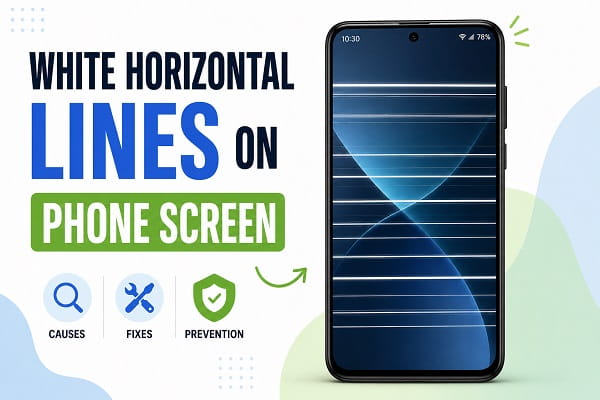
Some of the smartphone problems are as alarming as turning on your device and discovering white horizontal lines stretching across the screen. Sometimes the lines appear suddenly without warning. In other cases, they start as a single faint line before multiplying over time. Some users notice the issue after dropping their phone, while others encounter it after a software update, charging session, or period of overheating.
When this happens, many people immediately assume their display is permanently damaged. While hardware failure is certainly one possible cause, white horizontal lines do not always mean you need a screen replacement. In many situations, the problem is linked to software glitches, display driver issues, loose internal connections, or temporary system faults that can be resolved without expensive repairs.
The challenge is determining whether the issue is software-related or whether the display hardware itself has been compromised.
This guide explains why white horizontal lines appear on phone screens, how to diagnose the root cause, what fixes you should try first, and when it’s time to seek professional repair.
What Causes White Horizontal Lines on a Phone Screen?
Display line problems are often accompanied by other screen-related issues such as flickering, dimming, or abnormal colors. If your display flashes before the lines appear, check out our guide on phone screen flickering for additional troubleshooting steps.
White horizontal lines usually indicate that something is interfering with the way display information is transmitted to the screen.
The issue generally falls into one of two categories:
Software-Related Problems
Software causes include:
- Android system bugs
- Corrupted display drivers
- Failed software updates
- Graphics rendering issues
- Problematic third-party applications
- Refresh rate conflicts
Hardware-Related Problems
Hardware causes include:
- Loose display connectors
- Damaged LCD or OLED panels
- Internal screen cable damage
- Water exposure
- Physical impact damage
- Display controller failure
Understanding which category applies to your situation is the key to finding the right solution.
Did the Problem Start After Dropping the Phone?
Physical damage can affect more than just the display panel. In some cases, the screen may go completely dark while the phone continues working in the background. Learn how to fix a phone screen black but phone is on problem.
This is the first question you should ask yourself.
If the lines appeared immediately after:
- Dropping the phone
- Sitting on the phone
- Accidentally bending the device
- Impact damage
then hardware damage becomes much more likely.
Modern smartphone displays contain delicate layers and connectors. Even if the glass remains intact, internal components may suffer damage.
Common signs of impact-related display failure include:
- Multiple white lines
- Flickering
- Black spots
- Touchscreen issues
- Expanding display defects
If the problem began after a fall, software fixes may provide limited results.
Restart Your Phone
Temporary software glitches that cause display lines can also trigger unexpected reboot loops. If your device keeps restarting randomly, see our guide on Android keeps restarting.
Although simple, restarting your device should always be your first troubleshooting step.
Temporary Android glitches can occasionally affect display rendering and produce visual artifacts such as horizontal lines.
To restart:
- Hold the Power button.
- Select Restart.
- Wait for the phone to reboot completely.
After restarting, observe whether the lines disappear.
Check Whether the Lines Appear During Startup
Pay close attention while the phone is booting.
Ask yourself:
- Do the lines appear before Android loads?
- Do they appear on the manufacturer logo screen?
- Do they only appear after Android starts?
If the lines appear before Android finishes booting, hardware issues become more likely.
If they appear only after Android loads, software problems may be responsible.
This distinction is extremely important when diagnosing display problems.
Boot into Safe Mode
Safe Mode helps determine whether a third-party application is responsible for display problems. If you’re having trouble exiting Safe Mode afterward, read our guide on Android stuck in Safe Mode.
Some applications can interfere with Android’s display system.
Safe Mode disables third-party apps and loads only essential system services.
To enter Safe Mode:
- Press and hold the Power button.
- Touch and hold Power Off.
- Select Safe Mode.
Once Safe Mode loads:
- Check whether the lines remain.
- Monitor screen behavior.
- Use the phone for several minutes.
If the lines disappear, a recently installed application may be causing the issue.
Check for Overheating
Excessive heat can affect display performance, battery health, and charging efficiency. If your device becomes unusually hot while plugged in, check out phone overheating while charging.
Excessive heat can affect display performance.
Overheating is especially common during:
- Gaming sessions
- Fast charging
- Video editing
- Long periods of direct sunlight
Display controllers and graphics components may behave unpredictably when temperatures rise significantly.
If your device feels unusually warm:
- Remove the case.
- Stop charging temporarily.
- Close background apps.
- Allow the phone to cool completely.
Then test the display again.
Update Android Software
Display issues sometimes appear after major Android updates due to compatibility bugs or corrupted system files. If apps have also become unstable, see our guide on apps keep crashing after Android update.
Display issues occasionally result from software bugs introduced by outdated system versions.
Manufacturers frequently release updates that contain:
- Display driver fixes
- Stability improvements
- Graphics optimizations
- Bug patches
To check for updates:
- Open Settings.
- Tap System.
- Select Software Update.
- Install available updates.
After updating, restart the device.
Adjust Refresh Rate Settings
Many modern phones support high refresh rates such as:
- 90Hz
- 120Hz
- 144Hz
Occasionally, display lines may appear because of refresh rate conflicts.
Try switching to a standard refresh rate:
- Open Settings.
- Tap Display.
- Select Refresh Rate.
- Change to Standard or 60Hz.
Monitor whether the lines disappear.
Inspect for Water Damage
Water damage does not always cause immediate failure.
Sometimes moisture enters the device and gradually affects:
- Display connectors
- Screen circuits
- Internal components
Warning signs include:
- White lines
- Flickering
- Touchscreen problems
- Display discoloration
If the phone was exposed to moisture recently, internal corrosion may be developing.
Remove Recently Installed Apps
Did the problem start shortly after installing a new application?
Some apps can conflict with Android’s display rendering system.
Particularly risky examples include:
- Display filter apps
- Brightness control apps
- Third-party launchers
- Graphics enhancement tools
Uninstall suspicious apps and monitor the screen.
How to Fix Horizontal Lines on an Oppo Phone Screen
If you use an Oppo phone and notice white horizontal lines across the display, the causes are usually the same as on other Android devices. However, some Oppo models may develop the issue after a software update, accidental drops, moisture exposure, or display connector problems.
Try these fixes:
• Restart the phone.
• Remove the case and check for pressure damage.
• Update ColorOS.
• Boot into Safe Mode.
• Test the display using Oppo’s built-in diagnostics (if available).
• Back up your data before performing a factory reset.
• If the lines remain, the display or flex cable may need replacement.
Why Are White Horizontal Lines Appearing and Disappearing?
Intermittent display problems can be difficult to diagnose because they often start small before becoming more serious. If your touchscreen has also become unresponsive, our guide on Android touchscreen not working may help.
Intermittent lines often indicate:
- Loose display connections
- Overheating
- Software instability
- Developing hardware failure
Unfortunately, lines that appear and disappear frequently tend to worsen over time if the underlying issue is not addressed.
What If the Lines Appear After an Android Update?
Software updates occasionally introduce display-related bugs.
Common symptoms include:
- White horizontal lines
- Screen flickering
- Black screen issues
- Touchscreen delays
If the problem appeared immediately after updating:
- Restart the device.
- Clear system cache.
- Install newer updates.
- Boot into Safe Mode.
Manufacturers often release corrective patches for known bugs.
Can White Horizontal Lines Be Fixed Without Replacing the Screen?
Many users assume a damaged display always requires replacement, but software issues can sometimes be responsible. If your phone is also experiencing connectivity problems, check out Android hotspot not working for additional troubleshooting techniques.
Yes, sometimes.
The likelihood depends entirely on the cause.
Software-Related Issues
May be fixed through:
- Restarting
- Updating Android
- Safe Mode troubleshooting
- App removal
- Factory reset
Hardware-Related Issues
Usually require:
- Display connector repair
- Screen replacement
- Internal hardware repair
The sooner hardware issues are addressed, the less likely they are to worsen.
When Should You Replace the Screen?
Screen replacement becomes more likely when:
- The lines continue spreading.
- Touch functionality stops working.
- Flickering becomes severe.
- The display turns black.
- Physical damage is visible.
- Factory reset does not help.
These symptoms typically indicate physical display failure rather than software issues.
How Much Does It Cost to Fix White Lines on a Phone Screen?
Repair costs depend on:
- Device model
- Screen technology
- Region
- Repair provider
Premium AMOLED displays generally cost significantly more to repair than standard LCD screens.
If your device remains under warranty and has not suffered accidental damage, contact the manufacturer before paying for repairs.
How to Prevent White Horizontal Lines from Appearing Again
Keeping your Android device in good condition can prevent many common hardware and software issues. You may also find our guide on how to speed up a slow Android phone useful for improving overall performance.
While not every display failure can be prevented, these practices reduce the risk:
- Use a protective case.
- Avoid dropping the phone.
- Prevent overheating.
- Keep Android updated.
- Avoid low-quality chargers.
- Protect the device from moisture.
- Install trusted applications only.
Good maintenance habits can extend both display life and overall device reliability.
Are White Horizontal Lines a Serious Problem?
Sometimes they are, and sometimes they aren’t.
A single temporary line caused by a software glitch may disappear after a restart or update. However, persistent or growing white horizontal lines often indicate a deeper hardware issue that requires attention. The most important step is determining whether the problem originates from Android software or the display hardware itself.
By following the troubleshooting methods in this guide, you can identify the cause, rule out common software issues, and decide whether professional repair is necessary before the problem becomes worse.
