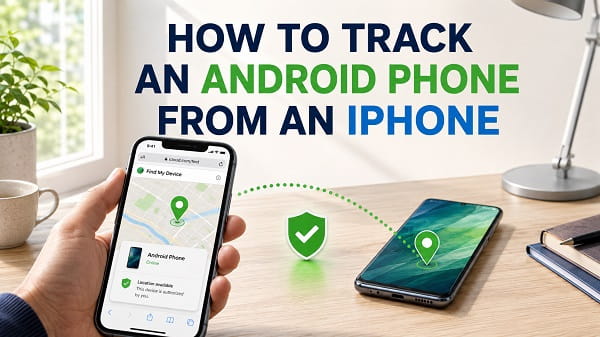
Tracking an Android phone from an iPhone is possible, but the right method depends on whose Android phone you are trying to locate.
If the Android phone belongs to you and it is lost or stolen, the easiest option is usually Google Find Hub. You can open Find Hub in Safari or another browser on your iPhone, sign in with the Google Account connected to the missing Android phone, and view its available location.
If you want to see the location of a family member or friend who uses Android, Google Maps Location Sharing is usually the better option. The Android user must choose to share their location with you first.
You do not need to own another Android phone just to locate your own Android device. An iPhone can access Google’s web-based tracking tools.
Quick Answer: How to Track an Android Phone From an iPhone
To locate your own missing Android phone from an iPhone:
- Open Safari, Chrome, or another browser on the iPhone.
- Go to Google Find Hub at android.com/find.
- Sign in with the same Google Account that is connected to the missing Android phone.
- Select the Android device you want to locate.
- Wait for Find Hub to display its current or last available location.
- Use Play sound, Mark as lost, or the available security options if necessary.
Google says Find Hub can locate, secure, ring, and erase supported Android devices remotely.
If you are trying to locate someone else’s Android phone, do not sign into their account without permission. Ask them to share their location through Google Maps or another location-sharing service instead.
Method 1: Track Your Own Android Phone Using Google Find Hub
Google Find Hub is the main built-in Android service for finding a lost phone.
It was previously widely known as Find My Device, so you may still see older tutorials using that name. The purpose is the same: connect your Android device to your Google Account so you can locate and protect it if it goes missing.
You can use Find Hub from an iPhone because Google provides a browser version.
Step 1: Open Find Hub on the iPhone
Open Safari or your preferred browser.
Visit:
Google may redirect you to its current Find Hub interface.
Step 2: Sign In to the Correct Google Account
Enter the Google Account credentials used on the missing Android phone.
This is important if you have multiple Gmail accounts. Signing into a different Google Account may show no devices or may display a different phone.
If several Android devices are connected to the account, select the one you want to track.
If the missing device is a Samsung Galaxy and it has been having Wi-Fi or mobile-network problems before it goes missing, How to Reset Network Settings on Samsung explains how to refresh its saved network configuration without deleting personal files.
Step 3: Complete Any Security Verification
Google may ask you to verify your identity.
This can become tricky when the lost Android phone is also your normal two-step verification device. If Google sends the verification prompt only to the missing phone, choose another available verification method such as:
- A backup code
- A recovery phone number
- A security key
- Another signed-in device
- Another verification option offered by Google
This is one reason I recommend setting up Google Account recovery and two-step verification backup methods before a phone goes missing.
Step 4: View the Android Phone’s Location
After Find Hub connects to the phone, its position should appear on a map if location information is available.
The location may be based on GPS, nearby Wi-Fi networks, cellular networks, stored recent locations, or Google’s Find Hub network.
Do not assume the marker is accurate to the exact meter. GPS is usually more precise outdoors, while indoor, weak-signal, and cellular-based positions can cover a much larger area.
If the current position cannot be determined, Find Hub may show the device’s last available location instead.
What You Can Do After Finding the Android Phone
Find Hub is useful for more than looking at a map.
Play a Sound
Choose Play sound if you think the phone is nearby.
Google says this can make the phone ring at full volume for several minutes even if it was set to silent or vibrate.
This is useful when the phone is:
- Under a sofa
- Inside a bag
- Somewhere in your house
- Left in an office
- Hidden inside a car
If the map shows the phone at your current location but you cannot see it, try playing a sound before assuming it has been stolen.
Mark the Phone as Lost
If the phone is somewhere you cannot immediately recover it, use Mark as lost.
This can lock the device and allow you to display contact information or a message on the lock screen, depending on the Android version and device configuration.
You could display a message such as:
This phone is lost. Please call this number if found.
Use a number you can currently answer, not the number of the missing phone.
Erase the Android Phone
Remote erasure should normally be your last option.
If you believe the device is gone permanently and sensitive information is at risk, Find Hub can provide an option to factory reset the device.
Be careful with this step. Once the phone is erased, Find Hub may no longer be able to provide its location.
If there is still a reasonable chance of recovering the phone, consider marking it as lost first.
What Must Be Enabled for Google Find Hub to Work?
Find Hub works best when the Android phone was properly configured before it disappeared.
Important requirements include:
- A Google Account signed into the Android phone
- Find Hub enabled
- Location services enabled
- A screen lock such as a PIN, password, or pattern
- The device being visible to the Google Account
- Internet connectivity for live remote actions
- Offline finding enabled if you want to benefit from the Find Hub network
On many Android phones, you can check Find Hub through:
Settings > Security > Find Hub
or:
Settings > Google > All services > Find Hub
Menu names can vary by Android version and manufacturer.
Google currently says Find Hub is automatically turned on when a Google Account is added to many Android devices, but it is still worth checking your phone rather than assuming every setting is ready.
Can You Track an Android Phone That Is Offline?
Sometimes.
Google’s Find Hub can use encrypted recent locations and its crowdsourced finding network to help locate supported offline Android devices.
On the Android phone, the setting may be found under:
Settings > Google > All services > Find Hub > Find your offline devices
Depending on the options available, you may be able to choose whether the phone participates in the network and whether offline finding works in busy places or more broadly.
If offline finding was disabled before the phone disappeared, your options can be more limited.
Find Hub may still show the last stored location from when the phone was online.
Can You Track an Android Phone When It Is Switched Off?
This depends on the phone.
A normal Android phone that is fully powered down cannot continuously transmit GPS and mobile data like an active phone.
However, Google supports powered-off finding on some compatible devices. Google specifically documents that supported phones, including certain Pixel models, can remain findable through the Find Hub network for a period after they have been switched off or the battery has run out, provided the necessary settings were enabled beforehand.
Do not assume every Android phone supports this.
If your model does not support powered-off finding, you may see only its last available location until it comes back online.
Method 2: Track a Family Member’s Android From an iPhone With Google Maps
Google Find Hub is primarily designed around devices connected to a Google Account.
If you want to see the location of a spouse, child, parent, friend, or other person who uses Android, Google Maps Location Sharing is generally more appropriate.
The Android user chooses to share their location with you.
Set Up Location Sharing on the Android Phone
On the Android phone:
- Open Google Maps.
- Make sure the correct Google Account is signed in.
- Tap the profile picture in the upper-right corner.
- Tap Location sharing.
- Tap New share.
- Choose how long the location should be shared.
- Select your Google Account or create a sharing link.
- Send the invitation or link to your iPhone.
Google Maps allows users to control who can see their real-time location and how long the sharing lasts.
View the Android Location on the iPhone
On your iPhone:
- Install or open Google Maps.
- Sign in with the Google Account the Android user shared their location with.
- Tap your profile picture.
- Select Location sharing.
- Tap the person’s profile.
Their available location should appear on the map.
If they shared a link instead, open the link they sent you and follow the instructions.
The person’s phone needs to be able to provide location information for the position to stay current.
Google Maps Location Sharing Is Different From Find Hub
These two methods are often confused.
Google Find Hub is best for:
- Finding your own lost Android phone
- Ringing the phone
- Locking a missing device
- Marking a phone as lost
- Remotely erasing a device
Google Maps Location Sharing is best for:
- Sharing your location with another person
- Seeing a family member who has chosen to share their location
- Coordinating travel
- Meeting someone
- Keeping track of family members with their knowledge
Google Maps is not a replacement for Find Hub if your own phone has been stolen.
Likewise, Find Hub should not be treated as a tool for secretly following another adult.
Method 3: Track a Samsung Galaxy Phone From an iPhone
If the missing Android phone is a Samsung Galaxy device, you may have another option in addition to Google Find Hub.
Samsung provides web-based finding services for Galaxy devices through Samsung Find and SmartThings Find.
Because these services can be accessed in a web browser, you can use an iPhone to sign in.
The Galaxy phone must have been connected to the relevant Samsung account and device-finding settings before it disappeared.
From the Samsung finding website, available features can include:
- Viewing the phone’s location
- Ringing the device
- Locking it
- Tracking its location
- Erasing data remotely
For most Android users, I would still try Google Find Hub first because it works across many Android brands. Samsung’s service is a useful second option when the missing phone is a Galaxy device.
Can Apple Find My Track an Android Phone?
Not directly.
Apple’s Find My system is designed around Apple devices, supported Find My network accessories, AirTags, and people sharing through Apple’s ecosystem.
An Android phone will not normally appear in the Devices section of the iPhone’s Find My app simply because you want to track it.
For an Android phone, use a cross-platform service such as:
- Google Find Hub for your own missing Android device
- Google Maps Location Sharing for another person who has agreed to share their location
- Samsung’s finding service if the phone is a compatible Galaxy device
This distinction is important because searching for “track Android from iPhone” does not mean Apple’s Find My is the correct tool.
Can You Track an Android Phone From an iPhone Using Only the Phone Number?
Not through normal consumer Android or iPhone features.
A website that claims it can show the exact real-time location of any mobile phone simply because you typed in its phone number should be treated with caution.
A phone number alone does not give an ordinary iPhone user access to another phone’s GPS location.
Legitimate consumer tracking normally requires something such as:
- Your Google Account being connected to your own device
- The other person sharing their location
- A previously configured family service
- A device-management service you are authorized to use
Avoid entering payment details, Google passwords, Apple credentials, or sensitive information into random “phone number tracker” websites.
Can You Track Someone’s Android Without Them Knowing?
Location technology should not be used to secretly monitor another adult without authorization.
If another person’s Android phone needs to be visible from your iPhone, use a transparent method such as Google Maps Location Sharing where they choose to share their location.
Parents managing a child’s device may have legitimate family-safety options depending on the child’s age, account type, local laws, and the family-management service being used.
For an adult partner, employee, friend, or other person, use location sharing only with appropriate knowledge and permission.
What If the Android Phone Has No Internet Connection?
If the phone has no Wi-Fi or mobile data, live Find Hub commands may not reach it immediately.
If the phone is still with you and cellular data is the problem, work through Mobile Data Not Working on Android? 11 Fixes That Actually Work before relying on Find Hub. Restoring the phone’s connection can also help Google update its location normally.
Your result depends on whether offline finding is available.
You may see:
- A recent stored location
- A location discovered through the Find Hub network
- No current location
- The last time the phone was detected
If the device later reconnects to the internet, its location and pending actions may update.
This is why leaving Bluetooth, Location, Find Hub, and offline finding configured before losing the device can improve recovery options.
What If Location Is Turned Off?
If location services were disabled, precise live tracking may be harder or impossible.
Offline and recent-location capabilities may still help in some situations, depending on the device and settings that were enabled before it disappeared.
For the best chance of recovery, keep:
Settings > Location > Use location
enabled on a phone you want Find Hub to locate.
What Happens If the SIM Card Is Removed?
Removing a SIM card does not automatically remove the Android phone from your Google Account.
If the phone connects to Wi-Fi or can participate in a supported offline-finding network, you may still have a chance of locating it.
What changes is the cellular connection. Without an active SIM or eSIM connection, the phone may no longer have mobile data through your carrier.
Do not rely on the SIM card as the only way an Android phone can be located.
What If the Thief Turns Off Wi-Fi and Mobile Data?
Find Hub may lose its normal live internet connection.
If offline finding was enabled and the phone supports the Find Hub network, nearby Android devices may still help report its location.
The exact result depends on:
- Android version
- Phone model
- Find Hub settings
- Bluetooth status
- Whether the phone still has power
- Whether compatible devices pass nearby
There is no guarantee that an offline phone will always be found.
What If Find Hub Shows “Can’t Reach Device”?
This usually means Google cannot currently communicate with the phone.
Check the following:
Make Sure You Used the Correct Google Account
Many people have several Gmail accounts.
Try the Google Account that was actually signed into the missing phone.
Check Whether the Device Is Listed
If you see multiple phones, select the correct model.
Look for a Last Known Location
Even when live tracking fails, Find Hub may have an earlier location.
Wait for the Phone to Reconnect
If the battery died, airplane mode was enabled, or connectivity was lost, the phone may become reachable again later.
Do Not Keep Changing Your Google Password Immediately Unless Necessary
If the phone was stolen, protecting your Google Account is important. However, also understand how account changes may affect your ability to access recovery services.
Use Google’s account security tools carefully and prioritize securing sensitive accounts if you believe someone can unlock the device.
What Should You Do If the Android Phone Was Stolen?
Do not go to an unfamiliar or dangerous location simply because Find Hub displays a map marker.
If you believe someone stole the phone:
- Save screenshots of the available location.
- Use Mark as lost.
- Add safe contact information to the lock screen if appropriate.
- Contact your mobile carrier to discuss suspending the SIM or eSIM.
- Change passwords for sensitive accounts if you believe the thief may be able to access the phone.
- Contact local law enforcement where appropriate.
- Use remote erase only when protecting your information becomes more important than continuing to track the phone.
A map location is useful evidence, but it is not a reason to personally confront someone.
How Accurate Is Android Tracking From an iPhone?
The iPhone itself does not determine the Android phone’s position.
It acts as the screen you use to view location information supplied by Google’s or Samsung’s service.
Accuracy therefore depends on the Android phone and the location source.
Possible location sources include:
- GPS satellites
- Nearby Wi-Fi networks
- Cellular towers
- Stored recent locations
- Nearby devices participating in an offline-finding network
GPS outdoors can be quite precise, while cell-tower location can be much broader.
The circle shown around a location marker can help indicate uncertainty.
Does Tracking an Android Phone Drain Its Battery?
Occasional use of Find Hub is not the same as keeping a navigation app constantly active on-screen.
Continuous location sharing, navigation, weak cellular signal, background apps, and other factors can all contribute to battery usage.
If the Android phone is experiencing unusually high battery consumption even when it is not missing, see Why Your Android Battery Drains Fast and How to Fix It for a broader breakdown of the common causes.
For a phone that has already gone missing, however, preserving power can be more important than optimizing normal battery life. Avoid unnecessary remote actions if the battery is almost empty and you are still trying to determine its location.
Prepare Your Android Phone Before You Lose It
The best time to set up tracking is before the phone disappears.
I recommend checking these settings now:
Confirm Your Google Account
Open:
Settings > Passwords, passkeys & accounts
or your manufacturer’s equivalent.
Make sure you know which Google Account is connected to the phone.
Turn On Location
Open:
Settings > Location
Enable location services.
Check Find Hub
Search Android Settings for:
Find Hub
Make sure the phone is allowed to be located.
Configure Offline Finding
Open the offline device options inside Find Hub and choose the level of network participation you are comfortable with.
Use a Screen Lock
Set a PIN, password, or pattern.
This protects your data and is also important for some Find Hub capabilities.
Prepare Backup Sign-In Methods
Store Google two-step verification backup codes somewhere secure that is not only on the phone itself.
Losing a phone is much more stressful when the same phone is your only way to approve a Google sign-in.
Frequently Asked Questions
Can I track my Android phone from my iPhone?
Yes. Open a browser on the iPhone, go to Google Find Hub, sign in with the Google Account connected to your Android phone, and select the device.
Do I need to install an app on my iPhone?
No app is required for tracking your own Android phone through Find Hub because you can use the web version in Safari or another browser.
Google Maps is useful to install if another person is sharing their Android location with you.
Is Google Find Hub free?
Google Find Hub is part of Google’s Android device-finding system. You do not need to pay a third-party tracking website to locate an Android phone connected to your Google Account.
Can an iPhone track a Samsung phone?
Yes. You can use Google Find Hub in an iPhone browser. If the Galaxy phone was properly configured with a Samsung account and Samsung’s finding features, Samsung’s web-based finding service may also work.
Can I use Find My iPhone to locate Android?
Apple Find My does not directly add ordinary Android phones to its device list. Use Google’s or the Android manufacturer’s tracking service instead.
Can I track an Android phone that is turned off?
Some supported Android phones can remain findable for a period after power-off when the required offline finding settings were enabled. Other devices may show only their last available location.
Can I track Android without Gmail?
Google Find Hub requires the relevant Google Account. A Samsung Galaxy may also be locatable through Samsung’s account-based finding service if it was configured previously.
Can I track someone with their phone number?
A phone number by itself does not give an ordinary person legitimate access to another Android phone’s live GPS location. Use authorized location sharing instead.
Can I locate my child’s Android phone from my iPhone?
Potentially, yes. Google family and location-sharing tools can support family use, depending on the account setup. Make sure the device and family account are configured correctly and use the controls appropriate for the child’s age.
Why is my Android phone showing offline in Find Hub?
It may be powered off, out of battery, disconnected from Wi-Fi and mobile data, or temporarily unreachable. If offline finding was enabled, a recent or network-assisted location may still become available.
The Best Method Depends on Who Owns the Android Phone
If you are trying to recover your own lost Android phone, start with Google Find Hub from Safari on the iPhone. It gives you the strongest combination of location, ringing, lost-device protection, and remote security controls.
If you want to see a family member or friend’s Android location, use Google Maps Location Sharing after they agree to share their position.
For a Samsung Galaxy, Samsung Find or SmartThings Find can provide another browser-based recovery route if the necessary Samsung settings were enabled beforehand.
The key is to configure these services before the phone goes missing. A few minutes spent checking Find Hub, offline finding, your screen lock, and backup Google sign-in methods can make a major difference when you eventually need to locate an Android phone from an iPhone.
