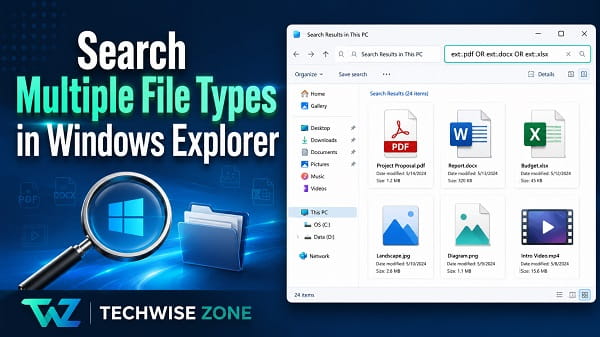
Searching for one file type in Windows File Explorer is easy, but finding several file types at the same time is not immediately obvious.
For example, you may want to search a folder for both PDF and Word files, find JPG and PNG images together, or display several video formats without scrolling through hundreds of unrelated files.
The most reliable way to do this in Windows Explorer, now called File Explorer, is to use Windows Advanced Query Syntax with the ext: filter and the uppercase OR operator.
For example, to search for both PDF and DOCX files, enter this in the File Explorer search box:
ext:.pdf OR ext:.docxTo find JPG, PNG, and WebP images together:
ext:.jpg OR ext:.png OR ext:.webpMicrosoft documents ext: and fileext as Windows Search properties for file extensions. It also supports the OR Boolean operator for broadening a search so that either condition can match.
This article explains how to search for multiple file types in Windows Explorer, how to combine extensions with names, dates, and sizes, and what to do when File Explorer does not return the files you expect.
Quick Answer: Search Multiple File Types in Windows Explorer
Open File Explorer, navigate to the folder or drive you want to search, click the search box in the upper-right corner, and enter each file extension separated by uppercase OR.
For example:
ext:.pdf OR ext:.docxThis searches the selected location for PDF and DOCX files.
For three file types:
ext:.pdf OR ext:.docx OR ext:.xlsxFor several image formats:
ext:.jpg OR ext:.jpeg OR ext:.png OR ext:.webpThe important detail is that OR should be uppercase.
Microsoft’s Advanced Query Syntax documentation states that OR and NOT are Boolean operators and that they must be entered in uppercase.
Windows Explorer vs File Explorer
If you searched for “how to search for multiple file types in Windows Explorer,” you are still looking for the correct feature.
Microsoft renamed Windows Explorer to File Explorer starting with newer versions of Windows.
On Windows 10 and Windows 11, the program you use to browse folders, drives, Downloads, Documents, Pictures, and other files is called File Explorer.
The search techniques in this article apply to File Explorer in current Windows versions.
You can open it quickly with:
Windows + EThen navigate to the folder, drive, or location you want to search.
Method 1: Search Multiple File Extensions With ext:
The ext: search property is the most useful method when you know the exact file extensions you want.
For example:
ext:.pdf OR ext:.docxWindows interprets this as:
- Show files with the
.pdfextension - OR show files with the
.docxextension
It does not require the files to have both extensions, which would be impossible.
Search for PDF and Word Files
To find PDF and modern Microsoft Word documents:
ext:.pdf OR ext:.docxIf you also need older Word .doc files:
ext:.pdf OR ext:.docx OR ext:.docThis is useful when a folder contains reports, invoices, resumes, manuals, and other documents saved in several formats.
Search for Excel and CSV Files
To find Excel workbooks and CSV files together:
ext:.xlsx OR ext:.xls OR ext:.csvYou can add other spreadsheet formats if necessary.
Search for PowerPoint Files
To find both current and older PowerPoint formats:
ext:.pptx OR ext:.pptSearch for Text and Markdown Files
For plain-text and Markdown files:
ext:.txt OR ext:.mdThis can be useful for developers, writers, and anyone who stores notes in several text-based formats.
Search for Multiple Image File Types
Photo folders often contain several image formats.
To find JPG and PNG files:
ext:.jpg OR ext:.pngTo include JPEG and WebP:
ext:.jpg OR ext:.jpeg OR ext:.png OR ext:.webpYou could also add formats such as:
ext:.gif OR ext:.bmp OR ext:.tiffdepending on what you are trying to locate.
This is more precise than searching for a broad term such as “image” because you decide exactly which extensions should appear.
Search for Multiple Video File Types
Video libraries can contain MP4, MKV, MOV, AVI, WebM, and other formats.
For example:
ext:.mp4 OR ext:.mkv OR ext:.aviTo include MOV and WebM:
ext:.mp4 OR ext:.mkv OR ext:.mov OR ext:.avi OR ext:.webmThis can be useful when cleaning up a video folder or finding large media files across a drive.
Search for Multiple Audio File Types
To search for MP3 and WAV files:
ext:.mp3 OR ext:.wavFor a larger music collection:
ext:.mp3 OR ext:.wav OR ext:.flac OR ext:.m4aFile Explorer will return files matching any of the listed extensions within the location you are searching.
Why OR Must Be Uppercase
One of the easiest mistakes is typing:
ext:.pdf or ext:.docxinstead of:
ext:.pdf OR ext:.docxWindows Advanced Query Syntax treats OR as a Boolean search operator.
Microsoft specifically documents that OR and NOT must be uppercase.
So when combining several extensions, use:
ORnot:
orIf a multiple-file-type search produces unexpected results, checking the capitalization of OR is one of the first things I recommend.
Can You Use fileext Instead of ext?
Yes.
Microsoft documents both ext and fileext as file-extension properties.
These searches target the same type of information:
ext:.pdfand:
fileext:.pdfFor simplicity, I recommend ext: because it is shorter and easier to type.
To search several extensions with the longer form:
fileext:.pdf OR fileext:.docxSearch Multiple File Types With a Specific Filename
You can combine file-type searches with a word from the filename.
Suppose you want PDF or Word files related to a project called “budget.”
Try:
budget ext:.pdf OR ext:.docxFor better control when a query becomes more complex, keep your search terms simple and verify the results.
Another useful option is the filename: property.
For example:
filename:invoice ext:.pdfWindows Search supports filename or file as filename properties.
If you want several file types, you can combine the filename term with extension conditions.
For example:
filename:invoice (ext:.pdf OR ext:.docx)If your version of File Explorer handles grouped syntax differently, start by running the extension search first and then narrow the results with the filename.
Search Multiple File Types by Date Modified
Windows Search supports modified: and datemodified: filters.
For example, to find files modified this week:
modified:this weekYou can combine this idea with file extensions.
For example:
modified:this week (ext:.pdf OR ext:.docx)This can help when you know the document type and roughly when you edited it.
Other useful relative date terms include:
modified:todaymodified:yesterdaymodified:last weekmodified:this monthMicrosoft’s Advanced Query Syntax supports relative dates such as today, yesterday, this week, last week, and other date ranges.
Search Multiple File Types by File Size
File Explorer can also search by file size.
For example:
size:>100MBcan be used to look for files larger than 100 MB.
You can combine it with several video types:
size:>100MB (ext:.mp4 OR ext:.mkv OR ext:.avi)This can be useful when trying to identify large media files that are using storage space.
For smaller files, use <.
For example:
size:<1MBMicrosoft documents the greater-than and less-than operators as part of Windows Advanced Query Syntax.
Search Multiple File Types in One Folder
File Explorer normally searches from the location you currently have open.
To search only within a particular folder:
- Press Windows + E.
- Open the folder.
- Click the search box in the upper-right corner.
- Enter your extension query.
For example:
ext:.pdf OR ext:.docxIf the folder contains subfolders, File Explorer may also search through those subfolders depending on the location and current search behavior.
Starting from the correct folder is important because the same query can return dramatically different numbers of results depending on the search scope.
Search Multiple File Types on an Entire Drive
If you do not know which folder contains the files, search the entire drive.
For example:
- Open File Explorer.
- Select This PC.
- Open Local Disk (C:), another internal drive, or an external drive.
- Click the search box.
- Enter your query.
Example:
ext:.pdf OR ext:.docx OR ext:.xlsxSearching an entire drive can take much longer than searching a single folder, particularly if the drive contains many files or locations that are not indexed.
If you know the approximate folder, searching there first is usually faster.
Search Multiple File Types Across This PC
You can also start a broader search from This PC.
Open File Explorer and select:
This PC
Then enter:
ext:.pdf OR ext:.docxA broad search can be useful if you genuinely do not know where the files are stored.
However, results may depend on indexing, connected drives, permissions, cloud storage state, and which folders Windows can access.
Difference Between ext: and kind:
The ext: filter searches for a specific extension.
For example:
ext:.pngsearches specifically for PNG files.
The kind: filter searches for a broader category of files.
Microsoft documents categories including:
kind:documentskind:pictureskind:videoskind:musickind:foldersThis distinction is important.
If you want only JPG and PNG files, use:
ext:.jpg OR ext:.pngIf you simply want Windows to return files it classifies as pictures, use:
kind:picturesThe kind: approach is easier when you do not care about the exact extension.
The ext: approach is better when file format matters.
When kind: Is Better Than Listing Many Extensions
Imagine you want to find every picture in a folder.
You could type a long query such as:
ext:.jpg OR ext:.jpeg OR ext:.png OR ext:.gif OR ext:.bmp OR ext:.webpBut if the exact format does not matter, this is easier:
kind:picturesLikewise:
kind:videoscan be more convenient than listing every possible video extension.
Use ext: when you need precision.
Use kind: when you need a category.
Search for Files Using Wildcards
Windows users often try wildcard searches such as:
*.pdffor a single extension.
You may also encounter suggestions such as:
*.pdf OR *.docxFor straightforward extension filtering, I prefer the documented ext: property:
ext:.pdf OR ext:.docxIt clearly tells Windows Search that you are filtering by file extension and makes more complex queries easier to understand.
How to Show File Extensions Before Searching
If you are unsure what extension a file uses, make Windows display file extensions.
On Windows 11:
- Open File Explorer.
- Click View.
- Select Show.
- Enable File name extensions.
You will then see names such as:
report.pdfbudget.xlsxphoto.jpginstead of extensions being hidden.
If you actually need to change an extension rather than search for it, read How to Change File Type on Windows 11. Changing a file type and searching by file type are separate tasks, and renaming an extension does not automatically convert the file’s underlying format.
Useful Multiple File Type Search Examples
Here are several searches you can adapt.
PDF and Word documents
ext:.pdf OR ext:.docx OR ext:.docExcel and CSV files
ext:.xlsx OR ext:.xls OR ext:.csvPowerPoint presentations
ext:.pptx OR ext:.pptJPG, PNG, and WebP images
ext:.jpg OR ext:.png OR ext:.webpMP4, MKV, and AVI videos
ext:.mp4 OR ext:.mkv OR ext:.aviMP3, WAV, and FLAC audio
ext:.mp3 OR ext:.wav OR ext:.flacTXT and Markdown files
ext:.txt OR ext:.mdZIP and 7Z archives
ext:.zip OR ext:.7zYou can add more conditions by repeating OR and another ext: filter.
Why File Explorer Search Shows No Results
If the syntax is correct but Windows does not find files that you know exist, the problem may be with the search scope, indexing, or File Explorer rather than the query.
1. Make Sure You Are Searching the Correct Folder
The search box works within the location you opened.
If the file is stored in:
D:\Projects
but you are searching:
C:\Users\YourName\Documents
it will not appear.
Move higher in the folder hierarchy or search the correct drive.
2. Check the File Extension
A file may not use the extension you think it does.
For example, an image that looks like a JPG could actually be:
.jpeg.png.webp.heic
Enable File name extensions in File Explorer and check the actual suffix.
3. Check the OR Capitalization
Use:
ORrather than:
orThis matters because Microsoft requires OR to be uppercase in AQS Boolean queries.
4. Wait for the Search to Finish
Large drives and folders can take time to search.
Do not assume the first few results are the complete list while File Explorer is still processing the query.
This is especially true when searching external drives, network locations, or folders outside the normal Windows index.
5. Check Windows Search Indexing
Windows uses a search index to speed up file searches.
Microsoft currently provides two main file-search indexing modes:
- Classic
- Enhanced
Classic indexes common locations such as Documents, Pictures, Music, and the desktop by default.
Enhanced can search a broader range of files on the PC, although indexing more locations can use additional system resources.
To review search indexing on Windows 11:
- Press Windows + I.
- Open Privacy & security.
- Select Search or Searching Windows, depending on the Windows build.
- Review the Find my files settings.
- Check excluded folders and indexed locations.
If File Explorer repeatedly fails to find documents that exist, my Windows 11 Search Bar Not Working? 17 Ways to Fix It article covers indexing, the Windows Search service, SearchHost, and rebuilding the search index in more detail.
6. Check Which File Types Windows Indexes
Windows allows you to choose which file types are included in the search index.
Microsoft says you can review this through Indexing Options and its File Types tab.
A missing file type may affect content searches and indexing behavior.
To check:
- Open Windows Search.
- Search for Indexing Options.
- Open it.
- Click Advanced.
- Open the File Types tab.
- Find the extension you are troubleshooting.
For searching by filename or extension alone, File Explorer may still locate files outside the index, but the process can be slower.
Content searches depend much more heavily on indexing configuration.
7. Restart File Explorer
If the File Explorer search box freezes, stops responding, or behaves strangely, restart Windows Explorer.
The quickest method is:
- Press Ctrl + Shift + Esc.
- Open Task Manager.
- Find Windows Explorer.
- Right-click it.
- Select Restart.
Your taskbar and desktop may disappear briefly and then return.
For additional restart methods, see How to Restart File Explorer on Windows 11.
8. Rebuild the Search Index Only When Necessary
If indexed files consistently fail to appear, rebuilding the index can repair corrupted or incomplete search data.
Open:
Indexing Options > Advanced > Rebuild
Rebuilding does not delete your documents. It recreates Windows’ search catalog.
However, search results can remain incomplete while the new index is being built, so I would not rebuild it simply because one extension query was typed incorrectly.
Does This Work on Windows 10 and Windows 11?
Yes, Windows Search Advanced Query Syntax has existed across multiple Windows generations, and the core ext: and Boolean search concepts apply to both Windows 10 and Windows 11.
The File Explorer interface looks different between the two operating systems, but the search box is used in the same general way:
- Open the folder or drive.
- Click the search field.
- Enter the AQS query.
- Wait for File Explorer to return the results.
Microsoft may adjust the File Explorer interface and search controls between Windows builds, but ext: remains part of its documented Advanced Query Syntax.
Can You Save a Multiple File Type Search?
Windows can preserve some searches and search criteria depending on the version and File Explorer behavior, but for simple recurring searches I usually recommend keeping the query somewhere easy to copy.
For example:
ext:.pdf OR ext:.docx OR ext:.xlsxIf you use the same search frequently, save it in a text note or create a folder structure that reduces how often you need to search an entire drive.
Is File Explorer Search Case Sensitive?
File extension searches are generally not something you need to worry about case sensitivity for.
For example, .JPG and .jpg files should not require separate extension queries simply because the letters use different capitalization.
The important capitalization rule discussed in this article applies to the Boolean operator:
ORUse uppercase OR.
Can You Search More Than Two File Types?
Yes.
You can continue adding extensions with OR.
For example:
ext:.pdf OR ext:.docx OR ext:.xlsx OR ext:.pptxThere is no practical reason to limit yourself to two extensions for a normal search.
However, if you are listing a very large number of formats that all belong to the same category, kind: may be simpler.
For example:
kind:documentsmay be easier than manually listing many document extensions.
Can You Search for Multiple Extensions and Exclude One?
Windows Search supports NOT, but Microsoft notes an important limitation: NOT and OR cannot be combined in the same AQS query according to its documented Boolean rules.
That means you should avoid building complicated searches that mix several OR branches with NOT and expecting them to behave consistently.
For complex filtering, it may be easier to:
- Search the file types you want.
- Sort or group the results.
- Narrow the location.
- Use a simpler second search if necessary.
Keeping the query understandable is usually better than forcing too many conditions into one line.
Frequently Asked Questions
How do I search for two file types in Windows Explorer?
Open File Explorer and enter both extensions separated by uppercase OR.
For example:
ext:.pdf OR ext:.docxHow do I search for three file types in File Explorer?
Add another OR condition:
ext:.pdf OR ext:.docx OR ext:.xlsxHow do I search for JPG and PNG files at the same time?
Use:
ext:.jpg OR ext:.pngHow do I search for PDF and Word files together?
Use:
ext:.pdf OR ext:.docxAdd .doc if you also want older Word documents:
ext:.pdf OR ext:.docx OR ext:.docWhat is ext: in Windows File Explorer?
ext: is an Advanced Query Syntax property that filters Windows Search results by file extension.
For example:
ext:.txtreturns files with the .txt extension.
Does OR need to be uppercase in Windows Explorer search?
Yes. Microsoft’s Advanced Query Syntax documentation says OR and NOT must be uppercase.
Can I use commas to search multiple file types?
Do not rely on commas for this purpose. Use the documented Boolean OR operator instead.
For example:
ext:.pdf OR ext:.docxCan I search for all image types without listing extensions?
Yes. Use:
kind:picturesThis searches the broader picture category rather than specific extensions.
Can I search for all video types?
Use:
kind:videosIf you want only specific formats, use ext: instead.
Why does Windows Explorer not find all my files?
You may be searching the wrong folder, the files may use different extensions, indexing may be incomplete, the location may be excluded from indexing, or File Explorer may be experiencing a search problem.
Does this work in Windows 11?
Yes. File Explorer in Windows 11 uses Windows Search, and Microsoft continues to document Advanced Query Syntax properties such as ext:, kind:, modified:, and size:.
The Simplest Multiple File Type Search to Remember
If you only remember one method, make it this:
ext:.pdf OR ext:.docxReplace .pdf and .docx with whichever extensions you need and add more uppercase OR conditions for additional formats.
Use ext: when you care about exact formats and kind: when you only care about a broad category such as pictures, videos, or documents.
If the correct query still fails to find files, check the folder you are searching first, then review Windows indexing and File Explorer itself. In most cases, the problem is either an incorrect search scope, a different file extension than expected, or incomplete Windows Search indexing.
