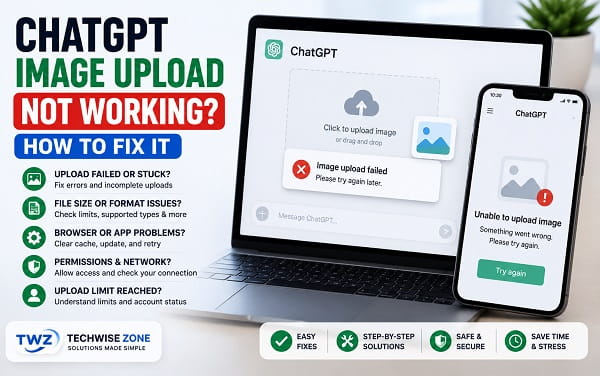
ChatGPT can normally accept photos, screenshots, and other supported images directly inside a conversation, so an image that refuses to attach or upload usually points to a specific problem rather than the feature being unavailable.
The ChatGPT image upload not working problem can appear in several ways. The + button may be missing, the image picker may open but nothing attaches, an upload may stall or fail, ChatGPT may say you reached a limit, or the image may attach successfully but ChatGPT cannot interpret it properly.
The fastest way to troubleshoot the problem is to identify exactly where it fails before clearing browser data or reinstalling the app.
First, Identify What Happens When You Upload the Image
Start a new ChatGPT conversation and try one small screenshot or photo.
The + Button Is Missing
Possible causes include:
- The page or app did not load correctly
- The ChatGPT app or browser is outdated
- A managed workspace has different tool settings
- You are signed into a different account
- A temporary ChatGPT interface issue is occurring
The Image Picker Opens but Nothing Attaches
Check:
- Photo or file permissions
- Image format
- Image corruption
- Browser or app state
- Device file access
The Image Starts Uploading but Fails
Check:
- File size
- Internet connection
- Upload limits
- OpenAI service status
- VPNs, proxies, or browser extensions
ChatGPT Says Upload Limit Reached
You may have reached a rate limit or another image/file upload allowance associated with your account or plan.
The Image Uploads but ChatGPT Cannot Read It Well
The upload itself worked. The problem may instead be:
- Blurry image
- Tiny text
- Rotated image
- Very wide panorama
- Low contrast
- Too much information in one screenshot
OpenAI currently says image inputs are available on web, iOS, and Android, and that all ChatGPT models can accept image inputs. Free and paid plans can use image inputs, subject to plan-specific limits and account settings.
1. Upload the Image Using the Normal ChatGPT Controls
In ChatGPT, select the + icon beside the prompt box and choose:
Add photos & files
On the web version, OpenAI also supports dragging an image into the prompt area or pasting an image copied to the clipboard.
OpenAI explains these methods in its ChatGPT Image Inputs FAQ.
If the normal file picker is failing on a desktop browser, drag the image directly into the conversation.
When drag-and-drop works but the picker does not, the upload feature itself is functioning and the problem is more likely local to the browser or operating-system file picker.
2. Check the Image Format
OpenAI currently lists these formats for ChatGPT image inputs:
- PNG (
.png) - JPEG (
.jpgand.jpeg) - Non-animated GIF (
.gif)
ChatGPT image inputs are for static images, not videos.
This matters because phones, cameras, websites, and image editors can create formats such as:
- HEIC
- HEIF
- WebP
- TIFF
- BMP
- AVIF
Some apps may convert certain images automatically, but when an image refuses to upload, converting it to JPEG or PNG is a strong troubleshooting step.
Convert a Failing Image to JPEG or PNG
On Windows, open the image in Paint or another trusted image editor and use Save as.
On macOS, Preview can export an image to JPEG or PNG.
On a phone, taking a screenshot of the image can also create a simpler copy that is easier to test.
Avoid uploading private images to unfamiliar online conversion websites.
3. Check the 20 MB Image Limit
OpenAI currently limits images to:
20 MB per image
This is lower than the general maximum used for some other file types.
A high-resolution photo, scan, exported graphic, or stitched screenshot can exceed the image limit.
Check Image Size on Windows
- Right-click the image.
- Select Properties.
- Look at Size.
Check Image Size on macOS
- Select the image in Finder.
- Press Command + I.
- Check the size.
On Android and iPhone, open the photo information or details screen.
If the image is larger than 20 MB:
- Export it at a lower resolution
- Crop unnecessary areas
- Save it as JPEG
- Compress it
- Take a screenshot of the important area
Keep text readable after compression.
OpenAI documents current size and usage limits in its File Uploads FAQ.
4. Try One Image Instead of Several
OpenAI does not publish one fixed number of images that will always work in every message. The practical number depends on factors such as image size and the amount of accompanying text.
When several images fail together:
- Upload one image.
- Wait for it to attach.
- Send the prompt.
- Add more images in later messages if necessary.
If a single image works but a large batch does not, reduce the number and size of images per message.
5. Test With a Small Screenshot
Create a new screenshot and upload it.
A normal screenshot is useful for diagnosis because it is usually small, recently created, and saved in a common image format.
Screenshot Works
The original file may have:
- Unsupported format
- Excessive size
- Corruption
- Unusual encoding
Screenshot Also Fails
The problem is more likely related to ChatGPT, your browser or app, the network, permissions, or an upload limit.
6. Start a New Chat
Open a completely new normal conversation.
Try the same image.
If it uploads in the new chat, the problem may be specific to the original conversation rather than the image or account.
This is especially worth trying when the old conversation is very long or has been open for a long time.
7. Check OpenAI Status
Image uploads depend on OpenAI’s services.
When ChatGPT is experiencing an upload, file-processing, or broader service incident, reinstalling the app or changing browser settings will not fix the server-side problem.
Check the official OpenAI Status page.
If an active incident affects ChatGPT or uploads, retry after the incident is resolved.
When OpenAI reports normal operation and only your device or image is affected, continue with the local fixes.
8. Check Whether You Reached an Upload Limit
ChatGPT file and image tools have usage limits.
The exact limits can depend on:
- Plan
- Account
- Workspace
- Current product limits
OpenAI currently states that Free users can upload images and files but that these tools have separate usage limits. Paid plans generally receive higher limits.
OpenAI also notes that failed upload attempts can sometimes count toward rolling upload limits.
So when ChatGPT says you reached a limit, do not keep retrying the same image dozens of times.
Instead:
- Confirm you are in the correct account.
- Check your plan.
- Stop repeated retries.
- Try again when the applicable limit resets.
9. Make Sure You Are in the Correct Account
People who use multiple Google, Apple, Microsoft, personal, work, or school accounts can accidentally sign into a different ChatGPT account.
Check the account shown in ChatGPT settings.
A different account may have:
- Different plan
- Different tool limits
- Different workspace policies
- Different available settings
If image upload worked earlier under another account, this is worth checking before changing anything on the device.
10. Refresh ChatGPT
On the web, reload the page.
If a normal refresh does not help, use a hard refresh.
On Windows browsers:
Ctrl + Shift + R
On macOS browsers:
Command + Shift + R
Then start a new chat and test a small JPEG or PNG.
A refresh can restore an attachment control that failed to initialize correctly.
11. Restart the ChatGPT App
On Android or iPhone:
- Close ChatGPT.
- Remove it from the recent-apps screen.
- Reopen it.
- Start a new chat.
- Try a small image.
On the desktop app, quit the app completely rather than only closing the window.
Temporary app-state problems can affect the picker and upload controls.
12. Update the ChatGPT App
Open the official app store for your device and check for an update.
Install the latest available stable version.
Restart ChatGPT afterward.
An outdated app may behave incorrectly after operating-system or server-side product changes.
Use only the official ChatGPT app from OpenAI.
13. Check ChatGPT Photo Permissions on Android
Open:
Settings > Apps > ChatGPT > Permissions
Check the photo, media, camera, or file permissions available on your Android version.
Allow the access required to select the image.
The wording varies across Samsung, Pixel, Motorola, Xiaomi, and other Android devices.
When the file picker opens but cannot see your photos, permissions should be checked before file size or network troubleshooting.
14. Check ChatGPT Photo Permissions on iPhone
Open iPhone Settings and locate ChatGPT.
Check Photos access.
If ChatGPT can access only selected photos, make sure the image you want to upload is included.
Then reopen ChatGPT.
If the photo library is empty or the image is unavailable to ChatGPT, this is a permission problem rather than an OpenAI upload limit.
15. Check Photos and Camera Permissions on macOS
OpenAI specifically documents that the ChatGPT macOS app requires the relevant permission when using the Photos library or taking a photo.
Open:
System Settings > Privacy & Security
Review:
- Photos
- Camera
Allow ChatGPT where needed.
Then reopen the app and test again.
16. Try Drag-and-Drop on the Web
On a desktop:
- Open File Explorer or Finder.
- Locate the PNG or JPEG.
- Drag it into the ChatGPT prompt area.
- Wait for the thumbnail to appear.
You can also copy an image and paste it into the prompt.
If drag-and-drop works, there is usually no reason to reinstall ChatGPT. The problem is more likely the picker or browser interface.
17. Try Incognito or Private Browsing
Open an Incognito or Private window.
Sign into ChatGPT.
Upload the same small image.
If the image works there, suspect:
- Browser extension
- Cached data
- Cookie/session issue
- Browser configuration
That result lets you focus on the normal browser profile.
18. Disable Browser Extensions Temporarily
OpenAI’s troubleshooting guidance recommends testing ChatGPT with extensions disabled when browser features are not working correctly.
Pay attention to extensions that:
- Block scripts
- Modify webpages
- Filter uploads
- Add privacy controls
- Add security controls
- Change ChatGPT’s interface
Disable them temporarily.
Reload ChatGPT and test the image.
If uploads begin working, re-enable the extensions one at a time until you identify the conflict.
19. Clear ChatGPT Site Data or Browser Cache
Use this after Incognito and extension testing.
Clear cached data for ChatGPT, or clear the browser cache if per-site controls are unavailable.
Then:
- Close the ChatGPT tab.
- Reopen ChatGPT.
- Sign in.
- Start a new conversation.
- Try the image again.
Clearing cookies may sign you out, so make sure you can log back in.
20. Try Another Browser
Test the same image in another current browser.
For example:
- Chrome
- Microsoft Edge
- Firefox
- Safari on supported Apple devices
If the image works immediately elsewhere, your ChatGPT account and the image are probably fine.
Focus on the original browser’s extensions, cached data, privacy settings, or update state.
21. Update Your Browser
An old browser can break modern web-app functions such as drag-and-drop, file selection, and clipboard paste.
Install the latest stable browser update.
Restart the browser and test again.
22. Disable a Personal VPN or Proxy Temporarily
OpenAI’s general ChatGPT troubleshooting guidance recommends testing without VPNs, proxies, and similar network filters when connection errors occur.
Temporarily disconnect your personal:
- VPN
- Proxy
- Secure DNS filter
- Web-protection tool
Reload ChatGPT and try the image.
If the upload works, review the security tool’s settings rather than permanently leaving it disabled.
Do not bypass required school or workplace security policies.
23. Try Another Internet Connection
A weak or filtered connection may allow text messages while larger uploads fail.
Try:
- Another Wi-Fi network
- Mobile data
- Moving closer to the router
- Restarting your own router
If a tiny screenshot works but a larger image repeatedly times out, connection quality deserves more attention.
24. Re-export a Failing Image
An image can display in a gallery but still contain unusual encoding or damaged data.
Open it in a trusted image editor and export a new copy as:
- JPEG
- PNG
Then upload the new version.
Taking a screenshot of the image is another simple test.
If the new copy uploads, the original file was probably the cause.
25. Convert HEIC or HEIF Photos to JPEG
Many phones can save photos as HEIC or HEIF.
OpenAI’s current supported image-input list specifically names PNG, JPEG, and non-animated GIF.
When a HEIC or HEIF photo refuses to upload, export it as JPEG or PNG, or take a screenshot.
Do not assume every ChatGPT interface will automatically convert every unsupported image format.
26. Convert WebP When It Fails
WebP is also outside OpenAI’s current documented image-input list.
When a .webp image fails:
- Open it in a trusted editor.
- Save it as PNG or JPEG.
- Upload the converted copy.
This is especially useful for images downloaded from websites.
27. Do Not Treat Animated GIFs as Normal Image Inputs
OpenAI currently lists non-animated GIF as supported.
If you need ChatGPT to inspect something from an animated GIF, export the important frame as PNG or JPEG.
ChatGPT image inputs currently process static images rather than video.
28. Reduce Very Large Image Dimensions
An image can be below 20 MB but still be unnecessarily huge in pixel dimensions.
Examples include:
- Panoramas
- Long stitched screenshots
- High-resolution scans
- Large exported designs
Resize or crop the image while keeping relevant text readable.
OpenAI notes that images are resized before analysis anyway.
29. Crop the Important Area
This fix is useful when the image uploads but ChatGPT struggles to interpret it.
Crop out:
- Empty margins
- Unrelated windows
- Background objects
- Extra browser chrome
- Irrelevant sections
For an error message, keep the error text and enough surrounding interface to show context.
You can also annotate the image before uploading to point at the important area.
30. Rotate the Image Correctly
OpenAI notes that rotated or upside-down images can be harder to interpret accurately.
Rotate the image into its normal orientation and save the corrected copy.
This is mostly an analysis-quality fix. It is not usually the reason an image refuses to attach.
31. Make Tiny Text Easier to Read
When ChatGPT accepts the image but misreads text:
- Upload the original rather than a heavily compressed social-media copy
- Crop closer
- Increase visible text size
- Take a sharper screenshot
- Split a long screenshot into several images
A poor visual interpretation does not mean the upload feature itself is broken.
32. Try the Official Mobile App When the Browser Fails
Sign into the same account in the official ChatGPT app on Android or iPhone.
Upload the same image.
Mobile Works
Focus on the desktop browser, extensions, file picker, or desktop network.
Mobile Also Fails
Focus more on image format, size, limits, account state, or an OpenAI service issue.
33. Try ChatGPT Web When the Mobile App Fails
Open ChatGPT in a current desktop browser and upload the same image.
If web works, check:
- Mobile app permissions
- ChatGPT app update
- Phone storage access
- Mobile network
- Android app cache
There is no reason to reset the entire phone because one app cannot select a picture.
34. Clear the ChatGPT Cache on Android
Open:
Settings > Apps > ChatGPT > Storage & cache
Tap:
Clear cache
Reopen ChatGPT.
Do not choose Clear storage first because it is more disruptive and may require you to sign back in.
35. Reinstall ChatGPT Only After the Basic Checks
Reinstalling is reasonable after checking:
- OpenAI service status
- Image format
- 20 MB limit
- Upload limits
- Permissions
- App update
- Network
Before uninstalling, make sure you know how to sign back into the correct account.
Then reinstall the official ChatGPT app and test a small screenshot.
36. Check Whether the Problem Is Workspace-Specific
Business, Enterprise, Edu, school, or managed workspaces can have administrator-controlled settings and security policies.
If uploading works in a personal ChatGPT account but fails in a managed workspace, contact the workspace administrator.
Do not try to bypass organizational restrictions.
37. Test the Image in a Normal Chat
When image upload fails inside a special context such as a Project or managed workspace, try the same image in a new normal conversation.
If it works there, the image itself is fine and the problem is specific to the original context.
For broader problems involving PDFs, spreadsheets, Word documents, presentations, or other file types, use ChatGPT File Upload Not Working? 12 Ways to Fix It. That TechWise Zone article covers general file-size, storage, document-processing, Project, and file-format issues without duplicating the image-specific troubleshooting here.
38. Sign Out and Sign Back In
A stale account session can make tools behave incorrectly.
Sign out of ChatGPT.
Close the browser or app.
Reopen it and sign into the intended account.
Try one small JPEG or PNG in a new conversation.
39. Contact OpenAI Support When the Problem Follows the Account
Support becomes appropriate when:
- Supported JPEG or PNG images under 20 MB fail
- The problem continues on different devices
- The problem continues on different networks
- OpenAI Status shows normal operation
- The account repeatedly reports an unexpected upload limit
- Image uploads appear missing only from one account or workspace
Useful diagnostic information includes:
- Account email
- Screenshot of the error
- Date and time
- Time zone
- Browser or app
- Device or platform
- Request ID when available
Never send your password or authentication codes.
ChatGPT Image Upload Button Missing
When the + attachment button is missing:
- Start a new normal chat.
- Refresh ChatGPT.
- Update the app or browser.
- Sign out and back in.
- Try another device.
- Check whether a managed workspace is involved.
OpenAI currently says image inputs are available on Free and paid ChatGPT plans, subject to limits and account settings, so a missing button should not automatically be interpreted as a paid-only feature.
ChatGPT Image Upload Failed
When the image begins uploading but fails:
- Confirm it is PNG, JPEG, or non-animated GIF.
- Confirm it is below 20 MB.
- Upload one image only.
- Check OpenAI Status.
- Check your upload limit.
- Disable a personal VPN temporarily.
- Try another network.
- Try another browser or the mobile app.
ChatGPT Image Upload Stuck
When the spinner never finishes:
- Try a smaller image
- Start a new chat
- Refresh or restart the app
- Test another network
- Disable problematic extensions
- Disable a personal VPN temporarily
- Check OpenAI Status
Do not repeatedly retry the same upload because failed attempts can sometimes count toward rolling upload limits.
ChatGPT Cannot Upload Photos From iPhone
Check:
- ChatGPT Photos permission
- HEIC/HEIF format
- Image size
- ChatGPT app update
- Another image
- A screenshot copy
- ChatGPT web
If a screenshot uploads but the original iPhone photo does not, format or file characteristics become more likely than an account failure.
ChatGPT Cannot Upload Images on Android
Check:
- ChatGPT photo/media permission
- Image format
- Image size
- App update
- App cache
- Network
- Upload limit
- ChatGPT web
Use Android Settings search if the exact permissions path differs on your phone.
ChatGPT Image Upload Not Working in Chrome
Try this order:
- Incognito mode
- Disable extensions
- Update Chrome
- Clear ChatGPT site data
- Disable a personal VPN temporarily
- Try drag-and-drop
- Test another browser
If the same image works in another browser, changing the image is unlikely to solve the root problem.
ChatGPT Says the Image Is Too Large
OpenAI currently limits images to 20 MB each.
Resize, crop, compress, or export the image as JPEG.
Verify the new copy is actually under 20 MB before uploading again.
Do not confuse the general limit for some files with the image-specific 20 MB maximum.
ChatGPT Says Upload Limit Reached
Stop repeatedly retrying.
Confirm:
- Correct account
- Plan
- Recent upload activity
- Whether you used file/image uploads elsewhere in ChatGPT
Limits can vary by plan and can change.
Try again when ChatGPT indicates the applicable limit has reset.
Frequently Asked Questions
Why can’t I upload an image to ChatGPT?
Common causes include an unsupported image format, an image larger than 20 MB, an upload limit, browser or app problems, missing photo permissions, VPN or network interference, or a temporary OpenAI service incident.
What image formats does ChatGPT support?
OpenAI currently lists PNG, JPEG/JPG, and non-animated GIF for ChatGPT image inputs.
What is the maximum image size for ChatGPT?
OpenAI currently limits images to 20 MB each.
Can I upload HEIC images to ChatGPT?
HEIC is not in OpenAI’s current documented image-input format list. If it fails, export the photo as JPEG or PNG or upload a screenshot.
Can I upload WebP images to ChatGPT?
WebP is not in OpenAI’s current documented image-input format list. Convert a failing WebP image to PNG or JPEG.
Can ChatGPT accept animated GIFs?
OpenAI currently specifies non-animated GIF images. Export the relevant frame from an animated GIF as PNG or JPEG.
Can ChatGPT analyze a video as an image input?
No. OpenAI’s current image-input documentation says the feature processes static images, not video. Extract relevant frames as screenshots.
Why can I upload files but not images?
The image may exceed the 20 MB image limit or use a format outside the documented PNG, JPEG, and non-animated GIF list. Test a small JPEG or PNG.
Why can I upload one image but not several?
The number of images that works can depend on image size and accompanying text. Reduce the image count and add them over separate turns.
Does ChatGPT Free support image uploads?
Yes. OpenAI currently says image inputs are available on Free and paid plans, subject to plan-specific limits and account settings.
Why does ChatGPT upload my image but misunderstand it?
That is usually an analysis problem rather than an upload problem. Crop the relevant area, enlarge tiny text, correct rotation, and use a clearer image.
Should I reinstall ChatGPT to fix image uploads?
Not first. Check image format, the 20 MB limit, OpenAI service status, upload limits, permissions, app/browser updates, extensions, VPN, and network before reinstalling.
Start With a Small JPEG or PNG
The fastest diagnostic is to remove as many variables as possible.
Create a small screenshot, make sure it is PNG or JPEG, open a new ChatGPT conversation, and upload that single image.
When the screenshot works, investigate the original image’s size, format, or encoding.
When the screenshot fails across different devices and networks, investigate ChatGPT service status, account limits, browser or app state, permissions, and the account itself.
That approach is much more useful than immediately reinstalling ChatGPT or changing unrelated device settings.
